Everyday Excel Skills · Tutorial 13 of 14
How to Print in Excel: Print Area, Titles and Fit to Page
Print exactly the cells you want, repeat the heading row on every page, fit a sheet to one page wide, and add page numbers.
- Level
- Beginner
- Time
- 11 min read
- Updated:
- Applies to:
- Excel for Microsoft 365, Excel 2024, Excel 2021, Excel 2019
What you'll learn
- Preview a printout and choose what to print
- Set and clear a print area
- Repeat the heading row at the top of every printed page
- Fit a sheet to one page wide with orientation and scaling
- Add page numbers and adjust page breaks
Before you start
A sheet that looks fine on screen often prints badly: one column spills onto a second page, the headings appear only on page 1, and an internal notes column goes out to the customer. A few page setup choices fix all of that. Press Ctrl+P at any time to see exactly what will print.
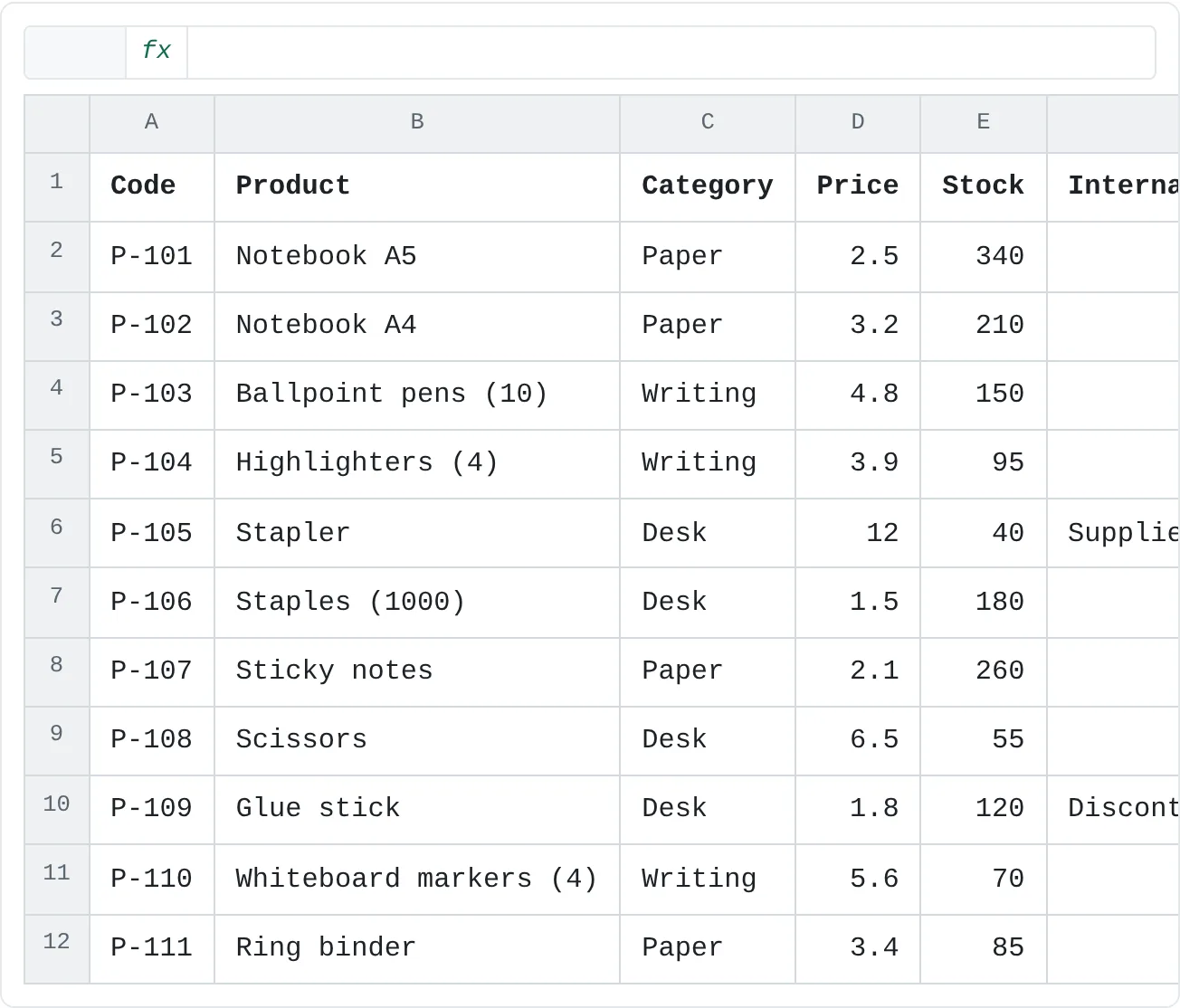
The examples use this price list. Column F holds internal notes that shouldn't be printed.
| A | B | C | D | E | F | |
|---|---|---|---|---|---|---|
| 1 | Code | Product | Category | Price | Stock | Internal note |
| 2 | P-101 | Notebook A5 | Paper | 2.5 | 340 | |
| 3 | P-102 | Notebook A4 | Paper | 3.2 | 210 | |
| 4 | P-103 | Ballpoint pens (10) | Writing | 4.8 | 150 | |
| 5 | P-104 | Highlighters (4) | Writing | 3.9 | 95 | |
| 6 | P-105 | Stapler | Desk | 12 | 40 | Supplier price up in May |
| 7 | P-106 | Staples (1000) | Desk | 1.5 | 180 | |
| 8 | P-107 | Sticky notes | Paper | 2.1 | 260 | |
| 9 | P-108 | Scissors | Desk | 6.5 | 55 | |
| 10 | P-109 | Glue stick | Desk | 1.8 | 120 | Discontinue? |
| 11 | P-110 | Whiteboard markers (4) | Writing | 5.6 | 70 | |
| 12 | P-111 | Ring binder | Paper | 3.4 | 85 |
Where to find it
Most print settings live in the Page Setup group of the Page Layout tab.
- Print preview and print: File › Print, or Ctrl+P.
- Page Setup dialog with every option: click the small arrow in the bottom-right corner of the Page Setup group, or Page Setup at the bottom of the print settings.
- Scaling: the Scale to Fit group on the same tab (Width, Height, Scale).
- Page views: View then Workbook Views (Normal, Page Break Preview, Page Layout), also the small buttons at the right of the status bar.
Preview before you print
Press Ctrl+P. The right side shows the pages as they'll print, with the page count (such as 1 of 2) underneath. The left side holds the settings, each one a drop-down:
| Setting | Choices |
|---|---|
| What to print | Print Active Sheets, Print Entire Workbook, Print Selection, and Ignore Print Area |
| Pages | Type a range, such as 2 to 3 |
| Orientation | Portrait Orientation or Landscape Orientation |
| Paper | Letter, A4 and the other sizes your printer supports |
| Margins | Normal, Wide, Narrow or Custom Margins |
| Scaling | No Scaling, Fit Sheet on One Page, Fit All Columns on One Page, Fit All Rows on One Page, Custom Scaling Options |
Check the page count first. If a short list says 4 pages, something is spilling over, and the sections below show how to fix it.
Print only part of a sheet: the print area
A print area tells Excel which cells to print. It's saved with the workbook, so the same cells print every time, for anyone.
Select the cells to print
Select A1:E12: the whole price list without the notes column.
Set the print area
Go to Page Layout then Page Setup then Print Area then Set Print Area. Back in Normal view, faint dashed lines show where the pages break.
A B C D E F 1 Code Product Category Price Stock Internal note 2 P-101 Notebook A5 Paper 2.5 340 3 P-102 Notebook A4 Paper 3.2 210 4 P-103 Ballpoint pens (10) Writing 4.8 150 5 P-104 Highlighters (4) Writing 3.9 95 6 P-105 Stapler Desk 12 40 Supplier price up in May 7 P-106 Staples (1000) Desk 1.5 180 8 P-107 Sticky notes Paper 2.1 260 9 P-108 Scissors Desk 6.5 55 10 P-109 Glue stick Desk 1.8 120 Discontinue? 11 P-110 Whiteboard markers (4) Writing 5.6 70 12 P-111 Ring binder Paper 3.4 85 The print area A1:E12 (outlined). Column F stays on screen but won't print. Check the preview
Press Ctrl+P. Only columns A to E appear.
To print something else again, choose Page Layout then Page Setup then Print Area then Clear Print Area. For a one-off printout of a few cells, you don't need a print area: select the cells, press Ctrl+P and choose Print Selection.
Repeat the heading row on every page
When a list runs over several pages, page 2 starts with bare numbers. Print titles repeat the heading row at the top of every page.
Open Print Titles
Go to Page Layout then Page Setup then Print Titles. The Page Setup dialog opens on its Sheet tab.
Choose the rows to repeat
Click in Rows to repeat at top, then click the row number 1 on the sheet. The box shows
$1:$1. For a wide sheet, use Columns to repeat at left the same way, for example to repeat column A on every page.The Sheet tab of the Page Setup dialog: row 1 will repeat at the top of every printed page. Click OK and preview
Click OK, press Ctrl+P and click the arrow under the preview to go to page 2. The headings are there.
Print titles are the printed version of freezing panes. Freeze Panes only affects the screen; it doesn't repeat anything on paper.
Fit the sheet to the page
When one or two columns spill onto an extra page, change the orientation first, then scale.
Try landscape
Go to Page Layout then Page Setup then Orientation and choose Landscape. A landscape page is wider, so more columns fit at full size.
Fit all columns on one page
Press Ctrl+P, open the last setting (it says No Scaling) and choose Fit All Columns on One Page. Excel shrinks the printout just enough for every column to fit across, and long lists still continue onto more pages downwards.
Or set it on the ribbon
The same setting is in Page Layout then Scale to Fit: set Width to 1 page and leave Height on Automatic. In the Page Setup dialog it's the Fit to option on the Page tab.
Landscape orientation and Fit to 1 page wide: every column on one page, at the largest size that fits.
Fit Sheet on One Page squeezes the whole sheet, rows too, onto a single page. That's fine for a short summary, but on a long list the text becomes too small to read. Check the Scale box in Scale to Fit: below about 70%, consider landscape, narrower margins or fewer columns instead.
Margins, centering, headers and footers
- Margins: Page Layout then Page Setup then Margins offers Normal, Wide and Narrow. Narrow often gains the extra space for one more column. Custom Margins opens the Margins tab of the dialog, where Center on page › Horizontally puts a narrow table in the middle of the paper.
- Gridlines: on-screen gridlines don't print. Tick Print under Gridlines in Page Layout then Sheet Options, or add borders to the cells.
To put page numbers at the bottom of every page:
Open the header and footer
Go to Insert then Text then Header & Footer. Excel switches to Page Layout view and puts the cursor in the middle section of the header. The Header & Footer tab appears on the ribbon.
Move to the footer
Click Go to Footer on the Header & Footer tab, then click the middle section of the footer.
Insert Page X of Y
Type
Page, click Page Number, typeofand click Number of Pages. The section showsPage &[Page] of &[Pages], and each printed page reads Page 1 of 2, Page 2 of 2.Go back to Normal view
Click any cell in the sheet, then View then Workbook Views then Normal.
The same tab inserts Current Date, File Name and Sheet Name. The Header/Footer tab of the Page Setup dialog also has ready-made footers in a drop-down list.
Control where pages break
Page Break Preview shows the sheet as pages, with page numbers in gray and blue lines where each page ends.
- Dashed blue lines are breaks Excel chose. Solid blue lines are breaks you set, or the edge of the print area.
- Drag a line to move a break. Dragging an automatic break outwards to fit more on a page makes Excel scale the printout down.
- Add a break before a new section: select the first row of the section, then Page Layout then Page Setup then Breaks then Insert Page Break. Reset All Page Breaks on the same menu removes your manual breaks.
- Cells outside the print area are grayed out, which makes a forgotten print area easy to spot.
Real-world scenarios
A long order list with headings on every page
An order list runs to three pages, and the warehouse team reads pages 2 and 3 without knowing which column is which.
| A | B | C | D | |
|---|---|---|---|---|
| 1 | Order | Date | Customer | Amount |
| 2 | SO-1041 | 2026-03-02 | Harbor Cafe | 184 |
| 3 | SO-1042 | 2026-03-03 | Lin Studio | 92 |
| 4 | SO-1043 | 2026-03-04 | North School | 410 |
| 5 | SO-1044 | 2026-03-05 | Bright Dental | 76 |
| 6 | SO-1045 | 2026-03-06 | Oak Books | 138 |
In Print Titles, set Rows to repeat at top to $1:$1, then add a Page X of Y footer. Every page now starts with Order, Date, Customer and Amount, and a dropped sheet of paper can be put back in order.
A class attendance sheet on one page
A teacher's attendance sheet has a column for each week and a total. In portrait, the last two columns print on a second page.
| A | B | C | D | E | F | G | H | |
|---|---|---|---|---|---|---|---|---|
| 1 | Student | Wk 1 | Wk 2 | Wk 3 | Wk 4 | Wk 5 | Wk 6 | Total |
| 2 | Ava | 5 | 5 | 4 | 5 | 5 | 5 | 29 |
| 3 | Ben | 4 | 5 | 5 | 3 | 5 | 4 | 26 |
| 4 | Cara | 5 | 5 | 5 | 5 | 5 | 5 | 30 |
| 5 | Dan | 3 | 4 | 5 | 5 | 4 | 5 | 26 |
| 6 | Eli | 5 | 4 | 4 | 5 | 5 | 3 | 26 |
| 7 | Fay | 5 | 5 | 5 | 4 | 5 | 5 | 29 |
Switch to Landscape and choose Fit All Columns on One Page. All eight columns fit on one sheet of paper, ready to post on the classroom door, and the scale stays large enough to read.
A budget for the fridge door
A six-month household budget should print on one page, centered, with the date it was printed.
| A | B | C | D | E | F | G | |
|---|---|---|---|---|---|---|---|
| 1 | Category | Jan | Feb | Mar | Apr | May | Jun |
| 2 | Rent | 950 | 950 | 950 | 950 | 950 | 950 |
| 3 | Groceries | 310 | 285 | 330 | 295 | 340 | 300 |
| 4 | Transport | 80 | 95 | 70 | 85 | 90 | 75 |
| 5 | Phone | 45 | 45 | 45 | 45 | 45 | 45 |
| 6 | Savings | 200 | 250 | 150 | 200 | 300 | 200 |
Select A1:G6 and set it as the print area, choose Fit Sheet on One Page, tick Center on page › Horizontally in Custom Margins, and insert Current Date in the right section of the footer. The printout always shows when it was made, so an old copy is easy to spot.
Common mistakes
- A forgotten print area. Only part of the sheet prints, or new rows below the old area are left out. Clear the print area or set it again after adding data, or choose Ignore Print Area in the print settings for one printout.
- Blank or extra pages. A stray character or formatting far from the data makes Excel print empty pages. Open Page Break Preview to see what's included, delete the stray cells or set a print area.
- Text too small to read. Fit Sheet on One Page on a long list shrinks everything. Use Fit All Columns on One Page instead, so the list runs onto more pages at a readable size.
- Expecting frozen headings to print. Freeze Panes is for the screen. Use Print Titles for paper.
- Printing without previewing. Press Ctrl+P and check the page count before you click Print.
Practice
Practice
Set up a list for printing
- Type the price list from the top of this page (or open any list with more than four columns).
- Set A1:E12 as the print area so the notes column doesn't print, and check it with Ctrl+P.
- Add a few dozen rows of data (copy and paste the list several times), then make row 1 repeat on every page with Print Titles. Check page 2 in the preview.
- Switch to Landscape and fit all columns on one page.
- Add a Page X of Y footer.
- Open Page Break Preview, insert a page break above row 25, then reset all page breaks.
Related
Was this guide helpful? Spot a mistake? Send feedback · admin@arumsoft.com