Intermediate Excel · Tutorial 10 of 12
Importing and Cleaning Data in Excel
Import a CSV file without losing data, check that numbers are really numbers, then split, fill, standardize and de-duplicate an export.
- Level
- Intermediate
- Time
- 13 min read
- Updated:
- Applies to:
- Excel for Microsoft 365, Excel 2021, Excel 2019
What you'll learn
- Import a CSV file with From Text/CSV and choose how Excel detects data types
- Check whether a numeric column is stored as text and convert it
- Extract and split text with Flash Fill and Text to Columns
- Standardize values with Find and Replace and remove exact duplicate rows
Example file
Importing and Cleaning Data in Excel.xlsx
Download the workbook used in this tutorial and follow along in Excel.
Excel workbook (.xlsx) · 7 KB
Data from other systems rarely arrives ready to use. A customer export might have full names where you need first names, two facts squeezed into one column, three spellings of the same state and the same customer twice. Worse, some numbers may look fine but be stored as text, so your totals come out wrong without any error. You'll learn to import a CSV file safely, check every number column, and clean the result with Flash Fill, Text to Columns, Find and Replace and Remove Duplicates.
Import a CSV file
A CSV (comma-separated values) file is plain text: one record per line, with a comma between fields. Here's the customer export this tutorial uses:
Full Name,State,Orders,Phone
Rosa Alvarez,Calif.,12,555-0142
Grant Okafor,NY,7,555-0198
Priya Shah,Calif.,9,555-0176
Priya Shah,Calif.,9,555-0176
Tom Becker,TX,4,555-0123
The commas tell Excel where each column ends. You can open the file in two ways.
Open it directly. Double-click the file, or open it with File > Open. Excel splits the lines at the commas and guesses the type of every value. That's quick, but the guesses can change your data: an ID or ZIP code like 07024 becomes the number 7024, and a value like 3-4 can turn into a date.
Import it with From Text/CSV. This shows you a preview first and lets you control the guessing.
Start the import
On a new or empty sheet, click Data then Get & Transform Data then From Text/CSV. Pick the file and click Import.
Check the preview
A preview window opens. Check three settings at the top: File Origin (the character encoding, usually UTF-8, which keeps accented and Korean characters intact), Delimiter (Comma for this file) and Data Type Detection. If any column holds codes with leading zeros, choose Do not detect data types so every value comes in exactly as written, as text. You then convert the real number columns yourself, as shown in the next section.
Load the data
Click Load. Excel puts the data on a new sheet as an Excel Table. If the data needs more shaping first, click Transform Data instead to open the Power Query Editor.
A file imported this way stays linked to its source. When a new export replaces the old file, Data then Queries & Connections then Refresh All (Ctrl+Alt+F5) loads the new version. If you'll repeat the same clean-up every week, do it in Power Query so the steps run again on every refresh.
Check that numbers are really numbers
Data pasted from a web page, a PDF or another system often contains numbers stored as text. They look normal, but SUM and AVERAGE skip them without warning. Check every number column right after an import.
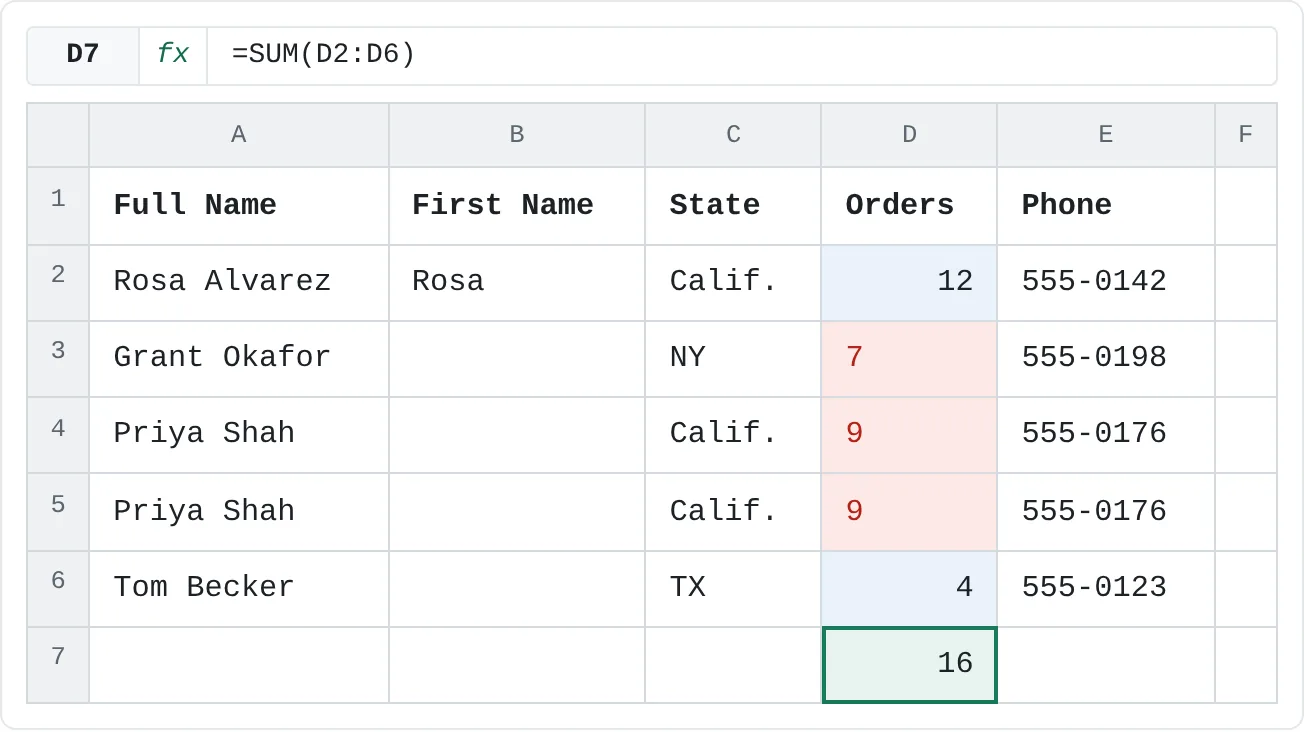
Our customer list now has a First Name column inserted after Full Name, with Rosa's first name typed in. Look at the Orders column:
| A | B | C | D | E | F | |
|---|---|---|---|---|---|---|
| 1 | Full Name | First Name | State | Orders | Phone | |
| 2 | Rosa Alvarez | Rosa | Calif. | 12 | 555-0142 | |
| 3 | Grant Okafor | NY | 7 | 555-0198 | ||
| 4 | Priya Shah | Calif. | 9 | 555-0176 | ||
| 5 | Priya Shah | Calif. | 9 | 555-0176 | ||
| 6 | Tom Becker | TX | 4 | 555-0123 |
Three quick checks tell you whether a column holds real numbers:
- Alignment. Unless you've changed the alignment, numbers sit on the right of the cell and text on the left. Numbers stored as text often show a small green triangle in the top-left corner too.
- The status bar. Select D2:D6 and look at the bottom of the window: Count: 5 but Sum: 16. The count includes all five cells; the sum only adds the two real numbers, 12 and 4.
- A formula.
=COUNT(D2:D6)counts only numbers and returns 2, while=COUNTA(D2:D6)counts every filled cell and returns 5. When the two differ in a number column, something is stored as text.
| A | B | C | D | E | F | |
|---|---|---|---|---|---|---|
| 1 | Full Name | First Name | State | Orders | Phone | |
| 2 | Rosa Alvarez | Rosa | Calif. | 12 | 555-0142 | |
| 3 | Grant Okafor | NY | 7 | 555-0198 | ||
| 4 | Priya Shah | Calif. | 9 | 555-0176 | ||
| 5 | Priya Shah | Calif. | 9 | 555-0176 | ||
| 6 | Tom Becker | TX | 4 | 555-0123 | ||
| 7 | 16 |
To fix it, select D3:D5. A warning button appears next to the selection: click it and choose Convert to Number. The values jump to the right, and =SUM(D2:D6) now returns 41.
Extract and split text
Fill a pattern with Flash Fill
Flash Fill copies a pattern from an example you type. B2 already shows the pattern: the first name from Rosa Alvarez is Rosa.
Type one example
The example is already in B2. In your own data, type the result you want for the first row in the column next to the source data.
Press Ctrl+E
Click B3 and press Ctrl+E, or click Data then Data Tools then Flash Fill. Excel fills Grant, Priya, Priya and Tom. Often you don't even need the shortcut: start typing the second name and Excel shows a gray preview of the whole column. Press Enter to accept it.
A B C D E F 1 Full Name First Name State Orders Phone 2 Rosa Alvarez Rosa Calif. 12 555-0142 3 Grant Okafor Grant NY 7 555-0198 4 Priya Shah Priya Calif. 9 555-0176 5 Priya Shah Priya Calif. 9 555-0176 6 Tom Becker Tom TX 4 555-0123 Flash Fill took the pattern from Rosa in B2 and filled the first names in B3:B6. Check the results
Flash Fill guesses, so scan the column. Names with a middle name or a two-word first name are where it most often goes wrong. If a result is off, type the correct value over it and Flash Fill uses that as a second example for the cells below.
Flash Fill writes plain values, not formulas. If Full Name changes later, First Name doesn't. When the source data will keep changing, use a formula instead: =LEFT(A2,FIND(" ",A2)-1) returns Rosa in any version of Excel, and =TEXTBEFORE(A2," ") does the same in Microsoft 365 and Excel 2024.
Split a column with Text to Columns
Text to Columns splits every cell in a column at a delimiter, such as a comma, a space or a dash. Split the phone numbers in column E into a prefix and a line number.
Make room and select the data
Text to Columns writes the extra pieces into the columns to the right and overwrites whatever is there. Column F is empty, so you're safe. Select E2:E6.
Choose the delimiter
Click Data then Data Tools then Text to Columns. In the wizard, choose Delimited and click Next. Under Delimiters, clear Tab, tick Other and type a dash (
-) in the box next to it. The Data preview shows each number split in two. Click Next.Keep the leading zeros
In the last step, click the second column in Data preview and choose Text under Column data format. With the default, General, Excel would turn
0142into the number 142. Check that Destination shows=$E$2, then click Finish.Name the new columns
Type
Prefixin E1 andLinein F1.
Standardize values and remove duplicates
Replace every variation at once
The State column spells California as Calif., while the other states use two-letter codes. Find and Replace fixes every copy in one pass.
Limit the search to one column
Click the column C heading. When cells are selected, Find and Replace only searches the selection, so values in other columns stay safe.
Open Replace
Press Ctrl+H, or click Home then Editing then Find & Select then Replace. Type
Calif.in Find what andCAin Replace with.Match whole cells only
Click Options and tick Match entire cell contents. Without it, Excel also replaces matching text inside longer values.
Replace them all
Click Replace All. Excel tells you it made 3 replacements. Click OK, then Close.
Remove exact duplicate rows
Priya Shah appears twice, with the same details in every column. Remove Duplicates keeps the first row of each set and deletes the rest.
Open Remove Duplicates
Click any cell in the data, then click Data then Data Tools then Remove Duplicates. Excel selects the whole list.
Choose the columns to compare
Leave My data has headers ticked so the header row isn't treated as data. Keep every column ticked: a row counts as a duplicate only when all the ticked columns match. Click OK.
Read the result
Excel reports that it found and removed 1 duplicate and that 4 unique values remain. The second Priya Shah row is gone and the rows below it move up.
Here's the list after all the steps:
| A | B | C | D | E | F | |
|---|---|---|---|---|---|---|
| 1 | Full Name | First Name | State | Orders | Prefix | Line |
| 2 | Rosa Alvarez | Rosa | CA | 12 | 555 | 0142 |
| 3 | Grant Okafor | Grant | NY | 7 | 555 | 0198 |
| 4 | Priya Shah | Priya | CA | 9 | 555 | 0176 |
| 5 | Tom Becker | Tom | TX | 4 | 555 | 0123 |
| 6 | 32 |
Common mistakes
- Losing leading zeros. Opening a CSV directly, or splitting with the General format, turns
07024into 7024. Import with Do not detect data types, or choose Text for that column in Text to Columns. - Splitting into a full column. Text to Columns overwrites the cells to the right. Insert empty columns first.
- Trusting a total before checking types. A column with numbers stored as text adds up to a smaller total, with no error. Compare
COUNTandCOUNTAbefore you rely on it. - Duplicates that aren't quite identical.
Priya Shahwith a trailing space or a different phone format isn't an exact duplicate, so Remove Duplicates keeps both rows. Clean the spaces withTRIMand standardize formats first, then remove duplicates. - Cleaning the only copy. Keep the original file, or copy the sheet before you start, so you can compare and start again.
Practice
Practice
Clean a real export
- Find a messy list: a CSV export from an app or website, or a sign-up sheet pasted from an email. If you have none, save the CSV text from this tutorial as
customers.csvin Notepad. - Import it with Data then Get & Transform Data then From Text/CSV. Check the delimiter and choose how Excel detects data types.
- Check every number column with the status bar or with
COUNTandCOUNTA, and convert numbers stored as text. - Use Flash Fill to extract one piece of a text column, such as a first name or a domain from an email address.
- Split one combined column with Text to Columns, keeping any leading zeros.
- Standardize one inconsistent value with Find and Replace, then remove exact duplicate rows.
Check your skills
- Can you import a CSV file and choose how Excel detects data types?
- Can you check whether a numeric-looking column is stored as text, and convert it?
- Can you use Flash Fill to extract a pattern from one column into another?
- Can you split one column into several with Text to Columns without losing leading zeros?
- Can you standardize a value with Find and Replace and remove exact duplicate rows?
Related
Was this guide helpful? Spot a mistake? Send feedback · admin@arumsoft.com