How to Use Advanced Filter in Excel
Filter a list with conditions typed in cells, combine AND and OR across columns, copy the matching rows elsewhere and pull out a unique list.
- Level
- Intermediate
- Time
- 10 min read
- Updated:
- Applies to:
- Excel for Microsoft 365, Excel 2021, Excel 2019, Excel 2016
What you'll learn
- Set up a criteria range above a list
- Combine AND and OR conditions across different columns
- Copy the matching rows, or only some columns, to another place on the sheet
- Extract a list of unique values with Unique records only
Before you start
Advanced Filter filters a list using conditions you type into cells instead of picking them from the filter arrows. That makes it handy when the ordinary filter can't express what you need, such as "East orders or any order over 1,000", and when you want the matching rows copied somewhere else rather than just hidden. It can also pull a list of unique values out of a column in one step.
Where to find it
Click a cell in your list, then go to Data then Sort & Filter then Advanced. The Advanced Filter dialog opens. There's no Ctrl shortcut, but you can reach it from the keyboard with the ribbon's KeyTips: press Alt, then A, then Q. There's no right-click command for it.
Set up the list and the criteria range
Advanced Filter needs two things: the list, with one row of headings, and a criteria range: a copy of the headings you want to filter on, with your conditions typed underneath.
- Conditions on the same row must all be true (AND).
- Conditions on different rows are alternatives (OR): a row of the list is kept if it matches any one criteria row.
Put the criteria range above the list, with at least one blank row in between. If you put it beside the list, filtering in place can hide it, because Excel hides whole rows.
Copy the headings you need
In the order list below, the conditions are on Region and Amount. Type
Regionin A1 andAmountin B1. They must match the list's headings exactly; copying and pasting them is the safest way.Type the conditions
To keep East orders or orders over 1,000, put each condition on its own row:
Eastin A2, and>1000in B3. Leave B2 and A3 empty; an empty criteria cell means "any value".A B C D 1 Region Amount 2 East 3 >1000 4 5 Rep Region Product Amount 6 Ana East Laptop 1,200 7 Ben West Monitor 300 8 Chloe East Monitor 450 9 Dev North Laptop 1,500 10 Ana East Keyboard 80 11 Ben West Laptop 1,100 12 Chloe North Keyboard 60 The criteria range A1:B3 above the list. East in row 2 and >1000 in row 3 are on different rows, so a row of the list passes if it matches either one. Open Advanced Filter
Click any cell in the list, such as A6, and go to Data then Sort & Filter then Advanced. Excel fills in List range with the whole list,
$A$5:$D$12. Check that it includes the heading row.Select the criteria range
Click in the Criteria range box and select A1:B3 on the sheet: the headings and both condition rows, but not the blank row 4. Leave Filter the list, in-place selected and click OK.
Filter the list in place, using the criteria in A1:B3. Check the result
Five orders stay visible: the three East orders (rows 6, 8 and 10) and the two orders over 1,000 from other regions (Dev's 1,500 in row 9 and Ben's 1,100 in row 11). Rows 7 and 12 are hidden, not deleted.
A B C D 1 Region Amount 2 East 3 >1000 4 5 Rep Region Product Amount 6 Ana East Laptop 1,200 7 Ben West Monitor 300 8 Chloe East Monitor 450 9 Dev North Laptop 1,500 10 Ana East Keyboard 80 11 Ben West Laptop 1,100 12 Chloe North Keyboard 60 Rows 6 and 8 to 11 match East or more than 1,000 and stay visible. Rows 7 (West, 300) and 12 (North, 60) are hidden.
To show every row again, go to Data then Sort & Filter then Clear. Advanced Filter doesn't update itself when the data or the criteria change, so run it again after you edit either one.
Copy the matching rows somewhere else
Instead of hiding rows, Advanced Filter can write the matching rows to another place. You can even choose which columns to copy, in any order.
Type the headings for the output
In an empty area, type the headings of the columns you want:
Repin F5 andAmountin G5. To copy every column, you can skip this step and give a single cell instead.Choose Copy to another location
Click in the list, open Data then Sort & Filter then Advanced, check List range and Criteria range as before, and select Copy to another location. In Copy to, select F5:G5. Click OK.
Copy to another location, with only the Rep and Amount headings in Copy to. A B C D E F G 1 Region Amount 2 East 3 >1000 4 5 Rep Region Product Amount Rep Amount 6 Ana East Laptop 1,200 Ana 1,200 7 Ben West Monitor 300 Chloe 450 8 Chloe East Monitor 450 Dev 1,500 9 Dev North Laptop 1,500 Ana 80 10 Ana East Keyboard 80 Ben 1,100 11 Ben West Laptop 1,100 12 Chloe North Keyboard 60 The five matching orders copied to F5:G10, with only the Rep and Amount columns. The original list is untouched.
Pick an empty area for the output so nothing gets written over. The copy is a snapshot: it doesn't change when the list does.
Excel can only copy the results to the active sheet. To put them on another sheet, go to that sheet first, start Advanced Filter there, and point List range and Criteria range at the other sheet.
Writing criteria
| Type this in a criteria cell | To keep rows where the column |
|---|---|
East | begins with East (East, Eastern) |
="=East" | is exactly East |
*top* | contains "top" anywhere (Laptop) |
?an | begins with any one character followed by "an" (Dan, Jan, Danny) |
>1000 | is greater than 1,000 |
<>West | is anything except West |
Text matches ignore upper and lower case. To set a range of values on one column, such as scores from 70 up to 80, repeat the heading in the criteria range (Score, Score) and put >=70 and <80 side by side on the same row.
You can also filter with a formula that returns TRUE or FALSE. Leave the heading cell above it empty (or use a label that isn't one of the list's headings), and write the formula for the first data row with relative references. For example, in the order list, =D6>AVERAGE($D$6:$D$12) keeps the orders above the average of 670: rows 6, 9 and 11. The criteria cell itself shows TRUE or FALSE; that's normal.
Unique records only removes repeated rows from the result. In place, it hides them; with Copy to another location, it gives you a clean list of each value once. Unlike Remove Duplicates, your original data stays as it is.
Real-world scenarios
A unique customer list
An order log repeats a customer's name every time they order. You need each customer once, for a mailing list.
| A | B | C | D | |
|---|---|---|---|---|
| 1 | Customer | Amount | Customer | |
| 2 | Oak Cafe | 340 | Oak Cafe | |
| 3 | Pine Books | 120 | Pine Books | |
| 4 | Oak Cafe | 410 | Lake Gym | |
| 5 | Lake Gym | 95 | Hill Bakery | |
| 6 | Pine Books | 260 | ||
| 7 | Hill Bakery | 180 | ||
| 8 | Oak Cafe | 150 |
Select A1:A8, open Advanced, choose Copy to another location, leave Criteria range empty, set Copy to to D1 and tick Unique records only. Excel writes the heading and the four customers, in the order they first appear: Oak Cafe, Pine Books, Lake Gym and Hill Bakery.
Scores within a band
A teacher wants the students in class 10B who scored at least 70 but less than 80, to offer them a revision session.
| A | B | C | |
|---|---|---|---|
| 1 | Class | Score | Score |
| 2 | 10B | >=70 | <80 |
| 3 | |||
| 4 | Student | Class | Score |
| 5 | Mia | 10A | 82 |
| 6 | Leo | 10B | 74 |
| 7 | Sara | 10B | 91 |
| 8 | Tom | 10A | 68 |
| 9 | Nina | 10B | 77 |
| 10 | Omar | 10B | 65 |
| 11 | Jade | 10A | 73 |
The criteria range is A1:C2: Class 10B, Score >=70 and Score <80, all on one row, so all three must be true. Jade scored 73 but is in 10A, so she's left out; Sara's 91 is above the band.
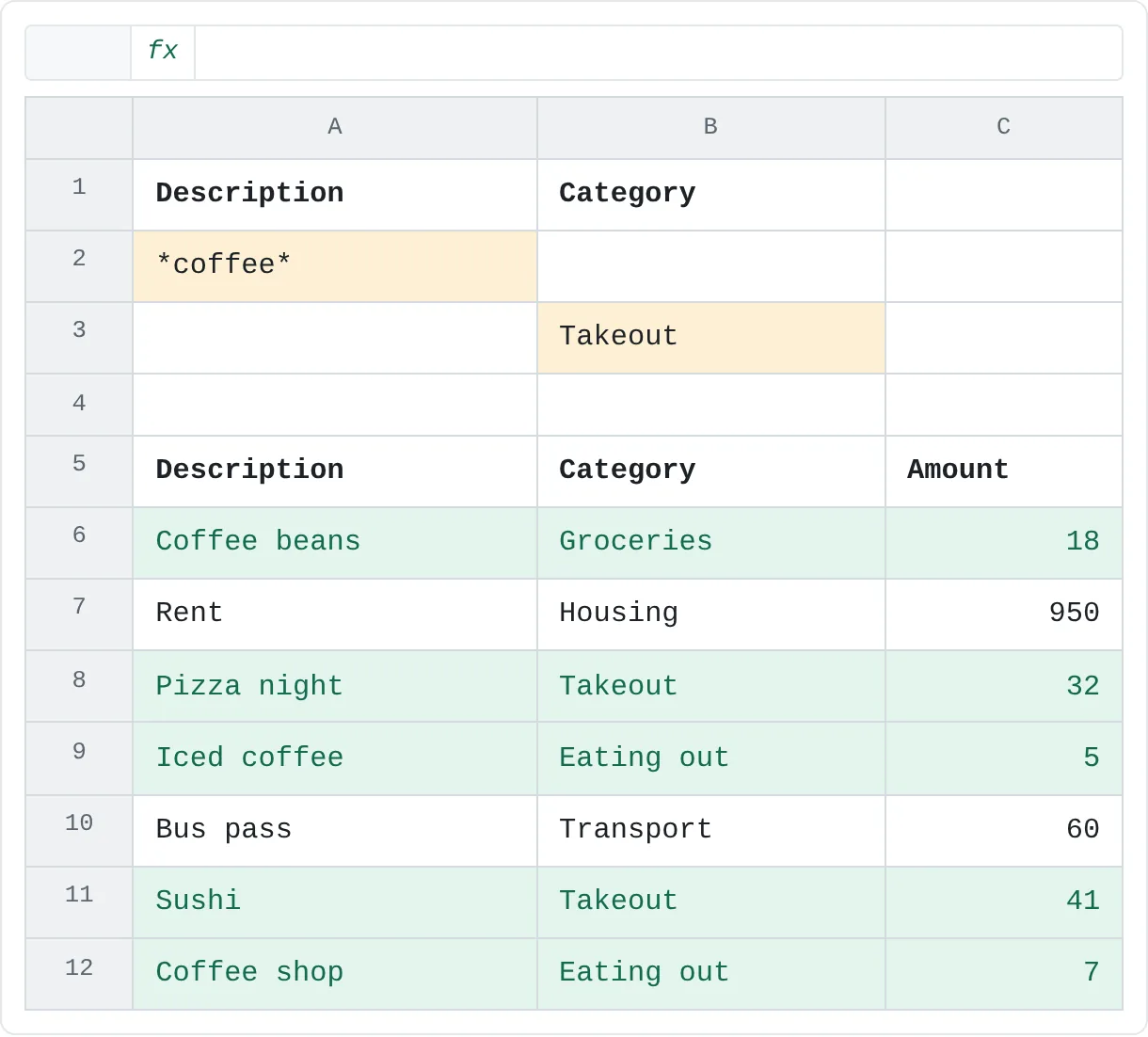
What did coffee and takeout cost?
A month of spending is in one list. You want every coffee purchase, whatever its category, plus everything in Takeout.
| A | B | C | |
|---|---|---|---|
| 1 | Description | Category | |
| 2 | *coffee* | ||
| 3 | Takeout | ||
| 4 | |||
| 5 | Description | Category | Amount |
| 6 | Coffee beans | Groceries | 18 |
| 7 | Rent | Housing | 950 |
| 8 | Pizza night | Takeout | 32 |
| 9 | Iced coffee | Eating out | 5 |
| 10 | Bus pass | Transport | 60 |
| 11 | Sushi | Takeout | 41 |
| 12 | Coffee shop | Eating out | 7 |
*coffee* keeps any description that contains "coffee", and Takeout on the next row adds the takeout rows. Filter in place, then type =SUBTOTAL(9,C6:C12) below the list: it adds only the visible rows and returns 103 (18 + 32 + 5 + 41 + 7).
Common mistakes
- A blank row in the criteria range. An empty criteria row matches everything, so every row of the list comes back. Select only the headings and the rows with conditions.
- Headings that don't match. "Amount " with a trailing space, or "Amt" instead of "Amount", isn't the same heading, so the condition doesn't apply to the column you meant. Copy the headings from the list.
- Criteria next to the list. When you filter in place, Excel hides whole rows, so criteria on the same rows can disappear. Keep them above the list.
- Expecting the results to update. Advanced Filter runs once. After you change the data or the criteria, run it again (or use
FILTERfor a live result). - Copying to another sheet from the source sheet. Excel only copies to the active sheet. Start Advanced Filter from the sheet where you want the results.
Practice
Practice
Filter an order list two ways
- Type the order list from this page into a new sheet, starting in A5, and the criteria range in A1:B3.
- Filter it in place for East orders or orders over 1,000. Check that five rows stay visible, then clear the filter.
- Change the criteria so both conditions are on row 2 (
Eastand>1000), and set Criteria range to A1:B2 so no blank row is included. How many rows match now? (One: Ana's laptop.) - Copy only the Rep and Amount columns of the matching rows to F5.
- Use Unique records only to copy a list of the reps, each named once, to an empty column.
Related
Was this guide helpful? Spot a mistake? Send feedback · admin@arumsoft.com