Excel Basics · Tutorial 7 of 12
How to Sort and Filter Data in Excel
Put a list in order by one or more columns, and show only the rows you need with text and number filters.
- Level
- Beginner
- Time
- 9 min read
- Updated:
- Applies to:
- Excel for Microsoft 365, Excel 2021, Excel 2019, Excel for the web
What you'll learn
- Sort a list A to Z or largest to smallest without breaking its rows
- Sort by two columns with the Sort dialog
- Filter a list to show one category
- Show only rows above or below a number with Number Filters
- Clear a filter and get all your rows back
Before you start
Example file
How to Sort and Filter Data in Excel.xlsx
Download the workbook used in this tutorial and follow along in Excel.
Excel workbook (.xlsx) · 7 KB
Watch the video
Video · 10:00 · Follow along as the video sorts and filters the employee list by name, department and salary.
A list is only useful if you can find what you need in it. Sorting changes the order of the rows; filtering hides the rows that don't match what you're looking for. Neither one deletes anything, so you can answer questions like "who earns the most?" or "who works in Sales?" in a few clicks and put everything back afterwards.
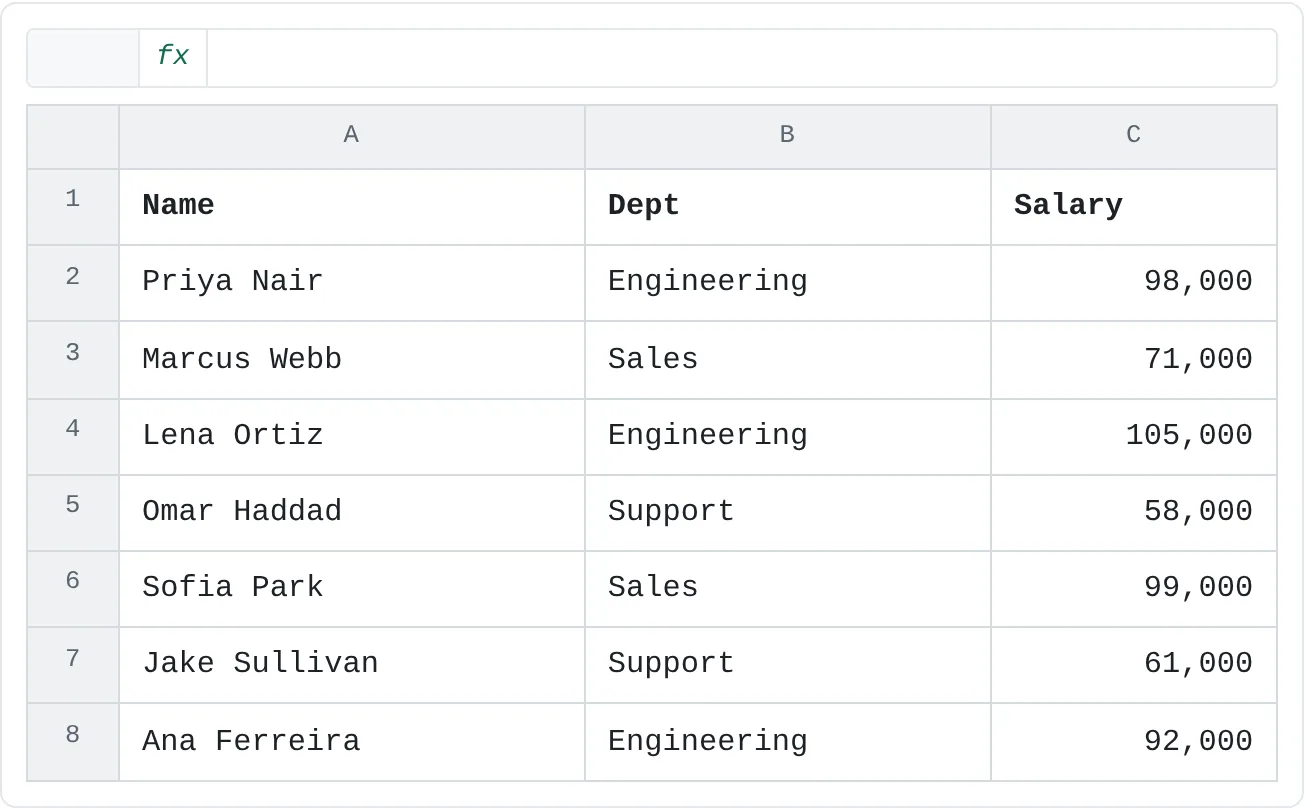
The examples use this small employee list. It starts in A1, with the headings in row 1 and no blank rows or columns inside it.
| A | B | C | |
|---|---|---|---|
| 1 | Name | Dept | Salary |
| 2 | Priya Nair | Engineering | 98,000 |
| 3 | Marcus Webb | Sales | 71,000 |
| 4 | Lena Ortiz | Engineering | 105,000 |
| 5 | Omar Haddad | Support | 58,000 |
| 6 | Sofia Park | Sales | 99,000 |
| 7 | Jake Sullivan | Support | 61,000 |
| 8 | Ana Ferreira | Engineering | 92,000 |
Sort by one column
To sort, you click one cell in the column you want to sort by. Excel works out where the rest of the list is and moves whole rows, so each name stays with its own department and salary.
Click one cell in the Salary column
Click C2, or any other cell from C2 to C8. Don't select the whole column; one cell is enough.
Choose the sort order
Go to Home then Editing then Sort & Filter and choose Sort Largest to Smallest. The menu adapts to the data: for a text column it offers Sort A to Z and Sort Z to A, for numbers Sort Smallest to Largest and Sort Largest to Smallest, and for dates Sort Oldest to Newest and Sort Newest to Oldest.
The same commands are on the Data tab, in the Sort & Filter group: the Sort A to Z and Sort Z to A buttons. For numbers, Sort Z to A means largest to smallest.
Check the result
The highest salary is now at the top. Lena Ortiz earns the most (105,000) and Omar Haddad the least (58,000). Every row moved as a unit, and the heading row stayed where it was.
A B C 1 Name Dept Salary 2 Lena Ortiz Engineering 105,000 3 Sofia Park Sales 99,000 4 Priya Nair Engineering 98,000 5 Ana Ferreira Engineering 92,000 6 Marcus Webb Sales 71,000 7 Jake Sullivan Support 61,000 8 Omar Haddad Support 58,000 Sorted largest to smallest by Salary. Each name moved with its own department and salary.
To put the names in alphabetical order, click any name in column A and choose Sort A to Z. Ana Ferreira comes first and Sofia Park last.
Sort by more than one column
Sometimes one column isn't enough. To list each department together, with the highest salary first inside each department, sort by Dept and then by Salary.
Open the Sort dialog
Click any cell in the list, then go to Data then Sort & Filter then Sort. Excel selects the whole list and opens the Sort dialog.
Check that Excel sees your headings
Make sure My data has headers is ticked. When it is, the Sort by box lists your heading names (Name, Dept, Salary) and row 1 is left out of the sort.
Set the first level
In Sort by, choose Dept. Leave Sort On as Cell Values and set Order to A to Z.
Add a second level
Click Add Level. A Then by row appears. Choose Salary and set Order to Largest to Smallest. Click OK.
A B C 1 Name Dept Salary 2 Lena Ortiz Engineering 105,000 3 Priya Nair Engineering 98,000 4 Ana Ferreira Engineering 92,000 5 Sofia Park Sales 99,000 6 Marcus Webb Sales 71,000 7 Jake Sullivan Support 61,000 8 Omar Haddad Support 58,000 Sorted by Dept (A to Z), then by Salary (largest to smallest) within each department.
Excel sorts by the first level, and uses the second level only to break ties. That's why Sofia Park (99,000) is below Ana Ferreira (92,000): Sales comes after Engineering, so the department decides before the salary does.
Filter to show one category
A filter hides rows instead of moving them. Turn it on once, and every heading gets a drop-down arrow.
Turn on the filter
Click any cell in the list and go to Data then Sort & Filter then Filter, or press Ctrl+Shift+L. A small arrow button appears in each heading cell.
Open the Dept arrow
Click the arrow in B1. You'll see sort commands at the top and a checklist of every value in the column below them.
Pick the category
Untick (Select All) to clear every box, tick Engineering and click OK.
A B C 1 Name Dept Salary 2 Priya Nair Engineering 98,000 3 Marcus Webb Sales 71,000 4 Lena Ortiz Engineering 105,000 5 Omar Haddad Support 58,000 6 Sofia Park Sales 99,000 7 Jake Sullivan Support 61,000 8 Ana Ferreira Engineering 92,000 The three Engineering rows (2, 4 and 8) stay visible. The other rows are hidden, not deleted.
Only rows 2, 4 and 8 are left on screen. Three signs tell you a filter is on: the row numbers turn blue, there are gaps in the numbering, and the arrow in B1 shows a small funnel icon. The status bar at the bottom of the window also tells you how many records were found.
For long lists, type in the Search box above the checklist instead of scrolling; for example, type eng to narrow the list to matching values.
Filter numbers above or below a value
Number columns get their own set of filters.
Open the Salary arrow
Click the arrow in C1 and point to Number Filters. You'll see options such as Equals, Greater Than, Less Than, Between, Top 10 and Above Average.
Choose Greater Than
Click Greater Than. The Custom AutoFilter dialog opens with is greater than already chosen.
Type the threshold
Type
90000in the box next to it and click OK. Four people are left: Priya Nair, Lena Ortiz, Sofia Park and Ana Ferreira.A B C 1 Name Dept Salary 2 Priya Nair Engineering 98,000 3 Marcus Webb Sales 71,000 4 Lena Ortiz Engineering 105,000 5 Omar Haddad Support 58,000 6 Sofia Park Sales 99,000 7 Jake Sullivan Support 61,000 8 Ana Ferreira Engineering 92,000 Salary greater than 90,000 keeps rows 2, 4, 6 and 8 visible.
Filters on different columns work together: a row must pass all of them to stay visible. For example, with Dept filtered to Engineering and Salary filtered to greater than 95,000, only Priya Nair and Lena Ortiz are left. Text columns have Text Filters instead, with options such as Contains and Begins With, and date columns have Date Filters.
Clear a filter
- One column: click the arrow with the funnel icon and choose Clear Filter From "Dept" (the name in quotes is your heading).
- All columns at once: go to Data then Sort & Filter then Clear. The arrows stay, ready for the next filter.
- Turn filtering off: click Filter again or press Ctrl+Shift+L. The arrows disappear and every row comes back.
Common mistakes
- Sorting one column on its own. If you select only the cells in one column and sort, Excel shows a Sort Warning. Choose Expand the selection and click Sort. Continue with the current selection sorts that column alone, so salaries end up next to the wrong names. If it already happened, press Ctrl+Z straight away.
- Blank rows or columns in the list. Excel sorts and filters the block of cells around the active cell and stops at the first completely empty row or column. Rows below a blank row are left out. Delete the blank rows first, or select the whole list before you sort.
- The heading row sorted into the data. If your headings end up in the middle of the list, Excel didn't recognize them as headings. Undo, open the Sort dialog and tick My data has headers.
- Forgetting a filter is on. Hidden rows look like missing data. Check for blue row numbers and a funnel icon before you decide something is gone. Remember too that
SUMstill adds hidden rows; use=SUBTOTAL(9,C2:C8)for a total of only the visible rows.
Practice
Practice
Answer four questions with sort and filter
Type the employee list from the top of this page into a new sheet (or use your own list with a name, a category and a number), then answer each question using only sort and filter, no formulas:
- Sort the list by name, A to Z. Who is first?
- Sort by salary, largest to smallest. Who earns the most, and who earns the least?
- Filter the Dept column so only Engineering is shown. How many people are left?
- Clear that filter, then use Number Filters to show only salaries greater than an amount you choose.
- Clear all filters and turn filtering off.
Check your skills
- Can you sort a list A to Z by name without separating names from their other details?
- Can you sort a number column largest to smallest?
- Can you sort by two columns with the Sort dialog?
- Can you filter a list to show only one category?
- Can you show only rows where a number is above a value you choose, and then clear the filter?
Related
Was this guide helpful? Spot a mistake? Send feedback · admin@arumsoft.com