Intermediate Excel · Tutorial 11 of 12
Organize and Protect an Excel Workbook
Give each sheet a clear job, freeze headers, name ranges, add notes and comments, and protect formulas while inputs stay editable.
- Level
- Intermediate
- Time
- 12 min read
- Updated:
- Applies to:
- Excel for Microsoft 365, Excel 2021, Excel 2019
What you'll learn
- Decide what belongs on an Input, Data, Summary and Reference sheet
- Freeze the header row and first column of a long or wide sheet
- Create a named range and use it in formulas and drop-down lists
- Add notes and comments to explain a cell
- Protect a sheet's formulas while leaving input cells editable
Example file
Organize and Protect an Excel Workbook.xlsx
Download the workbook used in this tutorial and follow along in Excel.
Excel workbook (.xlsx) · 7 KB
A workbook that someone else can open and understand has the same structure every time: sheets named for what they hold, headers that stay in view, names instead of bare cell addresses, and formulas that can't be typed over by accident. You'll set up each of these on a small sales workbook, from naming the sheets to protecting the formulas.
Give each sheet a clear job
A tab called Sheet2 tells nobody anything. Name each sheet for what lives on it, and keep typed values apart from formulas. Most small workbooks need some of these four:
| Sheet | What lives there | Who types on it |
|---|---|---|
| Input | Values a person enters: rates, targets, dates, a department or status. No formulas. | The person using the workbook |
| Data | The raw records, one row each, usually in an Excel table. | Nobody by hand once it's set up: rows are pasted or refreshed |
| Summary | Totals, PivotTables, charts and headline formulas that read from Data and Input. | Nobody: it calculates itself, so it's the sheet worth protecting |
| Reference | Lookup lists: products and prices, regions, rate tables. | Whoever maintains the lists, rarely |
Rename the sheets
Double-click a sheet tab, type the new name and press Enter. You can also right-click the tab and choose Rename. Short names without spaces are easiest to read in formulas:
Data!C2rather than'Sales data'!C2.Put them in order
Drag the tabs into the order people use them, for example Input, Summary, Data, Reference. Press Ctrl+Page Down and Ctrl+Page Up to move between sheets from the keyboard.
Color the tabs by role
Right-click a tab, choose Tab Color and pick a color. Use one color for sheets people type on and another for sheets they only read.
Freeze the header row and first column
On the Data sheet, the header row scrolls out of view as soon as you move down, and on a wide sheet the Rep column disappears when you scroll right. Freeze Panes keeps them on screen.
Click the cell below and to the right of what you want to freeze
Excel freezes every row above the active cell and every column to its left. To keep row 1 and column A in view, click B2.
Freeze the panes
Click View then Window then Freeze Panes and choose Freeze Panes. A thin line appears under row 1 and to the right of column A.
A B C D 1 Rep Region Sales Goal 2 Ari Lane East 18,400 17,500 3 Mina Patel West 14,600 16,000 4 Jon Bell Central 22,100 20,000 5 Lena Ortiz East 9,900 12,000 6 Dev Singh West 31,500 30,000 7 Priya Shah Central 16,200 15,000 8 Grant Okafor East 12,800 14,000 9 Rosa Alvarez West 20,300 21,000 10 Tom Becker Central 11,700 12,000 11 Sam Kim East 25,000 24,000 With B2 selected, Freeze Panes keeps row 1 (the headers) and column A (the reps) in view while the rest of the sheet scrolls. Scroll to check
Scroll down and to the right. The headers and rep names stay put. To undo it, choose View then Window then Freeze Panes again and click Unfreeze Panes.
The same menu has two shortcuts: Freeze Top Row freezes only row 1 and Freeze First Column freezes only column A, whichever cell is selected. Freezing affects the screen only. To repeat the header row on every printed page, use Page Layout then Page Setup then Print Titles and fill in Rows to repeat at top.
Name a range and use it everywhere
A formula like =SUM(Data!$C$2:$C$11) makes the reader go and look at column C. =SUM(SalesData) says what it adds. A name works on every sheet without a sheet prefix and never shifts when you copy the formula.
Select the range
On the Data sheet, select C2:C11, the ten sales figures.
Type the name in the Name Box
Click the Name Box (left of the formula bar, where it shows
C2), typeSalesDataand press Enter. If you click away without pressing Enter, the name isn't saved.A B C D 1 Rep Region Sales Goal 2 Ari Lane East 18,400 17,500 3 Mina Patel West 14,600 16,000 4 Jon Bell Central 22,100 20,000 5 Lena Ortiz East 9,900 12,000 6 Dev Singh West 31,500 30,000 7 Priya Shah Central 16,200 15,000 8 Grant Okafor East 12,800 14,000 9 Rosa Alvarez West 20,300 21,000 10 Tom Becker Central 11,700 12,000 11 Sam Kim East 25,000 24,000 C2:C11 selected and named SalesData in the Name Box. Use the name in a formula
On the Summary sheet, type the formula below. As you type
=SUM(Sa, the name appears in the AutoComplete list, so you can press Tab to finish it.=SUM(SalesData)The result is 182,500.
=AVERAGE(SalesData)returns 18,250.
Names have a few rules: start with a letter or an underscore, no spaces (SalesData or Sales_Data), and nothing that looks like a cell address, such as Q1 or ABC1. Capitals don't matter: salesdata and SalesData are the same name.
Names are useful beyond formulas:
- Jump to a range. Click the arrow on the Name Box and pick a name. Excel goes to that sheet and selects the range.
- Feed a drop-down list. Put the regions East, West and Central in A2:A4 on the Reference sheet and name them
RegionList. Then select the input cells, open Data then Data Tools then Data Validation, choose List under Allow and type=RegionListin Source. - Name a single input. Name the cell that holds a rate, such as
TaxRate, and write=B2*(1+TaxRate)instead of=B2*(1+Input!$B$2).
To see, edit or delete every name in the workbook, open Formulas then Defined Names then Name Manager (Ctrl+F3).
Explain cells with notes and comments
Some cells need a word of explanation: where a number came from, why a target changed. Put it in a note or a comment instead of in the cell or the formula.
- A note is a fixed sticky label. Right-click the cell, choose New Note, type and click outside. A small red triangle marks the cell, and the note shows when you point at it. Use notes for lasting explanations: "Goal raised in March after the price change."
- A comment is a conversation. Right-click the cell, choose New Comment, type and click Post. Others reply in the same thread, and when the question is answered, the thread can be marked as resolved. In a file saved to OneDrive or SharePoint, you can also mention a colleague by typing
@and their name. Use comments for questions: "Is Lena's goal final?"
In older versions of Excel, such as Excel 2016 and Excel 2019, notes are called comments and there are no threaded comments.
Protect formulas and leave inputs editable
Every cell in a new workbook is locked, but locking does nothing until you protect the sheet. So the routine is: unlock the cells people should type in, then protect the sheet.
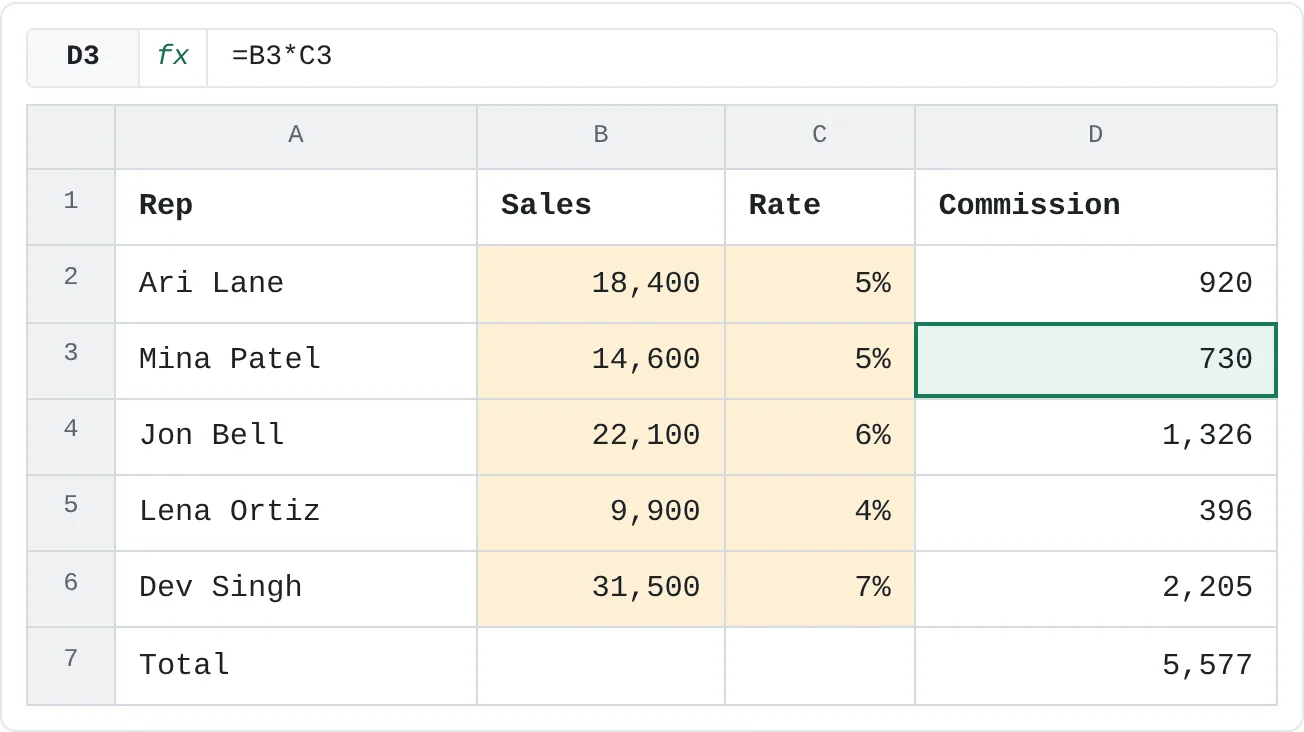
On this commission sheet, Sales and Rate (B2:C6) are inputs, and the Commission column and the total are formulas that must not be overwritten.
| A | B | C | D | |
|---|---|---|---|---|
| 1 | Rep | Sales | Rate | Commission |
| 2 | Ari Lane | 18,400 | 5% | 920 |
| 3 | Mina Patel | 14,600 | 5% | 730 |
| 4 | Jon Bell | 22,100 | 6% | 1,326 |
| 5 | Lena Ortiz | 9,900 | 4% | 396 |
| 6 | Dev Singh | 31,500 | 7% | 2,205 |
| 7 | Total | 5,577 |
Select the input cells
Select B2:C6. To select input cells that aren't next to each other, hold Ctrl while you click or drag.
Unlock them
Press Ctrl+1 to open Format Cells and go to the Protection tab. Clear Locked and click OK.
Hide the formulas (optional)
To stop people from reading the formulas, select D2:D7, open the Protection tab again and tick Hidden. Once the sheet is protected, the formula bar stays empty when these cells are selected.
Protect the sheet
Click Review then Protect then Protect Sheet. Leave Protect worksheet and contents of locked cells ticked. Type a password if you want one, or leave it blank so anyone can switch protection off but nobody does it by accident. Under Allow all users of this worksheet to, keep Select locked cells and Select unlocked cells ticked, then click OK. If you typed a password, type it again to confirm.
Test it
Type a new rate in C3: it works, and D3 recalculates. Now try to type in D3: Excel shows a message that the cell is on a protected sheet.
To make changes later, click Review then Protect then Unprotect Sheet. On a protected sheet, Tab moves only between unlocked cells, which makes a form-style input sheet quick to fill in.
Hide helper sheets, sparingly
A sheet of scratch calculations or a lookup list that nobody needs to read can be hidden: right-click its tab and choose Hide. Formulas that use it keep working. To bring it back, right-click any tab, choose Unhide, pick the sheet and click OK.
Hide sparingly. A hidden sheet is easy to forget, and anyone can unhide it, so hiding doesn't protect anything. If people mustn't unhide, delete, rename or move sheets, click Review then Protect then Protect Workbook, keep Structure ticked and click OK.
Common mistakes
- Protecting before unlocking the inputs. Every cell starts locked, so after Protect Sheet nobody can type anywhere. Unprotect, unlock the input cells, then protect again.
- Mixing inputs and formulas on one sheet without protection. Someone types a number over a formula, the result looks right today and never updates again. Keep typed values on the Input sheet, or protect the sheet.
- Freezing from the wrong cell. Freeze Panes freezes everything above and to the left of the active cell. Click D10 and nine rows and three columns are frozen. Unfreeze, select the right cell and try again.
- Names that stop short. A named range doesn't expand when you add rows below it. Use an Excel table for growing lists.
- Treating hidden or protected as secure. Both stop accidents only. Use Encrypt with Password for confidential files.
Practice
Practice
Reorganize a real workbook
- Take a workbook you actually use, such as a budget, an order log or a timesheet.
- Split it into clearly named sheets, Input, Data and Summary, plus Reference if it has lookup lists, and color the tabs by role.
- Freeze the header row on every sheet with more rows than fit on screen, and the first column on any wide sheet.
- Name at least one range you use often, then rewrite a formula to use the name.
- Add a note that explains one number and a comment that asks a question about another.
- Unlock the input cells on the sheet with your formulas, protect it, and test that inputs still accept typing while the formulas don't.
Check your skills
- Can you explain what belongs on an Input sheet and what belongs on a Summary sheet?
- Can you freeze the header row, and the first column too, on a long or wide sheet?
- Can you create a named range in the Name Box and use it in a formula?
- Can you explain when to use a note and when to use a comment?
- Can you protect a sheet's formulas while leaving its input cells editable?
Related
Was this guide helpful? Spot a mistake? Send feedback · admin@arumsoft.com