Intermediate Excel · Tutorial 8 of 12
How to Create a PivotTable in Excel
Summarize a list by category, month or region in a few clicks with a PivotTable, then change the calculation, format the numbers and refresh it.
- Level
- Intermediate
- Time
- 13 min read
- Updated:
- Applies to:
- Excel for Microsoft 365, Excel 2021, Excel 2019
What you'll learn
- Create a PivotTable from a table or range of data
- Use the Rows, Columns, Values and Filters areas to shape a summary
- Switch a value field between Sum, Average and Count, and format its numbers
- Group dates into months, quarters or years
- Refresh a PivotTable after the source data changes
Before you start
Example file
How to Create a PivotTable in Excel.xlsx
Download the workbook used in this tutorial and follow along in Excel.
Excel workbook (.xlsx) · 7 KB
A PivotTable answers questions like "How much did each category sell?" or "Which month was best?" without a single formula. You drag a field into one box to decide how the data is grouped and another field into a second box to decide what's calculated, and Excel does the grouping and the math. You'll build one from a sales list, rearrange it, change what it calculates and keep it up to date.
Start with clean source data
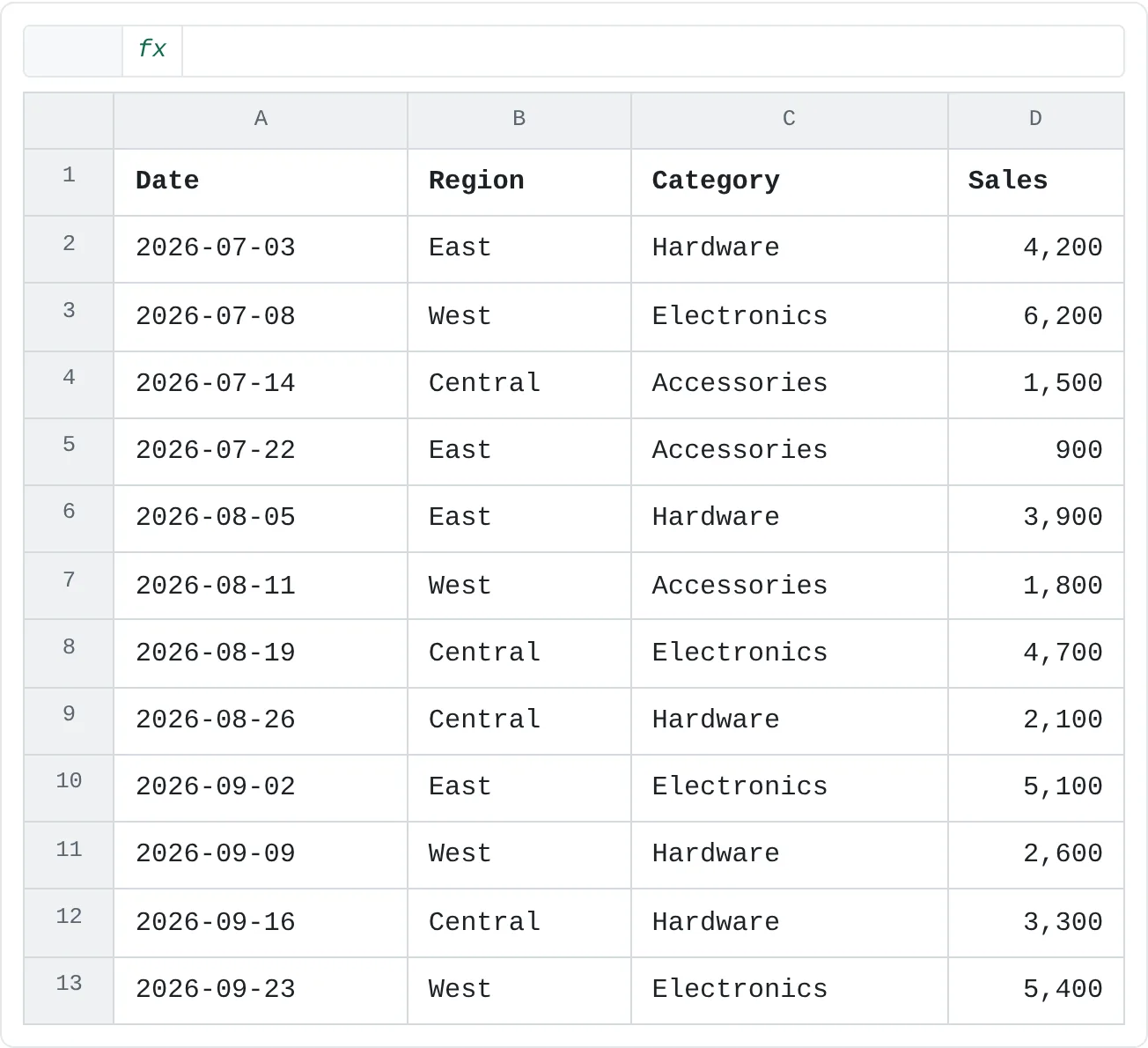
A PivotTable reads a list: one header row, one record per row, no blank rows or columns, and no typed-in totals. The example is twelve sales from July to September:
| A | B | C | D | |
|---|---|---|---|---|
| 1 | Date | Region | Category | Sales |
| 2 | 2026-07-03 | East | Hardware | 4,200 |
| 3 | 2026-07-08 | West | Electronics | 6,200 |
| 4 | 2026-07-14 | Central | Accessories | 1,500 |
| 5 | 2026-07-22 | East | Accessories | 900 |
| 6 | 2026-08-05 | East | Hardware | 3,900 |
| 7 | 2026-08-11 | West | Accessories | 1,800 |
| 8 | 2026-08-19 | Central | Electronics | 4,700 |
| 9 | 2026-08-26 | Central | Hardware | 2,100 |
| 10 | 2026-09-02 | East | Electronics | 5,100 |
| 11 | 2026-09-09 | West | Hardware | 2,600 |
| 12 | 2026-09-16 | Central | Hardware | 3,300 |
| 13 | 2026-09-23 | West | Electronics | 5,400 |
Convert the list to an Excel Table first (click inside it and press Ctrl+T). That way, rows you add later are included when you refresh the PivotTable, without changing its source.
Create the PivotTable
Click any cell in the data
Click a cell inside the list or table. Excel detects the whole range for you.
Insert the PivotTable
Click Insert then Tables then PivotTable. A dialog opens (PivotTable from table or range in Microsoft 365, Create PivotTable in older versions). Check that the range or table name covers all your data.
Choose where to put it
Leave New Worksheet selected and click OK. Excel adds a sheet with an empty PivotTable starting at A3 and opens the PivotTable Fields pane on the right.
The pane lists every column header as a field. Under it are four areas:
| Area | What it does |
|---|---|
| Rows | Lists each unique value of the field down the side, one row per group. |
| Columns | Lists each unique value across the top, one column per group. |
| Values | Calculates a number for every group, such as a sum, an average or a count. |
| Filters | Adds a filter above the PivotTable that limits which records are included. |
If the pane disappears, click inside the PivotTable. If it's still hidden, click PivotTable Analyze then Show then Field List.
Summarize sales by category
Put Category in Rows
Drag Category from the field list into the Rows area. Each category appears once in column A: Accessories, Electronics and Hardware.
Put Sales in Values
Drag Sales into the Values area. Excel adds up the sales of each category and adds a Grand Total row.
A B 1 2 3 Row Labels Sum of Sales 4 Accessories 4,200 5 Electronics 21,400 6 Hardware 16,100 7 Grand Total 41,700 Sales summed by category. The three groups add up to the grand total of 41,700.
You can also tick a field's box instead of dragging. Excel puts text fields in Rows and number fields in Values, which is usually what you want.
To compare regions within each category, drag Region into the Columns area. Each region gets its own column, and both rows and columns get totals:
| A | B | C | D | E | |
|---|---|---|---|---|---|
| 1 | |||||
| 2 | |||||
| 3 | Sum of Sales | Column Labels | |||
| 4 | Row Labels | Central | East | West | Grand Total |
| 5 | Accessories | 1,500 | 900 | 1,800 | 4,200 |
| 6 | Electronics | 4,700 | 5,100 | 11,600 | 21,400 |
| 7 | Hardware | 5,400 | 8,100 | 2,600 | 16,100 |
| 8 | Grand Total | 11,600 | 14,100 | 16,000 | 41,700 |
To undo a change, drag the field out of its area, or untick it in the field list. The source data never changes; a PivotTable only reads it.
Change Sum to Average or Count
Values sum by default, but the same field can answer other questions. Drag Region back out of Columns first so you're working with the category summary again.
Open Value Field Settings
In the Values area, click Sum of Sales and choose Value Field Settings. You can also right-click any number in the PivotTable and choose Value Field Settings.
Pick a calculation
On the Summarize Values By tab, choose Count and click OK. The header changes to Count of Sales and each number now shows how many sales the category had.
A B 1 2 3 Row Labels Count of Sales 4 Accessories 3 5 Electronics 4 6 Hardware 5 7 Grand Total 12 The same PivotTable counting sales instead of adding them. Hardware has the most orders.
The count tells a different story from the sum. Hardware had the most orders (5), but Electronics brought in the most money (21,400). Choose Average and you get the typical order size: 5,350 for Electronics, 3,220 for Hardware and 1,400 for Accessories. The list also offers Max, Min and several more.
A quicker route for the common choices: right-click a number, point to Summarize Values By and pick Sum, Count, Average, Max or Min.
Format the numbers
A PivotTable doesn't copy the number format of the source data, and formatting the cells directly can be lost when the layout changes. Set the format on the field instead: open Value Field Settings, click Number Format, choose Number, set Decimal places to 0, tick Use 1000 Separator (,) and click OK twice. The format stays with the field however you rearrange it.
Group dates into months
Listing every single date is rarely useful. Switch the value field back to Sum first. Then drag Category out of Rows and drag Date in. In Microsoft 365, Excel often groups dates automatically and shows months straight away. If it lists every date instead, group them yourself:
Right-click a date
Right-click any date in column A of the PivotTable and choose Group.
Choose the periods
In the Grouping dialog, select Months in the By list. If your data covers more than one year, select Years too, or July 2025 and July 2026 will be added together. Click OK.
A B 1 2 3 Row Labels Sum of Sales 4 Jul 12,800 5 Aug 12,500 6 Sep 16,400 7 Grand Total 41,700 Sales grouped by month. September was the strongest month at 16,400.
To go back to individual dates, right-click a month and choose Ungroup. Quarters works the same way, and you can select several periods at once to get years with quarters inside them.
Filter the whole PivotTable
Drag Region into the Filters area. A filter appears above the PivotTable, in A1, showing (All). Click its arrow, choose East and click OK. Every number now covers East only. Clear the Rows area, put Category back in it, and the total is 14,100:
| A | B | |
|---|---|---|
| 1 | Region | East |
| 2 | ||
| 3 | Row Labels | Sum of Sales |
| 4 | Accessories | 900 |
| 5 | Electronics | 5,100 |
| 6 | Hardware | 8,100 |
| 7 | Grand Total | 14,100 |
You can also filter the groups themselves with the arrow next to Row Labels, for example to hide Accessories. Neither filter changes the source data.
Refresh after the data changes
A PivotTable doesn't update itself when the source changes. After you edit an amount or add sales, right-click anywhere in the PivotTable and choose Refresh, or click PivotTable Analyze then Data then Refresh. To refresh every PivotTable in the workbook at once, press Ctrl+Alt+F5 (Refresh All).
New rows only appear if they're inside the source range. If the source is an Excel Table, they are. If it's a plain range, click PivotTable Analyze then Data then Change Data Source and extend the range first.
Common mistakes
- "Count of Sales" instead of "Sum of Sales". Excel chooses Count when the column contains text or blank cells, such as a number stored as text. Fix the source data (convert text to numbers, fill or remove blanks), refresh, then switch the field to Sum. If you switch to Sum without fixing it, text values are skipped, so the total is too small, or 0 when every value is text.
- Forgetting to refresh. The PivotTable still shows last week's numbers. Refresh before you read or share it.
- Blank headers. Every column in the source needs a header. If one is empty, Excel says the PivotTable field name is not valid and won't create the PivotTable. Type the missing header and try again.
- Totals inside the source data. A typed-in total row is counted as one more sale and doubles the grand total. Remove it; the PivotTable makes its own totals.
- Grouping months across years. Grouping by Months alone adds the same month of different years together. Select Years as well.
Practice
Practice
Summarize real data three ways
- Take a list of transactions you have, such as sales, expenses or orders, or type the twelve sales from this tutorial. Convert it to a table with Ctrl+T.
- Insert a PivotTable on a new sheet and summarize an amount by category.
- Build a second PivotTable from the same data, grouped by month.
- In a third, show Count instead of Sum, and set the number format through Value Field Settings.
- Add a new row to the source, refresh, and check that the totals change.
- Write down which of the three answers the question you started with.
Check your skills
- Can you build a PivotTable that summarizes a number by category?
- Can you explain why a value field shows Count instead of Sum, or adds up to 0?
- Can you group a date field into months?
- Can you switch a value field from Sum to Average or Count?
Related
Was this guide helpful? Spot a mistake? Send feedback · admin@arumsoft.com