Intermediate Excel · Tutorial 1 of 12
Turn Messy Data into a Clean Excel Table
Get a range table-ready, convert it to a named Excel Table, add a calculated column and switch on a Total Row.
- Level
- Intermediate
- Time
- 12 min read
- Updated:
- Applies to:
- Excel for Microsoft 365, Excel 2021, Excel 2019, Excel for the web
What you'll learn
- Recognize and fix the layout problems that stop a range from being table-ready
- Convert a range to an Excel Table and give it a meaningful name
- Add a calculated column with structured references
- Turn on the Total Row and change what each total calculates
Before you start
Example file
Turn Messy Data into a Clean Excel Table.xlsx
Download the workbook used in this tutorial and follow along in Excel.
Excel workbook (.xlsx) · 8 KB
Sorting, filtering, PivotTables and most formulas assume your data has a simple shape: one header row, no gaps, and the same kind of value all the way down each column. Get the shape right first, then turn the range into an Excel Table. You'll learn how to spot and fix a messy layout, convert it, name the table, add a column that calculates itself and add totals that respect your filters.
What makes data table-ready?
A range is ready to become a table when it follows four rules:
- One header row. Each column has exactly one label in the first row, and every label is different. No title rows or second header rows above or inside the data.
- No blank rows or columns inside the data. A blank row tells Excel the data has ended.
- No merged cells. Every value sits in its own cell.
- One kind of value per column. A Sales column holds only numbers, a Date column holds only real dates, and nothing in between is typed as text.
Here's a sales list that breaks almost every rule:
| A | B | C | D | E | |
|---|---|---|---|---|---|
| 1 | Sales reps, Q1 | ||||
| 2 | |||||
| 3 | Rep | Region | Sales | Goal | Commission Rate |
| 4 | Ari Lane | East | 18,400 | 17,500 | 5% |
| 5 | Mina Patel | West | 14600 | 16,000 | 5% |
| 6 | |||||
| 7 | Jon Bell | Central | 22,100 | 20,000 | 6% |
| 8 | Lena Ortiz | East | 9,900 | 12,000 | 4% |
| 9 | Dev Singh | West | 31,500 | 30,000 | 7% |
| 10 | Total | 96,500 |
Each problem causes trouble later. The blank row stops Excel's automatic range detection, so a table, a sort or a PivotTable picks up only some of the reps. The number stored as text in C5 is skipped by SUM. The typed-in total in row 10 looks like one more rep to a filter or a PivotTable, which doubles every total.
Fix the layout before you convert
Work through the problems from top to bottom. Each fix takes seconds.
Remove the title and the blank rows
Right-click the row number of the title row (row 1) and choose Delete. Do the same for the empty row above the headers and for the blank row inside the data. If you want to keep a title, leave one empty row between it and the headers so Excel never mistakes it for part of the data.
Unmerge merged cells
Select the merged cell and click Home then Alignment then Merge & Center to switch the merge off. If a merge was hiding a value that applies to several rows (a region name, say), type that value into every row it belongs to.
Convert numbers stored as text
Numbers stored as text sit on the left of the cell and usually show a small green triangle. Select them, click the warning icon that appears and choose Convert to Number.
Delete typed-in totals
Delete any total row you typed yourself. The table's own Total Row replaces it, and that one stays outside the data.
After the clean-up, the list has one header row and five data rows with no gaps:
| A | B | C | D | E | F | |
|---|---|---|---|---|---|---|
| 1 | Rep | Region | Sales | Goal | Commission Rate | |
| 2 | Ari Lane | East | 18,400 | 17,500 | 5% | |
| 3 | Mina Patel | West | 14,600 | 16,000 | 5% | |
| 4 | Jon Bell | Central | 22,100 | 20,000 | 6% | |
| 5 | Lena Ortiz | East | 9,900 | 12,000 | 4% | |
| 6 | Dev Singh | West | 31,500 | 30,000 | 7% |
Convert the range to a table
Click any cell in the data
Click A1, or any other cell inside the list. You don't need to select the whole range: Excel finds the edges for you.
Press Ctrl+T
Press Ctrl+T. You can also use Insert then Tables then Table, or Home then Styles then Format as Table if you want to pick a color style first. The Create Table dialog opens and shows the range Excel detected, here
=$A$1:$E$6.Check the range and the headers box
Make sure the range covers every row and column of your data. If it stops early, there's still a blank row or column somewhere. Leave My table has headers ticked, then click OK.
The range is now a table. Each header has a filter arrow, the rows are banded, and whenever you click inside the table a Table Design tab appears on the ribbon. Type a new rep in row 7 and the table grows to include it, along with its formatting and formulas.
Give the table a real name
Excel names tables Table1, Table2 and so on. Rename it so formulas that use it explain themselves.
Find the Table Name box
Click any cell in the table, then look at Table Design then Properties then Table Name. The box shows Table1.
Type a new name and press Enter
Click in the box, type
SalesDataand press Enter.
A table name must start with a letter or an underscore, can't contain spaces and can't look like a cell reference (so Q1 or R2C3 won't work). Use capitals or underscores to separate words: SalesData or Sales_Q1.
Now you can refer to a whole column from anywhere in the workbook by its name. This formula, typed in any cell outside the table, returns 96,500:
=SUM(SalesData[Sales])SalesData[Sales] means "the data cells of the Sales column", and it grows automatically when you add rows. You'll never need to update a range like C2:C6 again.
Add a calculated column
A calculated column is a formula you type once that fills the whole column by itself. Add a Commission column that multiplies each rep's sales by their rate.
Add a header next to the table
Click F1, type
Commissionand press Enter. The table expands to include column F straight away.Build the formula by clicking
In F2, type
=, click C2, type*and click E2. Because these cells are in the table, Excel writes structured references instead of cell addresses:=[@Sales]*[@[Commission Rate]][@Sales]means "the Sales value in this row". The column name Commission Rate contains a space, so Excel wraps it in a second pair of brackets.Press Enter
Excel fills the formula down every row of the column. You don't copy anything.
A B C D E F 1 Rep Region Sales Goal Commission Rate Commission 2 Ari Lane East 18,400 17,500 5% 920 3 Mina Patel West 14,600 16,000 5% 730 4 Jon Bell Central 22,100 20,000 6% 1,326 5 Lena Ortiz East 9,900 12,000 4% 396 6 Dev Singh West 31,500 30,000 7% 2,205 One formula in F2 filled the whole Commission column. Every row uses the same formula, which reads the same on every row.
Every cell in the column holds the identical formula, so there's no risk of one row pointing at the wrong cells. When you add a rep in row 7, the commission for that row appears without any copying.
Turn on the Total Row
Switch the Total Row on
Click any cell in the table and tick Table Design then Table Style Options then Total Row. A new row appears under the data. The first cell says Total, and the last column gets a total automatically: 5,577 under Commission.
Choose a calculation for another column
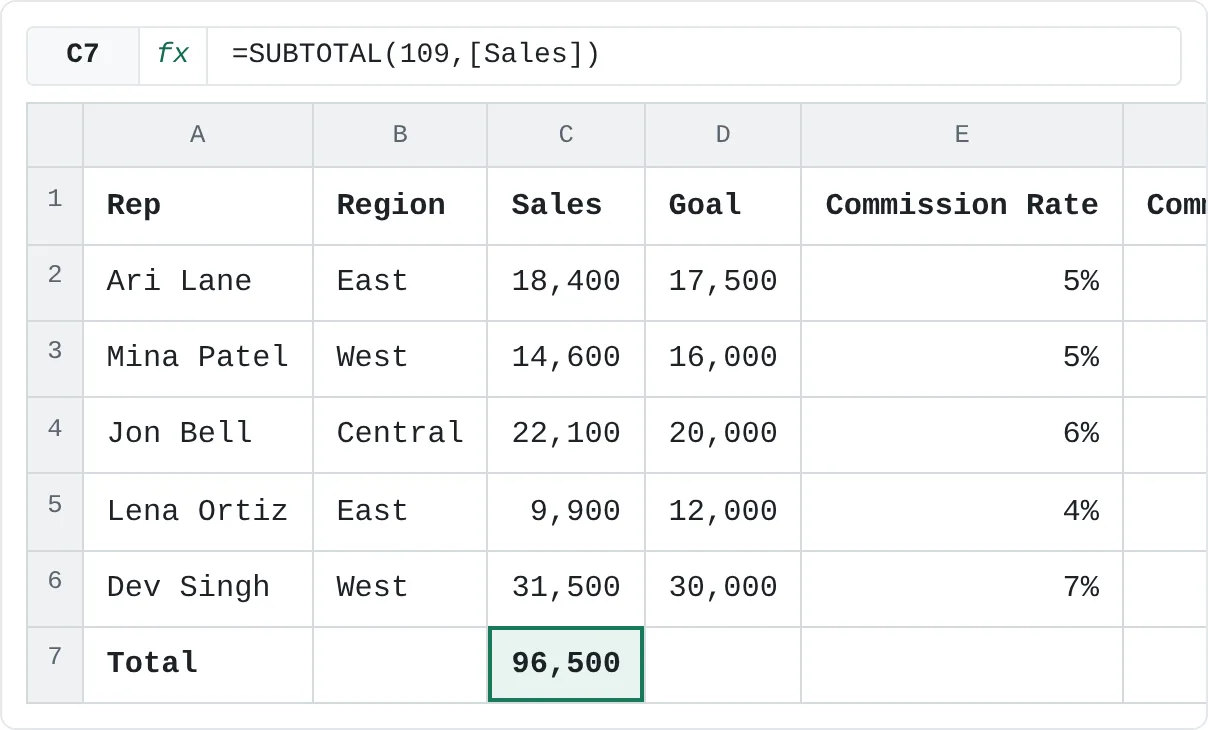
Click the Total Row cell under Sales (C7). An arrow appears on the right of the cell. Click it and choose Sum to get 96,500. The list also offers Average, Count, Max, Min and more. Pick Average instead and the cell shows 19,300.
A B C D E F 1 Rep Region Sales Goal Commission Rate Commission 2 Ari Lane East 18,400 17,500 5% 920 3 Mina Patel West 14,600 16,000 5% 730 4 Jon Bell Central 22,100 20,000 6% 1,326 5 Lena Ortiz East 9,900 12,000 4% 396 6 Dev Singh West 31,500 30,000 7% 2,205 7 Total 96,500 5,577 The Total Row: Sum under Sales and Commission. Excel writes a SUBTOTAL formula for each total you choose.
Behind each choice, Excel writes a SUBTOTAL formula, such as =SUBTOTAL(109,[Sales]) for Sum or =SUBTOTAL(101,[Sales]) for Average. SUBTOTAL ignores rows hidden by a filter, so the totals always match what you see. Filter the Region column to East and the Sales total drops to 28,300, the sum of Ari Lane and Lena Ortiz. A plain SUM would keep showing 96,500.
To turn the table back into an ordinary range later (the formatting stays), use Table Design then Tools then Convert to Range.
Common mistakes
- Converting with a blank row still inside. Excel's detected range stops at the gap, so only the rows above it become the table. Delete blank rows first, and always check the range in the Create Table dialog before you click OK.
- Typing a total row into the data. A typed-in total becomes one more data row: filters show it, PivotTables add it to the total, and calculated columns run on it. Use the Total Row instead.
- Leaving numbers stored as text. The Total Row's Sum and
SUM(SalesData[Sales])skip them without warning, so totals come out too small. - Repeating a header. If two columns are both called Sales, Excel renames the second one Sales2. Give every column a unique, clear label before converting.
- Keeping the default name. Formulas that say
Table3[Amount]are hard to follow a month later. Rename each table as soon as you create it.
Practice
Practice
Turn a messy export into a table
- Open a real list you have: a sales export, a sign-up sheet or a list of expenses. If you don't have one, type the sales data from this tutorial, including the blank row and the typed-in total.
- Delete title rows, blank rows and typed-in totals, unmerge any merged cells and convert numbers stored as text.
- Click a cell in the data, press Ctrl+T, check the range and click OK.
- Rename the table in Table Design then Properties then Table Name to describe what it holds.
- Add one calculated column, such as a commission, a price with tax or a running difference against a goal.
- Turn on the Total Row and choose the summary (Sum, Average or Count) that answers a real question about the data. Then filter one column and watch the totals change.
Check your skills
- Can you explain what makes a range table-ready, and fix a range that isn't?
- Can you convert a range to a table and give it a meaningful name?
- Can you add a calculated column that fills itself down?
- Can you turn on the Total Row and change what a total calculates?
Related
Was this guide helpful? Spot a mistake? Send feedback · admin@arumsoft.com