Intermediate Excel · Tutorial 7 of 12
How to Use Data Validation in Excel
Add drop-down lists, number and date rules, input messages and error alerts, then protect formula cells so only the inputs can change.
- Level
- Intermediate
- Time
- 13 min read
- Updated:
- Applies to:
- Excel for Microsoft 365, Excel 2021, Excel 2019
What you'll learn
- Create a drop-down list from typed items or from a range of cells
- Restrict a cell to whole numbers or dates within limits
- Add an input message and a plain-language error alert
- Build a second drop-down list that depends on the first
- Lock formula cells and protect the sheet while inputs stay editable
Before you start
Example file
How to Use Data Validation in Excel.xlsx
Download the workbook used in this tutorial and follow along in Excel.
Excel workbook (.xlsx) · 7 KB
Cleaning data after the fact takes far longer than stopping bad entries at the door. Data validation lets you decide what a cell will accept: a choice from a drop-down list, a whole number in a range, a date in the current quarter. You'll set up those rules, add messages that tell people what to enter, and protect your formulas so a colleague can fill in the sheet without breaking it.
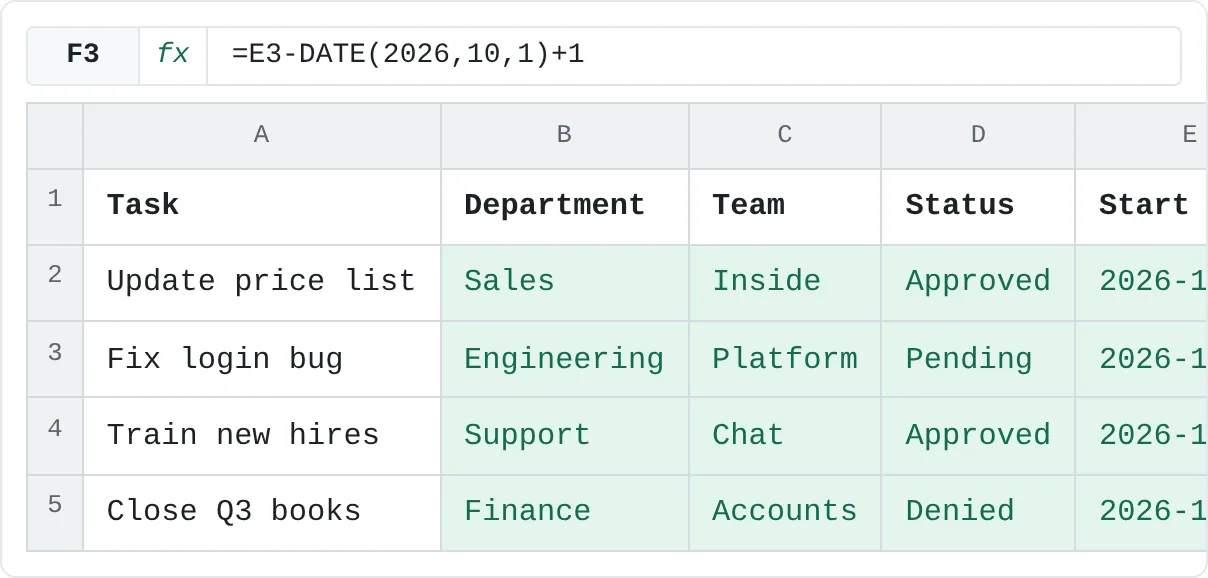
The examples use a small task tracker. People fill in the department, team, status and start date for each task, and column F calculates how many days into the fourth quarter the task starts.
| A | B | C | D | E | F | |
|---|---|---|---|---|---|---|
| 1 | Task | Department | Team | Status | Start date | Day of Q4 |
| 2 | Update price list | Sales | Inside | Approved | 2026-10-05 | 5 |
| 3 | Fix login bug | Engineering | Platform | Pending | 2026-11-12 | 43 |
| 4 | Train new hires | Support | Chat | Approved | 2026-10-20 | 20 |
| 5 | Close Q3 books | Finance | Accounts | Denied | 2026-12-01 | 62 |
Create a drop-down list
A drop-down list is the most useful rule: people pick a value instead of typing it, so "Sales", "sales" and "Saels" can never end up in the same column.
Select the cells that need the list
Select D2:D5, the Status cells. Select the whole block at once so they all get the same rule.
Open the Data Validation dialog
Click Data then Data Tools then Data Validation. The Data Validation dialog opens on the Settings tab.
Choose List and type the items
In the Allow box, choose List. In the Source box that appears, type the items separated by commas:
Approved,Pending,DeniedLeave In-cell dropdown ticked; without it, the rule still works but no arrow appears.
Click OK and try it
Click OK, then click D2. An arrow appears to the right of the cell. Click it (or press Alt+Down Arrow) and pick a status. Try typing
Doneinstead: Excel rejects it, because it isn't on the list.
Use a range for longer lists
Typed items are fine for three fixed choices. For anything longer, or a list that changes, keep the items in cells and point the rule at them. A common setup is a separate sheet, here called Lists:
| A | B | C | D | E | F | G | |
|---|---|---|---|---|---|---|---|
| 1 | Department | Status | Sales | Engineering | Support | Finance | |
| 2 | Sales | Approved | Field | Platform | Phone | Payroll | |
| 3 | Engineering | Pending | Inside | Mobile | Accounts | ||
| 4 | Support | Denied | Partners | QA | Chat | Audit | |
| 5 | Finance |
Select B2:B5 on the tracker, open Data Validation, choose List, click in the Source box and then select A2:A5 on the Lists sheet. Excel writes the reference for you:
=Lists!$A$2:$A$5Now, to rename a department or add one, you edit the Lists sheet rather than every rule. If you add an item below A5, update the Source range to include it.
Allow only whole numbers or dates in a range
The same dialog can limit numbers and dates. The start dates in column E should all fall in the fourth quarter of 2026.
Select the date cells and open the dialog
Select E2:E5 and click Data then Data Tools then Data Validation.
Set the rule
In Allow, choose Date. In Data, choose between. Fill in the two boxes that appear:
- Start date:
=DATE(2026,10,1) - End date:
=DATE(2026,12,31)
You can also type the dates the way you normally do (for example
10/1/2026with US settings), or point at cells that hold them. ADATEformula works with any regional setting.- Start date:
Click OK and test it
Type
2027-01-15in E2. Excel shows an error and won't keep the value. Type2026-11-03and it's accepted.
Whole numbers work the same way. For a quantity column, choose Whole number in Allow, between in Data, and enter a Minimum of 1 and a Maximum of 500. Entries such as 0, -3, 2.5 or ten are rejected. Other options in Allow include Decimal, Time, Text length (for codes that must be exactly six characters, say) and Custom, which accepts any formula that returns TRUE for a valid entry.
The formula in column F counts the day of the quarter. It's the kind of cell you'll protect later:
=E2-DATE(2026,10,1)+1If F2 shows a date instead of 5, format column F as General or Number.
Add an input message and an error alert
A rule that rejects an entry without explaining why frustrates people. Two more tabs in the same dialog fix that. Select E2:E5 again and open Data Validation.
Write an input message
On the Input Message tab, keep Show input message when cell is selected ticked. Type a Title such as
Start dateand a message such asEnter a date between Oct 1 and Dec 31, 2026.The message pops up beside the cell as soon as someone selects it, before they type anything.Write an error alert
On the Error Alert tab, keep Show error alert after invalid data is entered ticked. Choose a Style, then type a Title such as
Date outside Q4and an Error message such asThis tracker covers Q4 2026 only. Enter a date from Oct 1 to Dec 31, 2026.Click OK
Enter an invalid date to see your message instead of Excel's generic one.
The Style decides how strict the rule is:
| Style | What happens after an invalid entry |
|---|---|
| Stop | The entry is refused. The person can retry or cancel. This is the default. |
| Warning | Excel asks whether to continue. Choosing Yes keeps the invalid value. |
| Information | Excel shows the message, and OK keeps the value. |
Use Stop for values that formulas depend on, such as departments that feed a report. Use Warning when an unusual value is allowed but worth a second look, such as a quantity over 500.
Make a second list depend on the first
In the tracker, the Team list should show only the teams of the department picked in column B. This is called a dependent drop-down list. It uses named ranges and the INDIRECT function.
Name each team list after its department
On the Lists sheet, select D1:G4 (the department headers and the teams under them). Click Formulas then Defined Names then Create from Selection, tick only Top row and click OK. Excel creates four names: Sales refers to D2:D4, Engineering to E2:E4, and so on.
Add a list rule to the Team cells
On the tracker, select C2:C5 with C2 as the active cell. Open Data Validation, choose List and type this Source:
=INDIRECT(B2)INDIRECTturns the text in B2, such asSales, into the range with that name. BecauseB2has no dollar signs, the rule in C3 reads B3, the rule in C4 reads B4, and so on.Click OK
If column B is still empty, Excel warns that the source currently evaluates to an error. Click Yes to keep the rule. Now pick Engineering in B3 and open the list in C3: it shows Platform, Mobile and QA only.
Names can't contain spaces, so Create from Selection turns a header like Customer Support into Customer_Support, and INDIRECT won't find it. Keep the department names to one word, or name the ranges yourself to match. Changing B after C is filled doesn't clear C either, so a sheet can end up with Sales and Platform in the same row; Circle Invalid Data (below) finds those rows.
Protect the formula cells
Validation controls what people type, but it can't stop someone typing over the formula in column F. Sheet protection does. It works in two parts: every cell has a Locked setting, which is on by default, and that setting only takes effect once the sheet is protected. So you unlock the input cells first, then protect.
Unlock the input cells
Select B2:E5. Press Ctrl+1 to open Format Cells, go to the Protection tab, untick Locked and click OK. Leave column F and the headers locked.
Protect the sheet
Click Review then Protect then Protect Sheet. Type a password if you want one (Excel asks you to type it again), keep Select locked cells and Select unlocked cells ticked in the list of what users may do, and click OK.
Test it
Type in D3: it works, and the drop-down list still appears. Now try to type in F3: Excel refuses and says the cell is on a protected sheet.
A B C D E F 1 Task Department Team Status Start date Day of Q4 2 Update price list Sales Inside Approved 2026-10-05 5 3 Fix login bug Engineering Platform Pending 2026-11-12 43 4 Train new hires Support Chat Approved 2026-10-20 20 5 Close Q3 books Finance Accounts Denied 2026-12-01 62 After protection: the green input cells can still be edited; the red formula cells can't be changed.
To make changes later, click Review then Protect then Unprotect Sheet. If you set a password, store it somewhere safe: Excel can't recover it for you.
Check and maintain your rules
- Find invalid values that were already there. Validation only checks new entries. To find old values that break a rule, click the arrow on the Data Validation button and choose Circle Invalid Data. Excel draws red circles around them. Clear Validation Circles removes the circles.
- Find the cells that have rules. Use Home then Editing then Find & Select then Data Validation to select every cell on the sheet that has a rule.
- Copy a rule without copying values. Copy a cell that has the rule, select the target cells, press Ctrl+Alt+V to open Paste Special, choose Validation and click OK.
- Remove a rule. Select the cells, open Data Validation and click Clear All.
Common mistakes
- Pasting over validated cells. A normal paste replaces the cell's rule along with its value, and anything pasted in is never checked. Paste values with Paste Special instead, and run Circle Invalid Data after large pastes.
- Unticking In-cell dropdown. The rule still works, but no arrow appears, so people have to guess the exact spelling.
- Pointing the list at too small a range. A new item typed below the Source range never appears in the drop-down list. Extend the range, or use a named table column as shown in the Tip above.
- Protecting before unlocking. If you protect the sheet first, every cell is locked, inputs included. Unprotect, unlock the input cells, then protect again.
- Treating protection as security. Sheet protection prevents accidents, not determined users, and a forgotten password locks you out too. Keep confidential data out of shared workbooks altogether.
Practice
Practice
Validate a real intake form
- Open a sheet you use to collect input, such as a request form, a sign-up sheet or a status tracker, or type the task tracker from this tutorial.
- Add a drop-down list to one column from typed items, and another from a range on a separate Lists sheet.
- Add a whole number or date rule to a third column.
- Write an input message and a plain-language error alert for at least one rule. Test it by entering a wrong value.
- If you have two related columns, such as department and team, build a dependent list with
INDIRECT. - Unlock the input cells, protect the sheet and confirm that the formula cells can't be overwritten.
Check your skills
- Can you build a drop-down list that limits a cell to a fixed set of values?
- Can you restrict a cell to whole numbers or dates in a range?
- Can you add an input message and a custom error alert, and choose the right alert style?
- Can you protect the formula cells on a sheet while leaving the input cells open?
Related
Was this guide helpful? Spot a mistake? Send feedback · admin@arumsoft.com