Intermediate Excel · Tutorial 9 of 12
PivotCharts, Slicers and Simple Dashboards in Excel
Turn a PivotTable into a PivotChart, add slicers and a timeline anyone can click to filter, and arrange them into a clean one-page dashboard.
- Level
- Intermediate
- Time
- 13 min read
- Updated:
- Applies to:
- Excel for Microsoft 365, Excel 2021, Excel 2019
What you'll learn
- Create a PivotChart from a PivotTable
- Add slicers and a timeline and use them to filter a chart
- Connect one slicer to several PivotTables
- Write a chart title that says what the chart shows
- Lay out a readable one-page dashboard without clutter
Example file
PivotCharts, Slicers and Simple Dashboards in Excel.xlsx
Download the workbook used in this tutorial and follow along in Excel.
Excel workbook (.xlsx) · 9 KB
A PivotChart draws a PivotTable's summary as a chart, and a slicer adds buttons that filter it with one click. Together they let someone who never opens the field list explore the numbers themselves. You'll build a chart from a PivotTable, add slicers and a timeline, and arrange everything on one clear page.
The examples continue from the PivotTable tutorial: twelve sales from July to September 2026, with a date, region, category and amount, stored as an Excel Table. The starting point is a PivotTable with Category in Rows and Sales in Values:
| A | B | |
|---|---|---|
| 1 | ||
| 2 | ||
| 3 | Row Labels | Sum of Sales |
| 4 | Accessories | 4,200 |
| 5 | Electronics | 21,400 |
| 6 | Hardware | 16,100 |
| 7 | Grand Total | 41,700 |
Create a PivotChart
Click inside the PivotTable
Click any cell in the PivotTable. The PivotTable Analyze tab appears on the ribbon.
Insert the chart
Click PivotTable Analyze then Tools then PivotChart. The Insert Chart dialog opens.
Pick a chart type
Choose Column, then Clustered Column, and click OK. A column chart appears next to the PivotTable with one bar per category.
The chart and the PivotTable are linked. Drag Region into the Columns area and the chart shows three bars per category, one per region, with a legend. Drag it out again and the chart goes back. Filters on the PivotTable filter the chart too.
PivotCharts show gray field buttons (such as Sum of Sales and Category) that work like the PivotTable's filter arrows. They help while you build, but on a finished report they're clutter. Hide them with PivotChart Analyze then Show/Hide then Field Buttons.
Give the chart a title that explains it
A new PivotChart is titled Total or has no title at all. Neither tells the reader anything. A good title names the measure, the grouping and the period, and can state the finding:
| Weak title | Better title |
|---|---|
| Total | Sales by category, Jul–Sep 2026 |
| Sales | Electronics led Q3 sales with 21,400 |
To add or change the title, click the chart, click the Chart Elements button (the + next to the chart), and tick Chart Title. Then click the title text and type your own.
Filter with slicers
A slicer is a panel of buttons, one per item of a field. Clicking a button filters every PivotTable and PivotChart the slicer is connected to.
Open Insert Slicers
Click the PivotChart or any cell of its PivotTable. Click PivotChart Analyze then Filter then Insert Slicer (with the PivotTable selected, it's PivotTable Analyze then Filter then Insert Slicer).
Choose the fields
In the Insert Slicers dialog, tick Region and Category, then click OK. Two slicers appear on the sheet. Drag them by their borders to place them next to the chart.
Click a button
Click East in the Region slicer. The PivotTable and chart now show East only: Accessories 900, Electronics 5,100 and Hardware 8,100.
A B 1 2 3 Row Labels Sum of Sales 4 Accessories 900 5 Electronics 5,100 6 Hardware 8,100 7 Grand Total 14,100 With East selected in the Region slicer, the PivotTable and its chart show East's 14,100 in sales.
To select several items, hold Ctrl and click each one, or click the Multi-Select button in the slicer's header and then click items to switch them on and off. To show everything again, click the Clear Filter button (the funnel with a red X) in the top-right corner of the slicer.
When a slicer is selected, the Slicer tab appears. Use Slicer then Buttons then Columns to lay the buttons out side by side, which suits a slicer placed above a chart, and pick a color from Slicer Styles to match the dashboard.
Slicers also show what's filtered. With East selected, the Category slicer still shows all three categories as available, because East sold all three. An item with no data under the current filter appears grayed out.
Filter dates with a timeline
A timeline is a slicer for dates. Instead of picking months one by one, you drag across a period.
Insert the timeline
Click the PivotTable or PivotChart and choose PivotTable Analyze then Filter then Insert Timeline. Tick Date and click OK. Only fields that hold real dates are listed.
Pick a period
The timeline shows months by default. Click AUG, then drag the handle on the right edge of the selection to SEP. With Region cleared, the chart now shows sales from August 1 to September 30: 28,900 in total, of which 15,200 is Electronics.
Change the time level
Click the arrow next to MONTHS in the timeline's top-right corner and choose QUARTERS, YEARS or DAYS to change the size of each step.
Connect one slicer to several PivotTables
A dashboard usually has more than one chart, for example sales by category and sales by month. You want one Region slicer to filter both.
Build the second PivotTable and chart
Create a second PivotTable from the same source table, with Date in Rows grouped by month and Sales in Values. Insert a PivotChart from it; a line or column chart suits months.
Open Report Connections
Right-click the Region slicer and choose Report Connections. The dialog lists the PivotTables that use the same source data.
Tick both PivotTables
Tick both PivotTables and click OK. Now a click on West filters both charts at once. Repeat for the Category slicer and the timeline (right-click the timeline and choose Report Connections).
Lay out a one-page dashboard
A dashboard is a single sheet that answers a few questions at a glance. Put the charts and filters on their own sheet, called Dashboard, and keep the PivotTables on other sheets.
Move the charts and slicers
Select a chart, press Ctrl+X, go to the Dashboard sheet, click a cell and press Ctrl+V. Do the same for each chart, slicer and the timeline. They stay connected to their PivotTables.
Arrange them in a simple grid
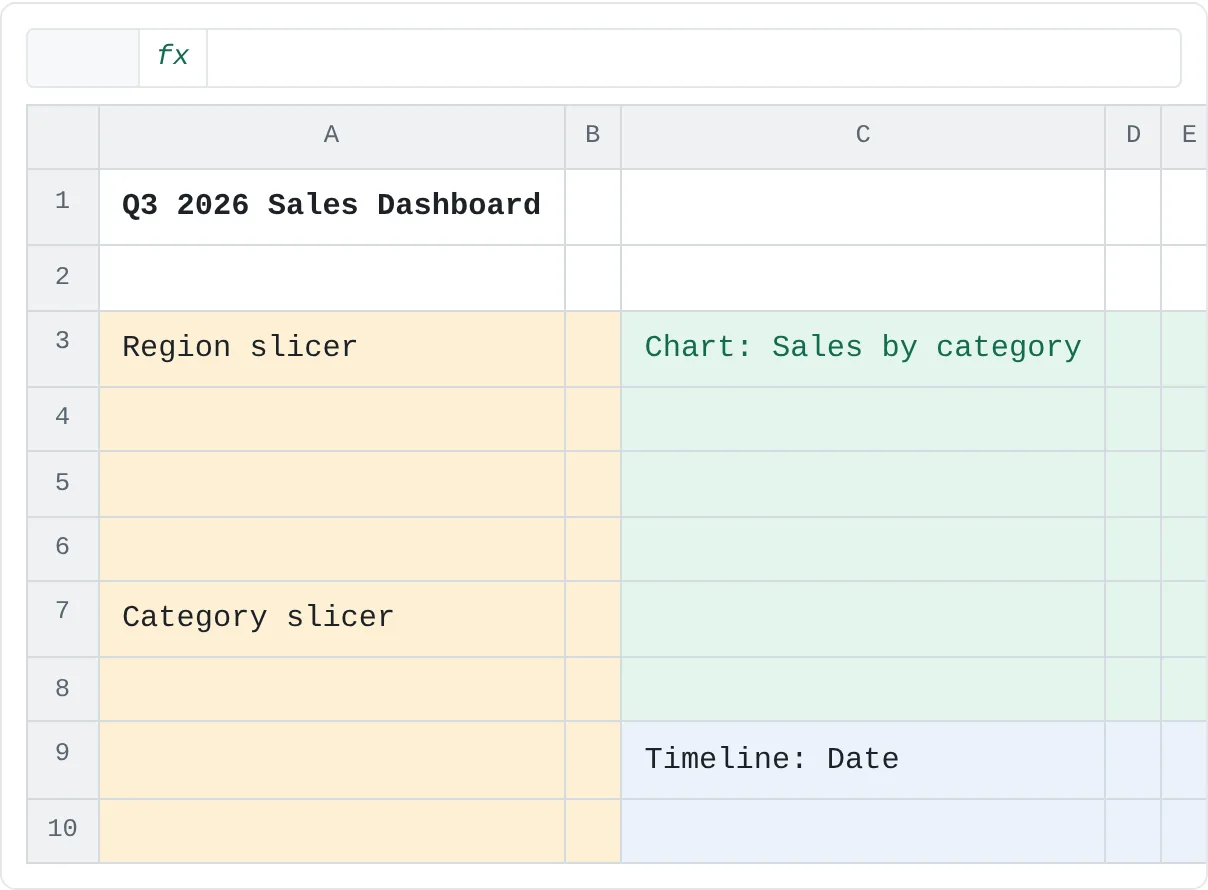
Put the title across the top, the filters together on the left or along the top, and the charts side by side. Make charts that sit next to each other the same height. Hold Alt while you drag or resize an object and its edges snap to the cell gridlines, which makes alignment easy.
A B C D E F G H 1 Q3 2026 Sales Dashboard 2 3 Region slicer Chart: Sales by category Chart: Sales by month 4 5 6 7 Category slicer 8 9 Timeline: Date 10 A simple layout: title on top, slicers on the left (amber), two charts of equal size (green) and a timeline under them. Clear away what doesn't help
Turn off the sheet gridlines with View then Show then Gridlines. On each chart, click elements the reader doesn't need, such as chart gridlines or a legend on a single-series chart, and press Delete. Add Data Labels from the Chart Elements button if exact values matter more than the axis.
Before you share it, press Ctrl+Alt+F5 (Refresh All) so every PivotTable, and therefore every chart, uses the latest data.
Common mistakes
- A slicer that filters only one chart. New slicers connect only to the PivotTable you started from. Use Report Connections to link the others.
- "Report Connections" doesn't list a PivotTable. It only lists PivotTables built from the same source. Build every dashboard PivotTable from the same Excel Table.
- Titles that repeat the axis. "Sales" says nothing the chart doesn't. Say what, by what and when, or state the finding.
- Decoration over data. 3-D effects, heavy gridlines, shadows and a legend for a single series all slow the reader down. Remove them.
- Too much on one page. If the dashboard needs scrolling, it's two dashboards. Keep the three or four charts that answer the main questions.
Practice
Practice
Build a one-page summary
- Use data you track, such as sales, expenses or hours, or the twelve sales from the PivotTable tutorial, stored as an Excel Table.
- Build two PivotTables from it, one by category and one by month, and a PivotChart from each.
- Hide the field buttons and give each chart a title that says what it shows and for what period.
- Add at least two slicers and a timeline, and connect each to both PivotTables with Report Connections.
- Move the charts, slicers and timeline to a Dashboard sheet, align them and turn off gridlines.
- Remove one element from each chart that doesn't help the reader, then refresh everything.
Check your skills
- Can you build a PivotChart from a PivotTable?
- Can you add a slicer and use it to filter the chart, and connect it to a second PivotTable?
- Can you explain what makes a one-page dashboard readable instead of cluttered?
- Can you write a chart title that tells the reader what they're looking at?
Related
Was this guide helpful? Spot a mistake? Send feedback · admin@arumsoft.com