Intermediate Excel · Tutorial 6 of 12
How to Use Conditional Formatting in Excel
Color cells automatically by rule: flag values over a limit, catch duplicates, highlight top values, add data bars and write your own formula rules.
- Level
- Intermediate
- Time
- 13 min read
- Updated:
- Applies to:
- Excel for Microsoft 365, Excel 2021, Excel 2019, Excel for the web
What you'll learn
- Highlight cells above or below a threshold with Highlight Cells Rules
- Flag duplicate values and top or above-average values
- Show relative size with data bars, color scales and icon sets
- Write a formula-based rule that formats a whole row
- Change the order of rules and clear rules you no longer need
Example file
How to Use Conditional Formatting in Excel.xlsx
Download the workbook used in this tutorial and follow along in Excel.
Excel workbook (.xlsx) · 7 KB
Conditional formatting changes how a cell looks based on a rule. Instead of reading every number, you let color point out what needs attention: an invoice over budget, an invoice number entered twice, the biggest amounts of the month. The formatting updates by itself whenever the values change.
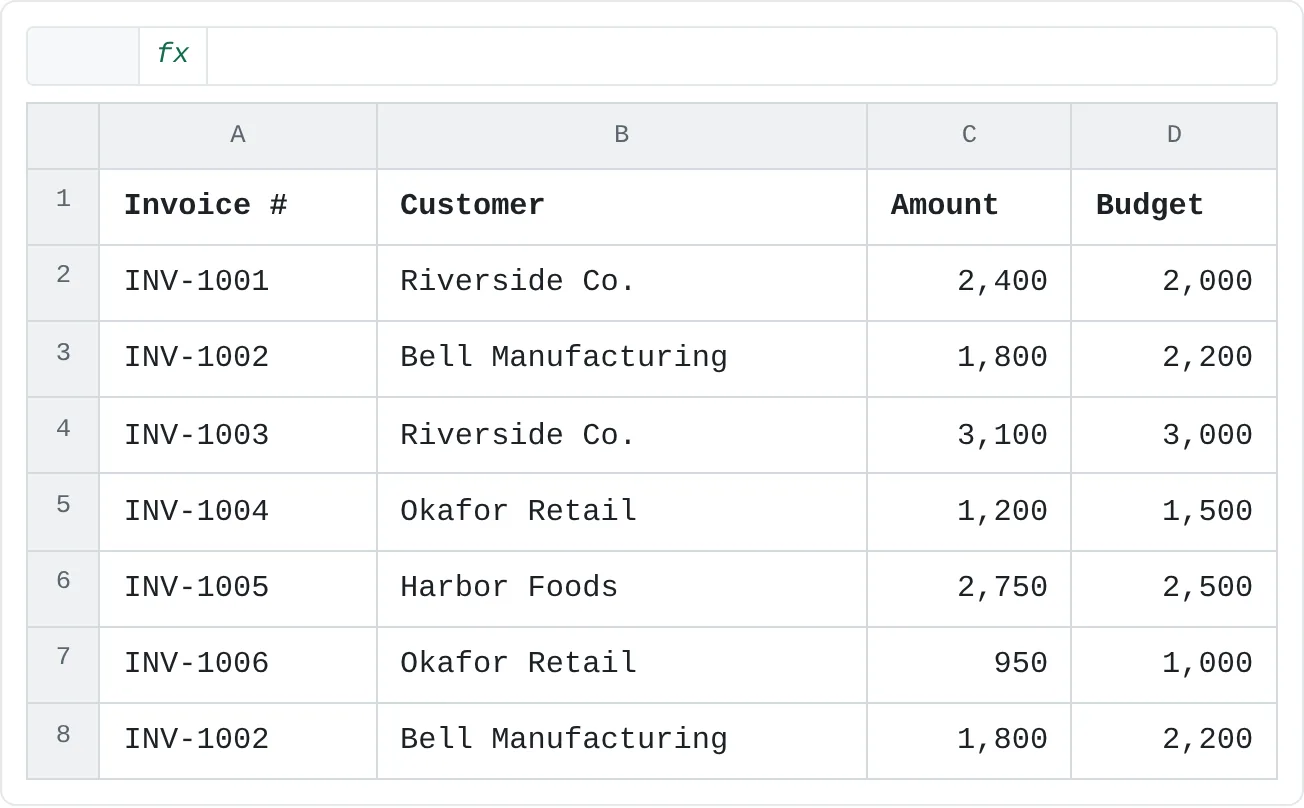
The examples use a list of seven invoices with an amount and a budget for each:
| A | B | C | D | |
|---|---|---|---|---|
| 1 | Invoice # | Customer | Amount | Budget |
| 2 | INV-1001 | Riverside Co. | 2,400 | 2,000 |
| 3 | INV-1002 | Bell Manufacturing | 1,800 | 2,200 |
| 4 | INV-1003 | Riverside Co. | 3,100 | 3,000 |
| 5 | INV-1004 | Okafor Retail | 1,200 | 1,500 |
| 6 | INV-1005 | Harbor Foods | 2,750 | 2,500 |
| 7 | INV-1006 | Okafor Retail | 950 | 1,000 |
| 8 | INV-1002 | Bell Manufacturing | 1,800 | 2,200 |
Every rule in this tutorial starts from the same place: Home then Styles then Conditional Formatting. Excel for the web has the same rules under Conditional Formatting on the Home tab, but you set them up and manage them in a pane on the right instead of in dialogs.
Highlight values above a threshold
Highlight Cells Rules compare each cell with a value you type. Flag every invoice amount over 2,500:
Select the cells to format
Select the amounts, C2:C8. Select only the data: if you include the header, the rule applies to it too.
Choose the rule
Click Home then Styles then Conditional Formatting then Highlight Cells Rules then Greater Than.
Enter the value and pick a format
In the Greater Than dialog, type
2500in the box on the left. Leave the format on the right as Light Red Fill with Dark Red Text, or pick another, and click OK.A B C D 1 Invoice # Customer Amount Budget 2 INV-1001 Riverside Co. 2,400 2,000 3 INV-1002 Bell Manufacturing 1,800 2,200 4 INV-1003 Riverside Co. 3,100 3,000 5 INV-1004 Okafor Retail 1,200 1,500 6 INV-1005 Harbor Foods 2,750 2,500 7 INV-1006 Okafor Retail 950 1,000 8 INV-1002 Bell Manufacturing 1,800 2,200 Amounts greater than 2,500 are highlighted: 3,100 in C4 and 2,750 in C6. The 2,400 in C2 stays unformatted.
Change C2 to 2,600 and it turns red at once. Change it back and the color goes away.
The same menu offers Less Than, Between, Equal To, Text that Contains and A Date Occurring. Instead of typing a number, you can click a cell, such as a target in G1. Excel writes =$G$1, and the rule follows whatever you type in G1.
Find duplicate values
A repeated invoice number usually means someone entered the same invoice twice.
Select the column to check
Select the invoice numbers, A2:A8.
Apply the Duplicate Values rule
Click Home then Styles then Conditional Formatting then Highlight Cells Rules then Duplicate Values. Leave Duplicate selected in the dialog and click OK.
A B C D 1 Invoice # Customer Amount Budget 2 INV-1001 Riverside Co. 2,400 2,000 3 INV-1002 Bell Manufacturing 1,800 2,200 4 INV-1003 Riverside Co. 3,100 3,000 5 INV-1004 Okafor Retail 1,200 1,500 6 INV-1005 Harbor Foods 2,750 2,500 7 INV-1006 Okafor Retail 950 1,000 8 INV-1002 Bell Manufacturing 1,800 2,200 INV-1002 appears in A3 and A8, so the Duplicate Values rule highlights both.
The rule highlights every copy, including the first one, so you can see both rows and decide which to delete. Switch the dialog's first box to Unique to highlight values that appear only once instead.
Like a lookup, the duplicate check ignores capital letters but not spaces: INV-1002 with a trailing space doesn't count as a duplicate of INV-1002.
Highlight the top values or above average
Top/Bottom Rules don't use a fixed number. They compare each value with the rest of the range, so the highlight moves when the data changes.
Select the amounts
Select C2:C8 again.
Choose Above Average
Click Home then Styles then Conditional Formatting then Top/Bottom Rules then Above Average, pick a format and click OK.
A B C D 1 Invoice # Customer Amount Budget 2 INV-1001 Riverside Co. 2,400 2,000 3 INV-1002 Bell Manufacturing 1,800 2,200 4 INV-1003 Riverside Co. 3,100 3,000 5 INV-1004 Okafor Retail 1,200 1,500 6 INV-1005 Harbor Foods 2,750 2,500 7 INV-1006 Okafor Retail 950 1,000 8 INV-1002 Bell Manufacturing 1,800 2,200 The average of C2:C8 is 2,000, so the Above Average rule highlights 2,400, 3,100 and 2,750.
The seven amounts add up to 14,000, an average of 2,000. Three invoices are above it.
The same menu has Top 10 Items, Top 10%, Bottom 10 Items, Bottom 10% and Below Average. Despite the name, Top 10 Items lets you choose the count: change the 10 in its dialog to 2 and only the two largest amounts, 3,100 and 2,750, are highlighted.
Show size with data bars, color scales and icon sets
These three formats don't pick out some cells and skip others. They mark every cell according to where its value sits in the range.
- Data Bars draw a bar inside each cell. The longest bar belongs to the largest value, 3,100 here, and every other bar is sized relative to it.
- Color Scales shade cells along a gradient, for example Green - Yellow - Red Color Scale, where green marks the highest values and red the lowest.
- Icon Sets add a small icon, such as an arrow or a traffic light, based on where the value falls in the range.
Select C2:C8 and point to Home then Styles then Conditional Formatting then Data Bars. Excel previews each style on your cells as you move the mouse. Click a style under Gradient Fill or Solid Fill to apply it.
Write your own rule with a formula
The built-in rules compare a cell with a fixed value or with its own range. To compare it with another cell in the same row, such as the amount with its budget, write a formula. The rule formats a cell wherever the formula returns TRUE.
Highlight every whole row where the amount is over budget:
Select the rows, starting at the top-left
Select A2:D8 by dragging from A2 down to D8, so A2 is the active cell. The formula you write is for this cell, and Excel adjusts it for every other cell in the selection.
Open New Rule
Click Home then Styles then Conditional Formatting then New Rule and choose Use a formula to determine which cells to format.
Type the formula
In Format values where this formula is true, type:
=$C2>$D2Pick a format and confirm
Click Format, choose a fill color on the Fill tab, then click OK twice.
A B C D 1 Invoice # Customer Amount Budget 2 INV-1001 Riverside Co. 2,400 2,000 3 INV-1002 Bell Manufacturing 1,800 2,200 4 INV-1003 Riverside Co. 3,100 3,000 5 INV-1004 Okafor Retail 1,200 1,500 6 INV-1005 Harbor Foods 2,750 2,500 7 INV-1006 Okafor Retail 950 1,000 8 INV-1002 Bell Manufacturing 1,800 2,200 The formula rule =$C2>$D2 highlights each whole row where the amount is over budget: rows 2, 4 and 6.
The $ signs do the work. $C and $D lock the columns, so every cell in a row, from A to D, checks that row's Amount and Budget. The row numbers have no $, so row 4 checks $C4>$D4, row 5 checks $C5>$D5 and so on. Rows 2, 4 and 6 are over budget (2,400 over 2,000, 3,100 over 3,000 and 2,750 over 2,500).
A few more formula rules you can reuse:
| Formula | Highlights |
|---|---|
=$C2>AVERAGE($C$2:$C$8) | rows whose amount is above the average |
=COUNTIF($A$2:$A$8,$A2)>1 | rows whose invoice number appears more than once |
=$B2="Riverside Co." | rows for one customer |
To test a formula before you use it in a rule, type it into an empty column next to the data and copy it down. It should show TRUE exactly on the rows you want highlighted.
Manage, order and clear rules
All the rules on a sheet are listed in one place: Home then Styles then Conditional Formatting then Manage Rules. The Conditional Formatting Rules Manager opens. Set Show formatting rules for to This Worksheet to see every rule, not only those for the selected cells.
From here you can:
- Edit a rule's condition or format with Edit Rule.
- Change the cells it applies to in the Applies to box.
- Change the order with the Move Up and Move Down arrow buttons.
- Delete a rule with Delete Rule.
Order matters when rules overlap. In this sheet, C4 matches both the Greater Than rule (red fill) and the over-budget formula rule (amber fill). Rules are applied from the top of the list down, and when two rules set the same thing, such as the fill color, the higher one wins. Excel puts each new rule at the top, so the rule you created last wins until you reorder them. Rules that set different things, such as one fill color and one bold font, both apply.
Tick Stop If True next to a rule to stop Excel from applying any rule below it to cells where that rule is true.
To remove rules, use Home then Styles then Conditional Formatting then Clear Rules and choose Clear Rules from Selected Cells or Clear Rules from Entire Sheet.
Common mistakes
- The wrong
$in a formula rule. Without$before the column,=C2>D2on A2:D8 makes cell B2 checkD2>E2, and the row highlights unpredictably. For row rules, lock the column and not the row:=$C2>$D2. - Writing the formula for the wrong cell. The formula is always written for the active cell of the selection. If you select from D8 up to A2, the active cell is D8, and a formula written for row 2 checks the wrong rows. Select from the top-left cell.
- Including the header row. If the selection starts at the header, the rule checks the header too and can format it. Select only the data cells.
- Rules piling up. Copying and pasting formatted cells copies their rules, and you can end up with many fragments of the same rule. Check Manage Rules from time to time and delete the extras.
- Too many colors. If half the sheet is highlighted, nothing stands out. Use one or two rules that answer a real question, with formats the reader can tell apart.
Practice
Practice
Add rules to a table you track
- Open a table you update regularly: expenses, tasks, inventory or sales. If you don't have one, type the seven invoices from this tutorial.
- Add one threshold rule with Highlight Cells Rules, such as amounts over a limit or stock below a minimum.
- Add a Duplicate Values rule to an ID column, or a formula rule that highlights whole rows, such as
=$C2>$D2. - Add data bars to one numeric column.
- Open Manage Rules, set it to This Worksheet and decide which rule should win where two overlap. Move it to the top and write down why.
Then test three rule formulas on the sheet below. Each one should return TRUE or FALSE, exactly as it would inside a rule.
Try it0 of 3 done
- In E2, test the over-budget rule: return TRUE if the Amount in C2 is greater than the Budget in D2.
- In E5, test an above-average rule: is the Amount in C5 greater than the average of C2:C8?
- In E8, test a duplicate rule: return TRUE if the invoice number in A8 appears more than once in A2:A8.
Click a dashed cell, type a formula in the bar and press Enter.
| A | B | C | D | E | |
|---|---|---|---|---|---|
| 1 | Invoice # | Customer | Amount | Budget | Rule Test |
| 2 | INV-1001 | Riverside Co. | 2,400 | 2,000 | |
| 3 | INV-1002 | Bell Manufacturing | 1,800 | 2,200 | |
| 4 | INV-1003 | Riverside Co. | 3,100 | 3,000 | |
| 5 | INV-1004 | Okafor Retail | 1,200 | 1,500 | |
| 6 | INV-1005 | Harbor Foods | 2,750 | 2,500 | |
| 7 | INV-1006 | Okafor Retail | 950 | 1,000 | |
| 8 | INV-1002 | Bell Manufacturing | 1,800 | 2,200 |
Check your skills
- Can you highlight cells where a value crosses a threshold?
- Can you highlight duplicate values in a column?
- Can you highlight the top values or the above-average values in a range?
- Can you add data bars to show relative size at a glance?
- Can you write a formula rule with the right
$signs to highlight whole rows, and decide which rule wins when two overlap?
Related
Was this guide helpful? Spot a mistake? Send feedback · admin@arumsoft.com