Intermediate Excel · Tutorial 2 of 12
Relative, Absolute and Mixed References in Excel
Control what changes when you copy a formula: keep row references moving, lock a shared rate with $, and build a grid with mixed references.
- Level
- Intermediate
- Time
- 12 min read
- Updated:
- Applies to:
- Excel for Microsoft 365, Excel 2021, Excel 2019, Excel for the web
What you'll learn
- Predict how a relative reference changes when a formula is copied
- Lock a shared input cell with an absolute reference such as $F$2
- Use mixed references like $A2 and B$1 to fill a two-way grid from one formula
- Switch between reference types with F4 and replace a locked cell with a name
- Find a copied formula that points at the wrong cell
Before you start
Example file
Relative, Absolute and Mixed References in Excel.xlsx
Download the workbook used in this tutorial and follow along in Excel.
Excel workbook (.xlsx) · 7 KB
When you copy a formula, Excel adjusts its cell references so the copy works on its own row or column. Most of the time that's what you want. When it isn't, a $ sign tells Excel which part of a reference must stay put. Once you can read and place those dollar signs, you can write a formula once and fill it across a whole table with confidence.
What happens when you copy a formula
The examples use a small order sheet: a price and a quantity for each item, and a tax rate of 8% in F2 that every row should use.
| A | B | C | D | E | F | |
|---|---|---|---|---|---|---|
| 1 | Item | Price | Qty | Total | Tax rate | |
| 2 | Notebook | 4 | 10 | 8% | ||
| 3 | Folder | 2 | 25 | |||
| 4 | Pen Pack | 3 | 15 | |||
| 5 | Stapler | 9 | 6 | |||
| 6 | Sticky Notes | 3 | 8 |
A plain reference such as B2 is a relative reference. Excel doesn't really store "B2"; it stores a position relative to the formula. In D2, =B2*C2 means "the cell two columns to my left times the cell one column to my left, on my row".
Copy that formula down to D3 and the same instruction now reads B3 and C3. Copy it to the right, to E2, and it reads C2 and D2. That's why one formula filled down a column gives every row its own answer:
| Formula in D2 | Copied down to D3 | Copied right to E2 |
|---|---|---|
=B2*C2 | =B3*C3 | =C2*D2 |
Only copying changes references. If you move a formula with cut and paste, or by dragging the cell's border, its references stay exactly as they were.
Lock a cell with $ (absolute reference)
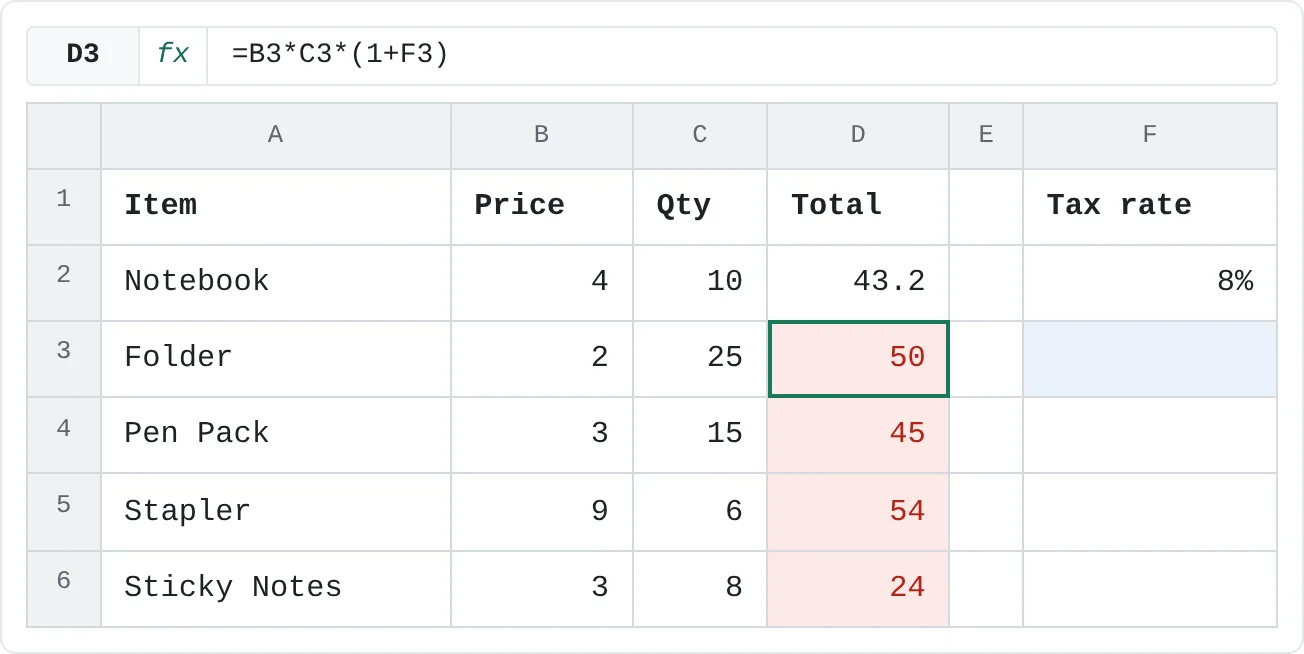
The tax rate is a problem for relative references. Every row needs F2, but a relative F2 copied down becomes F3, F4 and so on, which are empty. Excel treats an empty cell as 0, so the rows below the first one silently lose their tax. There's no error message; the numbers are just wrong.
| A | B | C | D | E | F | |
|---|---|---|---|---|---|---|
| 1 | Item | Price | Qty | Total | Tax rate | |
| 2 | Notebook | 4 | 10 | 43.2 | 8% | |
| 3 | Folder | 2 | 25 | 50 | ||
| 4 | Pen Pack | 3 | 15 | 45 | ||
| 5 | Stapler | 9 | 6 | 54 | ||
| 6 | Sticky Notes | 3 | 8 | 24 |
The fix is an absolute reference: $F$2. The $ before F locks the column and the $ before 2 locks the row, so the reference points at F2 wherever you copy it.
Write the formula for the first row
Click D2 and type:
=B2*C2*(1+$F$2)B2*C2is the price times the quantity, and(1+$F$2)adds 8% on top. Press Enter. D2 shows 43.2 (4 × 10 × 1.08).Fill the formula down
Click D2 again and double-click the fill handle, the small square at the bottom-right corner of the cell. Excel copies the formula down to the last row of the data next to it, row 6. You can also drag the fill handle, or select D2:D6 and press Ctrl+D.
Check a copied row
Click D6 and look at the formula bar:
=B6*C6*(1+$F$2). The price and quantity references moved to row 6; the tax rate stayed on F2. D6 shows 25.92.A B C D E F 1 Item Price Qty Total Tax rate 2 Notebook 4 10 43.2 8% 3 Folder 2 25 54 4 Pen Pack 3 15 48.6 5 Stapler 9 6 58.32 6 Sticky Notes 3 8 25.92 With $F$2 locked, every row uses the 8% in F2: 43.2, 54, 48.6, 58.32 and 25.92.
Change F2 to 10% and every total updates at once, because they all read the same cell. That's the reason to keep a rate in its own cell rather than typing 1.08 into each formula.
Lock only the row or only the column (mixed reference)
A mixed reference locks one half and leaves the other free:
$A2locks the column. Copied anywhere, it stays in column A, but the row still moves.B$1locks the row. Copied anywhere, it stays in row 1, but the column still moves.
You need this when one formula has to fill a grid in two directions. This grid shows the cost of an order for four unit prices (down column A) and four quantities (across row 1):
| A | B | C | D | E | |
|---|---|---|---|---|---|
| 1 | Price \ Qty | 5 | 10 | 25 | 50 |
| 2 | 2 | ||||
| 3 | 3 | ||||
| 4 | 4 | ||||
| 5 | 9 |
Write one formula in the top-left cell
Click B2 and type:
=$A2*B$1Press Enter. B2 shows 10 (2 × 5).
Fill it across and down
Drag B2's fill handle right to E2. Then, with B2:E2 still selected, drag the fill handle down to row 5. Every cell in B2:E5 now holds a copy of the formula.
Read one of the copies
Click E5. Its formula is
=$A5*E$1: the price still comes from column A (row 5 this time) and the quantity still comes from row 1 (column E this time). E5 shows 450 (9 × 50).A B C D E 1 Price \ Qty 5 10 25 50 2 2 10 20 50 100 3 3 15 30 75 150 4 4 20 40 100 200 5 9 45 90 225 450 One formula filled B2:E5. The copy in E5 reads the price in A5 and the quantity in E1.
Try the grid without the dollar signs and you'll see why they matter. A plain =A2*B1 copied to C2 becomes =B2*C1: it multiplies the answer in B2 by the quantity, giving 100 instead of 20. Lock everything instead, =$A$2*$B$1, and every cell in the grid shows 10.
Here's every reference type side by side, for a formula copied one row down and one column right:
| Reference | Type | Copied one row down | Copied one column right |
|---|---|---|---|
B2 | Relative | B3 | C2 |
$B$2 | Absolute | $B$2 | $B$2 |
$B2 | Mixed: column locked | $B3 | $B2 |
B$2 | Mixed: row locked | B$2 | C$2 |
Add the $ signs with F4
You don't have to type the dollar signs. While you're typing or editing a formula, put the cursor in or right after a reference and press F4. Each press cycles to the next type:
F2 → $F$2 → F$2 → $F2 → back to F2
The quickest habit: type =B2*C2*(1+F2, press F4 once to get $F$2, then finish the formula. To fix an existing formula, click the cell, press F2 to edit it, click inside the reference and press F4. If you've just selected a range such as B2:B6 while building the formula, F4 locks both ends at once: $B$2:$B$6.
Use a name instead of $F$2
A name does the same job as an absolute reference and makes the formula easier to read. =B2*C2*(1+TaxRate) explains itself; =B2*C2*(1+$F$2) makes you go and look at F2.
Select the cell
Click F2, the cell that holds the tax rate.
Type a name in the Name Box
Click the Name Box, the box to the left of the formula bar that shows
F2. TypeTaxRateand press Enter. You can also use Formulas then Defined Names then Define Name, which opens the New Name dialog where you can add a comment.Use the name in the formula
In D2, type
=B2*C2*(1+TaxRate)and fill it down. A name always points at the same cell, so you don't need any dollar signs. The results are identical: 43.2 in D2 and 25.92 in D6.
Names can't contain spaces and can't look like a cell reference, so TaxRate and Tax_Rate work but Tax Rate and TR1 don't. To see, edit or delete your names later, open Formulas then Defined Names then Name Manager.
Common mistakes
- Forgetting to lock a shared cell. The first row is right, so the formula looks fine, but every row below points at an empty cell. Click the last row of any filled formula and read the formula bar before you trust the column.
- Locking the wrong part.
$F2locks only the column, so copied down it still becomes$F3. For one cell that every row and column uses, lock both halves:$F$2. - Locking too much.
=$B$2*$C$2copied down repeats row 2's answer, 40, in every row. Leave references to "this row's" values relative. - Forgetting that ranges need locking too. To show each item's share of the total,
=D2/SUM($D$2:$D$6)must lock the range. Without the$signs, the range slides down one row with every copy and leaves out the first items. - Pressing F4 when you're not editing. Outside a formula, F4 repeats your last action (such as formatting or inserting a row) instead of adding
$signs. Press F2 first to edit the cell.
Practice
Practice
Build a pricing table with a shared rate
- In Excel, list at least five items in column A, with a price in column B and a quantity in column C. Put headings in row 1.
- Type a tax or discount rate in a cell of its own, away from the list, with a label next to it.
- Write the total for the first item once, locking the rate cell with F4, and fill it down the column.
- Press Ctrl+` and confirm every row refers to the same rate cell. Then change the rate and watch every total update.
- Name the rate cell in the Name Box and rewrite the formula with the name.
Then try the two sheets below. In the first, lock the tax rate. In the second, fill a cost grid with mixed references.
Try it0 of 2 done
- In D2, multiply Price by Qty and add the tax rate in F2, locking F2 with $ signs.
- In D6, write the formula exactly as it would look after copying D2 down to row 6.
Click a dashed cell, type a formula in the bar and press Enter.
| A | B | C | D | E | F | |
|---|---|---|---|---|---|---|
| 1 | Item | Price | Qty | Total | Tax rate | |
| 2 | Notebook | 4 | 10 | 8% | ||
| 3 | Folder | 2 | 25 | |||
| 4 | Pen Pack | 3 | 15 | |||
| 5 | Stapler | 9 | 6 | |||
| 6 | Sticky Notes | 3 | 8 |
Try it0 of 3 done
- In B2, multiply the price in column A by the quantity in row 1, with $ before the A and before the 1.
- In D4, write the formula B2 would turn into if you copied it to D4.
- In E5, finish the corner of the grid: the price in A5 times the quantity in E1.
Click a dashed cell, type a formula in the bar and press Enter.
| A | B | C | D | E | |
|---|---|---|---|---|---|
| 1 | Price \ Qty | 5 | 10 | 25 | 50 |
| 2 | 2 | ||||
| 3 | 3 | ||||
| 4 | 4 | ||||
| 5 | 9 |
Check your skills
- Can you explain what changes in
=B2*C2when it's copied down a column, and when it's copied to the right? - Can you write a formula that locks one shared cell with
$F$2while the other references still move? - Can you explain what
$A2andB$1lock, and what they leave free? - Can you spot a copied formula that points at the wrong row because a reference wasn't locked?
Related
Was this guide helpful? Spot a mistake? Send feedback · admin@arumsoft.com