Intermediate Excel · Tutorial 12 of 12
Productivity and Formula Auditing in Excel
Select blanks and formulas in one step, paste values and formats, copy styles, and trace and evaluate formulas to find out why a number is wrong.
- Level
- Intermediate
- Time
- 13 min read
- Updated:
- Applies to:
- Excel for Microsoft 365, Excel 2021, Excel 2019
What you'll learn
- Select every blank cell, formula or constant in a range with Go To Special
- Paste only values, only formats or a transposed copy with Paste Special
- Copy formatting from one cell to many with Format Painter
- Trace the cells a formula depends on and step through its calculation
- Save a safe copy before a risky change and check compatibility before sharing
Example file
Productivity and Formula Auditing in Excel.xlsx
Download the workbook used in this tutorial and follow along in Excel.
Excel workbook (.xlsx) · 7 KB
When a total looks wrong, retyping formulas and hoping is slow and rarely works. Excel has tools that show you exactly which cells a formula reads and how it arrives at its answer, plus a few editing tools that save minutes every day: selecting all the blanks at once, pasting only values, and copying a style instead of rebuilding it. This tutorial covers them on one small budget sheet.
The example is a department budget. Column D holds =C2-B2 (Actual minus Budgeted) and row 6 holds SUM totals, such as =SUM(C2:C5) in C6.
| A | B | C | D | E | |
|---|---|---|---|---|---|
| 1 | Category | Budgeted | Actual | Variance | Notes |
| 2 | Marketing | 5,000 | 4,600 | -400 | On track |
| 3 | Travel | 2,000 | 2,300 | 300 | |
| 4 | Software | 1,200 | 1,150 | -50 | Renewed annually |
| 5 | Office | 800 | 900 | 100 | |
| 6 | Total | 9,000 | 8,950 | -50 |
Select every blank, formula or constant at once
Go To Special selects all the cells of one kind in a range in a single step: every blank, every formula, every typed constant. It's the fastest way to fill gaps or to see which cells are formulas before you type over something.
Select the range to search
Select E2:E5, the Notes column. If you select only one cell, Excel searches the whole used area of the sheet.
Open Go To Special
Press Ctrl+G (or F5) to open the Go To dialog and click Special. You can also use Home then Editing then Find & Select then Go To Special.
Choose Blanks and click OK
Excel selects only the empty cells, E3 and E5. The rest of the range stays unselected.
A B C D E 1 Category Budgeted Actual Variance Notes 2 Marketing 5,000 4,600 -400 On track 3 Travel 2,000 2,300 300 4 Software 1,200 1,150 -50 Renewed annually 5 Office 800 900 100 6 Total 9,000 8,950 -50 After Go To Special > Blanks, only the two empty Notes cells are selected. Fill them all in one go
Type
Check, then press Ctrl+Enter instead of Enter. Ctrl+Enter puts what you typed into every selected cell, so both blanks now say Check.
The same dialog has other useful choices. Formulas selects every cell that contains a formula (on this sheet, D2:D6 and B6:C6), which is a quick way to color them before you hand the sheet to someone. Constants selects every typed value, which shows you exactly what a person is expected to enter.
Paste only what you need with Paste Special
A normal paste brings everything along: the formula, its formatting, its borders. Paste Special lets you choose one part.
Copy the cell
Click C6 (the Actual total) and press Ctrl+C.
Open Paste Special at the destination
Click the cell where the copy should go and press Ctrl+Alt+V, or click the arrow under Paste at Home then Clipboard then Paste and choose Paste Special.
Pick what to paste
Choose Values and click OK. The new cell holds the number 8950, not the formula.
The choices you'll use most:
| Option | What it pastes | When to use it |
|---|---|---|
| Values | The results only, no formulas | Freezing month-end figures, sending numbers without your formulas |
| Formats | Number format, fonts, fill and borders only | Matching the look of another range |
| Transpose (check box) | The copy turned sideways: rows become columns | Turning a vertical list into a header row |
You'll also find the most common choices as icons under Paste Options when you right-click the destination cell; the icon with 123 pastes values.
Copy formatting with Format Painter
Format Painter copies a cell's formatting, not its contents. Use it when one cell already looks right and others should match it.
- Click the cell with the formatting you want, for example E4.
- Click Home then Clipboard then Format Painter (the paintbrush). The pointer turns into a brush.
- Click the cell or drag over the range that should match, for example E5. Its text doesn't change; only fonts, fill, borders and number format are copied.
To paint several separate places, double-click Format Painter instead of clicking it. It stays on until you press Esc or click the button again.
Trace which cells a formula depends on
When you didn't build a sheet yourself, the hardest question is "where does this number come from?" Trace arrows answer it.
- Precedents are the cells a formula reads. The precedents of C6 are C2:C5.
- Dependents are the formulas that read a cell. The dependents of C5 are D5 (the variance) and C6 (the total).
Select the formula cell
Click C6.
Click Trace Precedents
Click Formulas then Formula Auditing then Trace Precedents. A blue arrow appears with a box around C2:C5, the range the total adds.
A B C D E 1 Category Budgeted Actual Variance Notes 2 Marketing 5,000 4,600 -400 On track 3 Travel 2,000 2,300 300 4 Software 1,200 1,150 -50 Renewed annually 5 Office 800 900 100 6 Total 9,000 8,950 -50 Trace Precedents on C6 outlines C2:C5: exactly the cells the total depends on. Click it again to go further back
Each click adds the next level: the precedents of the precedents. If an arrow is black and dashed and points to a small sheet icon, the formula reads a cell on another sheet. Double-click the dashed line to see where it goes.
Check the other direction, then clear the arrows
Click C5 and choose Trace Dependents in the same group to see which formulas would change if you edited Office's actual spend. When you're done, click Remove Arrows.
Two more views help with a sheet you don't know. Formulas then Formula Auditing then Show Formulas (Ctrl+`) shows every formula instead of its result, so you can scan a whole column for the one that's different. Press it again to switch back. And Ctrl+[ selects the cells the active formula refers to directly, which is handy when the precedents are far away.
Step through a formula with Evaluate Formula
Tracing tells you which cells a formula uses. Evaluate Formula shows how it uses them, one calculation at a time.
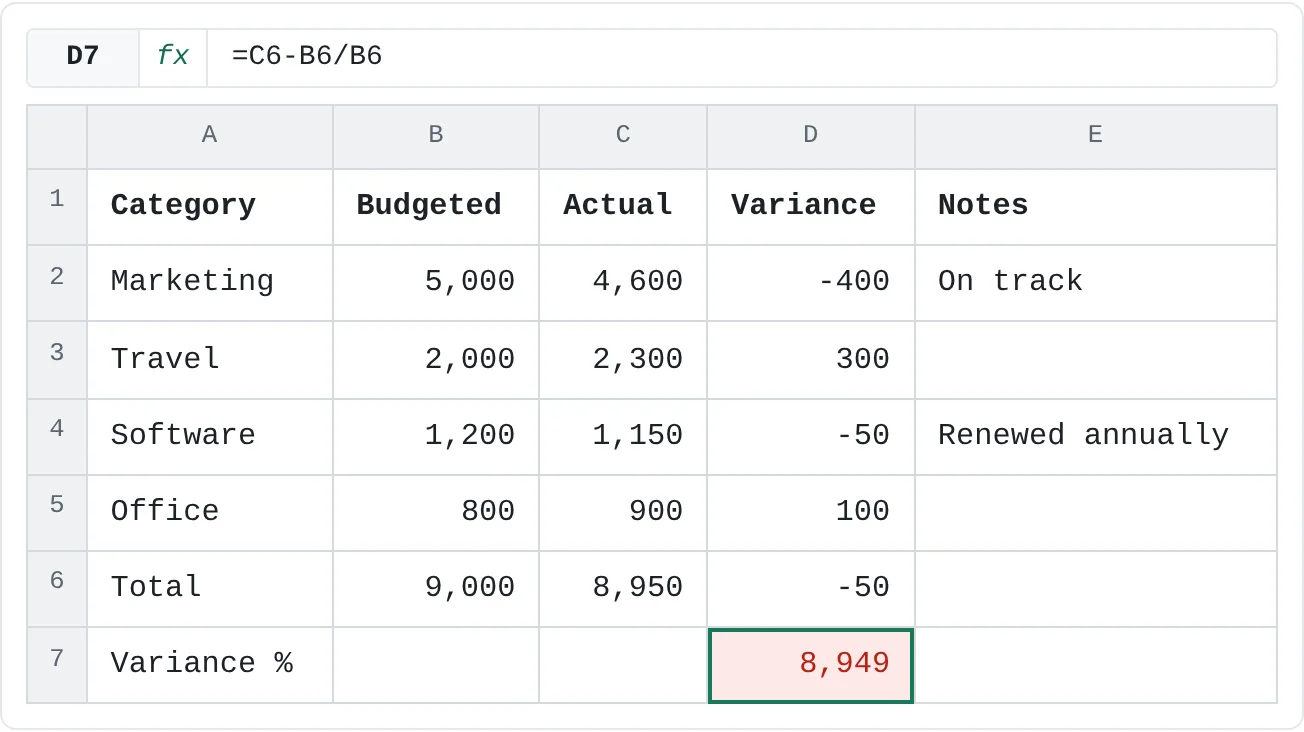
Say someone wanted the variance as a percent of budget and typed this in D7:
=C6-B6/B6| A | B | C | D | E | |
|---|---|---|---|---|---|
| 1 | Category | Budgeted | Actual | Variance | Notes |
| 2 | Marketing | 5,000 | 4,600 | -400 | On track |
| 3 | Travel | 2,000 | 2,300 | 300 | |
| 4 | Software | 1,200 | 1,150 | -50 | Renewed annually |
| 5 | Office | 800 | 900 | 100 | |
| 6 | Total | 9,000 | 8,950 | -50 | |
| 7 | Variance % | 8,949 |
Open Evaluate Formula
Click D7, then click Formulas then Formula Auditing then Evaluate Formula. The dialog shows the formula with the part Excel will calculate next underlined.
Click Evaluate repeatedly
Each click replaces the underlined part with its value. C6 becomes 8950 and each B6 becomes 9000. Then the problem shows itself: Excel calculates
9000/9000first and gets 1, because division happens before subtraction. The last step is8950-1, which gives 8949.Fix the formula
Close the dialog and add parentheses so the subtraction happens first:
=(C6-B6)/B6The result is −50 / 9000, which shows as -0.6% when D7 is formatted as a percentage with one decimal place.
If the formula calls a cell that holds another formula, Step In shows that cell's formula, and Step Out returns to the original.
Save a safe copy before a risky change
Before you restructure a sheet (deleting columns, replacing formulas, pasting values over a range), keep a way back.
- Save As first. Press F12 and save a copy with the date or a version number in the name, such as
Budget_2026-10_v2.xlsx. If the change goes wrong, the old file is untouched. Undo (Ctrl+Z) only goes back so far, and it's cleared when you close the file. - Use version history for files in OneDrive or SharePoint. File then Info then Version History lists earlier saved versions you can open and restore.
- Check who will open the file. Functions such as
XLOOKUP,FILTERandUNIQUEneed Excel 2021 or Microsoft 365. In an older version, a formula that uses them shows#NAME?once it recalculates. Before sharing, run File then Info then Check for Issues then Check Compatibility to see which features earlier versions don't support.
Common mistakes
- Pressing Enter after Go To Special. Enter fills only the active cell. Use Ctrl+Enter to fill every selected blank.
- Pasting values over the only copy of a formula. The formula is gone for good once you save. Paste values into a new column or a copy of the sheet.
- Assuming the formula you see is the formula everywhere. One cell in a column may have been typed over with a number. Show Formulas (Ctrl+`) makes the odd one stand out.
- Leaving trace arrows on. They clutter the sheet for the next person. Click Remove Arrows when you're done.
- Fixing the result instead of the formula. If Evaluate Formula shows the wrong order of operations, add parentheses; don't type the right number over the formula.
Practice
This exercise pulls together the main skills from the Intermediate path. Build it in your own Excel, start to finish.
Practice
Build and audit a sales commission sheet
- Enter about eight sales reps with columns for Rep, Region, Sales and Goal. Turn the range into an Excel table and give it a meaningful name.
- Put a commission rate (for example 5%) in a cell outside the table. Add a Commission column that multiplies Sales by the rate, with the rate locked by an absolute reference.
- Add a Status column that uses
IFto show Met Goal or Below Goal. - Use conditional formatting to highlight the rows that are below goal.
- Create a PivotTable that sums Sales by Region, then add a PivotChart and a Region slicer.
- Format the money columns, the rate as a percentage, the headers and the chart so they're easy to read.
- Audit your work: use Trace Precedents on one Commission cell, Show Formulas to scan the Status column, and Go To Special to find any blank cells.
- Add a new rep. Write down which parts updated on their own and which needed a refresh (the PivotTable does).
Check your skills
- Can you select every blank cell in a range with Go To Special and fill them all at once?
- Can you paste a formula's result as a fixed value with Paste Special?
- Can you copy formatting from one cell to several others with Format Painter?
- Can you trace which cells a formula depends on, and which formulas depend on a cell?
- Can you step through a wrong formula with Evaluate Formula and find where it goes wrong?
Related
Was this guide helpful? Spot a mistake? Send feedback · admin@arumsoft.com