How to Use Go To Special in Excel
Select every blank, formula, constant, error or visible cell in a range in one step, then fill, check, fix or copy them all at once.
- Level
- Intermediate
- Time
- 10 min read
- Updated:
- Applies to:
- Excel for Microsoft 365, Excel 2021, Excel 2019
What you'll learn
- Open Go To Special from the ribbon or from the Go To dialog
- Fill every blank cell in a column with the value above it
- Find typed numbers hiding in a column of formulas
- Select only error cells, visible cells or cells that differ from their row
Before you start
Go To Special selects all the cells of one kind in a single step: every blank, every formula, every typed number, every error. Once they're selected, you can fill, color, check or delete them together instead of hunting for them one by one. Open it with Ctrl+G (or F5) and click Special.
Where to find it
- Home then Editing then Find & Select then Go To Special.
- Or press Ctrl+G or F5 to open the Go To dialog, and click Special in its bottom-left corner.
The same Find & Select menu also has one-click shortcuts for a few common choices, such as Formulas and Constants.
What gets searched depends on what you select first. Select a range, and Go To Special looks only inside it. Click a single cell, and it looks at the whole used area of the sheet. Most mistakes with Go To Special come from forgetting this.
Fill blank cells with the value above
Reports exported from other systems often show a label only on the first row of each group. The Region column below says East once, then leaves the next two rows blank. That's easy to read, but sorting, filtering and PivotTables need the region on every row.
| A | B | C | |
|---|---|---|---|
| 1 | Region | Rep | Sales |
| 2 | East | Ana | 4,200 |
| 3 | Ben | 3,800 | |
| 4 | Chloe | 5,100 | |
| 5 | West | Dev | 2,900 |
| 6 | Ema | 4,400 | |
| 7 | North | Finn | 3,600 |
| 8 | Gia | 4,900 | |
| 9 | Hugo | 3,100 |
Select the column with the gaps
Select A2:A9, the Region cells only. Don't include the other columns, or Go To Special would pick up their blanks too.
Select the blanks
Open Go To Special, choose Blanks and click OK. The five empty cells are selected, and the first of them, A3, is the active cell.
Go To Special with Blanks chosen. Only the left-hand options are drawn. Point the active cell at the cell above
Without clicking anywhere, type
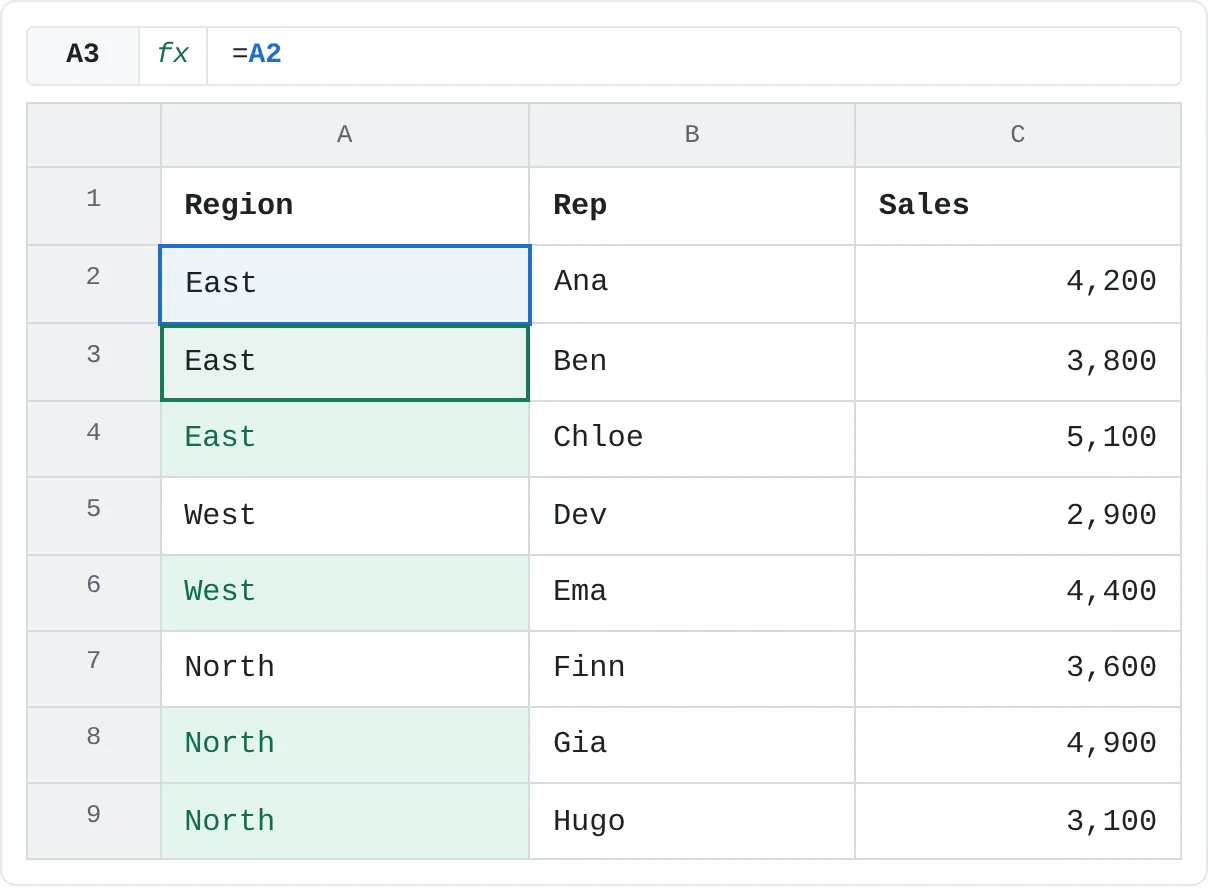
=and press Up. The formula reads=A2.Fill every blank at once
Press Ctrl+Enter. Every selected cell gets the same formula, adjusted for its own row: A4 gets
=A3, A6 gets=A5, and so on. Each one shows the region above it.A B C 1 Region Rep Sales 2 East Ana 4,200 3 East Ben 3,800 4 East Chloe 5,100 5 West Dev 2,900 6 West Ema 4,400 7 North Finn 3,600 8 North Gia 4,900 9 North Hugo 3,100 After Ctrl+Enter: A3 points to A2, and every other filled cell points to the cell above it. Turn the formulas into values
Select A2:A9, copy it with Ctrl+C and paste it back as values with Home then Clipboard then Paste then Values. If you skip this, sorting later would move the formulas and they'd point at the wrong rows.
Find typed numbers in a column of formulas
In the Total column below, every cell should add Q1 and Q2. One of them was overwritten with a typed number, and it looks just like the others.
Select the column to check
Select D2:D6.
Select the constants
Open Go To Special, choose Constants and click OK. Only D4 is selected: it holds the typed number 200, not a formula. The real total for Pens is 120 + 95 = 215.
A B C D 1 Item Q1 Q2 Total 2 Paper 320 280 600 3 Toner 450 500 950 4 Pens 120 95 200 5 Folders 60 75 135 6 Labels 40 55 95 Constants selects only D4, a typed 200 among four formulas. The correct total would be 215.
Choosing Formulas instead does the opposite and selects D2, D3, D5 and D6. Under Formulas, the Numbers, Text, Logicals and Errors check boxes narrow the search to formulas that return that kind of result. The same check boxes also work with Constants.
Every option in the dialog
| Option | Selects |
|---|---|
| Notes | Cells with a note attached |
| Constants | Cells with typed values, not formulas |
| Formulas | Cells with formulas (narrow it with Numbers, Text, Logicals, Errors) |
| Blanks | Empty cells |
| Current region | The whole block of data around the active cell |
| Current array | The whole array the active cell belongs to |
| Objects | Charts, shapes, pictures and text boxes on the sheet |
| Row differences | Cells that differ from the cell in the active cell's column, row by row (Ctrl+\) |
| Column differences | Cells that differ from the cell in the active cell's row, column by column |
| Precedents / Dependents | Cells the active cell's formula uses / formulas that use the active cell, with Direct only or All levels |
| Last cell | The last used cell on the sheet, the same as Ctrl+End |
| Visible cells only | Cells in the selection that aren't in hidden rows or columns (Alt+;) |
| Conditional formats | Cells with conditional formatting rules (All, or the Same rule as the active cell) |
| Data validation | Cells with data validation rules (All or Same) |
Real-world scenarios
Copy a summary without its hidden rows
A monthly report has its detail rows hidden so only the subtotals show. Copying it the usual way pastes the hidden rows too.
Select the report, press Alt+; (or choose Visible cells only in Go To Special), then press Ctrl+C. Paste into the email or the new sheet, and only the visible rows arrive. Rows hidden by a filter don't need this step: Excel copies only the visible rows of a filtered list on its own.
Find every #DIV/0! in a gradebook
The Average column divides points by the number of quizzes. Two students haven't taken a quiz yet, so their averages divide by zero.
| A | B | C | D | |
|---|---|---|---|---|
| 1 | Student | Quizzes | Points | Average |
| 2 | Aiden | 4 | 34 | 8.5 |
| 3 | Bella | 4 | 38 | 9.5 |
| 4 | Caleb | 0 | 0 | #DIV/0! |
| 5 | Daisy | 3 | 27 | 9 |
| 6 | Ethan | 0 | 0 | #DIV/0! |
Select D2:D6, open Go To Special, choose Formulas, untick Numbers, Text and Logicals, keep Errors ticked and click OK. Only D4 and D6 are selected. In a sheet of hundreds of students, that's every error in one step. To fix them, change the formula to =IF(B2=0,"",C2/B2) and fill it down, so a student with no quizzes shows an empty cell instead.
Which bills changed this month?
You list what you planned to pay and what you actually paid. Most bills match; you want to see the ones that don't.
| A | B | C | |
|---|---|---|---|
| 1 | Bill | Planned | Paid |
| 2 | Rent | 900 | 900 |
| 3 | Power | 65 | 82 |
| 4 | Internet | 40 | 40 |
| 5 | Phone | 45 | 45 |
| 6 | Insurance | 120 | 135 |
| 7 | Gym | 30 | 30 |
Select B2:C7, starting from B2 so that B2 is the active cell. Open Go To Special, choose Row differences and click OK, or press Ctrl+\. Excel compares each row with the Planned cell in that row and selects C3 (82 instead of 65) and C6 (135 instead of 120). Give them a fill color and they're easy to spot.
Common mistakes
- Searching the whole sheet by accident. With only one cell selected, Go To Special searches the whole used area of the sheet. Select the range first.
- Pressing Enter instead of Ctrl+Enter. Enter fills only the active cell and moves to the next selected one. Ctrl+Enter fills every selected cell.
- Leaving the fill-down formulas in place.
=A2style formulas break when the list is sorted. Paste them as values once the blanks are filled. - "No cells were found." Nothing in the selection matched. Check that you selected the right range, and, for Blanks, that the empty-looking cells are really empty: a cell with a space, or a formula that returns
"", is not blank. - Clicking elsewhere after selecting. One click on the sheet replaces the whole special selection. Type or format straight away.
Practice
Practice
Fill, check and compare with Go To Special
Type the sales report from this page into a new sheet, with the blanks in column A.
- Select A2:A9, select the blanks with Go To Special and fill each one with the region above it using
=, Up and Ctrl+Enter. - Paste column A over itself as values, then sort the list by Sales to check that every row kept its region.
- In an empty column, add a total for each rep with a formula, then overwrite one result with a typed number. Use Constants to find it.
- Divide one rep's sales by 0 in another cell, and use Formulas with only Errors ticked to find it.
- Hide two rows, select the list, press Alt+; and copy it to a new sheet. Check that the hidden rows didn't come along.
Related
Was this guide helpful? Spot a mistake? Send feedback · admin@arumsoft.com