Group, Outline and Subtotal in Excel
Add a total under each group of a sorted list with Subtotal, collapse rows and columns with an outline, and group detail rows or columns yourself.
- Level
- Intermediate
- Time
- 10 min read
- Updated:
- Applies to:
- Excel for Microsoft 365, Excel 2021, Excel 2019, Excel 2016
What you'll learn
- Insert subtotals for each group of a sorted list
- Collapse and expand detail with the outline level buttons and the plus and minus buttons
- Group and ungroup rows or columns yourself, or with Auto Outline
- Copy only the visible totals of a collapsed outline
- Remove subtotals and outlines when you're done
Before you start
A long list is easier to read in layers: the grand total, then a total per region, then the individual rows. Subtotal inserts a total row under each group of a sorted list and builds an outline for you, with buttons that collapse the detail. Group does the outline part on its own, for any rows or columns you choose. Press Shift+Alt+Right Arrow to group the selected rows or columns.
Where to find it
- Data then Outline then Subtotal opens the Subtotal dialog.
- Data then Outline then Group, or Shift+Alt+Right Arrow, groups the selected rows or columns. The arrow under the button also has Auto Outline.
- Data then Outline then Ungroup, or Shift+Alt+Left Arrow, removes a group. Its arrow has Clear Outline, which removes them all.
There's no right-click command for these.
Add subtotals to a list
This list shows sales by rep. The goal is a total for each region and a grand total.
| A | B | C | |
|---|---|---|---|
| 1 | Region | Rep | Sales |
| 2 | East | Ana | 1,200 |
| 3 | North | Dev | 800 |
| 4 | West | Finn | 1,300 |
| 5 | East | Ben | 900 |
| 6 | North | Eva | 1,100 |
| 7 | West | Gia | 700 |
| 8 | East | Chloe | 1,500 |
| 9 | West | Hugo | 1,000 |
Sort by the column you'll group by
Subtotal adds a total every time the value in the chosen column changes, so rows of the same region must be next to each other. Click a cell in column A and go to Data then Sort & Filter then Sort A to Z. East comes first, then North, then West.
Open Subtotal
Click any cell in the list and go to Data then Outline then Subtotal. Excel selects the whole list.
Fill in the dialog
Set At each change in to Region and Use function to Sum. Under Add subtotal to, tick Sales only. Leave Replace current subtotals and Summary below data ticked, then click OK.
A Sum of Sales at each change in Region. In Excel, Add subtotal to is a list of every column with a box to tick. Check the result
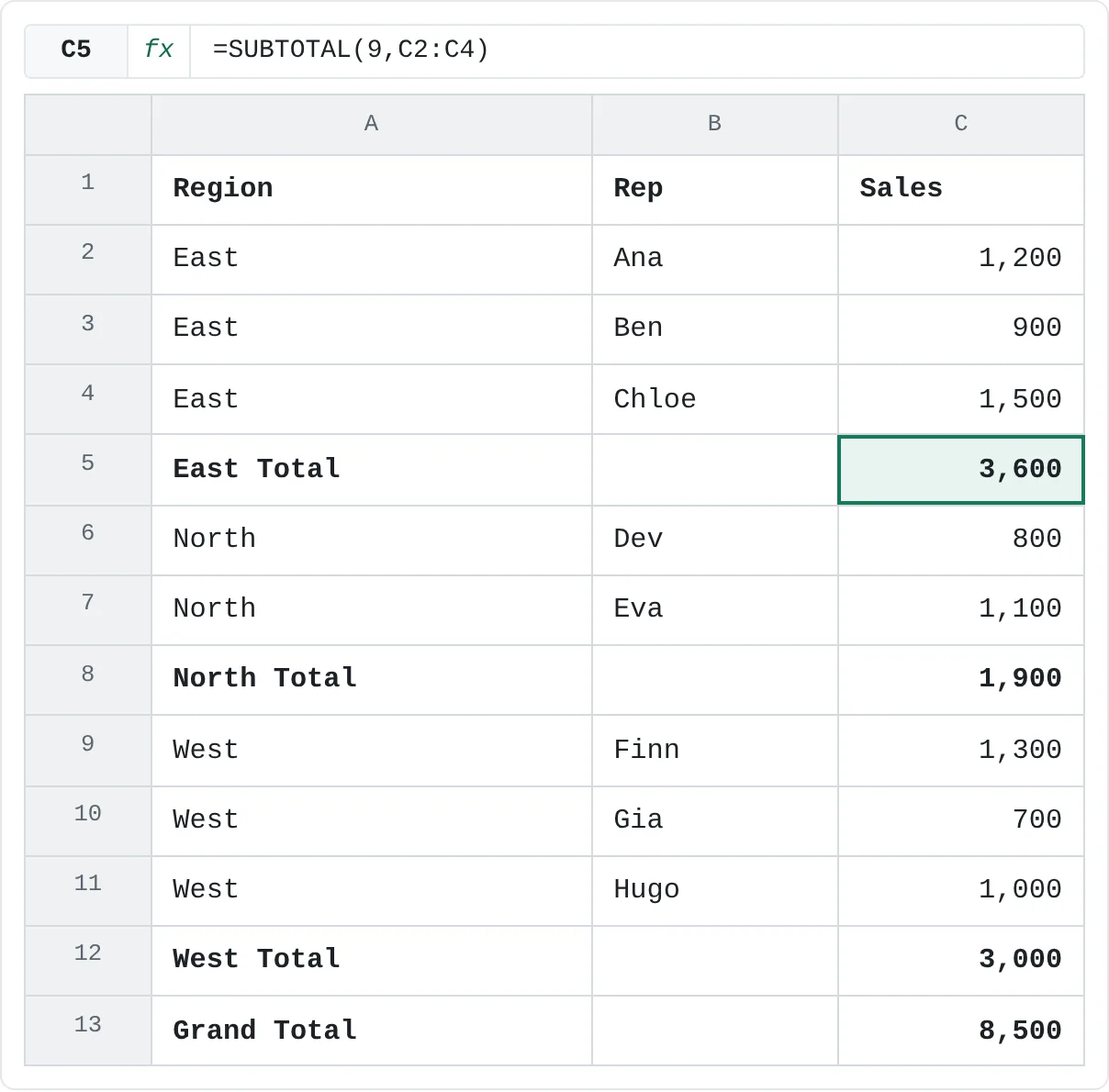
Excel inserts a total row under each region and a grand total at the bottom. East totals 3,600, North 1,900 and West 3,000, and the grand total is 8,500.
A B C 1 Region Rep Sales 2 East Ana 1,200 3 East Ben 900 4 East Chloe 1,500 5 East Total 3,600 6 North Dev 800 7 North Eva 1,100 8 North Total 1,900 9 West Finn 1,300 10 West Gia 700 11 West Hugo 1,000 12 West Total 3,000 13 Grand Total 8,500 After Subtotal: a total row under each region and a Grand Total in row 13. Each total is a SUBTOTAL formula.
Each total is a formula such as =SUBTOTAL(9,C2:C4), where 9 means Sum. The grand total, =SUBTOTAL(9,C2:C12), covers the subtotal rows too, but SUBTOTAL skips other SUBTOTAL results in its range, so nothing is counted twice. If you change a sale, the totals update.
Collapse and expand the outline
Subtotal also builds an outline. To the left of the row numbers you'll see:
- Level buttons 1, 2 and 3 at the top. Click 1 to see only the grand total, 2 to see the region totals and the grand total, and 3 to see every row again.
- Minus buttons next to each group. Click one to hide that group's detail rows; it turns into a plus button that shows them again.
Collapsed rows are hidden, not deleted. Press Ctrl+8 to hide or show the outline symbols if you need the space.
To copy just the totals, click level 2, select the visible list, press Alt+; to select only the visible cells, then copy and paste. Without Alt+;, Excel copies the hidden detail rows as well.
Subtotal options
| Option | What it does |
|---|---|
| At each change in | The column whose groups get a total. Sort by it first. |
| Use function | Sum, Count, Average, Max, Min, Product and a few statistics functions. |
| Add subtotal to | The columns to total. Tick more than one to total several columns at once. |
| Replace current subtotals | Removes existing subtotals before adding the new ones. Untick it to add a second set, such as an Average under each Sum. |
| Page break between groups | Prints each group on its own page. |
| Summary below data | Puts the totals under each group. Untick it to put them above. |
| Remove All (button) | Deletes the subtotal rows and the outline, and gives you the plain list back. |
Group rows or columns yourself
You don't need Subtotal to get an outline. Select the detail rows or columns you want to be able to hide, then group them.
Select whole rows or columns
Click the row or column headings to select the detail, such as columns B:D in a grade book where column E holds the average. Don't include the total row or column; it should stay visible when the group is collapsed.
Group them
Go to Data then Outline then Group or press Shift+Alt+Right Arrow. A bracket with a minus button appears above the columns (or to the left of the rows). If you selected cells instead of whole rows or columns, Excel asks whether to group Rows or Columns.
Collapse or ungroup
Click the minus button to collapse the group. To remove the grouping, select the same rows or columns and click Ungroup or press Shift+Alt+Left Arrow.
You can group inside a group to make up to eight levels. If your totals are already formulas next to their detail, Auto Outline (in the Group drop-down) builds the groups for you.
Real-world scenarios
Units and revenue per month
A sales log has a row per product per month. Your manager wants a total for each month, for both units and revenue.
| A | B | C | D | |
|---|---|---|---|---|
| 1 | Month | Product | Units | Revenue |
| 2 | Jan | Mugs | 40 | 320 |
| 3 | Jan | Caps | 25 | 375 |
| 4 | Jan Total | 65 | 695 | |
| 5 | Feb | Mugs | 35 | 280 |
| 6 | Feb | Caps | 30 | 450 |
| 7 | Feb | Bags | 10 | 250 |
| 8 | Feb Total | 75 | 980 | |
| 9 | Grand Total | 140 | 1,675 |
With the list sorted by month, choose At each change in: Month, Use function: Sum and tick both Units and Revenue. January totals 65 units and 695 in revenue, February 75 and 980, and the grand total is 140 and 1,675. Click level 2 to hand over just the monthly totals and the grand total.
Hide the quiz columns
A grade book has a column per quiz and the average in column E. When you talk to parents, you only want the name and the average on screen.
| A | B | C | D | E | |
|---|---|---|---|---|---|
| 1 | Student | Quiz 1 | Quiz 2 | Quiz 3 | Average |
| 2 | Mia | 80 | 90 | 85 | 85 |
| 3 | Leo | 70 | 75 | 80 | 75 |
| 4 | Sara | 90 | 95 | 100 | 95 |
| 5 | Tom | 60 | 72 | 84 | 72 |
Select the column headings B:D and press Shift+Alt+Right Arrow. Click the minus button above column E to collapse the quizzes, and the plus button to bring them back. The averages, such as Sara's 95 and Tom's 72, stay correct while the columns are hidden.
Fold a budget into categories
A household budget already has a total row under each category, written with SUM.
| A | B | |
|---|---|---|
| 1 | Item | Amount |
| 2 | Rent | 1,200 |
| 3 | Utilities | 150 |
| 4 | Housing | 1,350 |
| 5 | Groceries | 400 |
| 6 | Eating out | 180 |
| 7 | Food | 580 |
| 8 | Total | 1,930 |
Click any cell in the budget and choose Data then Outline then Group then Auto Outline. Excel spots that B4 sums the rows above it and B7 does the same, and groups rows 2–3 and 5–6. Collapse both and you see Housing 1,350, Food 580 and the total 1,930.
Common mistakes
- Not sorting first. On an unsorted list, Subtotal adds a total every time the region changes, so you get several East totals. Click Remove All, sort, and run Subtotal again.
- Using Subtotal in an Excel table. The button is greyed out when you click inside a table. Convert it with Table Design then Tools then Convert to Range, or use a PivotTable instead.
- Copying a collapsed outline. Hidden rows are copied too. Select the visible cells with Alt+; first.
- Adding rows after subtotalling. New rows typed below a total aren't part of the group above. Run Subtotal again with Replace current subtotals ticked.
- Totalling the subtotals with SUM.
=SUM(C2:C12)adds the region totals and the detail rows, so it doubles the result. UseSUBTOTAL, which skips other subtotals. - Expecting other tools to work on it. Remove Duplicates, for example, doesn't work on data with subtotals or an outline. Click Remove All first.
Practice
Practice
Build and fold a sales report
- Type the eight-row sales list from this page into a new sheet.
- Sort it by Region, then add a Sum of Sales at each change in Region. Check the totals: 3,600, 1,900, 3,000 and 8,500.
- Click the level buttons 1, 2 and 3 and watch what each one shows.
- At level 2, copy only the visible rows (with Alt+;) to a new sheet.
- Remove the subtotals, then group rows 2–4 yourself with Shift+Alt+Right Arrow and collapse them.
Related
Was this guide helpful? Spot a mistake? Send feedback · admin@arumsoft.com