Excel Basics · Tutorial 8 of 12
How to Use Excel Tables
Turn a plain range into an Excel table with Ctrl+T, then let it filter, band, total and extend formulas to new rows for you.
- Level
- Beginner
- Time
- 9 min read
- Updated:
- Applies to:
- Excel for Microsoft 365, Excel 2021, Excel 2019, Excel for the web
What you'll learn
- Convert a range into an Excel table with Ctrl+T
- Add a formula column that fills itself down
- Add new rows that pick up the table's formatting and formulas
- Turn on the Total Row and change what each total calculates
- Change the table style or turn the table back into a range
Before you start
Example file
How to Use Excel Tables.xlsx
Download the workbook used in this tutorial and follow along in Excel.
Excel workbook (.xlsx) · 8 KB
A plain block of data works, but an Excel table does a lot of the routine work for you. One shortcut gives you filter arrows, shaded rows and an optional total row, and when you add a row or a formula, the table extends everything to match. If you keep a list that grows, such as stock, expenses or sign-ups, a table keeps it tidy without extra effort.
The examples use this small office-supplies inventory. It starts in A1, has one heading per column and no blank rows.
| A | B | C | D | |
|---|---|---|---|---|
| 1 | Item | Category | Qty | Price |
| 2 | Stapler | Office | 40 | 4 |
| 3 | Legal Pad | Office | 120 | 2 |
| 4 | Whiteboard Marker | Office | 85 | 1 |
| 5 | Extension Cord | Hardware | 30 | 7 |
Convert a range into a table
Click any cell in the data
Click A1 or any other cell from A1 to D5. You don't need to select the whole range; Excel finds its edges for you.
Press Ctrl+T
Press Ctrl+T. You can also go to Insert then Tables then Table, or to Home then Styles then Format as Table if you'd like to pick a color style first.
Check the Create Table dialog
The Create Table dialog shows the range Excel detected under Where is the data for your table?, here
=$A$1:$D$5. If it's wrong, drag over the correct cells. Make sure My table has headers is ticked so row 1 is used as headings, then click OK.Look at what changed
The headings now have filter arrows, the rows are shaded in alternating colors, and a new Table Design tab (called Design in Excel 2019 and earlier) appears on the ribbon whenever a cell in the table is selected. The data itself hasn't changed.
If you leave My table has headers unticked, Excel inserts a new row of placeholder headings (Column1, Column2 …) above your data. Undo with Ctrl+Z and try again with the box ticked.
What the table gives you
- Filter arrows on every heading. Sort and filter straight away from the arrows, exactly as described in the sort and filter tutorial. You don't need to turn filtering on first.
- Banded rows. Alternate shading makes a wide list easier to read across. Turn it off or on with Table Design then Table Style Options then Banded Rows, and pick a different look from the Table Styles gallery on the same tab.
- Headings that stay in view. Scroll down a long table and, as long as a cell in the table is selected, Excel shows your headings in place of the column letters A, B, C at the top of the sheet.
- A name. Every table gets a name such as Table1. You'll find it in Table Design then Properties then Table Name, where you can change it to something meaningful like
Inventory(no spaces allowed). - Automatic growth. Rows and columns you type next to the table become part of it, with the same formatting and formulas. The next two sections show this.
Add a formula column that fills itself
In an ordinary range, you write a formula once and then copy it down. In a table, Excel copies it for you. Add a Line Total column that multiplies quantity by price.
Type a new heading
Click E1, type
Line Totaland press Enter. Because E1 touches the table, the table widens to include column E, with its own filter arrow.Write the formula in E2
In E2, type
=, click C2, type*and click D2. Instead of=C2*D2, Excel writes the formula with the column names:=[@Qty]*[@Price][@Qty]means "the Qty value in this row". These are called structured references; they read like plain English and stay correct when the table grows.Press Enter
Excel fills the formula down the whole column at once: 160, 240, 85 and 210. A column like this is called a calculated column.
A B C D E 1 Item Category Qty Price Line Total 2 Stapler Office 40 4 160 3 Legal Pad Office 120 2 240 4 Whiteboard Marker Office 85 1 85 5 Extension Cord Hardware 30 7 210 One formula in E2 filled the whole Line Total column.
Add a new row
To add a row, type directly in the first empty row under the table.
Type in the row under the table
Click A6, type
Sticky Notesand press Tab. The table grows to include row 6, and the shading continues.Fill in the rest of the row
Type
Officein B6,60in C6 and2in D6, pressing Tab between them. You don't need to type anything in E6: it got the Line Total formula as soon as the row joined the table, and now shows 120.A B C D E 1 Item Category Qty Price Line Total 2 Stapler Office 40 4 160 3 Legal Pad Office 120 2 240 4 Whiteboard Marker Office 85 1 85 5 Extension Cord Hardware 30 7 210 6 Sticky Notes Office 60 2 120 The new row joined the table. E6 calculated 120 without any copying.
Another way: click the last cell of the table's last row (now E6) and press Tab. Excel adds a blank table row underneath and moves to its first cell.
The growth works for anything that refers to the table. A chart, a PivotTable or a formula such as =SUM(Table1[Line Total]) picks up the new row without you editing a range.
Turn on the Total Row
Tick Total Row
Click any cell in the table and tick Table Design then Table Style Options then Total Row. A row labeled Total appears under the data, and the last column gets a sum automatically: 815 under Line Total.
Add a total under another column
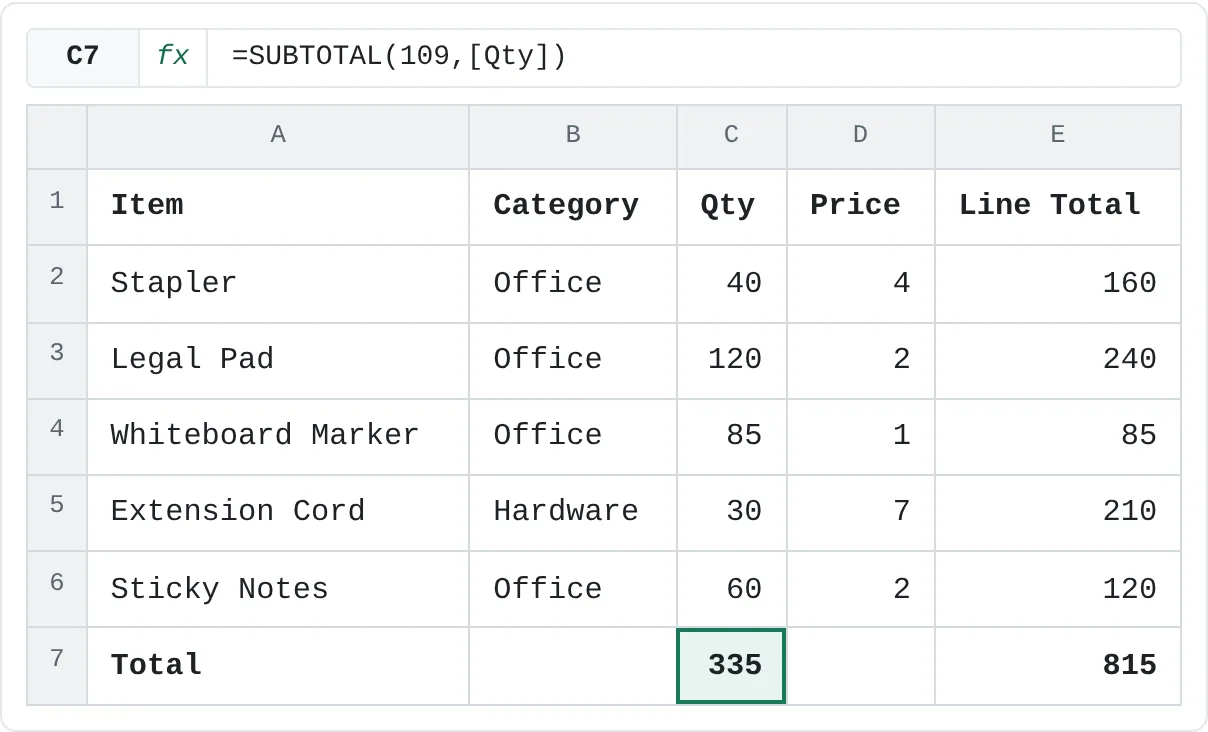
Click C7, the Total Row cell under Qty. An arrow appears on the right of the cell. Click it and choose Sum: the cell shows 335.
A B C D E 1 Item Category Qty Price Line Total 2 Stapler Office 40 4 160 3 Legal Pad Office 120 2 240 4 Whiteboard Marker Office 85 1 85 5 Extension Cord Hardware 30 7 210 6 Sticky Notes Office 60 2 120 7 Total 335 815 The Total Row with a Sum under Qty (335) and under Line Total (815). Change what it calculates
Open the same arrow and choose Average instead. C7 now shows 67, the average of the five quantities. The list also offers Count, Max, Min and more, and None clears the cell.
Behind each total, Excel writes a SUBTOTAL formula, such as =SUBTOTAL(109,[Qty]) for a sum. SUBTOTAL only counts the rows that are visible, so the totals follow your filters. Filter Category to Office and the Line Total sum drops from 815 to 605, because the Extension Cord row is hidden.
Turn a table back into a range
If you no longer want table behavior, click any cell in the table and go to Table Design then Tools then Convert to Range, then click Yes. The filter arrows, automatic growth and Total Row dropdowns go away, but the colors stay. Structured references in your formulas are changed to normal cell references such as C2.
Common mistakes
- A blank heading. Every column in a table needs a heading. If one is empty, Excel names it Column1, Column2 and so on. Type a real name in the heading cell.
- A blank row in the data. Excel detects the range by looking for the edges of your data, so a blank row cuts the table short. Check the range in the Create Table dialog before you click OK.
- Overwriting one cell of a calculated column. If you type a number over one formula in the Line Total column, that cell no longer matches the others. Excel marks it with a small green triangle. Retype the formula, or copy it from the cell above.
- Typing your own total row. A typed-in total becomes one more data row, so it gets filtered, sorted and even added into other totals. Use the Total Row instead.
Practice
Practice
Turn a range into a table
Use the inventory at the top of this page, or a list of your own with a few columns of text and numbers.
- Click a cell in the data, press Ctrl+T, check the range and My table has headers, and click OK.
- Use the arrow on Qty to sort largest to smallest, then filter Category to show only one category. Clear the filter afterwards.
- Add a Line Total column with the formula
=[@Qty]*[@Price]and check that it filled every row. - Type a new item in the row under the table. Does it get the shading and the Line Total formula?
- Turn on the Total Row, then switch the total under Qty between Sum and Average.
- Rename the table in Table Name to
Inventory.
Check your skills
- Can you convert a plain range into a table with Ctrl+T?
- Can you add a formula column that fills the whole table column by itself?
- Can you add a new row and see the table's formatting and formulas extend to it?
- Can you turn on the Total Row and change a total from Sum to Average?
Related
Was this guide helpful? Spot a mistake? Send feedback · admin@arumsoft.com