Zoom, Split and New Window: Viewing Large Sheets in Excel
See more of a big sheet, or two parts of it at once: zoom in and out, zoom to a selection, split the window, and open a second window side by side.
- Level
- Beginner
- Time
- 9 min read
- Updated:
- Applies to:
- Excel for Microsoft 365, Excel 2021, Excel 2019
What you'll learn
- Zoom in and out with the status bar, the mouse wheel and Zoom to Selection
- Split a sheet into panes to see two distant parts of it at once
- Open a second window of a workbook and arrange the windows
- Compare two workbooks with View Side by Side and Synchronous Scrolling
Before you start
Big sheets don't fit on one screen, and the part you need is always somewhere else. Excel has three tools for this. Zoom shows more or fewer cells at a time. Split divides the window so you can see two distant parts of the same sheet. New Window opens a second window of the workbook, so you can look at two sheets, or two workbooks, side by side. The quickest of them is zoom: hold Ctrl and roll the mouse wheel.
Where to find them
All three live on the View tab: the zoom commands in the Zoom group, Split and the window commands in the Window group.
| Command | Where | Other ways |
|---|---|---|
| Zoom in and out | Zoom slider at the bottom right of the window | Ctrl + mouse wheel |
| Zoom (choose a percentage) | View then Zoom then Zoom | Click the percentage next to the zoom slider |
| 100% | View then Zoom then 100% | |
| Zoom to Selection | View then Zoom then Zoom to Selection | |
| Split | View then Window then Split | Alt, W, S |
| New Window, Arrange All, View Side by Side | View › Window |
Zoom in and out
The fastest control is the zoom slider at the right end of the status bar. Drag it, or click − and + to zoom out or in by 10% at a time. The number next to it shows the current zoom; click it to open the Zoom dialog and pick an exact value.
With a mouse, hold Ctrl and roll the wheel: forward to zoom in, back to zoom out. To return to normal size, click View then Zoom then 100%.
Zoom only changes what you see. The font size stays the same, and so does the printed page. Each sheet keeps its own zoom, and Excel saves it with the workbook.
Zoom to the cells you've selected
Zoom to Selection sets the zoom so that the selected cells fill the window. It's the quickest way to make a table readable on a projector or a shared screen.
Select the cells to show
Select the table, here A1:F5.
A B C D E F 1 Region Q1 Q2 Q3 Q4 Total 2 East 120 135 128 150 533 3 West 98 104 117 121 440 4 North 143 139 152 160 594 5 South 87 92 85 101 365 The quarterly summary, A1:F5, selected. Zoom to Selection makes exactly this range fill the window. Zoom to the selection
Click View then Zoom then Zoom to Selection. A small table is magnified, up to 400%; a large one is shrunk until it fits, down to 10%.
Go back
When you're done, click View then Zoom then 100%.
Split one sheet into panes
Split divides the window into two or four panes. Each pane shows the same sheet and scrolls on its own, so you can keep the first rows of a long list in one pane and work at the bottom in the other.
Pick where the split goes
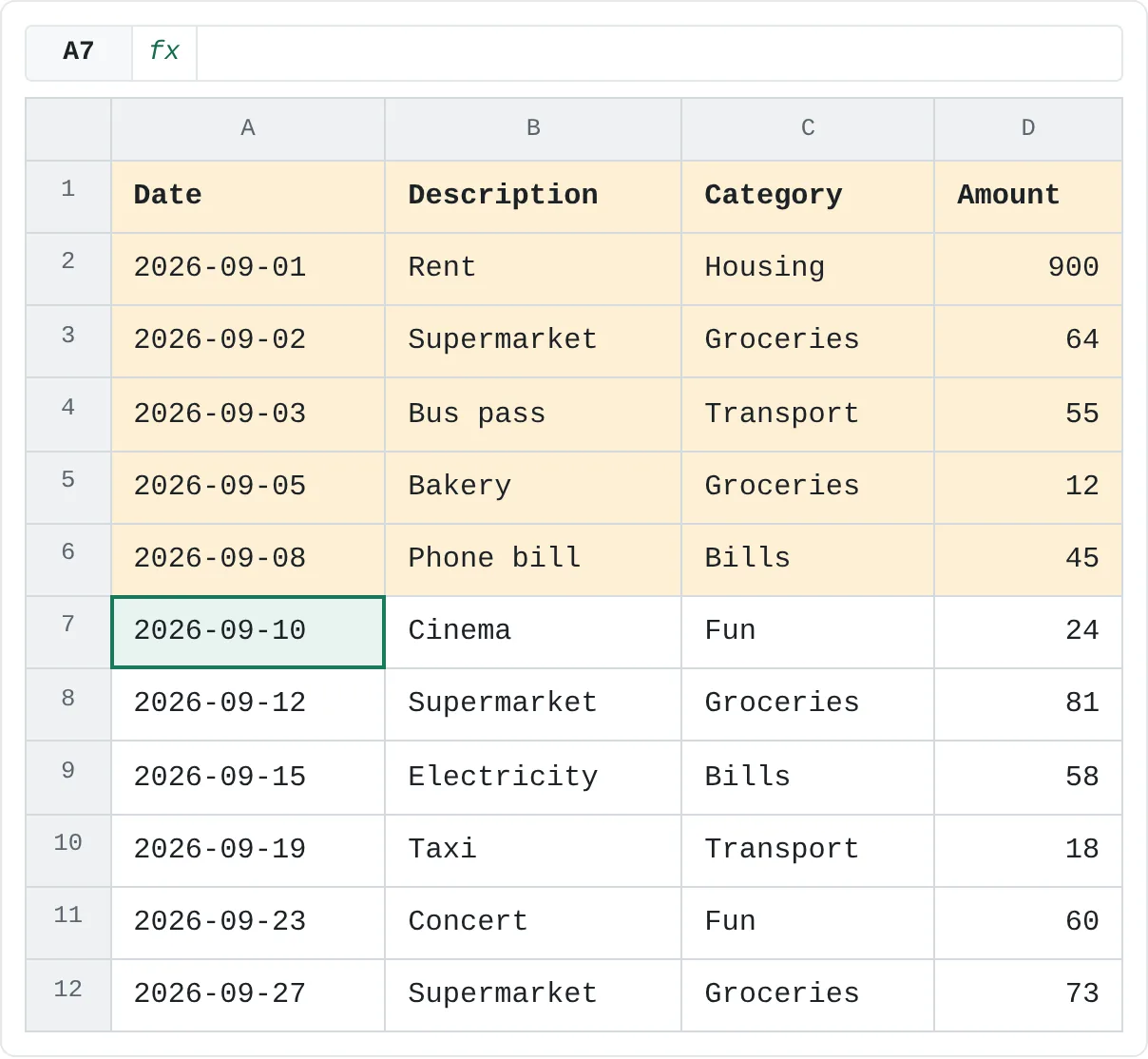
Click the cell below and to the right of where you want the split bars. A cell in column A, such as A7, gives a single bar above row 7: a top pane and a bottom pane. A cell in row 1 gives a single bar for left and right panes. Any other cell gives four panes.
Split the window
Click View then Window then Split. A gray split bar appears above row 7.
A B C D 1 Date Description Category Amount 2 2026-09-01 Rent Housing 900 3 2026-09-02 Supermarket Groceries 64 4 2026-09-03 Bus pass Transport 55 5 2026-09-05 Bakery Groceries 12 6 2026-09-08 Phone bill Bills 45 7 2026-09-10 Cinema Fun 24 8 2026-09-12 Supermarket Groceries 81 9 2026-09-15 Electricity Bills 58 10 2026-09-19 Taxi Transport 18 11 2026-09-23 Concert Fun 60 12 2026-09-27 Supermarket Groceries 73 Split at A7: rows 1 to 6 (amber) are in the top pane, and row 7 onwards is in the bottom pane. Each pane has its own scroll bar. Scroll each pane
Scroll the bottom pane down to the last entries while the top pane keeps showing the first ones. Both panes show the same cells, so a change you type in one appears in the other at once.
Adjust or remove the split
Drag the split bar to move it. Double-click it to remove that bar, or click Split again to remove the split completely.
Split and Freeze Panes look similar, but frozen rows can't scroll at all, while each split pane can. You can't use both on one sheet at the same time.
Open a second window of the same workbook
New Window opens the workbook you're in a second time, in its own window. It's not a copy: both windows show the same workbook, and a change in one shows in the other. Use it to watch a summary sheet while you enter data on another sheet.
Open a new window
Click View then Window then New Window. A second window opens on top of the first. The title bars show a number after the file name, 1 and 2, so you can tell them apart.
Arrange the windows
Click View then Window then Arrange All, choose Vertical to put them next to each other, tick Windows of active workbook so other open files stay where they are, and click OK.
Vertical places the windows side by side; Horizontal stacks them one above the other. Show a different sheet in each window
Click the Transactions sheet tab in one window and the Summary tab in the other. Each window also keeps its own zoom and frozen panes.
Close the extra window
When you're finished, close one of the windows with its X button. The workbook stays open in the other.
You can also arrange the windows with Windows itself: drag one to the left edge of the screen and the other to the right, or move one to a second monitor.
Compare two workbooks side by side
View Side by Side shows two windows next to each other and, with Synchronous Scrolling, scrolls them together. It's made for comparing two versions of a file.
Open both workbooks
Open the two files you want to compare. To compare two sheets of one workbook, open a New Window of it first.
Turn on View Side by Side
Click View then Window then View Side by Side. If more than two windows are open, Excel asks which one to compare with the active window. Synchronous Scrolling turns on, so scrolling one window scrolls the other.
Adjust the layout
Excel may stack the windows one above the other. To put them left and right, click Arrange All and choose Vertical. Reset Window Position gives both windows equal space again.
Turn it off
Click View Side by Side again to stop comparing.
Which one should you use?
| You want to… | Use |
|---|---|
| See more of the sheet, or read small text | Zoom (slider or Ctrl + wheel) |
| Make a range fill the screen for a presentation | Zoom to Selection |
| Keep the headings visible while you scroll | Freeze Panes |
| Look at the top and the bottom of one long sheet together | Split |
| See two sheets of the same workbook at once | New Window + Arrange All |
| Compare two files row by row | View Side by Side + Synchronous Scrolling |
Real-world scenarios
Check a new price list against last year's
Open last year's and this year's price lists, then click View Side by Side. With Synchronous Scrolling on, the same product sits at the same height in both windows as you scroll.
| A | B | C | |
|---|---|---|---|
| 1 | Code | Product | Price |
| 2 | P-101 | Copy paper | 6.5 |
| 3 | P-102 | Toner | 48 |
| 4 | P-103 | Pens (box) | 9 |
| 5 | P-104 | Folders | 4.25 |
| 6 | P-105 | Labels | 7.5 |
| 7 | P-106 | Stapler | 14 |
Synchronous Scrolling moves both windows by the same number of rows. If one list has an extra product, the rows below it drift out of line. Turn off Synchronous Scrolling, line them up again, and turn it back on.
Show results on the classroom projector
A teacher wants the class results readable from the back row. Select A1:D6 and click Zoom to Selection: the table fills the screen.
| A | B | C | D | |
|---|---|---|---|---|
| 1 | Student | Test 1 | Test 2 | Average |
| 2 | Ana | 78 | 86 | 82 |
| 3 | Ben | 64 | 70 | 67 |
| 4 | Chloe | 92 | 95 | 93.5 |
| 5 | Daniel | 71 | 69 | 70 |
| 6 | Emma | 85 | 91 | 88 |
After the lesson, click 100% to return to normal size. The zoom doesn't change the sheet itself, so nothing needs undoing.
Watch the budget while you enter spending
A household budget workbook has a Transactions sheet for every purchase and a Summary sheet with formulas. Open a New Window, choose Arrange All › Vertical, and show Summary in the second window.
| A | B | C | D | |
|---|---|---|---|---|
| 1 | Category | Budget | Spent | Left |
| 2 | Groceries | 300 | 230 | 70 |
| 3 | Transport | 100 | 73 | 27 |
| 4 | Bills | 120 | 103 | 17 |
| 5 | Fun | 80 | 84 | -4 |
Each purchase typed in the Transactions window updates the Summary window straight away. Here groceries have 70 left and fun shows -4, so the next concert can wait.
Common mistakes
- Zooming to fix printing. Zoom doesn't change the printed size. To fit a sheet on a page, use Page Layout then Scale to Fit.
- Thinking New Window makes a copy. Both windows show the same workbook. Delete a row in one and it's gone in the other.
- Saving with two windows open. Excel remembers the windows, so the workbook opens in two windows next time. Close the extra window before you save.
- The split won't go away. Click View then Window then Split again, or double-click the split bar.
- Synchronous Scrolling is grayed out. It only works while View Side by Side is on.
Practice
Practice
Three ways to see more
Type the transaction list from this page into a sheet named Transactions, then copy the rows down a few times so it's longer than your screen. Add a sheet named Summary.
- Hold Ctrl and roll the mouse wheel to zoom out until you can see the whole list. Click the percentage on the status bar and set exactly 100%.
- Select the first five rows and click Zoom to Selection. Then click 100%.
- Click A7 and choose Split. Scroll the bottom pane to the last row while the top pane shows the first. Remove the split.
- In Summary, type
=SUM(Transactions!D:D)in A1 to total every amount. - Open a New Window, use Arrange All › Vertical, and show Summary in one window and Transactions in the other. Change an amount in the Transactions window and watch the total change in the Summary window.
- Close the extra window, then save.
Related
Was this guide helpful? Spot a mistake? Send feedback · admin@arumsoft.com