Share, Co-author and Restore Versions in Excel
Share a workbook from OneDrive or SharePoint with the right permissions, edit it with others at the same time, and bring back an earlier version.
- Level
- Beginner
- Time
- 10 min read
- Updated:
- Applies to:
- Excel for Microsoft 365, Excel for the web
What you'll learn
- Save a workbook to OneDrive or SharePoint so it can be shared
- Share a workbook and choose whether people can edit or only view
- Work in the same workbook as others and see where they are
- Open and restore an earlier version with Version History
Before you start
Emailing a workbook as an attachment creates copies, and copies drift apart: by Friday nobody knows which one is right. Sharing works differently. The workbook stays in one place in the cloud, everyone opens the same file, several people can edit it at the same time, and Excel keeps earlier versions so you can go back if something goes wrong. All of it starts with the Share button in the top-right corner of the window.
Before you start: save the file to the cloud
Sharing, co-authoring and Version History need the workbook to be stored in OneDrive or a SharePoint library. A file saved only on your computer can't be co-authored.
Open Save As
Go to File › Save As. (If the file is already in OneDrive, you'll see Save a Copy instead, and there's nothing to do.)
Pick your OneDrive
Choose OneDrive - Personal for a personal Microsoft account, or OneDrive - followed by your organization's name for a work or school account. Pick a folder, keep the name and click Save.
Check AutoSave
The AutoSave switch at the top-left of the window turns on. Leave it on: co-authoring depends on it.
If you click Share on a file that's only on your computer, Excel first asks you to upload it to OneDrive.
Personal and work accounts
The same buttons work with both kinds of account, but some options exist only at work or school.
| Personal Microsoft account (OneDrive) | Work or school account (OneDrive for work or school, SharePoint) | |
|---|---|---|
| Share with anyone by email or link | Yes | Yes, unless your organization limits sharing outside it |
| Link that works only for your colleagues | No | Yes: People in your organization |
| Co-authoring and Version History | Yes | Yes |
| @mentions in comments | No | Yes |
| Block download on view-only links | No | Yes |
| Link expiry dates and passwords | Microsoft 365 subscribers | Depends on your organization's settings |
At work, your IT department decides which link types you can create. If an option is missing or grayed out, that's a policy, not a fault.
Where to find it
The sharing tools aren't on one ribbon tab:
- Share: the button in the top-right corner of the Excel window, and File › Share.
- Version History: File › Info › Version History, or click the file name at the top of the window and choose Version History.
- Talking to co-authors: the comment commands on the Review tab.
Share a workbook
Click Share
Click Share in the top-right corner of the window. If a short menu opens, choose Share again. The sharing window opens.
Add people
Type names or email addresses in the box at the top.
Choose what they can do
Set the permission next to the names to Can edit or Can view. People who can view can read and download the file but not change it. People who can edit can change it and add comments.
Send, or copy a link
Add a short message if you like and click Send. Everyone gets an email with a link to the file. To send the link yourself, in a chat for example, use Copy link instead.
Who a link works for
When you copy a link, its settings decide who can open it. Open the link settings from the sharing window to change them:
| Link setting | Who can open the file |
|---|---|
| Anyone | Anyone who has the link, including people outside your organization. A forwarded link still works. |
| People in your organization | Anyone signed in with an account from your organization (work or school only). |
| People with existing access | Only people who already have access. Use it to send a link to someone who's already in the file. |
| Specific people | Only the people you name. Forwarding the link doesn't give anyone else access. |
Microsoft rewords these options from time to time, so yours may read slightly differently (for example, People you choose instead of Specific people). For anything confidential, use Specific people, and choose Can view when people only need to read.
Work on a file at the same time
Once two people have the same shared workbook open, they're co-authoring. Nobody has to wait for anyone else to close the file.
- Who's here: pictures or initials of the other people appear in the top-right corner of the window.
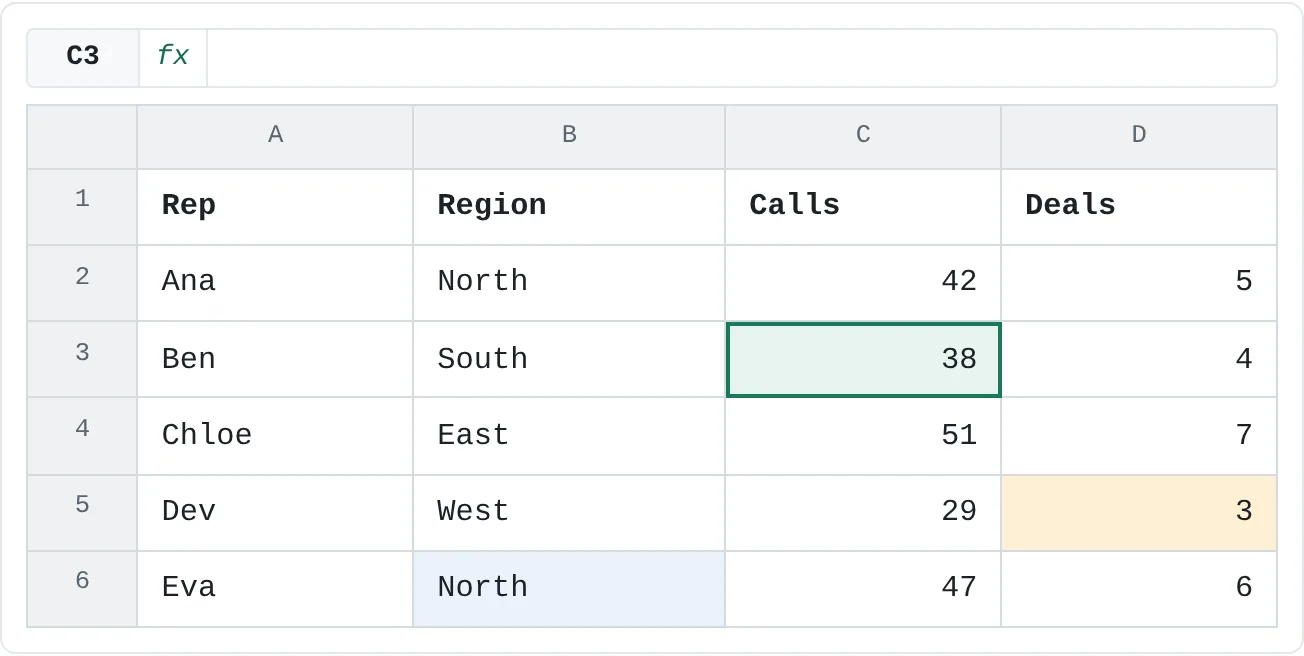
- Where they are: each person's selected cell is outlined in their own color. Click the colored outline to see whose it is. Your own selection is always green.
- What they change: edits appear on your screen within seconds, and AutoSave saves everyone's work. Everyone needs AutoSave on to see each other's selections.
| A | B | C | D | |
|---|---|---|---|---|
| 1 | Rep | Region | Calls | Deals |
| 2 | Ana | North | 42 | 5 |
| 3 | Ben | South | 38 | 4 |
| 4 | Chloe | East | 51 | 7 |
| 5 | Dev | West | 29 | 3 |
| 6 | Eva | North | 47 | 6 |
Co-authoring works with workbooks saved as .xlsx, .xlsm or .xlsb. If someone uses a feature that co-authoring doesn't support yet, Excel may show a message asking you to refresh, and to discard or save a copy of changes it couldn't merge.
Restore an earlier version
OneDrive and SharePoint keep earlier versions of the workbook as it's saved. If a co-author deletes the wrong column, or you need last week's numbers, you can open an older version and bring it back. Undo can't help here, because it only undoes your own changes.
In the inventory list below, someone cleared the In stock column by mistake, and AutoSave saved it.
| A | B | C | |
|---|---|---|---|
| 1 | Item | In stock | Reorder at |
| 2 | Paper | 20 | |
| 3 | Toner | 5 | |
| 4 | Pens | 50 | |
| 5 | Folders | 25 | |
| 6 | Labels | 10 |
Open Version History
Click the file name at the top of the window and choose Version History, or go to File › Info › Version History. The Version History pane opens on the right, listing the saved versions with the date, time and the person who saved each one.
Open the version you want
Pick a version from before the mistake, for example yesterday afternoon's. It opens in a separate, read-only window, so you can look without changing anything.
A B C 1 Item In stock Reorder at 2 Paper 40 20 3 Toner 6 5 4 Pens 120 50 5 Folders 35 25 6 Labels 18 10 Yesterday's version, opened from the Version History pane: the stock figures are still there. Restore it, or copy what you need
To go back to that version completely, click Restore in the bar at the top of the window. To keep today's other edits, copy only the cells you need (here B2:B6) from the old version and paste them into the current file instead.
Restoring doesn't throw anything away: the version you replaced stays in the list, so you can restore it again if you change your mind. Restoring does replace changes other people made after that version, so tell your co-authors before you do it.
For a file on your computer, Version History isn't available. Excel's AutoRecover copies, under File › Info › Manage Workbook, are the closest thing.
Real-world scenarios
A shift sign-up sheet the whole team fills in
A team lead needs the open shifts for next week covered. Instead of collecting replies by email, she saves the rota to the team's SharePoint site and shares it with Can edit with the team.
| A | B | C | |
|---|---|---|---|
| 1 | Day | Morning | Evening |
| 2 | Mon | Ana | Ben |
| 3 | Tue | Chloe | |
| 4 | Wed | Dev | |
| 5 | Thu | Eva | Ana |
| 6 | Fri |
Three people open the link within minutes, each sees the others' colored outlines, and they claim different cells without overwriting each other. By the afternoon every shift has a name, and there's only ever one rota.
A group project the teacher can watch
Four students plan a presentation in one tracker saved in a school OneDrive. They share it with each other with Can edit, and send the teacher a Can view link.
| A | B | C | |
|---|---|---|---|
| 1 | Task | Owner | Status |
| 2 | Research | Mina | Done |
| 3 | Slides | Joon | In progress |
| 4 | Script | Ellie | Not started |
| 5 | Rehearsal | Everyone | Not started |
Joon changes Slides to Done from his phone, and the teacher sees it the next time she opens the link. She can't change the tracker by accident, and she doesn't need anyone to send an updated copy.
Undo a friend's mistake in shared trip costs
Three friends split holiday costs in a workbook in Sam's personal OneDrive. Lee sorts the Amount column on its own, so the amounts end up next to the wrong expenses, and AutoSave saves it.
| A | B | C | |
|---|---|---|---|
| 1 | Expense | Paid by | Amount |
| 2 | Cabin, 2 nights | Sam | 74 |
| 3 | Groceries | Lee | 90 |
| 4 | Fuel | Sam | 126 |
| 5 | Ferry | Jo | 480 |
Sam opens Version History, picks the version from before the sort, checks that the cabin shows 480 again and clicks Restore. The list is back to Cabin 480, Groceries 126, Fuel 74 and Ferry 90.
Common mistakes
- Sending the file as an attachment. Every attachment is a separate copy that doesn't update. Share a link to the file in OneDrive or SharePoint instead.
- Sharing a file that's only on your computer. Others can't edit it at the same time, and there's no Version History. Save it to OneDrive or SharePoint first.
- Turning AutoSave off. Your changes stop reaching others until you save, and you won't see their selections. Keep it on while you co-author.
- An Anyone link for private data. It works for whoever it's forwarded to. Use Specific people, and Can view for people who only read.
- Restoring over everyone's work. Restore replaces the whole workbook. If others have made good changes since, copy the cells you need from the old version instead.
- Using the old Shared Workbook feature. It's a legacy feature with many limits. Co-authoring replaces it.
Practice
Practice
Share a workbook and restore a version
- Create a small list in Excel, such as the inventory list above, and save it to your OneDrive.
- Click Share, add a friend or a second account of your own with Can view, and send it. Then copy a Can edit link for yourself.
- Ask the person you shared with to open the file while you have it open (or open the edit link yourself in a private browser window, signed in with a second account). Click different cells and watch the colored outlines.
- Change a few numbers, wait a minute, and change them again.
- Open Version History, open the earliest version and compare it with the current one. Restore it, then check that the newer version is still in the list.
Related
Was this guide helpful? Spot a mistake? Send feedback · admin@arumsoft.com