How to Use Named Ranges in Excel
Give cells and ranges names like Sales or BonusRate, use them in formulas, and edit, fix or delete them in Name Manager.
- Level
- Intermediate
- Time
- 11 min read
- Updated:
- Applies to:
- Excel for Microsoft 365, Excel 2021, Excel 2019, Excel for the web
What you'll learn
- Name a cell or range with the Name Box or the New Name dialog
- Create names for several columns at once from their headings
- Use names in formulas instead of cell addresses
- Edit, filter and delete names in Name Manager
- Fix formulas that return #NAME? or #REF! because of a name
Before you start
A named range is a name, such as Sales or BonusRate, that stands for a cell or a range. =SUM(Sales)*BonusRate says what it does; =SUM(C2:C7)*$E$2 makes you go and look. Names are absolute, so formulas that use them can be copied anywhere, and they make drop-down lists and navigation easier too. Name Manager (Ctrl+F3) is where you see, edit and delete them all.
Where to find it
- Name Box, to the left of the formula bar: the fastest way to name the cells you've selected.
- Formulas then Defined Names then Define Name: opens the New Name dialog, with more options.
- Formulas then Defined Names then Create from Selection (Ctrl+Shift+F3): names several ranges at once from their headings.
- Formulas then Defined Names then Name Manager (Ctrl+F3): lists every name in the workbook.
You can also right-click a selection and choose Define Name.
Name a cell with the Name Box
The examples use this sales sheet. The bonus rate in E2 is a single input that several formulas will need.
Select the cell
Click E2. The Name Box shows its address,
E2.Type the name and press Enter
Click in the Name Box, type
BonusRateand press Enter. If you click away without pressing Enter, the name isn't created.A B C D E 1 Rep Region Sales 2 Ana East 12,000 Bonus rate 5% 3 Ben West 9,500 Total sales 4 Chloe East 15,500 Bonus pool 5 Dev North 8,000 East sales 6 Eva West 11,000 7 Finn East 7,000 E2 is selected and the Name Box shows its new name, BonusRate.
From now on, whenever you select E2, the Name Box shows BonusRate instead of E2. Click the arrow on the Name Box to see every name and jump to any of them.
Name a range with the New Name dialog
Define Name does the same job with more control. Select C2:C7 and go to Formulas then Defined Names then Define Name.
- Name: Excel suggests the heading above your selection (
Sales). Change it if you like. - Scope: Workbook means the name works on every sheet. Choosing a sheet limits the name to that sheet. You can't change the scope later, so decide now.
- Comment: an optional note that appears in Name Manager.
- Refers to: the cells, with
$signs. You can also type a constant or a formula here instead (see the discount scenario below).
Click OK.
Name every column at once
To name all three columns in one go, let Excel use the headings.
Select the headings and the data
Select A1:C7, headings included.
Open Create from Selection
Go to Formulas then Defined Names then Create from Selection or press Ctrl+Shift+F3.
Tick only Top row
Excel guesses where the labels are and may tick Left column too. Untick it, or Excel also names each row after the rep in column A. Leave Top row ticked and click OK.
Top row uses each heading as the name of the cells below it.
Excel creates Rep (A2:A7), Region (B2:B7) and Sales (C2:C7). If Sales already exists, Excel asks whether to replace it. Headings with spaces get underscores: a heading "Bonus rate" would become Bonus_rate.
Use names in formulas
Type a name wherever you'd type a range. As you type =SUM(Sa, the name appears in the AutoComplete list with a different icon from the functions; press Tab to accept it. You can also press F3 to pick from a list, or choose a name from Formulas then Defined Names then Use in Formula.
=SUM(Sales)=SUM(Sales)*BonusRate| A | B | C | D | E | |
|---|---|---|---|---|---|
| 1 | Rep | Region | Sales | ||
| 2 | Ana | East | 12,000 | Bonus rate | 5% |
| 3 | Ben | West | 9,500 | Total sales | 63,000 |
| 4 | Chloe | East | 15,500 | Bonus pool | 3,150 |
| 5 | Dev | North | 8,000 | East sales | 34,500 |
| 6 | Eva | West | 11,000 | ||
| 7 | Finn | East | 7,000 |
Total sales are 63,000 and the bonus pool is 3,150. Names work in any function. This adds up East's sales, 34,500 (12,000 + 15,500 + 7,000):
=SUMIF(Region1,"East"2,Sales3)RegionThe name of B2:B7, the cells to check"East"The value to look for in RegionSalesThe name of C2:C7, the numbers to add up
Because names are absolute, =SUM(Sales)*BonusRate gives the same result wherever you copy it. To switch existing formulas from addresses to names, select them and use Apply Names, in the Define Name drop-down.
Manage names in Name Manager
Press Ctrl+F3 or go to Formulas then Defined Names then Name Manager. Each name gets a row with its Value, Refers To, Scope and Comment. For the sales sheet, the list looks like this:
| Name | Refers To | Scope |
|---|---|---|
| BonusRate | =Sheet1!$E$2 | Workbook |
| Region | =Sheet1!$B$2:$B$7 | Workbook |
| Rep | =Sheet1!$A$2:$A$7 | Workbook |
| Sales | =Sheet1!$C$2:$C$7 | Workbook |
- New opens the New Name dialog.
- Edit opens Edit Name, where you can rename a name or change what it refers to. Renaming updates every formula that uses it.
- Delete removes the selected names. Formulas that used them show
#NAME?, so check first. - Filter shows, for example, only Names with Errors, which is the quickest way to find broken names, or only Table Names. Excel tables appear in Name Manager too, but you can't delete them there.
You can also click a name, change the Refers to box at the bottom of Name Manager and click the tick button next to it.
Name rules
- Start with a letter, an underscore (
_) or a backslash (\). After that, use letters, numbers, periods and underscores. - No spaces: write
BonusRateorBonus_Rate. - A name can't look like a cell address:
Q1,TR1andFY2026are all cell addresses. The single letters C and R aren't allowed either. - Names can be up to 255 characters long and aren't case-sensitive:
salesandSalesare the same name.
Real-world scenarios
A discount without a cell
A shop runs a 15% sale. Instead of putting 15% in a cell, define a name that holds the number itself: in New Name, type Discount as the name and =0.15 in Refers to.
| A | B | C | |
|---|---|---|---|
| 1 | Item | List price | Sale price |
| 2 | Desk | 250 | 212.5 |
| 3 | Chair | 120 | 102 |
| 4 | Lamp | 40 | 34 |
=B2*(1-Discount)Filled down C2:C4, it returns 212.5, 102 and 34. When the sale changes to 20%, edit Discount in Name Manager; you don't touch a single formula.
Club sign-up drop-down
Students choose a club from a drop-down list. The list of clubs is in D2:D5, named Clubs.
| A | B | C | D | |
|---|---|---|---|---|
| 1 | Student | Club | Clubs | |
| 2 | Mia | Chess | Chess | |
| 3 | Leo | Drama | Choir | |
| 4 | Sara | Drama | ||
| 5 | Tom | Robotics |
Select B2:B5, go to Data then Data Tools then Data Validation, choose List under Allow and type =Clubs in Source. If the clubs move to another sheet later, update the name once and every drop-down follows.
Money left at the end of the month
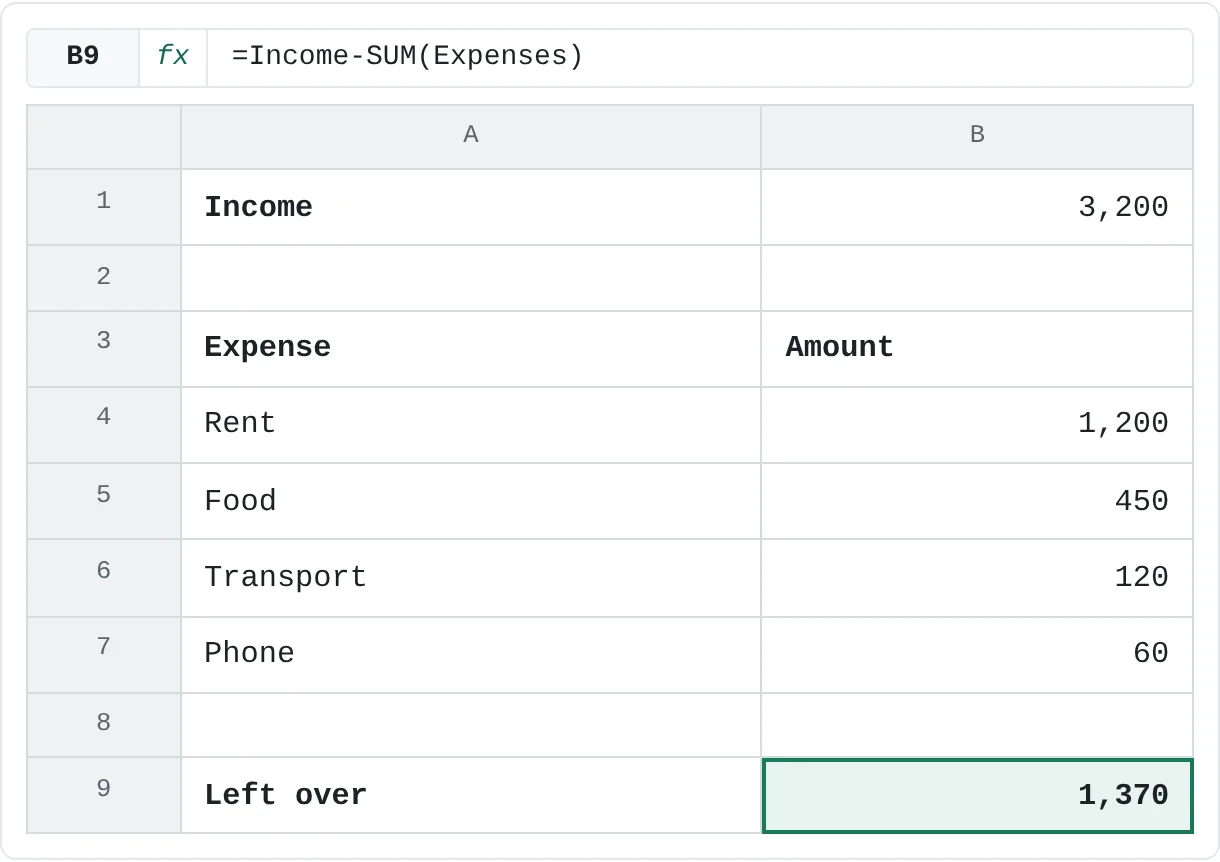
A monthly budget names the income cell Income and the expense amounts Expenses (B4:B7).
| A | B | |
|---|---|---|
| 1 | Income | 3,200 |
| 2 | ||
| 3 | Expense | Amount |
| 4 | Rent | 1,200 |
| 5 | Food | 450 |
| 6 | Transport | 120 |
| 7 | Phone | 60 |
| 8 | ||
| 9 | Left over | 1,370 |
=Income-SUM(Expenses)The result is 1,370: 3,200 − (1,200 + 450 + 120 + 60). Months from now, the formula still explains itself.
Common mistakes
- #NAME? in a formula. The name is misspelled, was deleted, or was never created (the Name Box needs Enter). Check it in Name Manager, or type the name again and pick it from AutoComplete.
- #REF! in Refers to. Deleting the rows or columns a name pointed to leaves
#REF!in Refers to, and every formula using the name returns#REF!. Filter Name Manager by Names with Errors, then edit or delete them. - A name that stops short. New rows added below the range aren't included. Use an Excel table for growing lists.
- Two names with the same text. A sheet-level name and a workbook-level name can share a name. On that sheet, the sheet-level one wins, which can be confusing. Use workbook scope unless you have a reason not to.
- Left column ticked by accident. Create from Selection then also creates a name for every row label. Delete the extra names in Name Manager.
Practice
Practice
Name a sales sheet
- Type the sales sheet from this page into a new workbook: Rep, Region and Sales in A1:C7, and the bonus rate 5% in E2.
- Name E2
BonusRatewith the Name Box. - Select A1:C7 and use Create from Selection with only Top row ticked.
- Write
=SUM(Sales),=SUM(Sales)*BonusRateand=SUMIF(Region,"East",Sales). Check that you get 63,000, 3,150 and 34,500. - Open Name Manager, add a comment to
BonusRate, then deleteRep. Does any formula break?
Related
Was this guide helpful? Spot a mistake? Send feedback · admin@arumsoft.com