Expert Excel · Tutorial 2 of 12
Reusable Formulas with LAMBDA and Dynamic Arrays
Write a rule once as a named LAMBDA, apply it to a whole column with MAP, fold values with SCAN and REDUCE, and test it before you rely on it.
- Level
- Expert
- Time
- 17 min read
- Updated:
- Applies to:
- Excel for Microsoft 365, Excel 2024, Excel for the web
What you'll learn
- Write a LAMBDA with parameters and test it in a cell before naming it
- Save a LAMBDA in Name Manager and call it like a built-in function
- Apply a LAMBDA to every value in a range with MAP
- Explain the difference between SCAN and REDUCE, and use BYROW and BYCOL on a table
- Build formulas on spilled results with the # reference
Example file
Reusable Formulas with LAMBDA and Dynamic Arrays.xlsx
Download the workbook used in this tutorial and follow along in Excel.
Excel workbook (.xlsx) · 7 KB
LET lets you name values inside one formula. LAMBDA goes a step further: it lets you name a whole calculation, with inputs, and call it like a built-in function from anywhere in the workbook. Combined with MAP, SCAN, REDUCE, BYROW and BYCOL, one rule written in one place can process an entire column, so you no longer copy a formula down 500 rows and hope row 347 wasn't edited by hand.
The examples use six transaction amounts in A2:A7: 180, 920, 45, 610, 300 and 75.
From LET to LAMBDA
A LAMBDA has one or more parameters (placeholder names for its inputs) followed by a calculation that uses them. The last argument is always the calculation:
=LAMBDA(x, IF(x>=500,"Large","Small"))Type that into a cell and Excel returns #CALC!. A LAMBDA on its own is a recipe, not a result: it needs a value for x. To test it, put the value in parentheses straight after it:
=LAMBDA(x, IF(x>=500,"Large","Small"))(A3)A3 holds 920, so the result is Large. Change (A3) to (A2) and you get Small, because 180 is less than 500.
You can also give a LAMBDA a name inside a single formula with LET, the same way you name a value. Here classify holds the LAMBDA, and the last line calls it:
=LET(classify, LAMBDA(x, IF(x>=500,"Large","Small")), classify(A5))A5 is 610, so this returns Large. A LET name only exists inside its own formula, though. To reuse the rule across the workbook, save it in Name Manager.
Save a LAMBDA as a named function
Open the New Name dialog
Go to Formulas then Defined Names then Define Name. (You can also open Formulas then Defined Names then Name Manager and click New.)
Name the function and paste the LAMBDA
In Name, type
Classify. Leave Scope as Workbook. In Comment, describe what it does, such as "Returns Large for amounts of 500 or more, otherwise Small". In Refers to, enter the LAMBDA without a value after it:=LAMBDA(x, IF(x>=500,"Large","Small"))Click OK.
Call it like any other function
In any cell, type:
=Classify(A3)The result is Large. While you type,
Classifyappears in the formula AutoComplete list next to the built-in functions.
The payoff comes later. If the threshold changes to 600, you edit the definition once in Name Manager, and every formula that calls Classify updates. There is no copied-down formula to hunt through.
Give it more than one parameter
A threshold typed inside the definition is still a hidden assumption. Make it a second parameter instead, and name the function ClassifyBy:
=LAMBDA(amount, limit, IF(amount>=limit,"Large","Small"))
Now =ClassifyBy(A3, 1000) returns Small, and the caller decides the limit, ideally from a named input cell. Parameters are matched by position, so arguments go in the same order as the parameters. If you pass the wrong number of arguments, Excel returns #VALUE!.
Apply a LAMBDA to every row with MAP
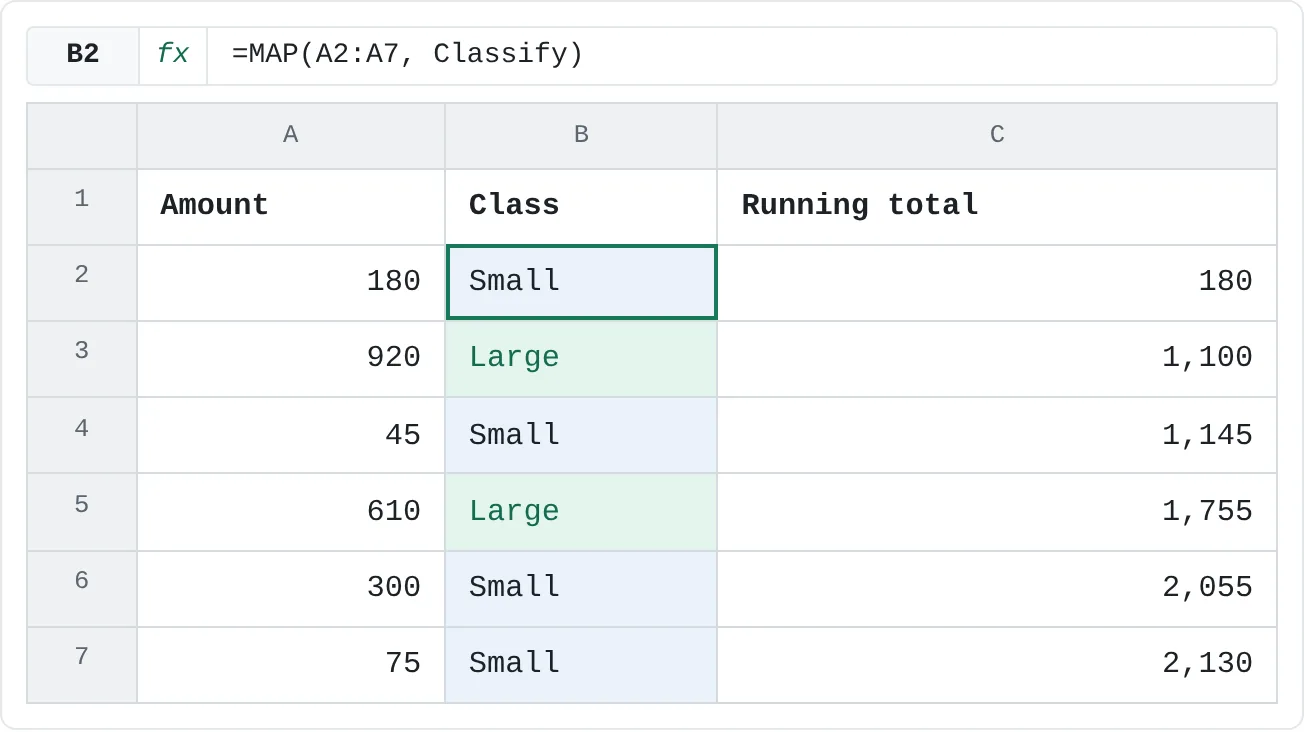
MAP runs a LAMBDA once for each value in an array and spills the results in the same shape. Click B2 and enter:
=MAP(A2:A7, Classify)Six results spill into B2:B7. You can pass the named function directly, or write the LAMBDA inline: =MAP(A2:A7, LAMBDA(x, IF(x>=500,"Large","Small"))) gives the same result.
| A | B | C | |
|---|---|---|---|
| 1 | Amount | Class | Running total |
| 2 | 180 | Small | 180 |
| 3 | 920 | Large | 1,100 |
| 4 | 45 | Small | 1,145 |
| 5 | 610 | Large | 1,755 |
| 6 | 300 | Small | 2,055 |
| 7 | 75 | Small | 2,130 |
Only B2 holds a formula. The other cells show the spilled values, so nobody can quietly overwrite row 5 with a different rule. If anything is already typed in B3:B7, the formula shows #SPILL! until you clear those cells.
With several arrays of the same size, MAP passes one value from each to a LAMBDA with that many parameters. For example, if D2:D7 held a tax rate for each transaction, =MAP(A2:A7, D2:D7, LAMBDA(amt, rate, amt*rate)) would multiply each amount by the rate on the same row.
Build on the spill with
Refer to a whole spilled result by its first cell followed by #. B2# means "everything B2 spilled into", so formulas that use it grow and shrink with the data:
=COUNTIF(B2#,"Large")The result is 2. A few more patterns that build on a spill:
| Formula | Result |
|---|---|
=FILTER(A2:A7, B2#="Large") | The large amounts, 920 and 610 |
=HSTACK(A2:A7, B2#) | A two-column array: each amount next to its class |
=ROWS(B2#) | 6, the number of rows classified |
When the source is an Excel table, use a structured reference such as Sales[Amount] instead of A2:A7, and put the MAP formula outside the table (spilling formulas don't work inside a table). Rows added to the table are then picked up by MAP, and B2# follows automatically.
Running totals with SCAN, single totals with REDUCE
SCAN and REDUCE both walk through an array one value at a time, carrying an accumulator from step to step. Each takes a starting value, the array, and a LAMBDA with two parameters: the accumulator so far (acc) and the current value (v). The LAMBDA returns the new accumulator.
The difference is what they keep:
- SCAN keeps the accumulator after every step and spills them all: six values in, six out.
- REDUCE keeps only the final accumulator: six values in, one out.
In C2:
=SCAN(0, A2:A7, LAMBDA(acc, v, acc+v))This spills the running totals 180, 1,100, 1,145, 1,755, 2,055 and 2,130. Each one is the previous total plus the current amount.
| A | B | C | |
|---|---|---|---|
| 1 | Amount | Class | Running total |
| 2 | 180 | Small | 180 |
| 3 | 920 | Large | 1,100 |
| 4 | 45 | Small | 1,145 |
| 5 | 610 | Large | 1,755 |
| 6 | 300 | Small | 2,055 |
| 7 | 75 | Small | 2,130 |
Change SCAN to REDUCE and you get just the final total:
=REDUCE(0, A2:A7, LAMBDA(acc, v, acc+v))The result is 2,130. Plain addition is easier with SUM, of course. REDUCE earns its place when each step depends on a condition. This counts amounts of 500 or more by adding 1 only when the current value qualifies:
=REDUCE(0, A2:A7, LAMBDA(acc, v, IF(v>=500, acc+1, acc)))The result is 2.
Work row by row and column by column
MAP looks at one value at a time. BYROW and BYCOL hand the LAMBDA a whole row or a whole column of a table, and the LAMBDA must reduce it to a single value.
| A | B | C | D | E | F | G | |
|---|---|---|---|---|---|---|---|
| 1 | Region | Q1 | Q2 | Q3 | Q4 | Total | Best quarter |
| 2 | East | 120 | 135 | 128 | 150 | 533 | Q4 |
| 3 | West | 98 | 110 | 125 | 117 | 450 | Q3 |
| 4 | Central | 143 | 121 | 131 | 139 | 534 | Q1 |
| 5 | Total | 361 | 366 | 384 | 406 |
- Row totals in F2:
=BYROW(B2:E4, LAMBDA(region, SUM(region)))spills 533, 450 and 534. - Column totals in B5:
=BYCOL(B2:E4, LAMBDA(quarter, SUM(quarter)))spills 361, 366, 384 and 406 across the row. - Best quarter in G2:
=BYROW(B2:E4, LAMBDA(region, XLOOKUP(MAX(region), region, B1:E1)))For each region, MAX finds the highest quarter and XLOOKUP returns its header from B1:E1: Q4 for East (150), Q3 for West (125) and Q1 for Central (143).
To build a grid from scratch, MAKEARRAY calls a LAMBDA with a row number and a column number. =MAKEARRAY(3, 4, LAMBDA(r, c, r*c)) returns a 3-row, 4-column multiplication table.
Test a LAMBDA before you trust it
A named function is used in many places, so a mistake in it spreads everywhere. Test it the way you'd test any function before shipping it: in scratch cells, against answers you already know, including the edge cases.
| Test | Expected | Classify returns |
|---|---|---|
=Classify(499) | Small | Small |
=Classify(500) | Large (500 counts as large) | Large |
=Classify("N/A") | An error or a warning | Large |
The last test fails. In Excel comparisons, text counts as greater than any number, so "N/A">=500 is TRUE. If your source data can contain text, guard against it in the definition:
=LAMBDA(x, IF(ISNUMBER(x), IF(x>=500,"Large","Small"), "Check"))
Now =Classify("N/A") returns Check, and the other two tests still pass. Keep the test cells (for example on a QA sheet) and recheck them whenever you edit the definition. Before replacing an old copied-down column, put the new MAP result next to it and confirm that every row matches.
Common mistakes
- A LAMBDA that is never called.
=LAMBDA(x, x*2)in a cell returns#CALC!. Call it with a value,=LAMBDA(x, x*2)(5), or name it and call the name. - The wrong number of arguments. A LAMBDA with two parameters called with one argument returns
#VALUE!. - Parameter names that look like cell references. Names such as
A1orx1aren't allowed as parameters. Use plain words likeamount,accorregion. - A BYROW or BYCOL LAMBDA that returns more than one value.
LAMBDA(region, region*2)returns four values per row, and BYROW shows#CALC!. Reduce each row to one value, with SUM, MAX, XLOOKUP and so on. - Fixed ranges after a spill.
=COUNTIF(B2:B7,"Large")stops at row 7 when the data grows. UseB2#. - Hidden thresholds in named functions. A value buried in a definition in Name Manager is even harder to find than one in a cell formula. Pass it in as a parameter, or note it in the name's Comment.
Practice
Practice
Replace a copied-down formula with a named LAMBDA
- Type the six amounts 180, 920, 45, 610, 300 and 75 into A2:A7.
- Test
=LAMBDA(x, IF(x>=500,"Large","Small"))(A3)in a scratch cell. It should return Large. - Save the LAMBDA in Name Manager as
Classify, with a comment. - In B2, enter
=MAP(A2:A7, Classify)and check that only 920 and 610 are Large. - In C2, enter the SCAN running total. The last value should be 2,130.
- Count the Large results with
=COUNTIF(B2#,"Large"). Then add a seventh amount in A8, change A2:A7 to A2:A8 in B2 and C2, and watch the count and totals update. - Test
=Classify("N/A"), then add the ISNUMBER guard and test again.
Then try it on your own work: find a calculation you copy down a column (a shipping tier, a grade band, a late-fee rule), write it once as a named LAMBDA, apply it with MAP and confirm that every row matches the old version.
Try it0 of 4 done
- In D2, write a LAMBDA that returns Large for 500 or more and Small otherwise, and test it on A3 by calling it straight away.
- In D3, use MAP to turn each amount in A2:A7 into 1 if it's 500 or more and 0 if not, then add up the results.
- In D4, use REDUCE to add up all six amounts, starting from 0.
- In D5, use SCAN to build the running totals of A2:A7, and INDEX to return the 4th one.
Click a dashed cell, type a formula in the bar and press Enter.
| A | B | C | D | |
|---|---|---|---|---|
| 1 | Amount | Check | Result | |
| 2 | 180 | Classify 920 | ||
| 3 | 920 | Large amounts | ||
| 4 | 45 | Grand total | ||
| 5 | 610 | Running total, 4th | ||
| 6 | 300 | |||
| 7 | 75 |
Check your skills
- Can you explain what a LAMBDA is, in one sentence, to someone who has used LET?
- Can you write a LAMBDA that takes one input and returns a classification, and test it in a cell?
- Can you apply that LAMBDA to a whole range with MAP instead of copying a formula down?
- Can you explain what SCAN returns that REDUCE doesn't?
- Can you build a formula on a spilled result with
#so it keeps working when the data grows?
Related
Was this guide helpful? Spot a mistake? Send feedback · admin@arumsoft.com