Excel Basics · Tutorial 4 of 12
How to Write Basic Formulas in Excel
Add, subtract, multiply and divide with formulas that use cell references, so your results update by themselves when the numbers change.
- Level
- Beginner
- Time
- 10 min read
- Updated:
- Applies to:
- Excel for Microsoft 365, Excel 2021, Excel 2019, Excel for the web
What you'll learn
- Write a formula that starts with = and uses cell references
- Add, subtract, multiply and divide with + - * and /
- Control the order of calculation with parentheses
- Edit a formula and check what a cell really contains
- Recognize #DIV/0!, #VALUE! and #NAME? and fix their causes
Before you start
Example file
How to Write Basic Formulas in Excel.xlsx
Download the workbook used in this tutorial and follow along in Excel.
Excel workbook (.xlsx) · 7 KB
Watch the video
Video · Follow along as the video builds the receipt step by step, from the first formula to the split per person.
A formula is a calculation you type into a cell. It always starts with an equals sign, and instead of typed-in numbers it usually points to other cells. That's what makes a spreadsheet useful: change a price or a quantity, and every result that depends on it updates by itself.
The examples use a small receipt. Prices and quantities are filled in, two line totals are already there, and the empty cells in column D are where your formulas go.
| A | B | C | D | |
|---|---|---|---|---|
| 1 | Item | Price | Qty | Total |
| 2 | Notebook | 8 | 3 | |
| 3 | Pen pack | 5 | 2 | 10 |
| 4 | Eraser | 2 | 4 | 8 |
| 5 | ||||
| 6 | Subtotal | |||
| 7 | Coupon | 6 | ||
| 8 | After coupon | |||
| 9 | Split 3 ways |
Write your first formula
The Notebook's total is its price times its quantity: 8 × 3.
Click the cell for the result
Click D2.
Type an equals sign
Type
=. It tells Excel that what follows is a calculation. Without it, Excel stores what you type as plain text.Click the first cell
Click B2. Excel writes
B2into the formula and draws a colored border around the cell. Clicking is safer than typing the address, because you can't mistype it.Type the operator and click the second cell
Type
*(the multiplication sign in Excel), then click C2. The formula now reads=B2*C2.A B C D 1 Item Price Qty Total 2 Notebook 8 3 =B2*C2 3 Pen pack 5 2 10 4 Eraser 2 4 8 While you build the formula, each cell it uses is outlined in color. Press Enter
The cell shows 24. Click D2 again: the cell shows the result, and the formula bar above the sheet shows the formula behind it.
=B2*C2Press Enter to confirm and move down a cell, or Tab to confirm and move right. Press Esc instead to cancel what you've typed.
The arithmetic operators
Excel uses these symbols for arithmetic. The examples use the receipt once it's finished.
| Operation | Symbol | Example | Result |
|---|---|---|---|
| Add | + | =D3+D4 | 18 |
| Subtract | - | =D6-D7 | 36 |
| Multiply | * | =B2*C2 | 24 |
| Divide | / | =D8/3 | 12 |
| Power | ^ | =B2^2 | 64 |
Multiplication is *, not x, and division is /, not ÷. You can mix cell references and plain numbers, as in =D8/3, and there's no limit on how many cells a formula can use.
Finish the receipt
Each of the remaining formulas uses a result from the one before it.
Add the line totals
In D6, add the three line totals. The result is 42.
=D2+D3+D4Subtract the coupon
In D8, subtract the coupon in D7 from the subtotal. The result is 36.
=D6-D7Split the bill
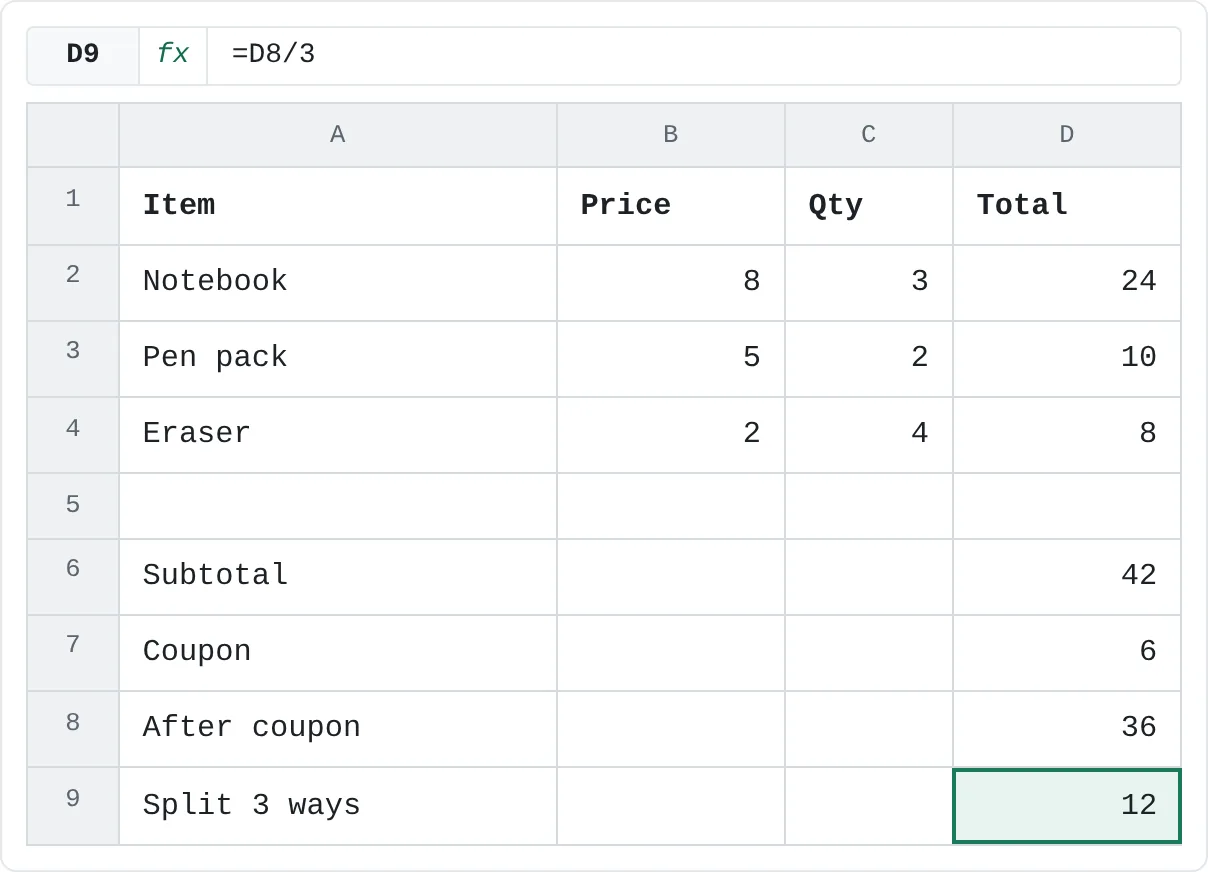
In D9, divide the amount after the coupon by 3 people. The result is 12.
=D8/3A B C D 1 Item Price Qty Total 2 Notebook 8 3 24 3 Pen pack 5 2 10 4 Eraser 2 4 8 5 6 Subtotal 42 7 Coupon 6 8 After coupon 36 9 Split 3 ways 12 The finished receipt: 24 in D2, a subtotal of 42, 36 after the coupon and 12 per person.
Adding cells one by one with + works for a few cells. For a long column, the SUM function is shorter: =SUM(D2:D4) gives the same 42.
Why use cell references instead of numbers?
You could type =8*3 in D2 and get 24. But that formula only knows the numbers 8 and 3. If the Notebook's price changes, the total stays wrong until someone notices.
=B2*C2 says "whatever is in B2 times whatever is in C2". Change B2 from 8 to 10 and Excel recalculates every formula that depends on it, straight down the receipt:
| A | B | C | D | |
|---|---|---|---|---|
| 1 | Item | Price | Qty | Total |
| 2 | Notebook | 10 | 3 | 30 |
| 3 | Pen pack | 5 | 2 | 10 |
| 4 | Eraser | 2 | 4 | 8 |
| 5 | ||||
| 6 | Subtotal | 48 | ||
| 7 | Coupon | 6 | ||
| 8 | After coupon | 42 | ||
| 9 | Split 3 ways | 14 |
The same goes for a typed result. A cell that holds 15 stays 15 forever; a cell that holds =A2+B2 changes whenever A2 or B2 changes. Keep each input in its own cell and point your formulas at it.
Order of operations: use parentheses
When a formula has several operators, Excel doesn't simply work left to right. It calculates powers (^) first, then multiplication and division, then addition and subtraction. Parentheses come before everything.
Suppose you want the after-coupon amount split three ways in one formula:
=D6-D7/3divides the coupon by 3 first, then subtracts: 42 − 2 = 40. Wrong.=(D6-D7)/3subtracts first because of the parentheses, then divides: 36 ÷ 3 = 12. Right.
=(D6-D7)/3When you aren't sure what Excel will do first, add parentheses. They never hurt.
Edit a formula
- See what a cell really contains. Click the cell and look at the formula bar.
- Edit in place. Press F2 (on some laptops, Fn+F2) to edit the formula inside the cell, or click in the formula bar. Change it and press Enter, or press Esc to leave it as it was.
- Show every formula at once. Press Ctrl+` (the key above Tab) to show formulas instead of results in every cell. Press it again to switch back. It's a quick way to check a whole sheet.
When a formula goes wrong
| What you see | What it means | How to fix it |
|---|---|---|
#DIV/0! | The formula divides by zero, or by an empty cell. | Check the cell after the /. Enter a value, or point to the right cell. |
#VALUE! | One of the values is the wrong type, usually text where a number should be. For example, a quantity typed as three. | Replace the text with a number. |
#NAME? | Excel doesn't recognize something in the formula, such as =B2xC2 instead of =B2*C2, or a misspelled function name. | Fix the typo. |
##### | Not an error: the column is too narrow to show the result. | Widen the column. |
Common mistakes
- Forgetting the equals sign.
B2*C2without=is just text. Excel shows it as typed. - Typing results instead of formulas. A typed 24 doesn't update when the price changes. Use references.
- Using x or ÷. Excel's operators are
*and/. - Leaving out parentheses.
=D6-D7/3and=(D6-D7)/3give different answers. Decide what should happen first and say so with parentheses. - Pointing at the wrong cell. Click the result and check the colored borders: each one shows a cell the formula uses.
Practice
Practice
Item, price, quantity, total
Build a small table in Excel with the columns Item, Price, Quantity and Total, and fill in three or four items. Then:
- In the first Total cell, enter
=B2*C2. - Write the same kind of formula for each row below it. (The next tutorials show you how to copy a formula down in one step.)
- Under the table, add the totals with
+, subtract a discount, and divide the result by the number of people paying. - Change one price and watch every result update.
Then complete the receipt below. Click a highlighted cell, type the formula and press Enter.
Try it0 of 4 done
- In D2, multiply the Notebook's price (B2) by its quantity (C2).
- In D6, add the three line totals in D2, D3 and D4.
- In D8, subtract the coupon (D7) from the subtotal (D6).
- In D9, divide the amount after the coupon (D8) by 3 people.
Click a dashed cell, type a formula in the bar and press Enter.
| A | B | C | D | |
|---|---|---|---|---|
| 1 | Item | Price | Qty | Total |
| 2 | Notebook | 8 | 3 | |
| 3 | Pen pack | 5 | 2 | 10 |
| 4 | Eraser | 2 | 4 | 8 |
| 5 | ||||
| 6 | Subtotal | |||
| 7 | Coupon | 6 | ||
| 8 | After coupon | |||
| 9 | Split 3 ways |
Check your skills
- Can you write a formula that adds two cells together?
- Can you write formulas that subtract, multiply and divide one cell by another?
- Can you use parentheses to make Excel calculate one part of a formula first?
- Can you explain why
=A2+B2updates by itself but a typed15doesn't?
Related
Was this guide helpful? Spot a mistake? Send feedback · admin@arumsoft.com