Advanced Excel · Tutorial 1 of 12
Workbook Architecture: Structuring Excel Models
Split a workbook into input, data, calculation and output sheets, name your assumption cells and document it so someone else can run it.
- Level
- Advanced
- Time
- 11 min read
- Updated:
- Applies to:
- Excel for Microsoft 365, Excel 2021, Excel 2019, Excel for the web
What you'll learn
- Separate a workbook into input, data, calculation, output and documentation sheets
- Store each assumption once in a labeled cell instead of typing it into formulas
- Name assumption cells and use the names in formulas
- Write a documentation sheet with a refresh procedure
- Recognize when a workbook should be split into two files
Example file
Workbook Architecture - Structuring Excel Models.xlsx
Download the workbook used in this tutorial and follow along in Excel.
Excel workbook (.xlsx) · 7 KB
A workbook that only you can run is a risk: when you're away, nobody knows which numbers to change, which cells are safe to type over or how to refresh it. Good structure fixes that. When raw data, assumptions, calculations and the finished report each have their own place, another person can open the file, trust it and update it without you in the room.
Give every sheet one job
Most messy workbooks have one problem in common: typed numbers, formulas and the summary all sit on the same sheet, so nobody can tell which cells are inputs and which are results. Split the work by job instead:
| Sheet | What lives there | Who changes it |
|---|---|---|
| Input | Assumptions a person types: rates, fees, targets, dates. No formulas. | The person running the model |
| Data | Raw records, one row each, usually in an Excel table. | Nobody by hand: rows are appended or refreshed |
| Calculation | The formulas that turn Data and Input into results. | The model's builder, rarely |
| Summary / Output | What readers see: totals, PivotTables, charts, the final report. Everything here reads from Calculation. | Nobody: it updates by itself |
| Documentation | Purpose, sources, refresh steps, last refresh date, version notes. | Whoever maintains the file |
Information flows one way: Input and Data feed Calculation, and Calculation feeds Output. A formula on the Output sheet should never point back into the middle of the Data sheet, and nothing on Data should depend on Output. When you follow that rule, a broken formula stays on the Calculation sheet instead of contaminating the raw records, and you always know where to look when a number is wrong.
In a small workbook, Calculation and Output can share one sheet. What matters is that typed values and formulas never share a sheet.
Set up the sheets before you write formulas
Sketch the tabs on paper first: which inputs you need, where the data comes from and what the reader needs to see. Then build the skeleton.
Add one sheet per job
Click New sheet (the + button to the right of the sheet tabs) until you have five sheets. Shift+F11 also inserts a new sheet.
Rename each sheet
Double-click a sheet tab, type the new name (Input, Data, Calculation, Output, Documentation) and press Enter. Short names without spaces are easier to read in formulas:
Input!B2instead of'Input sheet'!B2.Put the tabs in reading order
Drag the tabs so they run left to right in the order people use them. A common order is Documentation, Input, Output, Calculation, Data: the person running the model sees the instructions first and the raw data last.
Color the tabs by role
Right-click a tab and choose Tab Color. For example, use one color for sheets people type into and another for sheets they should only read. Colors help, but don't rely on them alone: the sheet names should say the same thing.
Put every assumption in one labeled cell
An assumption is any number the model depends on that someone chose: a discount rate, a shipping fee, a cutoff date. If you type it into formulas, as in =B2*C2*(1-0.1)+15, it ends up in dozens of cells. When the discount changes, someone has to find every copy, and the one they miss gives a wrong answer that looks right.
Store each assumption once, on the Input sheet, with a label and a short note:
| A | B | C | D | |
|---|---|---|---|---|
| 1 | Assumption | Value | Name | Note |
| 2 | Discount rate | 10% | DiscountRate | Taken off every order |
| 3 | Shipping fee | 15 | ShippingFlat | Added once per order |
| 4 | Report date | 2026-09-30 | ReportDate | Last day of the month reported |
To show at a glance which cells are inputs, select them and choose a cell style from Home then Styles then Cell Styles. The Data and Model group includes Input, Calculation and Output styles made for this.
Name your assumption cells
A reference like $F$2 tells a reader nothing. A name like DiscountRate explains itself, works from every sheet without a sheet prefix and keeps pointing at the right cell if you insert rows above it.
Select the assumption cell
On the Input sheet, click B2, the discount rate.
Type a name in the Name Box
Click the Name Box (left of the formula bar, where it shows
B2), typeDiscountRateand press Enter. If you click away without pressing Enter, the name isn't created. Name B3ShippingFlatthe same way.Use the names in formulas
On the Calculation sheet, with an order's Price in B2 and Qty in C2, type:
=B2*C2*(1-DiscountRate)+ShippingFlatFor a price of 40 and a quantity of 3, the result is 123: 120 less 10% is 108, plus the 15 shipping fee. Change the discount on the Input sheet and every formula that uses
DiscountRateupdates.
Without names, the same formula has to reach across sheets with locked references, which is harder to read and easier to get wrong:
=B2*C2*(1-Input!$B$2)+Input!$B$3A few rules for names: start with a letter, use no spaces (DiscountRate or Discount_Rate), and don't use anything that looks like a cell address, such as Q4 or FY2026. To name several labeled cells at once, select the labels and values (A2:B4 on the Input sheet), click Formulas then Defined Names then Create from Selection, tick Left column and click OK. Excel turns spaces in the labels into underscores, so "Discount rate" becomes Discount_rate.
To see, edit or delete every name in the workbook, open Formulas then Defined Names then Name Manager (Ctrl+F3).
Keep raw data untouched
The Data sheet holds records exactly as they arrived: one row per order, transaction or employee, with one header row. Format the range as a table (Ctrl+T) so new rows are picked up by every formula, PivotTable and chart that reads it.
Treat the Data sheet as read-only. If a value needs fixing, don't overtype it: fix it in a Calculation formula or in Power Query, so the same fix runs again the next time the data is refreshed. A hand edit in raw data disappears at the next refresh, and nobody can see that it ever happened.
Write a Documentation sheet
The Documentation sheet is what lets someone else run the workbook. Keep it short and in plain sight, not in cell notes scattered across other tabs. A useful layout has two columns, an item and its details:
| Item | Example |
|---|---|
| Purpose | Monthly order report for the sales team |
| Owner | The person to ask, and a backup |
| Sources | Where each Data sheet comes from (file path, system export) |
| Refresh steps | "Paste the new export into Data, then Data > Refresh All, then check the Output total" |
| Last refreshed | A date, entered with Ctrl+; so it doesn't change on its own |
| Checks | What to look at before trusting the numbers, e.g. "Output total matches the export total" |
| Version notes | Date, who, what changed |
A cell note is fine for explaining one odd value. Anything someone needs in order to run, refresh or trust the workbook belongs on the Documentation sheet, where they'll see it first.
When to split one workbook into two
One file is easiest as long as it serves one audience. Consider splitting it when:
- Two audiences need different things, such as an operations team that works with raw records daily and executives who need a monthly summary.
- Refresh schedules differ: one part updates every day and the other once a month.
- Access needs differ: some people may see the summary but not the underlying records.
- The file gets slow or hard to open because one part holds far more data than the rest.
When you split, have the summary file pull from the data file with Power Query instead of formulas that point into another workbook. Links between workbooks break when a file is renamed or moved.
Common mistakes
- Numbers typed into formulas.
=B2*1.1hides an assumption. Put 10% in a named Input cell and refer to it. - The same assumption in two places. If the shipping fee is on Input and also typed into a cell on Output, sooner or later they disagree. Store it once.
- Typing over a formula on the Output sheet. The number looks right today and never updates again. Protect the Output and Calculation sheets with Review then Protect then Protect Sheet and leave the Input sheet open for typing.
- Fixing raw data by hand. The fix vanishes at the next refresh. Fix it in a formula or in Power Query.
- Documentation nobody can find. Instructions in a note three tabs deep are as good as missing. Put the Documentation sheet first.
Practice
Practice
Restructure a real workbook
- Pick a single-sheet workbook you use, such as a budget, an order log or a timesheet.
- Before changing any formula, mark which cells are typed inputs and which are formulas.
- Add Input, Data, Calculation, Output and Documentation sheets and move each part to its sheet.
- Move every typed assumption to the Input sheet and name at least one of them in the Name Box.
- Rewrite one formula to use the name, then change the assumption and check that the result updates.
- Write a one-line refresh procedure and today's date on the Documentation sheet.
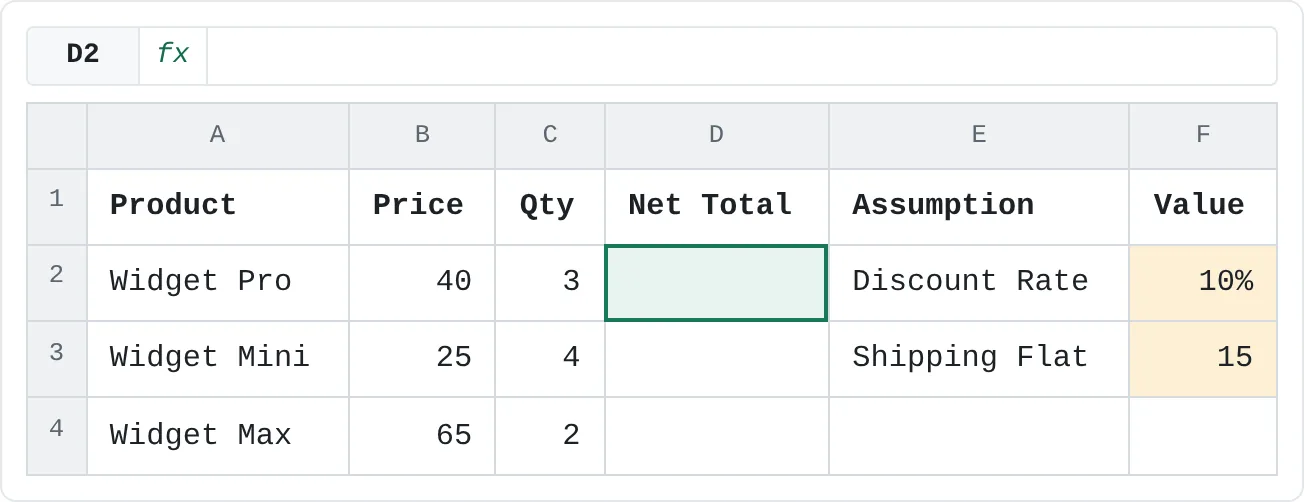
Warm up below. The practice sheet doesn't support names, so the assumptions sit in F2 and F3 and the formulas lock them with $, which is what a name does for you in a real workbook.
| A | B | C | D | E | F | |
|---|---|---|---|---|---|---|
| 1 | Product | Price | Qty | Net Total | Assumption | Value |
| 2 | Widget Pro | 40 | 3 | Discount Rate | 10% | |
| 3 | Widget Mini | 25 | 4 | Shipping Flat | 15 | |
| 4 | Widget Max | 65 | 2 |
Try it0 of 3 done
- In D2, multiply Price by Qty, take off the discount in F2 and add the shipping fee in F3.
- In D3, write the same calculation for Widget Mini. Only the row number of Price and Qty changes.
- In D4, do the same for Widget Max. The assumptions still come from F2 and F3.
Click a dashed cell, type a formula in the bar and press Enter.
| A | B | C | D | E | F | |
|---|---|---|---|---|---|---|
| 1 | Product | Price | Qty | Net Total | Assumption | Value |
| 2 | Widget Pro | 40 | 3 | Discount Rate | 10% | |
| 3 | Widget Mini | 25 | 4 | Shipping Flat | 15 | |
| 4 | Widget Max | 65 | 2 |
Check your skills
- Can you look at a messy sheet and point out which cells are typed inputs and which are formulas?
- Can you sketch how you'd split it into Input, Data, Calculation and Output sheets before touching a formula?
- Can you explain what a name like
DiscountRategives you that$F$2doesn't? - Can you list what belongs on a Documentation sheet rather than in a cell note?
- Can you name two signs that a workbook should be split into two files?
Related
Was this guide helpful? Spot a mistake? Send feedback · admin@arumsoft.com