Advanced Excel · Tutorial 3 of 12
Cleaner Formulas with LET in Excel
Name the pieces of a long formula with LET so each is calculated once, the formula reads like a sentence, and errors are caught on purpose with IFNA.
- Level
- Advanced
- Time
- 12 min read
- Updated:
- Applies to:
- Excel for Microsoft 365, Excel 2024, Excel 2021, Excel for the web
What you'll learn
- Rewrite a formula that repeats a calculation so the calculation happens once
- Write LET formulas with several named steps
- Build and test a long formula one layer at a time
- Choose between IFNA and IFERROR so real mistakes stay visible
Example file
Cleaner Formulas with LET in Excel.xlsx
Download the workbook used in this tutorial and follow along in Excel.
Excel workbook (.xlsx) · 7 KB
Long formulas get hard to read when the same piece appears again and again. LET lets you give each piece a name inside the formula, calculate it once and then use the name. The result is a formula you can read top to bottom, fix in one place and trust. This tutorial also covers how to catch errors on purpose, so a missing lookup is handled while a real mistake still shows.
The examples use five sales reps with their sales and targets, and a small table of bonus multipliers in G1:H5. Lena isn't in the multiplier table, and that matters later.
| A | B | C | D | E | F | G | H | |
|---|---|---|---|---|---|---|---|---|
| 1 | Rep | Sales | Target | Status | Multiplier | Bonus | Rep | Multiplier |
| 2 | Ari | 9,200 | 8,000 | Ari | 1.1 | |||
| 3 | Mina | 6,100 | 7,000 | Mina | 1 | |||
| 4 | Jon | 8,000 | 8,000 | Jon | 1.2 | |||
| 5 | Lena | 5,400 | 6,000 | Dev | 1.15 | |||
| 6 | Dev | 15,000 | 12,000 | |||||
| 7 | Bonus rate | 5% |
The problem: one calculation, repeated
Say you want a status for each rep: Exceeded at 120% of target or more, Met at 100% or more, and Below otherwise. Without LET, the ratio B2/C2 has to appear in each test:
=IF(B2/C2>=1.2,"Exceeded",IF(B2/C2>=1,"Met","Below"))It works: Ari's ratio is 9,200 / 8,000 = 1.15, so the result is Met. But if the ratio ever changes (to subtract returns, say), you have to edit it twice and hope you don't miss one. With LET, the ratio gets a name and is written once:
=LET(ratio,B2/C2,IF(ratio>=1.2,"Exceeded",IF(ratio>=1,"Met","Below")))Same result, Met for Ari and Exceeded for Dev (15,000 / 12,000 = 1.25). Excel also calculates B2/C2 only once, which helps when the repeated piece is a large lookup or FILTER rather than a simple division.
How LET works
=LET(name1, value1, [name2, value2, ...], calculation)- name1 is a name you make up, such as
ratioorsales. - value1 is what the name stands for: a cell, a range, a number or a whole calculation.
- name2, value2, … are optional. Add as many pairs as you need. A later value can use an earlier name.
- calculation, always the last argument, is the result the formula returns. It can use every name.
A few rules for names: start with a letter, don't use spaces, and don't use anything Excel could read as a cell address, such as r1 or tax2026. Names exist only inside this one formula. Another cell can use the name ratio for something else without any conflict.
Build a formula one layer at a time
The fastest way to get a long formula right is to build it in pieces and check each piece before wrapping it in the next.
Write and check the core calculation
In D2, type
=B2/C2and press Enter. You should see 1.15 for Ari. If this piece is wrong, nothing built on it can be right.Wrap it in the logic
Edit D2 to
=IF(B2/C2>=1,"Met","Below"). The result is Met.Name the repeated piece with LET
Rewrite it so the ratio has a name:
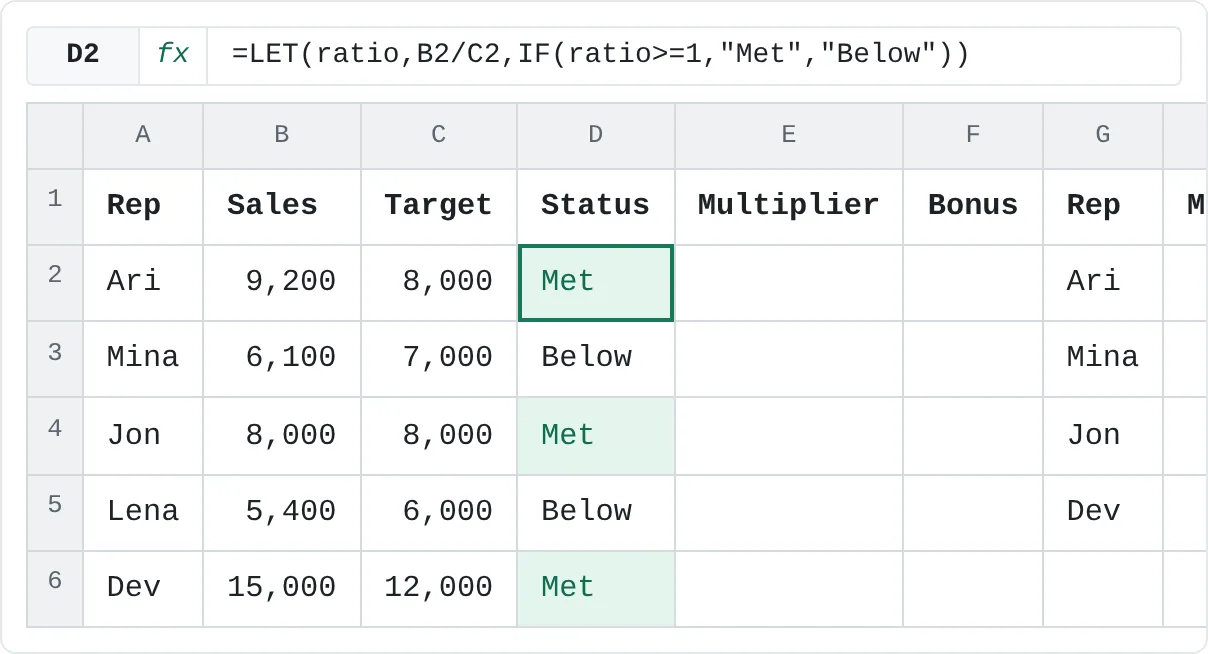
=LET(ratio,B2/C2,IF(ratio>=1,"Met","Below"))Copy it down to D6. The results are Met, Below, Met, Below, Met. Jon's sales equal his target exactly, so his ratio is 1 and he counts as Met.
A B C D E F G H 1 Rep Sales Target Status Multiplier Bonus Rep Multiplier 2 Ari 9,200 8,000 Met Ari 1.1 3 Mina 6,100 7,000 Below Mina 1 4 Jon 8,000 8,000 Met Jon 1.2 5 Lena 5,400 6,000 Below Dev 1.15 6 Dev 15,000 12,000 Met The LET formula copied down D2:D6. Three reps met their target. Check any named step when something looks wrong
To see what a name holds, temporarily make it the last argument:
=LET(ratio,B2/C2,ratio)shows the ratio itself. When it looks right, put the real calculation back.
Several named steps: a bonus formula
LET shines when a formula has several stages. This one pays a bonus of Sales × bonus rate × the rep's multiplier, but only if the rep met the target:
=LET(ratio,B2/C2,mult,IFNA(XLOOKUP(A2,$G$2:$G$5,$H$2:$H$5),1),IF(ratio>=1,B2*$H$7*mult,0))Excel lets you put line breaks and spaces in a formula, so you can lay it out like this in the formula bar. Press Alt+Enter for a new line while editing, and Ctrl+Shift+U to expand the formula bar so you see every line.
=LET(
    ratio, B2/C2,
    mult,  IFNA(XLOOKUP(A2, $G$2:$G$5, $H$2:$H$5), 1),
    IF(ratio >= 1, B2 * $H$7 * mult, 0)
)
Read it top to bottom: the ratio is sales over target; the multiplier comes from the table, or 1 if the rep isn't listed; if the target was met, pay sales times the rate times the multiplier, otherwise 0.
For Ari, the ratio is 1.15 and the multiplier is 1.1, so the bonus is 9,200 × 5% × 1.1 = 506. Copied down, the bonuses are 506, 0, 480, 0 and 862.5.
LET with a dynamic array
A name can hold a whole list, too. This lists the reps who met their target and counts them, using the FILTER result twice but calculating it once:
=LET(met,FILTER(A2:A6,B2:B6>=C2:C6),ROWS(met)&" reps: "&TEXTJOIN(", ",TRUE,met))The result is 3 reps: Ari, Jon, Dev.
IFNA or IFERROR: catch only the error you expect
Lena isn't in the multiplier table, so XLOOKUP returns #N/A for her. That's an expected gap, and you can handle it:
=IFNA(XLOOKUP(A5,$G$2:$G$5,$H$2:$H$5),"No multiplier")For Lena it shows No multiplier. For Ari it simply passes the real value, 1.1, through.
XLOOKUP can also do this on its own with its fourth argument: =XLOOKUP(A5,$G$2:$G$5,$H$2:$H$5,"No multiplier"). Use IFNA with lookups that don't have that option, such as VLOOKUP and INDEX/MATCH.
Why not IFERROR? Because it catches every error, including the ones you need to see:
| Function | Catches | Use it when |
|---|---|---|
IFNA | Only #N/A (a lookup found nothing) | A missing match is normal and you know what to show instead |
IFERROR | Every error: #N/A, #DIV/0!, #VALUE!, #REF!, #NAME? and others | You've checked that any error should get the same replacement |
Suppose someone clears Mina's target in C3. =IFERROR(B3/C3,0) turns the resulting #DIV/0! into 0, so her status quietly becomes Below and nobody notices the missing target. Without IFERROR, the #DIV/0! shows up and gets fixed. Wrap only the part that can fail for an expected reason, as the bonus formula does with IFNA around the lookup alone.
Common mistakes
- Forgetting the final calculation. The last argument must be the result, not another name-value pair.
=LET(ratio,B2/C2)isn't complete. - Names that look like cell addresses.
r1,q4andtax2026are all valid cell references, so Excel can't use them as names. Useratio,quarter4,taxRate. - Using a name before it's defined. Each value can use names defined to its left, not to its right.
- Wrapping the whole formula in IFERROR. It hides typos, deleted ranges and divide-by-zero along with the lookup miss you meant to catch.
- Expecting LET names to work in other cells. They're local to one formula. For a name the whole workbook can use, define it with Formulas then Defined Names then Define Name.
Practice
Practice
Rewrite your longest formula
- Find the longest formula in a workbook you use, especially one that repeats a piece.
- Copy the workbook first (F12 to Save As), so you can compare results.
- Rebuild the formula with
LET, naming every intermediate step. Lay it out on several lines with Alt+Enter. - Check each name by temporarily making it the last argument.
- Compare the new results with the old ones for several rows.
- For every place the formula could fail, decide: does a missing lookup deserve
IFNA, or wouldIFERRORhide a mistake worth seeing?
Try it0 of 4 done
- In D2, name Sales divided by Target as ratio with LET, then show Met if ratio is 1 or more, otherwise Below.
- In D3, write the same formula for Mina.
- In E5, look up Lena's multiplier in G2:H5. She isn't in the table, so catch the #N/A with IFNA and show No multiplier.
- In F2, use LET to name the ratio and Ari's multiplier (1 if missing), then pay Sales × bonus rate in H7 × multiplier if the target is met, otherwise 0.
Click a dashed cell, type a formula in the bar and press Enter.
| A | B | C | D | E | F | G | H | |
|---|---|---|---|---|---|---|---|---|
| 1 | Rep | Sales | Target | Status | Multiplier | Bonus | Rep | Multiplier |
| 2 | Ari | 9,200 | 8,000 | Ari | 1.1 | |||
| 3 | Mina | 6,100 | 7,000 | Mina | 1 | |||
| 4 | Jon | 8,000 | 8,000 | Jon | 1.2 | |||
| 5 | Lena | 5,400 | 6,000 | Dev | 1.15 | |||
| 6 | Dev | 15,000 | 12,000 | |||||
| 7 | Bonus rate | 5% |
Check your skills
- Can you rewrite a formula that repeats
B2/C2so the ratio is calculated only once? - Can you write a
LETformula with two or more named steps, where a later step uses an earlier one? - Can you check what one named step returns while you build a formula?
- Can you explain the difference between
IFERRORandIFNA, and when each one is right?
Related
Was this guide helpful? Spot a mistake? Send feedback · admin@arumsoft.com