Advanced Excel · Tutorial 2 of 12
Dynamic Array Formulas in Excel: FILTER, SORT and UNIQUE
Write one formula that spills a whole list: unique values, sorted results, filtered rows, numbered sequences and top-N lists that update with the data.
- Level
- Advanced
- Time
- 14 min read
- Updated:
- Applies to:
- Excel for Microsoft 365, Excel 2024, Excel 2021, Excel for the web
What you'll learn
- Explain what a spill range is and fix a #SPILL! error
- List distinct values with UNIQUE and sort results with SORT and SORTBY
- Return only the rows that meet one or more conditions with FILTER
- Generate numbers with SEQUENCE and build top-N lists with TAKE and DROP
- Refer to a whole spilled result with the # operator
Example file
Dynamic Array Formulas in Excel - FILTER, SORT and UNIQUE.xlsx
Download the workbook used in this tutorial and follow along in Excel.
Excel workbook (.xlsx) · 7 KB
Function Playground
Try these functions in a live sheet
Type formulas in an Excel-style grid and watch each step of the calculation. Free, no sign-up.
A dynamic array formula returns more than one value, and Excel places the results in as many cells as it needs. You type the formula once, in one cell, and the result spills down or across. When the source data changes, the spilled list grows, shrinks and reorders by itself, so there's nothing to copy down and no range to extend.
Every example below uses this list of six orders in A1:D7:
| A | B | C | D | E | F | G | H | |
|---|---|---|---|---|---|---|---|---|
| 1 | Region | Product | Units | Revenue | ||||
| 2 | East | Core | 42 | 8,400 | ||||
| 3 | West | Plus | 27 | 7,425 | ||||
| 4 | East | Plus | 35 | 9,625 | ||||
| 5 | Central | Core | 31 | 6,200 | ||||
| 6 | West | Elite | 18 | 7,200 | ||||
| 7 | Central | Plus | 24 | 6,600 |
How spilling works
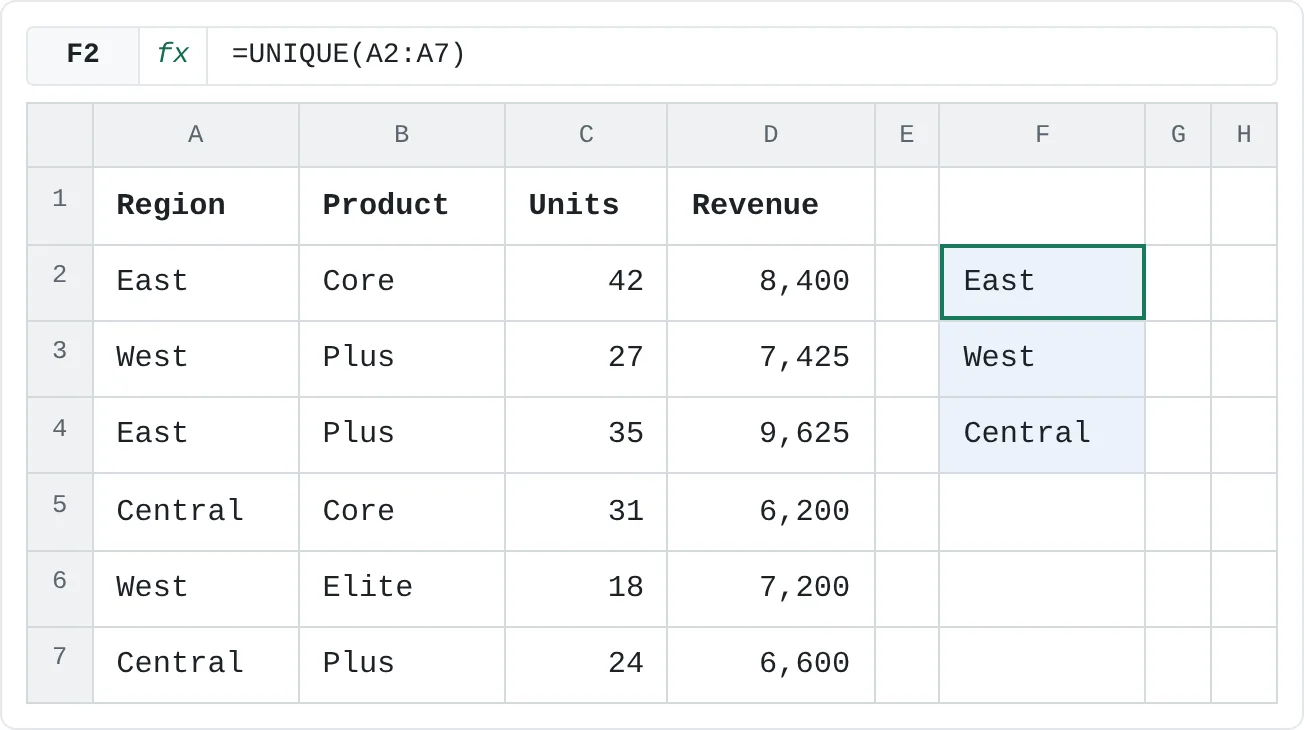
Click F2, type this formula and press Enter:
=UNIQUE(A2:A7)Excel returns three regions, East, West and Central, in F2:F4. Only F2 holds the formula. F3 and F4 show results that belong to it.
| A | B | C | D | E | F | G | H | |
|---|---|---|---|---|---|---|---|---|
| 1 | Region | Product | Units | Revenue | ||||
| 2 | East | Core | 42 | 8,400 | East | |||
| 3 | West | Plus | 27 | 7,425 | West | |||
| 4 | East | Plus | 35 | 9,625 | Central | |||
| 5 | Central | Core | 31 | 6,200 | ||||
| 6 | West | Elite | 18 | 7,200 | ||||
| 7 | Central | Plus | 24 | 6,600 |
A few things to know about a spill range:
- Edit only the first cell. Click F3 and the formula bar shows the formula in gray: you can read it but not change it there. To change the result, edit F2.
- It resizes itself. Add a row for a new region, North, in A8, and widen the formula to A2:A8. The list becomes four items without any copying. If the source is an Excel table, the formula picks up new rows automatically.
- It needs empty cells. If anything is in the way, the formula shows
#SPILL!instead of the results.
| A | B | C | D | E | F | G | H | |
|---|---|---|---|---|---|---|---|---|
| 1 | Region | Product | Units | Revenue | ||||
| 2 | East | Core | 42 | 8,400 | #SPILL! | |||
| 3 | West | Plus | 27 | 7,425 | ||||
| 4 | East | Plus | 35 | 9,625 | Check | |||
| 5 | Central | Core | 31 | 6,200 | ||||
| 6 | West | Elite | 18 | 7,200 | ||||
| 7 | Central | Plus | 24 | 6,600 |
To find what's blocking it, click the error, then click the warning icon next to it and choose Select Obstructing Cells. Delete or move those cells and the results reappear.
List distinct values with UNIQUE
=UNIQUE(array, [by_col], [exactly_once])- array is the range to take values from.
- by_col is optional. Leave it out to compare rows, which is what you want for a normal column.
- exactly_once is optional.
TRUEreturns only the values that appear one time.
UNIQUE keeps the order in which values first appear: East, West, Central. Two useful variations:
=UNIQUE(B2:B7,,TRUE)returns Elite, the only product that appears in just one order. (Core appears twice and Plus three times.) The two commas skip the by_col argument.=COUNTA(UNIQUE(A2:A7))returns 3, the number of different regions. This is a quick way to answer "how many customers did we sell to?"
Sort a result with SORT and SORTBY
=SORT(array, [sort_index], [sort_order], [by_col])- sort_index is which column of the array to sort by: 1 for the first, 2 for the second. The default is 1.
- sort_order is
1for ascending (A to Z, smallest first), the default, or-1for descending.
Wrap UNIQUE in SORT to get an alphabetical list:
=SORT(UNIQUE(A2:A7))That returns Central, East, West. To sort the revenue figures from largest to smallest, give the column number and -1:
=SORT(D2:D7,1,-1)The result is 9,625, 8,400, 7,425, 7,200, 6,600 and 6,200. A common mistake is =SORT(D2:D7,-1): the second argument is the column to sort by, not the order, so -1 there returns #VALUE!.
SORTBY sorts by a range that doesn't have to be part of the result. This returns each order's Region and Product, highest revenue first, without showing the revenue:
=SORTBY(A2:B7,D2:D7,-1)The first row of the result is East and Plus (9,625), and the last is Central and Core (6,200).
Return matching rows with FILTER
=FILTER(array, include, [if_empty])- array is what to return: one column or several.
- include is a condition that gives TRUE or FALSE for each row, such as
C2:C7>30. It must be the same height as the array. - if_empty is what to show when no row matches.
To list the products of every order with more than 30 units:
=FILTER(B2:B7,C2:C7>30)That returns Core, Plus, Core (the orders with 42, 35 and 31 units). Unlike UNIQUE, FILTER keeps duplicates, because it returns rows, not distinct values.
Give it several columns to return whole records. =FILTER(A2:D7,A2:A7="West") returns both West orders with all four columns.
More than one condition
Put each condition in parentheses and combine them:
- Both must be true: multiply them.
=FILTER(A2:D7,(A2:A7="East")*(C2:C7>40))returns one row: East, Core, 42, 8,400. - Either can be true: add them.
=FILTER(B2:B7,(A2:A7="East")+(A2:A7="Central"))returns Core, Plus, Core, Plus.
You can't use AND or OR here: they combine the whole range into a single TRUE or FALSE instead of checking row by row.
When nothing matches
If no row passes the condition, FILTER returns a #CALC! error. Give it a third argument to show instead:
=FILTER(A2:A7,C2:C7>50,"None")No order has more than 50 units, so the cell shows None.
Combine functions: a live, sorted list
Because each function returns an array, you can feed one into another. This lists the product, units and revenue of every order over 30 units, highest revenue first:
=SORT(FILTER(B2:D7,C2:C7>30),3,-1)FILTER returns three columns (Product, Units, Revenue), so 3 in SORT means "sort by the third of those", the revenue.
| A | B | C | D | E | F | G | H | |
|---|---|---|---|---|---|---|---|---|
| 1 | Region | Product | Units | Revenue | ||||
| 2 | East | Core | 42 | 8,400 | Plus | 35 | 9,625 | |
| 3 | West | Plus | 27 | 7,425 | Core | 42 | 8,400 | |
| 4 | East | Plus | 35 | 9,625 | Core | 31 | 6,200 | |
| 5 | Central | Core | 31 | 6,200 | ||||
| 6 | West | Elite | 18 | 7,200 | ||||
| 7 | Central | Plus | 24 | 6,600 |
Change C3 from 27 to 40 and West's Plus order joins the list in the right place, with no formula edits.
Number rows with SEQUENCE, and keep the top N with TAKE and DROP
=SEQUENCE(rows, [columns], [start], [step])=SEQUENCE(6) returns 1 to 6 down a column. =SEQUENCE(3,1,10,10) returns 10, 20, 30. To number the orders so the count always matches the data, base it on the list's size:
=SEQUENCE(ROWS(A2:A7))TAKE keeps rows from the start of an array (or from the end, with a negative number). DROP removes them. Chained onto SORT, they make a top-N list:
=TAKE(SORT(D2:D7,1,-1),3)That returns the three largest revenues: 9,625, 8,400 and 7,425. =TAKE(SORT(D2:D7,1,-1),-2) returns the last two (6,600 and 6,200), and =DROP(SORT(D2:D7,1,-1),1) returns everything except the largest.
Refer to a whole spill with
To use a spilled result in another formula, refer to its first cell followed by #. If F2 holds =UNIQUE(A2:A7):
=COUNTA(F2#)That returns 3, and it stays right when the list grows or shrinks, because F2# always means "the whole spill range of F2, at its current size". When you select a complete spill range while writing a formula, Excel writes the # reference for you.
Use COUNTA for a list of text. COUNT counts only numbers, so =COUNT(F2#) on the list of regions returns 0.
Common mistakes
#SPILL!from leftover data. Clear the cells in the way, or move the formula somewhere with room. Use Select Obstructing Cells to find them.- Dynamic arrays inside an Excel table. A formula that spills can't sit in a table column; it returns
#SPILL!. Put it outside the table and point it at the table instead. - Copying the formula down. You need it in one cell only. Copies below the first one get in the way of its spill.
- Using AND or OR in FILTER. They return a single TRUE or FALSE. Multiply conditions for AND, add them for OR.
- Sharing with older Excel. In Excel 2019 and earlier these functions don't exist, so the formulas won't work there. Check which version the reader has before you rely on them.
Practice
Practice
Build a live customer list
- Open a customer or sales list of your own, or type the six orders above into A1:D7.
- In an empty column, list the distinct regions (or customers) with
UNIQUE, sorted withSORT. - Next to it, return all orders above a threshold with
SORT(FILTER(...))in one formula, largest first. - Count the filtered rows with
COUNTAand a#reference to the spill. - Add a new row to the source data, extend the ranges if it isn't a table, and check that every spill grows on its own.
Try it here first. Each answer is a single value, so the formulas wrap the spilled list in COUNTA, INDEX or SUM.
Try it0 of 4 done
- In F2, count how many different regions appear in A2:A7.
- In F3, return the first region in alphabetical order.
- In F4, total the revenue of the orders with more than 30 units.
- In F5, add up the three highest revenue figures.
Click a dashed cell, type a formula in the bar and press Enter.
| A | B | C | D | E | F | |
|---|---|---|---|---|---|---|
| 1 | Region | Product | Units | Revenue | Question | Answer |
| 2 | East | Core | 42 | 8,400 | How many regions? | |
| 3 | West | Plus | 27 | 7,425 | First region A–Z | |
| 4 | East | Plus | 35 | 9,625 | Revenue, Units over 30 | |
| 5 | Central | Core | 31 | 6,200 | Top 3 revenue total | |
| 6 | West | Elite | 18 | 7,200 | ||
| 7 | Central | Plus | 24 | 6,600 |
Check your skills
- Can you explain what "spill" means and what
F2#refers to? - Can you return a list of distinct values from a column with one formula?
- Can you filter a list down to the rows that meet two conditions, without a helper column?
- Can you generate a numbered list without typing the numbers?
- Can you build a top-3 list that updates when the data changes?
Related
Was this guide helpful? Spot a mistake? Send feedback · admin@arumsoft.com