Expert Excel · Tutorial 8 of 12
Building Interactive Dashboards in Excel
Build one dashboard with an executive view and an analyst view, clear controls, exceptions first, drill paths and a clean print layout.
- Level
- Expert
- Time
- 14 min read
- Updated:
- Applies to:
- Excel for Microsoft 365, Excel 2021, Excel for the web
What you'll learn
- Plan an executive view and an analyst view that read from the same numbers
- Build KPI tiles and an exceptions-first list with formulas
- Add slicers or a drop-down selector whose current selection is obvious
- Show status with labels and icon shapes, not color alone
- Give every summary number a drill path and prepare a print layout without the controls
Example file
Building Interactive Dashboards in Excel.xlsx
Download the workbook used in this tutorial and follow along in Excel.
Excel workbook (.xlsx) · 9 KB
A dashboard that works for its builder often fails the people it was made for. An executive wants to know in five seconds whether the business is on track; an analyst wants to know why one region is behind. Here you'll turn one regional sales model into two views for those two audiences, with controls nobody can misread, exceptions at the top, a path from every total down to its rows and a layout that prints cleanly.
Plan one model, two views
Both views read the same numbers. Only the amount of detail changes. Before you build anything, write down what each audience needs:
| Executive view | Analyst view | |
|---|---|---|
| Question it answers | Are we on track? | Why not, and where? |
| What it shows | Three or four KPI tiles and one chart | The exceptions table, the rows behind each number, a breakdown by region or month |
| Controls | One or two, such as a period selector | Several: region, product, period |
| How it's used | Read on screen, printed or shown in a meeting | Explored on screen, filtered, drilled into |
Put each view on its own sheet (for example Executive and Analyst) and have both read from the same calculation sheet or the same PivotTables. Never copy numbers from one view into the other. If the executive tile says 339,000 and the analyst table adds up to 338,000, nobody trusts either.
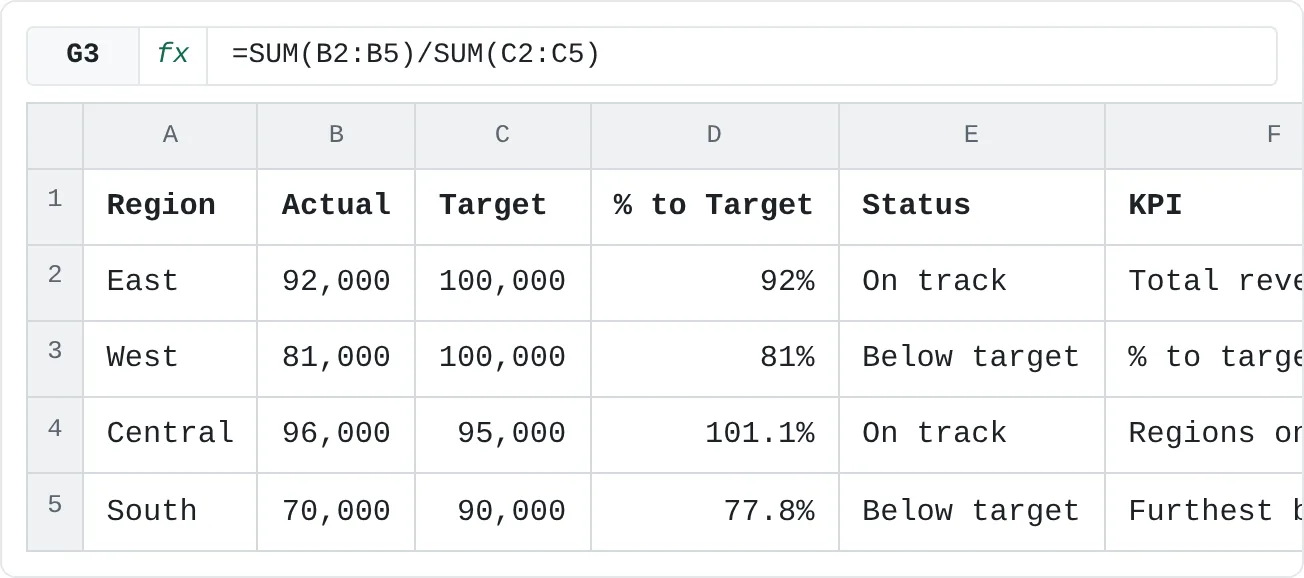
The example in this tutorial is four regions with an actual and a target each. Column D is =B2/C2 copied down, and column E is a status label (more on that below).
| A | B | C | D | E | F | G | H | |
|---|---|---|---|---|---|---|---|---|
| 1 | Region | Actual | Target | % to Target | Status | KPI | Value | Below 90% |
| 2 | East | 92,000 | 100,000 | 92% | On track | Total revenue | ||
| 3 | West | 81,000 | 100,000 | 81% | Below target | % to target | ||
| 4 | Central | 96,000 | 95,000 | 101.1% | On track | Regions on track | ||
| 5 | South | 70,000 | 90,000 | 77.8% | Below target | Furthest below |
Build the executive tiles
Each tile is one cell with one formula and a clear label. Keep the formulas on the calculation sheet and point the tiles at them, so the tiles never hold logic of their own.
Total revenue
In G2, add the four actuals. The result is 339,000.
=SUM(B2:B5)Overall % to target
In G3, divide the total actual by the total target. The result is 88.1% (339,000 out of 385,000).
=SUM(B2:B5)/SUM(C2:C5)Don't average column D instead.
=AVERAGE(D2:D5)gives 88.0% here, close only by luck: it gives a region with a small target the same weight as one with a large target. Dividing totals weights each region by its size, which is what "the company is at 88% of target" means.Regions on track
In G4, count the regions at 90% of target or better. The result is 2 (East and Central).
=COUNTIF(D2:D5,">=0.9")Show it on the tile as "2 of 4" so the reader doesn't have to know how many regions there are:
=G4&" of "&COUNTA(A2:A5).The region furthest behind
In G5, return the name of the region with the lowest % to target. The result is South (77.8%).
=XLOOKUP(MIN(D2:D5),D2:D5,A2:A5)
| A | B | C | D | E | F | G | H | |
|---|---|---|---|---|---|---|---|---|
| 1 | Region | Actual | Target | % to Target | Status | KPI | Value | Below 90% |
| 2 | East | 92,000 | 100,000 | 92% | On track | Total revenue | 339,000 | |
| 3 | West | 81,000 | 100,000 | 81% | Below target | % to target | 88.1% | |
| 4 | Central | 96,000 | 95,000 | 101.1% | On track | Regions on track | 2 | |
| 5 | South | 70,000 | 90,000 | 77.8% | Below target | Furthest below | South |
To turn a KPI cell into a tile on the Executive sheet, give it a large font, a label above it and plenty of empty space around it. Link a chart title to a cell the same way: click the chart title, click in the formula bar, type =, click the cell and press Enter. The title then changes with the data.
Put exceptions first
A full table makes the reader hunt for problems. An exceptions list hands them over: only the rows that need attention, worst first. With the data above, two regions are below 90% of target.
=SORTBY(FILTER(A2:A5,D2:D5<0.9),FILTER(D2:D5,D2:D5<0.9))FILTER keeps the regions below 90% and SORTBY puts them in order of their % to target, so the result spills as South, then West.
| A | B | C | D | E | F | G | H | |
|---|---|---|---|---|---|---|---|---|
| 1 | Region | Actual | Target | % to Target | Status | KPI | Value | Below 90% |
| 2 | East | 92,000 | 100,000 | 92% | On track | Total revenue | South | |
| 3 | West | 81,000 | 100,000 | 81% | Below target | % to target | West | |
| 4 | Central | 96,000 | 95,000 | 101.1% | On track | Regions on track | ||
| 5 | South | 70,000 | 90,000 | 77.8% | Below target | Furthest below |
On the Analyst sheet, show the whole row instead of only the name. This returns region, actual, target and % for each exception, sorted by the fourth column:
=FILTER(SORT(A2:D5,4),SORT(D2:D5)<0.9,"No exceptions")The third argument of FILTER is what it shows when nothing matches. Without it, a month with no exceptions shows #CALC!, which looks like a broken dashboard instead of good news. That's also why this formula sorts first and filters second: wrapped the other way round, SORT(…,4) would receive the one-cell "No exceptions" message, which has no fourth column, and return #VALUE!.
Add controls nobody can misread
Controls are the slicers, timelines and drop-down lists that change what the dashboard shows. Three rules make them easy to use:
- One place. Put every control in the same band, usually the top rows or a narrow column on the left, on every sheet.
- A different look. Controls should not look like data. Give the band a light background and keep numbers out of it.
- A visible selected state. A reader must see what's selected without clicking or hovering.
Slicers for PivotTables
If your views are built on PivotTables, slicers give you all three for free: selected buttons are filled, unselected ones are faded, and the Clear Filter button in the slicer header becomes active when a filter is on.
Insert the slicer
Click inside a PivotTable, then choose PivotTable Analyze then Filter then Insert Slicer. Tick Region and click OK. For a date field, PivotTable Analyze then Filter then Insert Timeline gives you a slider for months, quarters or years.
Connect it to every PivotTable it should filter
Select the slicer, then on the Slicer tab click Report Connections. Tick each PivotTable that should respond to it and click OK. One slicer driving both the tiles and the chart keeps the view consistent: a reader can't filter the chart and forget that the tile above it still shows all regions.
Style and place it
Pick a slicer style on the Slicer tab that makes the selected buttons stand out clearly, then drag the slicer into the control band.
A drop-down selector for formula dashboards
If your views are built with formulas, a drop-down list in one cell works as the control. Select the cell, open Data then Data Tools then Data Validation, choose List under Allow, point Source at the region names and click OK. Every formula on the view then reads that one cell. With the region table on a sheet named Regions and the drop-down in B1:
=XLOOKUP($B$1,Regions!$A$2:$A$5,Regions!$B$2:$B$5)| A | B | |
|---|---|---|
| 1 | Region | West |
| 2 | Actual | 81,000 |
| 3 | Target | 100,000 |
| 4 | % to target | 81% |
| 5 | Status | Below target |
A drop-down cell shows its value but looks like any other cell. Make its state obvious: give it the control-band fill and repeat the selection in the view's title, for example ="Regional sales: "&B1.
Show status without relying on color
About 1 in 12 men has some form of color vision deficiency, and red versus green is the most common pair they can't tell apart. A dashboard that marks "behind" only by turning a cell red loses those readers, and loses everyone when the page is printed in black and white.
Pair every color with something that doesn't need color:
- A text label. Column E in the example is a formula, copied down:
=IF(D2>=0.9,"On track","Below target"). - An icon whose shape changes. In Home then Styles then Conditional Formatting then Icon Sets, choose a set where each icon has a different shape, such as 3 Symbols (Circled), not one where only the color changes.
- A position. The exceptions list says "behind" by putting the region at the top.
Give every number a drill path
A KPI that can't be explained becomes an argument. Each summary number should lead to the rows behind it.
- PivotTable drill-down. Double-click any value cell in a PivotTable. Excel creates a new sheet listing the source rows that make up that number. Delete the sheet when you're done: it's a copy, not a live link.
- Links between views. Put a link next to each tile that jumps to the matching section of the Analyst sheet, and a "Back to summary" link there. Use Insert then Links then Link (Ctrl+K) and choose Place in This Document, or a formula:
=HYPERLINK("#Analyst!A1","See the exceptions")The # tells Excel the target is in this workbook. If the sheet name has spaces, wrap it in single quotes: "#'Analyst view'!A1".
Prepare a print and presentation mode
Controls are useful on screen and clutter on paper or on a shared screen in a meeting. Plan for both.
Keep the controls outside the print area
Put the control band in the top rows, then select only the tiles and chart below it and choose Page Layout then Page Setup then Print Area then Set Print Area. The controls stay on screen and never reach the printer.
Put the current selection in the printed title
A printed page has no slicer to show what it's filtered to, so the title has to say it. Use a cell formula like the one above, inside the print area.
Hide the grid for presenting
On the View tab, in the Show group, clear Gridlines and Headings. The sheet then looks like a report instead of a spreadsheet.
Check the result
Press Ctrl+P and look at the preview before anyone else does. Fix scaling and orientation under Settings if the tiles break across pages.
Common mistakes
- Two views that calculate separately. If the executive tile and the analyst table each have their own formula, they'll drift apart. Both should read the same cells or PivotTables.
- Averaging percentages.
=AVERAGE(D2:D5)ignores how big each region is. Divide the totals. - Slicers that filter only half the page. A slicer connected to the chart but not the tiles shows two different truths. Check Report Connections after adding every PivotTable.
- Red and green as the only signal. Add a label or an icon whose shape changes.
- An empty FILTER that looks broken. Always give
FILTERits third argument. - Printing the controls. Set the print area so slicers and drop-downs stay on screen only.
Practice
Practice
Design a second view for a dashboard you use
- Pick a dashboard or summary sheet you've built or use regularly, and decide who it's for now.
- Add a second sheet for the other audience: an executive summary if it's detailed now, or an analyst view if it's a summary.
- Make both sheets read from the same calculation cells or PivotTables, with no copied values.
- Add an exceptions-first list with
FILTER, including the "nothing to report" message. - Add one control (a slicer or a drop-down) in a control band, and repeat its selection in the view's title.
- Set a print area that leaves the controls out, then check the print preview.
Build the executive KPIs below. Each task is one tile.
Try it0 of 4 done
- In G2, add up the Actual sales of all four regions.
- In G3, divide total Actual by total Target to get the overall % to target.
- In G4, count the regions at 90% of target or better.
- In G5, return the name of the region with the lowest % to target.
Click a dashed cell, type a formula in the bar and press Enter.
| A | B | C | D | E | F | G | H | |
|---|---|---|---|---|---|---|---|---|
| 1 | Region | Actual | Target | % to Target | Status | KPI | Value | Below 90% |
| 2 | East | 92,000 | 100,000 | 92% | On track | Total revenue | ||
| 3 | West | 81,000 | 100,000 | 81% | Below target | % to target | ||
| 4 | Central | 96,000 | 95,000 | 101.1% | On track | Regions on track | ||
| 5 | South | 70,000 | 90,000 | 77.8% | Below target | Furthest below |
Check your skills
- Can you describe what an executive view and an analyst view of the same data should each show?
- Can you build a control whose selected state is obvious without clicking or hovering?
- Can you write a
FILTERformula that lists only the rows that need attention, worst first? - Can you show status in a way that still works for a color-blind reader or on a black-and-white printout?
- Can you set up a print layout that hides the interactive controls?
Related
Was this guide helpful? Spot a mistake? Send feedback · admin@arumsoft.com