Expert Excel · Tutorial 3 of 12
Power Query Engineering: Parameters, Staging and Refresh
Build a folder import that survives change: a path parameter, a custom function, a connection-only staging query, a Rejected Rows table and checks you run after every refresh.
- Level
- Expert
- Time
- 18 min read
- Updated:
- Applies to:
- Excel for Microsoft 365 for Windows, Excel 2021, Excel 2019
What you'll learn
- Replace a hard-coded folder path with a query parameter
- Write a custom M function and invoke it once per file
- Split an import into a connection-only staging query and the queries that reference it
- Route rows that fail a type conversion to a Rejected Rows query
- Choose a load destination and check row counts after a refresh
Example file
Power Query Engineering - Parameters, Staging and Refresh.xlsx
Download the workbook used in this tutorial and follow along in Excel.
Excel workbook (.xlsx) · 7 KB
A first Power Query import usually works for the files you built it on. An engineered import keeps working when the folder moves, when next month's file has a bad value, and when someone else has to refresh it. The difference isn't more steps. It's a structure: one place to change the path, one function that reads a file, one staging query that does the shared cleaning, and a visible table for every row that didn't make it.
The example: a folder of store exports
Each month, every store's unit sales arrive as a CSV file in one folder. Two files are there so far. January's has a problem: Eastside reported N/A instead of a number.
| A | B | C | D | E | |
|---|---|---|---|---|---|
| 1 | Store | Units | Store | Units | |
| 2 | Uptown | 120 | Westside | 64 | |
| 3 | Midtown | 85 | Southgate | 97 | |
| 4 | Eastside | N/A |
By the end you'll have this set of queries:
| Query | Job | Loads to |
|---|---|---|
FolderPath | Parameter: where the files are | Nothing (it's a value) |
fnLoadStoreFile | Custom function: reads one CSV file | Nothing (it's a function) |
stgStoreSales | Staging: combines the folder, sets types | Connection only |
StoreSales | Clean rows for reporting | Data Model or a table |
RejectedRows | Rows that failed, with a reason | A table on a QA sheet |
The prefixes fn and stg aren't required by Excel. They make it obvious in the Queries pane which queries are building blocks and which are results.
Replace the hard-coded path with a parameter
When you import a folder, its path is typed into the first step of the query. Move the folder, or hand the workbook to a colleague, and every query that contains that path breaks. A parameter keeps the path in one named place.
Create the parameter
In the Power Query Editor, go to Home then Parameters then Manage Parameters then New Parameter. Set Name to
FolderPath, Type to Text, Suggested Values to Any value and Current Value to the folder, for exampleC:\Data\StoreSales\. Add a Description and click OK.Use it in the Source step
Select the query that imports the folder and click its Source step. If the formula bar isn't visible, turn it on with View then Layout then Formula Bar. Replace the quoted path with the parameter name:
= Folder.Files(FolderPath)Change the path in one place
To point the import at another folder, open Manage Parameters, change Current Value and click OK. Every query that uses
FolderPathfollows.
In the Advanced Editor, a parameter is a one-line query with metadata that tells Power Query it's a parameter:
"C:\Data\StoreSales\" meta [IsParameterQuery = true, Type = "Text", IsParameterQueryRequired = true]
Parameters aren't only for paths. A start date, a minimum amount or a region code that several queries filter on are all good candidates.
Write a custom function that reads one file
If you repeat the same steps in five near-identical queries, you have five places to fix when the file format changes. A custom function is a query written once and called with different inputs, the M equivalent of a LAMBDA.
Start a blank query
Go to Home then New Query then New Source then Other Sources then Blank Query. Rename it
fnLoadStoreFilein Query Settings under Properties > Name.Write the function
Click Home then Query then Advanced Editor, replace everything with the code below and click Done:
(fileContent as binary) as table =>
let
    ParsedCsv = Csv.Document(fileContent, [Delimiter = ",", Encoding = 65001, QuoteStyle = QuoteStyle.None]),
    PromotedHeaders = Table.PromoteHeaders(ParsedCsv, [PromoteAllScalars = true])
in
    PromotedHeaders
The first line makes it a function: it takes one input, the file's contents as binary, and returns a table. The icon next to the query changes to fx.
You already use this pattern without writing it. When you click Combine & Transform Data on a folder, Excel generates helper queries (a sample file parameter, Transform Sample File and a Transform File function) that do the same job. Writing the function yourself gives it a name you choose, keeps it short enough to read, and lets other folder queries reuse it.
Stage once, reference many times
A staging query does the shared work (combine, keep the useful columns, set types) and loads nowhere. Every query that needs the data starts from it instead of repeating its steps.
Create another blank query, name it stgStoreSales and enter this in the Advanced Editor:
let
    Source = Folder.Files(FolderPath),
    CsvFilesOnly = Table.SelectRows(Source, each Text.Lower([Extension]) = ".csv"),
    NameAndContent = Table.SelectColumns(CsvFilesOnly, {"Name", "Content"}),
    ParsedFiles = Table.AddColumn(NameAndContent, "Data", each fnLoadStoreFile([Content])),
    RemovedContent = Table.RemoveColumns(ParsedFiles, {"Content"}),
    ExpandedRows = Table.ExpandTableColumn(RemovedContent, "Data", {"Store", "Units"}),
    RenamedSource = Table.RenameColumns(ExpandedRows, {{"Name", "SourceFile"}}),
    KeptRawUnits = Table.DuplicateColumn(RenamedSource, "Units", "UnitsRaw"),
    TypedColumns = Table.TransformColumnTypes(KeptRawUnits, {{"SourceFile", type text}, {"Store", type text}, {"Units", Int64.Type}})
in
    TypedColumns
Reading it step by step: list the files in the folder, keep only CSV files (so a stray notes file can't break the import), call fnLoadStoreFile on each file, stack the results, keep the file name for lineage, keep a text copy of Units, then set the types. The step names say what each step does, so the Applied Steps list reads like documentation. Steps you create by clicking can be renamed the same way: right-click the step and choose Rename.
You can build the same ParsedFiles step without code: with NameAndContent selected, go to Add Column then General then Invoke Custom Function, choose fnLoadStoreFile and pick the Content column as its input.
| A | B | C | D | |
|---|---|---|---|---|
| 1 | SourceFile | Store | Units | UnitsRaw |
| 2 | sales-2026-01.csv | Uptown | 120 | 120 |
| 3 | sales-2026-01.csv | Midtown | 85 | 85 |
| 4 | sales-2026-01.csv | Eastside | Error | N/A |
| 5 | sales-2026-02.csv | Westside | 64 | 64 |
| 6 | sales-2026-02.csv | Southgate | 97 | 97 |
The staging query should load nowhere. Whenever you next close the editor with Close & Load, open the Queries & Connections pane (Data then Queries & Connections then Queries & Connections), right-click stgStoreSales, choose Load To, select Only Create Connection and click OK. If the query had already loaded to a sheet, Excel asks you to confirm removing that data; click OK.
To start a query from the staging query, right-click stgStoreSales in the editor's Queries pane and choose Reference. The new query's whole Source step is = stgStoreSales. (Duplicate would copy all the steps instead, which is exactly the repetition you're trying to avoid.)
Route bad rows to a Rejected Rows query
Remove Errors fixes the report but hides the problem: the total is quietly short and nobody knows why. Split the staging output into two queries instead.
Reference stgStoreSales, name the new query StoreSales and give it these steps:
let
    Source = stgStoreSales,
    RemovedErrors = Table.RemoveRowsWithErrors(Source, {"Units"}),
    RemovedRawUnits = Table.RemoveColumns(RemovedErrors, {"UnitsRaw"})
in
    RemovedRawUnits
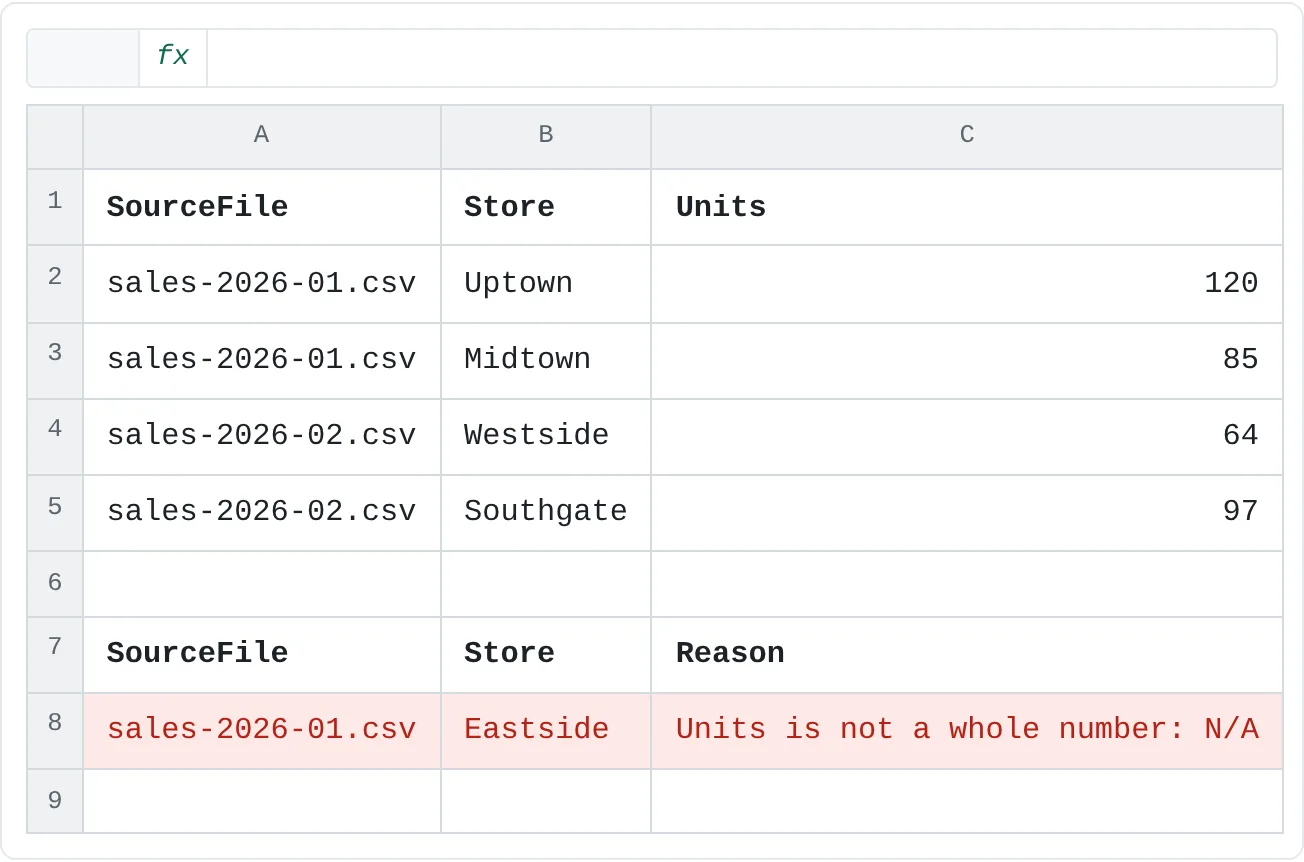
Reference stgStoreSales again, name it RejectedRows, and keep only the rows the first query dropped, with a reason anyone can read:
let
    Source = stgStoreSales,
    RowsWithErrors = Table.SelectRowsWithErrors(Source, {"Units"}),
    AddedReason = Table.AddColumn(RowsWithErrors, "Reason", each "Units is not a whole number: " & [UnitsRaw], type text),
    RemovedUnits = Table.RemoveColumns(AddedReason, {"Units", "UnitsRaw"})
in
    RemovedUnits
This is why the staging query kept UnitsRaw: after the type change, the original text survives only in that copy. If you'd rather show Power Query's own error message, use each (try [Units])[Error][Message] as the Reason instead.
| A | B | C | |
|---|---|---|---|
| 1 | SourceFile | Store | Units |
| 2 | sales-2026-01.csv | Uptown | 120 |
| 3 | sales-2026-01.csv | Midtown | 85 |
| 4 | sales-2026-02.csv | Westside | 64 |
| 5 | sales-2026-02.csv | Southgate | 97 |
| 6 | |||
| 7 | SourceFile | Store | Reason |
| 8 | sales-2026-01.csv | Eastside | Units is not a whole number: N/A |
| 9 |
Load RejectedRows to a table on a QA sheet. When it's empty, the refresh was clean. When it isn't, the owner can see which file and which store to follow up on, and fix the source rather than the report.
Choose where each query loads
The Import Data dialog (from Close & Load To, or Load To in the Queries & Connections pane) decides what each query becomes:
| Destination | Use it for |
|---|---|
| Table | Results people read or check on a sheet, such as RejectedRows |
| PivotTable Report or PivotChart | A quick summary that doesn't need the rows on a sheet |
| Only Create Connection | Staging queries and anything that only other queries use |
| Only Create Connection with Add this data to the Data Model ticked | Fact and lookup tables for Data Model relationships and DAX measures, especially large ones |
StoreSales belongs in the Data Model if it feeds PivotTables with measures; it can also go to a table if the report is built from worksheet formulas. Parameters and functions don't load at all.
Refresh and check the result
Refresh everything with Ctrl+Alt+F5 (Data then Queries & Connections then Refresh All). Then check, every time, that nothing went missing:
- Reconcile row counts. Rows in the clean query plus rows in the rejected query must equal the rows in the files. In the editor, the status bar at the bottom left shows the column and row count of the selected query's preview: 5 rows for
stgStoreSales. When both output queries load to tables, this formula on the QA sheet must return the same number, here 5 (4 clean rows plus 1 rejected). COUNTA is safer than ROWS here, because an empty query table still keeps one blank row.
=COUNTA(StoreSales[Store])+COUNTA(RejectedRows[Store])- Look at column quality. In the editor, tick View then Data Preview then Column quality. Each column header then shows the share of valid, error and empty values. By default the profile covers the first 1,000 rows; click the text at the bottom left of the status bar to switch to the entire data set.
- Watch for empty values, not just errors. If a new file is missing the Units column, its rows come through with
nullUnits, which isn't an error, so neither query flags it. Column quality shows it as Empty. - See what feeds what. View then Dependencies then Query Dependencies draws the chain from the folder through
FolderPath,fnLoadStoreFileandstgStoreSalesto the two output queries. - Read before fixing. Click through the Applied Steps of the staging query to find the first step where the row count or a value goes wrong.
To control when refreshes happen, right-click a query in the Queries & Connections pane, choose Properties and set Refresh data when opening the file or Refresh every n minutes.
Common mistakes
- Duplicating instead of referencing. Duplicate copies every step, so a fix in one copy doesn't reach the others. Use Reference for anything built on the staging query.
- Loading the staging query. It doubles the data in the workbook and invites people to report from the wrong table. Set it to Only Create Connection.
- Removing errors in the staging query. Then no downstream query can see the rejected rows. Keep error handling in the output queries.
- Leaving step names like Changed Type1 and Filtered Rows2. Six months later nobody knows why a step exists. Rename steps to say what they do.
- Hard-coding the path anywhere else. A second
Folder.Files("C:\...")in another query means the parameter no longer controls everything. Search the Advanced Editor of each query for the old path. - Trusting a refresh that "worked". A refresh with no error message can still lose rows. Check the row counts and the RejectedRows table every time.
Practice
Practice
Engineer a folder import
- Create a folder such as
C:\Data\StoreSales\and save the two files shown at the top assales-2026-01.csvandsales-2026-02.csv(header lineStore,Units). - In a new workbook, open the Power Query Editor (Data then Get & Transform Data then Get Data then Launch Power Query Editor) and create the
FolderPathparameter. - Create
fnLoadStoreFileandstgStoreSalesfrom the code above, and set the staging query to Only Create Connection. - Reference it twice to create
StoreSalesandRejectedRows, and load both to tables on a QA sheet. (In a real report, StoreSales would usually go to the Data Model.) - Refresh and check: 4 clean rows totaling 366 units, 1 rejected row for Eastside, and the COUNTA check returns 5.
- Add
sales-2026-03.csvwithUptown,110andMidtown,abcand refresh. You should get 5 clean rows (476 units) and 2 rejected rows, and the check returns 7. - Move the folder, update
FolderPathonly, and refresh again.
Then apply the pattern to a real repeated import: a parameter for the path, a connection-only staging query, and a visible table for every row that fails.
Check your skills
- Can you turn a hard-coded file path into a query parameter?
- Can you explain what a custom function gives you over repeating the same steps in five queries?
- Can you send rows that fail a type conversion to a separate table instead of silently dropping them?
- Can you explain the difference between a staging query and a query that loads to the workbook?
- Can you prove after a refresh that no rows went missing?
Related
Was this guide helpful? Spot a mistake? Send feedback · admin@arumsoft.com