Expert Excel · Tutorial 4 of 12
Data Modeling and DAX Measures in Excel
Design a star schema in the Data Model, keep measures in their own table, and write DAX with CALCULATE, DIVIDE and SAMEPERIODLASTYEAR.
- Level
- Expert
- Time
- 17 min read
- Updated:
- Applies to:
- Excel for Microsoft 365 for Windows, Excel 2021, Excel 2019
What you'll learn
- Design a star schema with one fact table and several dimension tables
- Explain how filters flow through relationships and why many-to-many links cause trouble
- Keep every measure in a dedicated measure table
- Change filter context with CALCULATE and calculate safe ratios with DIVIDE
- Build a prior-year comparison with a calendar table and SAMEPERIODLASTYEAR
Before you start
Example file
Data Modeling and DAX Measures in Excel.xlsx
Download the workbook used in this tutorial and follow along in Excel.
Excel workbook (.xlsx) · 7 KB
Relating two tables is the start. A real model relates several: one fact table full of transactions, surrounded by small dimension tables that describe each transaction (when, what, where). Get that shape right and a handful of DAX measures can answer "revenue by region", "East only" and "versus last year" in any PivotTable, without a single helper column.
This guide assumes you can already create tables, relationships and a simple measure in the Data Model.
Design a star schema
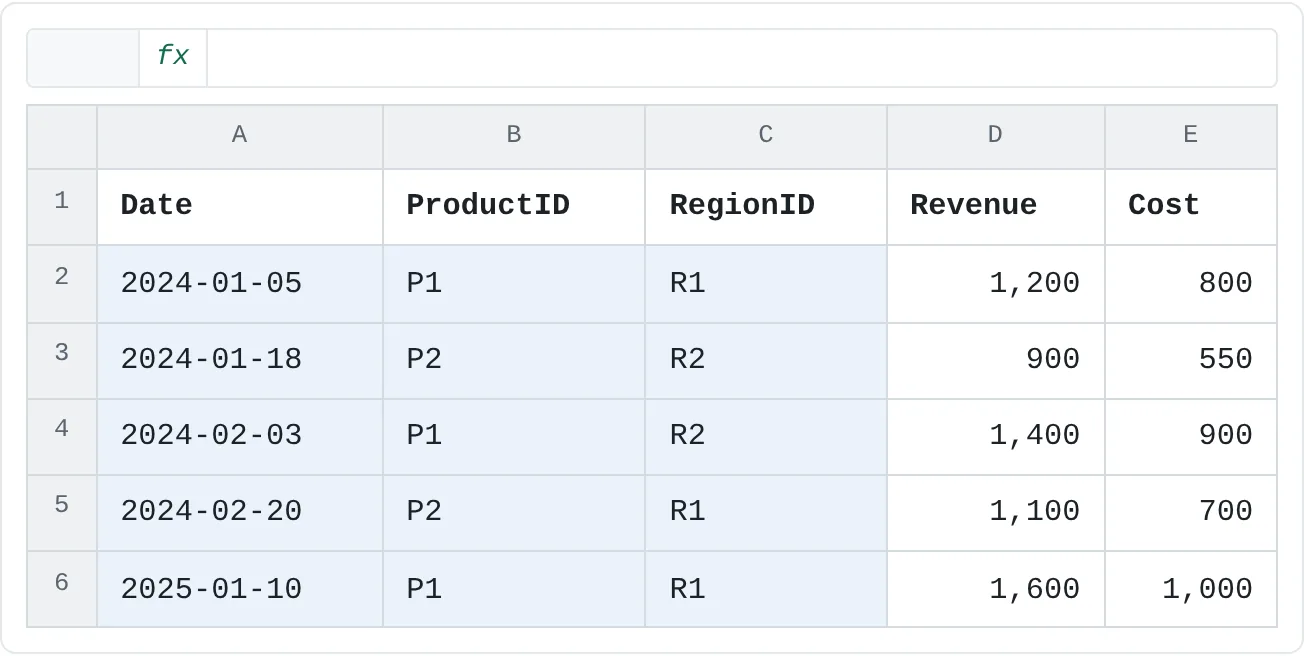
The example model has one fact table and three dimension tables:
- Sales (fact): one row per sale, with Date, ProductID, RegionID, Revenue and Cost.
- Products (dimension): one row per ProductID, with Name and Category.
- Regions (dimension): one row per RegionID, with Region and Manager.
- Calendar (dimension): one row per day, with Date, Year and Month. You'll create it later in this guide.
| A | B | C | D | E | |
|---|---|---|---|---|---|
| 1 | Date | ProductID | RegionID | Revenue | Cost |
| 2 | 2024-01-05 | P1 | R1 | 1,200 | 800 |
| 3 | 2024-01-18 | P2 | R2 | 900 | 550 |
| 4 | 2024-02-03 | P1 | R2 | 1,400 | 900 |
| 5 | 2024-02-20 | P2 | R1 | 1,100 | 700 |
| 6 | 2025-01-10 | P1 | R1 | 1,600 | 1,000 |
| A | B | C | D | E | F | G | |
|---|---|---|---|---|---|---|---|
| 1 | ProductID | Name | Category | RegionID | Region | Manager | |
| 2 | P1 | Widget Core | Hardware | R1 | East | Ana | |
| 3 | P2 | Widget Plus | Hardware | R2 | West | Bo |
Every dimension connects directly to the fact table and to nothing else. Drawn out, the fact table sits in the middle with the dimensions around it, which is why it's called a star schema:
             Products
                |
Calendar --- Sales --- Regions
Two rules keep the star clean:
- Dimensions don't chain. Don't relate Regions to Products, or Products to Calendar. If a dimension needs extra detail (a region's country, say), add it as a column in that dimension rather than creating a new table hanging off it.
- Facts don't relate to facts. If you add a second fact table, such as monthly Targets by RegionID, relate it to the same Regions dimension. A PivotTable with Region in Rows can then show Revenue and Target side by side, because one dimension filters both fact tables.
To build the relationships, use Data then Data Tools then Relationships or drag between keys in the Power Pivot window's Diagram View: Sales[ProductID] to Products[ProductID], and Sales[RegionID] to Regions[RegionID].
How filters flow through relationships
When you put Regions[Region] in a PivotTable's Rows, each row filters the Regions table to one region. That filter travels along the relationship from the "one" side (Regions) to the "many" side (Sales), so the East row only sees East sales.
Relationships you create in Excel filter in that one direction only. A filter on Sales does not travel back to Regions, and a filter on Products never reaches Regions at all: each dimension filters Sales and nothing else. That's exactly the behavior you want, and the star shape makes it predictable: every dimension filters the fact table, and the fact table holds every number.
A many-to-many link breaks that predictability. If you tried to relate Sales directly to Targets on RegionID, both columns would contain duplicates, and there's no "one" side for the filter to start from. Excel refuses to create that relationship and asks for at least one column with unique values. Route both fact tables through a shared dimension instead.
Filter context: one measure, many answers
The same measure returns a different number in every PivotTable cell because each cell has its own filter context: the combined filters from its row label, its column label, any slicers and the report filter. The measure itself never changes.
With Regions[Region] in Rows, SUM(Sales[Revenue]) gives East 3,900 (1,200 + 1,100 + 1,600) and West 2,300. Add Calendar[Year] to Columns and the East/2024 cell narrows further to 2,300. Click a slicer and every cell narrows again.
This is why measures beat calculated columns for reporting: a calculated column is computed once per row and stored, while a measure is recalculated for whatever filter context it lands in.
Create a measure table
Measures live in a table, and by default you'd put them in Sales. In a model with 30 measures, that buries them among columns. A dedicated measure table holds nothing but measures, so anyone opening the model finds every calculation in one place.
Create a placeholder table
On an empty sheet, type
Placeholderin A1, select A1 and press Ctrl+T. Tick My table has headers and click OK. On the Table Design tab, name the table_Measures. The underscore makes it look different from the data tables.Add it to the Data Model
With a cell in the table selected, click Power Pivot then Tables then Add to Data Model. The Power Pivot window opens with the new table.
Hide the placeholder column
In the Power Pivot window, right-click the Placeholder column header and choose Hide from Client Tools. The column disappears from the PivotTable field list; your measures will be the only things under
_Measures.Create every new measure in it
When you create a measure, set Table name to
_Measuresin the Measure dialog. To move an existing measure, open Power Pivot then Calculations then Measures then Manage Measures, select it, click Edit and change Table name.
Write the core measures
Create these in _Measures with Power Pivot then Calculations then Measures then New Measure. Each one gets a name in Measure name and a formula in Formula:
| Measure name | Formula | Number format |
|---|---|---|
| Total Revenue | =SUM(Sales[Revenue]) | Whole Number |
| Total Cost | =SUM(Sales[Cost]) | Whole Number |
| Gross Margin | =[Total Revenue] - [Total Cost] | Whole Number |
| Margin % | =DIVIDE([Gross Margin], [Total Revenue]) | Percentage |
Later measures refer to earlier ones by name in square brackets, so the definition of revenue lives in one place. If it changes (say, revenue must exclude returns), you fix Total Revenue and everything built on it follows.
Use DIVIDE for every ratio. DAX doesn't return #DIV/0! like a worksheet formula: dividing by zero with / gives Infinity or NaN, and those words then appear in the report, for example for a product whose sales were all refunded to zero. DIVIDE returns a blank instead, and a PivotTable built on the Data Model hides rows where every value is blank.
Change filter context with CALCULATE
CALCULATE evaluates a measure in a modified filter context. Its first argument is the measure; each further argument is a filter that's applied before the measure runs.
East Revenue := CALCULATE([Total Revenue], Regions[Region] = "East")
Revenue All Regions := CALCULATE([Total Revenue], ALL(Regions))
Region Share := DIVIDE([Total Revenue], [Revenue All Regions])
These are written in the Name := formula form you can type into the calculation area of the Power Pivot window's Data View. In the Measure dialog, type the name in Measure name and the formula, starting with =, in Formula: =CALCULATE([Total Revenue], Regions[Region] = "East").
- East Revenue replaces any filter on Regions[Region] with "East". In the West row it still returns East's 3,900, because the CALCULATE filter overrides the row's filter on that column. Filters on other columns, such as a Year slicer, still apply.
- Revenue All Regions removes every filter on the Regions table with
ALL, so each row sees the total for all regions (6,200). - Region Share divides one by the other: East is 3,900 / 6,200 = 62.9%.
| A | B | C | D | E | |
|---|---|---|---|---|---|
| 1 | Row Labels | Total Revenue | Margin % | East Revenue | Region Share |
| 2 | East | 3,900 | 35.9% | 3,900 | 62.9% |
| 3 | West | 2,300 | 37% | 3,900 | 37.1% |
| 4 | Grand Total | 6,200 | 36.3% | 3,900 | 100% |
Compare with last year
Time intelligence functions such as SAMEPERIODLASTYEAR shift the dates in the current filter context back by a year. For that they need a proper calendar table: one row for every date, with no gaps, covering whole years.
List every date
On a new sheet, type
Datein A1 and2024-01-01in A2. Select A2 and go to Home then Editing then Fill then Series. Choose Columns, type Date, date unit Day, step value1, stop value2025-12-31, and click OK. Excel fills A2:A732 with 731 consecutive dates.Make it a table with Year and Month columns
Press Ctrl+T and name the table
Calendar. TypeYearin B1 andMonthin C1, then enter these formulas in B2 and C2. Each fills the whole column, because they're calculated columns in a table.B2: the calendar year =YEAR([@Date])C2: the month as text that sorts correctly, such as 2024-01 =TEXT([@Date],"yyyy-mm")Add it to the model and mark it as a date table
Click Power Pivot then Tables then Add to Data Model. In the Power Pivot window, on the Design tab, click Mark as Date Table and choose the Date column.
Relate it to Sales
Relate Sales[Date] to Calendar[Date]. From now on, use Calendar[Year] and Calendar[Month] in PivotTables, not Sales[Date].
Write the comparison measures
Create these two measures in
_Measures. The table name is in single quotes becauseCALENDARis also the name of a DAX function; quotes around a table name are always allowed and avoid any confusion.Revenue LY := CALCULATE([Total Revenue], SAMEPERIODLASTYEAR('Calendar'[Date]))Revenue YoY % := DIVIDE([Total Revenue] - [Revenue LY], [Revenue LY])
Put Calendar[Year] in Rows and the three revenue measures in Values:
| A | B | C | D | |
|---|---|---|---|---|
| 1 | Row Labels | Total Revenue | Revenue LY | Revenue YoY % |
| 2 | 2024 | 4,600 | ||
| 3 | 2025 | 1,600 | 4,600 | -65.2% |
Read this report carefully. 2025 shows a 65.2% drop, but the data only contains January 2025, so a month of sales is being compared with a full year. Add Calendar[Month] to Rows under Year and the 2025-01 row tells the real story: 1,600 against 2,100 in January 2024, a 23.8% drop. Time intelligence shifts whatever dates are in context; it can't know that the year isn't over.
Common mistakes
- Using Sales[Date] instead of Calendar[Date]. Time intelligence functions need the continuous date column of the calendar table. Grouping by dates from the fact table also leaves out days with no sales.
- Snowflaking dimensions. Chaining Regions → Countries → Continents works, but every link is another place for filters to behave unexpectedly. Flatten the extra columns into Regions.
- Ratios with the
/operator. One zero denominator and the report shows Infinity or NaN. UseDIVIDE. - Measures scattered across tables. Six months later, nobody can find Margin %. Keep them all in
_Measures. - Expecting a filter to flow "uphill". With only Products[Name] in Rows and nothing in Values, a Region slicer changes nothing: Regions filters Sales, not Products. Add a measure to Values and the products with no sales in that region drop out.
Practice
Practice
Build a small star schema
- Type the Sales data and the Products and Regions data from the sheets above into a new workbook, each as an Excel table named
Sales,ProductsandRegions. - Add all three to the Data Model and relate Sales[ProductID] to Products[ProductID] and Sales[RegionID] to Regions[RegionID].
- Create a
_Measurestable, add it to the model and hide its placeholder column. - Write Total Revenue, Total Cost, Gross Margin and Margin %. In a PivotTable with Region in Rows, check East 3,900 / 35.9% and West 2,300 / 37%.
- Add East Revenue, Revenue All Regions and Region Share. East's share should be 62.9%.
- Create the Calendar table, relate it to Sales[Date], and write Revenue LY and Revenue YoY %. Check that January 2025 compares 1,600 with 2,100.
Then do the same with a flat export you use at work: split it into one fact table, a calendar and at least one other dimension, and check that the same measures give different answers when you slice by each dimension.
Check your skills
- Can you sketch a star schema for your own data, with the fact table in the middle?
- Can you explain why two fact tables should share a dimension rather than be related to each other?
- Can you write a measure that uses
CALCULATEto override or remove a filter? - Can you explain why
DIVIDEis safer than/in a measure? - Can you build a prior-year comparison that works for any month or year in the PivotTable?
Related
Was this guide helpful? Spot a mistake? Send feedback · admin@arumsoft.com