Expert Excel · Tutorial 10 of 12
Excel Performance at Scale
Find out why a large workbook is slow, fix the costliest causes first, and recognize when the job has outgrown Excel.
- Level
- Expert
- Time
- 16 min read
- Updated:
- Applies to:
- Excel for Microsoft 365, Excel 2021, Excel 2019
What you'll learn
- Explain how Excel decides what to recalculate and why volatile functions defeat it
- Replace formulas whose cost multiplies with every row they're copied into
- Diagnose a slow Power Query refresh and an oversized Data Model
- Remove formatting bloat and use manual calculation safely
- Recognize when a workbook has outgrown Excel
Example file
Excel Performance at Scale.xlsx
Download the workbook used in this tutorial and follow along in Excel.
Excel workbook (.xlsx) · 7 KB
A workbook that was quick with 5,000 rows can freeze for a minute with 500,000. The cause is rarely the row count alone. It's a few choices whose cost grows faster than the data: a volatile function, a formula that scans the whole table from every row, a query that re-reads a huge file, formatting on a million empty cells. This guide shows you how to find those costs, fix the expensive ones first and tell when a workbook needs a database instead.
How Excel decides what to recalculate
Excel keeps a dependency tree: for every formula, which cells it reads. When you change a cell, Excel marks that cell and everything that depends on it, directly or through other formulas, as needing recalculation, and recalculates only those. This is why changing one input in a well-built model of 100,000 formulas can still feel instant.
Two things break that efficiency:
- Volatile functions recalculate every time anything in the workbook recalculates, whether or not their inputs changed:
NOW,TODAY,RAND,RANDBETWEEN,RANDARRAY,OFFSET,INDIRECT,CELLandINFO. Every formula that depends on a volatile cell recalculates with it. - Long dependency chains. Excel recalculates in dependency order, the calculation chain. A slow formula early in the chain delays everything downstream, including cells that look unrelated but read its result through a few steps. Select a slow cell and use Formulas then Formula Auditing then Trace Dependents to see how far its effect reaches.
You can control recalculation from the keyboard:
| Shortcut | What it recalculates |
|---|---|
| F9 | Formulas marked as changed, in all open workbooks |
| Shift+F9 | The same, on the active sheet only |
| Ctrl+Alt+F9 | Every formula in all open workbooks, changed or not |
| Ctrl+Alt+Shift+F9 | Rebuilds the dependency tree, then recalculates everything |
Measure before you fix
Measure first, then again after each change, so you know what helped.
- Time a full recalculation. Press Ctrl+Alt+F9 and watch the status bar, or use this small macro for a number you can write down:
Sub TimeFullCalc()
    Dim t As Double
    t = Timer
    Application.CalculateFull
    MsgBox "Full calculation: " & Format(Timer - t, "0.00") & " seconds"
End Sub
- Find the real end of each sheet. Press Ctrl+End. If Excel jumps to row 1,048,576 or far beyond your data, the sheet's used range includes formatted or once-used empty cells, which inflate the file.
- Check which sheet is slow. Temporarily switch to manual calculation (see below), then press Shift+F9 on each sheet in turn.
- Time the parts separately. Recalculation, Data then Queries & Connections then Refresh All, and opening and saving have different causes and fixes.
Fix formulas whose cost multiplies
The most expensive formulas are the ones that do a lot of work and are copied down a whole table. Take this formula, copied into all 50,000 rows of a data table to show each row's regional total:
=SUMPRODUCT((Data[Region]=[@Region])*Data[Amount])
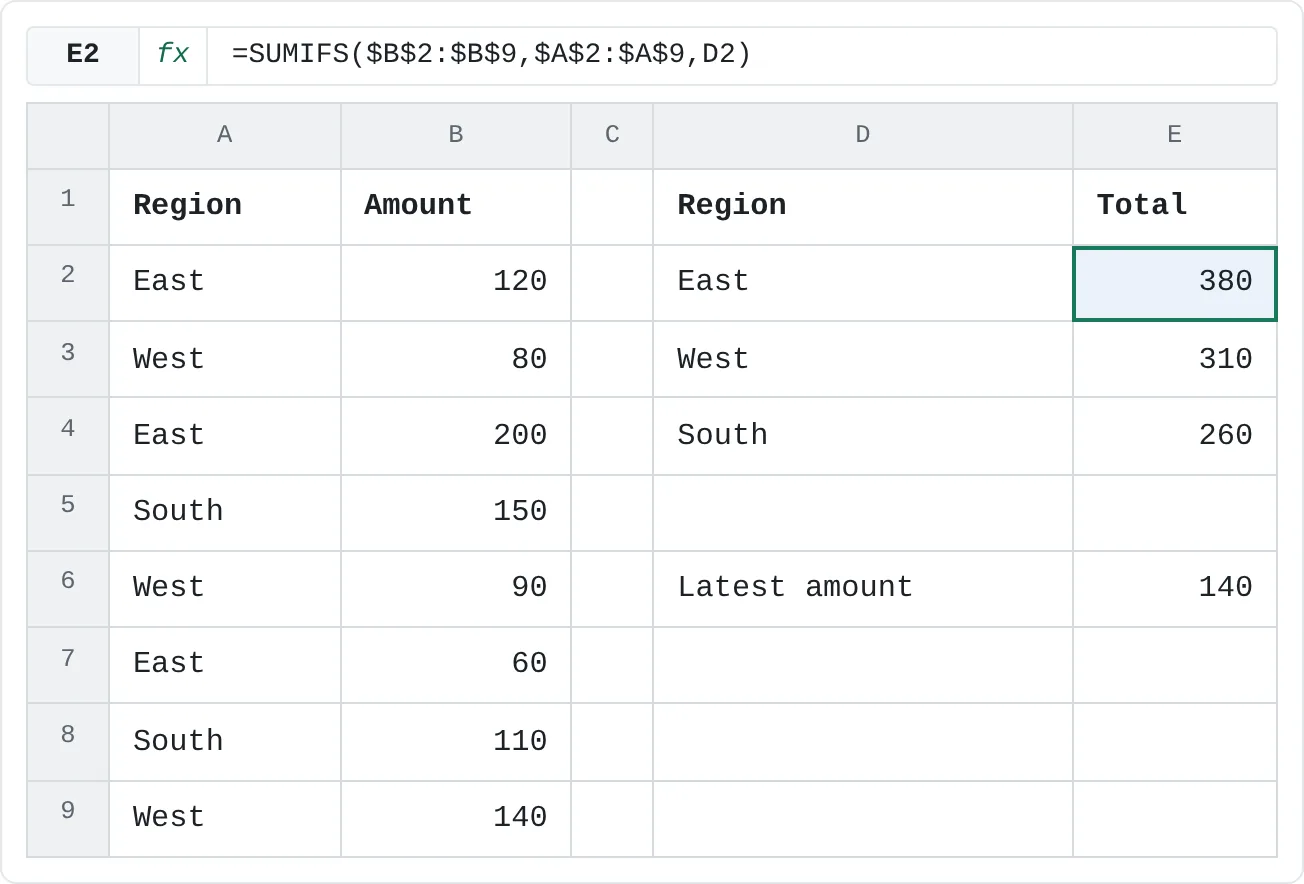
Each copy scans all 50,000 rows, so one recalculation does 50,000 × 50,000 = 2.5 billion comparisons. The same answers come from a small summary with one SUMIFS per region: a few rows doing one efficient scan each.
| A | B | C | D | E | |
|---|---|---|---|---|---|
| 1 | Region | Amount | Region | Total | |
| 2 | East | 120 | East | 380 | |
| 3 | West | 80 | West | 310 | |
| 4 | East | 200 | South | 260 | |
| 5 | South | 150 | |||
| 6 | West | 90 | Latest amount | 140 | |
| 7 | East | 60 | |||
| 8 | South | 110 | |||
| 9 | West | 140 |
=SUMIFS($B$2:$B$9,$A$2:$A$9,D2)If every data row really needs its group total, look it up from the summary with one lookup per row, or calculate it in Power Query or as a PivotTable instead.
Replace volatile functions. OFFSET and INDIRECT usually build a range that grows with the data. INDEX can return a reference too, without being volatile. Both formulas below return 950, the sum of B2:B9, but only the first recalculates after every change anywhere in the workbook:
=SUM(OFFSET(B2,0,0,COUNTA(B:B)-1,1))
=SUM(B2:INDEX(B:B,COUNTA(B:B)))
Better still, format the data as a table and use =SUM(Data[Amount]), which grows with the data by itself. For the last value in a list, =INDEX(B2:B9,COUNTA(B2:B9)) returns 140 without OFFSET.
Other fixes follow the same idea: do the work once and reuse it.
- Ask whether a date needs to be volatile. Every formula that depends on
TODAY()recalculates every time, however many cells call it. If a report can use a fixed as-of date, type it into one input cell (Ctrl+; enters today's date as a value) and point the formulas there. They then recalculate only when you change that cell. - Match once, return many. If five columns each run an
XLOOKUPon the same key, add a helper column with oneMATCH(key, lookup_column, 0)and useINDEXwith that position in the five columns. Exact-match lookups scan the list row by row; on sorted data, a binary search such asXLOOKUP(…, …, …, , 0, 2)is far faster, but returns wrong results if the data isn't sorted. - Keep ranges bounded.
SUMIFShandles whole-column references such asA:Aefficiently, butSUMPRODUCTand other array calculations evaluate every one of the 1,048,576 rows. Table references (Data[Amount]) are bounded to the data automatically. - Size dynamic arrays to the data.
=UNIQUE(A2:A1000000)is a single formula, so any change to its precedents recalculates the whole million-row array.=UNIQUE(Data[Region])processes only the rows that exist. UseLETto calculate an expensive intermediate result once inside a formula instead of repeating it.
Speed up Power Query refresh
Power Query in Excel has no incremental refresh: every refresh re-reads its sources from the start. If a query reads a 2 GB CSV from a network share, each refresh pulls 2 GB across the network, however little changed.
- Filter rows and remove columns as early as possible. For a database source, early steps can be folded, sent to the database as part of its query, so the filtering happens at the source and less data travels. Right-click a step in Applied Steps and look for View Native Query; if it's available, that step folds. Files such as CSV and Excel don't fold, but early filtering still reduces the work in every later step.
- Stage large files locally or at the source. Copy the file to a fast local or SharePoint location once a day, or ask the owning team for an extract with only the rows and columns you need.
- Load only what you use. Staging queries that feed other queries should be Connection Only (Close & Load To › Only Create Connection). Every query loaded to a sheet or the Data Model adds load time and file size.
Keep the Data Model lean
The Data Model compresses each column separately, so its size depends far more on how many distinct values a column holds than on how many rows the table has. A column of 3 million rows with 12 distinct month names is tiny; a column of 3 million unique transaction IDs or timestamps to the second is large.
- Remove unused columns before loading, in Power Query, not afterward in the model. Every imported column costs memory and refresh time, whether any report uses it or not.
- Reduce distinct values. Split a date-time into a date column and, only if needed, a time column. Round values that don't need full precision.
- Prefer measures to calculated columns. A calculated column is stored for every row; a measure is calculated only when a PivotTable asks for it.
- Use 64-bit Excel for large models. 32-bit Excel can run out of memory with large Data Models. Check which you have at File > Account > About Excel.
Remove formatting bloat
Formatting that reaches far past the data "to be safe" makes a file larger and slower to open, save and work in. Two patterns cause most of it: cell formatting on large blocks of empty cells, which stretches the sheet's used range, and conditional formatting rules that cover far more than the data, or that copying and inserting rows has split into dozens of fragments.
Clean up conditional formatting
Go to Home then Styles then Conditional Formatting then Manage Rules, choose This Worksheet in Show formatting rules for, and look at Applies to. Merge duplicate rules, delete fragments and set each rule to the table or the data range only.
Clear formatting below and to the right of the data
Click the row header of the first empty row under your data and press Ctrl+Shift+Down to extend the selection to the last row of the sheet. Right-click a selected row header and choose Delete. Do the same for empty columns to the right. Save the workbook, then press Ctrl+End again: it should now land at the end of your data.
Let Excel find the rest
In Microsoft 365, the Check Performance command on the Review tab lists cells that are formatted but empty and can clean them up for you.
Use manual calculation safely
While you build or restructure a large model, waiting for a recalculation after every edit wastes time. Switch to Formulas then Calculation then Calculation Options then Manual. The status bar shows Calculate when results are out of date; press F9 when you want them.
Three cautions:
- The setting isn't per workbook. Excel uses one calculation mode for all open workbooks, taken from the first workbook you open in the session. A file saved in Manual mode can switch your other workbooks to Manual too.
- Out-of-date numbers look like real ones. Anyone who forgets to press F9 reads stale results. Under File > Options > Formulas, keep Recalculate workbook before saving ticked.
- Switch back before you hand it off. Set the workbook to Automatic and save it before sharing. If data tables are the slow part, Automatic Except for Data Tables is a safer middle ground.
When Excel is no longer the right tool
Some workbooks aren't one fix away from fast. These signs mean the workload belongs in a database, with Excel as the front end through Power Query, PivotTables or Power BI:
| Sign | Why tuning won't fix it |
|---|---|
| The data approaches the 1,048,576-row limit, or is split across sheets to avoid it | The row limit is fixed, and the split makes every formula more complex |
| Dozens of linked workbooks act as related tables, reconciled by hand every night | That's a relational database without its integrity rules, and every manual step is a chance for error |
| Several people must edit the same records at the same time, with permissions per record | Co-authoring lets people edit at once, but Excel has no record locking or per-record permissions |
| Refresh takes longer than the time available to make the decision | The model has outgrown the tool, not only the formulas |
Let a database (SQL Server, Azure SQL, Access) or a shared list (Dataverse, SharePoint) hold the data, and keep Excel for analysis and presentation.
Triage a slow workbook
Here are seven findings from a slow workbook. All but one are real risks at scale:
| Finding | Verdict | Why |
|---|---|---|
=UNIQUE(A2:A1000000) | Risky | Any change to its precedents recalculates the whole million-row array |
SUMPRODUCT((Data[Region]="East")*(Data[Amount])) copied down 50,000 rows | Risky | The cost multiplies by every row it's copied into |
| A query re-reads a 2 GB CSV from a network share on every refresh | Risky | Refresh time follows how much is read, not how much changed |
| Data Model: 15 tables of 3 million or more rows each, 40 measures | Risky | Trim unused rows and columns before import; size costs memory and refresh time |
| Conditional formatting on all 1,048,576 rows of column D | Risky | The rule does work for a million cells, almost all empty; apply it to the data range only |
=SUM(Table1[Amount]) | Fine | A table reference covers only the actual data |
| 40 linked workbooks simulating a relational database | Risky | A sign the workload has outgrown Excel |
Rank the real risks by impact and effort. Fixing the conditional formatting and the SUMPRODUCT column takes minutes and often helps most; moving 40 linked workbooks to a database is a project.
Common mistakes
- Optimizing without measuring. Time the recalculation, refresh and save first, so you know which fix made the difference.
- Swapping one volatile function for another.
INDIRECTinstead ofOFFSETis still volatile. UseINDEXor a table. - Leaving a workbook in Manual mode. The next person sees stale numbers and has no idea. Switch back to Automatic before saving a shared copy.
- Trimming columns after loading. Removing a column in the model still means Power Query reads it every time. Remove it in the query.
Practice
Practice
Diagnose your slowest workbook
- Open your slowest workbook or model and record three times: a full recalculation (Ctrl+Alt+F9), a Refresh All, and a save.
- Press Ctrl+End on each sheet and note any that jump far past the data.
- List every risk you find: volatile functions, formulas copied down that scan whole tables, unbounded array formulas, slow queries, Data Model size, formatting bloat.
- Rate each one by impact and by effort to fix. Fix the two with the highest impact and lowest effort, then measure again.
- Note whether anything on the list is a sign the workload has outgrown Excel, and who would need to agree to move it.
Practice the replacements on the summary sheet: the regional totals with SUMIFS, and the last amount with INDEX.
Try it0 of 4 done
- In E2, total the amounts for the region in D2 with SUMIFS. Lock the data ranges so you could copy it down.
- In E3, write the same formula for the region in D3.
- In E4, finish the summary for the region in D4.
- In E6, return the last amount in the list without OFFSET: use INDEX with the count of amounts.
Click a dashed cell, type a formula in the bar and press Enter.
| A | B | C | D | E | |
|---|---|---|---|---|---|
| 1 | Region | Amount | Region | Total | |
| 2 | East | 120 | East | ||
| 3 | West | 80 | West | ||
| 4 | East | 200 | South | ||
| 5 | South | 150 | |||
| 6 | West | 90 | Latest amount | ||
| 7 | East | 60 | |||
| 8 | South | 110 | |||
| 9 | West | 140 |
Check your skills
- Can you explain which formulas sit early and late in a calculation chain, and why that matters?
- Can you say exactly why an array formula becomes expensive at scale, and rewrite it?
- Can you diagnose a slow Power Query refresh and an oversized Data Model?
- Can you recognize when a workbook has outgrown Excel?
Related
Was this guide helpful? Spot a mistake? Send feedback · admin@arumsoft.com