Expert Excel · Tutorial 9 of 12
Testing Excel Models and Keeping Audit Trails
Add a QA sheet that proves no rows were lost, totals tie back to the source and problems are listed, and keep a change log for every release.
- Level
- Expert
- Time
- 15 min read
- Updated:
- Applies to:
- Excel for Microsoft 365, Excel 2021, Excel for the web
What you'll learn
- Write record-count and control-total checks that prove nothing was dropped
- Reconcile a report total back to the source total
- Build an exception report that lists missing or invalid values
- Find a typed-over value in a column of formulas
- Keep a change log and run a review checklist before each release
Example file
Testing Excel Models and Keeping Audit Trails.xlsx
Download the workbook used in this tutorial and follow along in Excel.
Excel workbook (.xlsx) · 7 KB
When a report goes out, people trust it because they trust you. That doesn't scale: you go on holiday, someone else refreshes the file, and a row quietly disappears. A QA layer replaces that trust with evidence. Every source row is counted, every total is tied back to its source, every problem is listed, and every change is written down, so anyone can check the output without asking the person who built it.
Give the checks their own sheet
Put every test on one sheet named QA. Each check is one row: a label, the formula and a result that reads OK or Mismatch. Put an overall status at the top so a reviewer can see in one glance whether the workbook is ready.
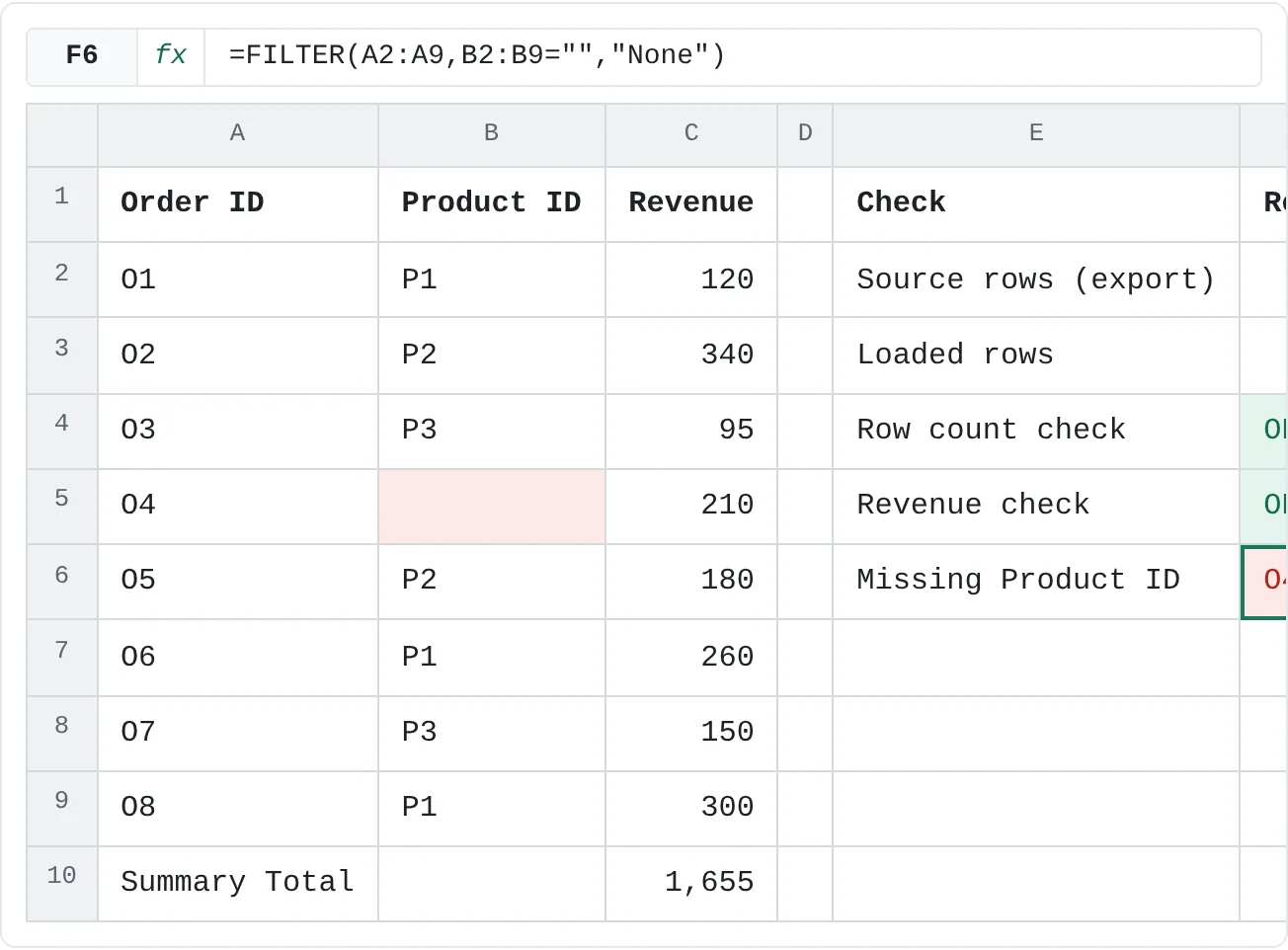
The example below is eight imported orders and the Summary Total typed from the source system's report. One order, O4, arrived without a Product ID. In a real workbook the data would sit on its own sheet; here it sits next to the checks so you can see both.
| A | B | C | D | E | F | |
|---|---|---|---|---|---|---|
| 1 | Order ID | Product ID | Revenue | Check | Result | |
| 2 | O1 | P1 | 120 | Source rows (export) | 8 | |
| 3 | O2 | P2 | 340 | Loaded rows | ||
| 4 | O3 | P3 | 95 | Row count check | ||
| 5 | O4 | 210 | Revenue check | |||
| 6 | O5 | P2 | 180 | Missing Product ID | ||
| 7 | O6 | P1 | 260 | |||
| 8 | O7 | P3 | 150 | |||
| 9 | O8 | P1 | 300 | |||
| 10 | Summary Total | 1,655 |
Prove nothing was dropped: record counts
The simplest proof that an import worked is a count: the number of rows the source says it sent compared with the number of rows that arrived. Get the source number from outside the workbook, for example from the row count the export prints in its footer or from the system's own report, and type it in as an input (F2 here).
Count the loaded rows
In F3, count the Order IDs.
COUNTAcounts every non-blank cell, so it works for text IDs. The result is 8.=COUNTA(A2:A9)Count a column that must always be filled, such as the ID. Counting Product ID instead would give 7 and blame the import for a problem that's in the data.
Compare it with the source count
In F4, compare the two counts. The result is OK.
=IF(F3=F2,"OK","Mismatch")
When data passes through several stages, such as a raw import, a cleaned staging table and the model, count the rows at each stage. If 8 rows come in and 7 reach the model, the count tells you which step lost one, and a filtered-out row stops being a mystery.
Reconcile the report to the source
A record count proves the rows arrived. A control total proves the values did. Compare the total of the loaded data with a total you got from somewhere else: the source system's report, the export's footer or last month's closing figure.
In F5, compare the Revenue total with the Summary Total in C10. 120 + 340 + 95 + 210 + 180 + 260 + 150 + 300 is 1,655, so the result is OK.
=IF(SUM(C2:C9)=C10,"OK","Mismatch")Run the same check at the end of the pipeline, not only the start: the total on the dashboard should tie back to the source total too. That catches a PivotTable that wasn't refreshed or a filter someone left on.
List the exceptions, not the whole table
A reviewer shouldn't scan 5,000 rows for blanks. An exception report lists only the rows that break a rule, so the check is "is this list empty?"
In F6, list the orders with no Product ID. The result is O4. If there were more, they would spill into the cells below.
=FILTER(A2:A9,B2:B9="","None")The third argument, "None", is what FILTER shows when every row passes. Without it an empty result is a #CALC! error, which looks like a broken check rather than a clean one.
To test several rules at once, add the conditions together: + means "or" inside FILTER. This returns every order with a blank Product ID or a Revenue of zero or less, along with all three columns:
=FILTER(A2:C9,(B2:B9="")+(C2:C9<=0),"None")With the example data it returns one row: O4, 0, 210. FILTER shows a blank cell as 0, so the 0 in the middle is the missing Product ID.
| A | B | C | D | E | F | |
|---|---|---|---|---|---|---|
| 1 | Order ID | Product ID | Revenue | Check | Result | |
| 2 | O1 | P1 | 120 | Source rows (export) | 8 | |
| 3 | O2 | P2 | 340 | Loaded rows | 8 | |
| 4 | O3 | P3 | 95 | Row count check | OK | |
| 5 | O4 | 210 | Revenue check | OK | ||
| 6 | O5 | P2 | 180 | Missing Product ID | O4 | |
| 7 | O6 | P1 | 260 | |||
| 8 | O7 | P3 | 150 | |||
| 9 | O8 | P1 | 300 | |||
| 10 | Summary Total | 1,655 |
Finish the QA sheet with one overall status that only passes when every check passes:
=IF(AND(F4="OK",F5="OK",F6="None"),"PASS","FAIL")Here it returns FAIL: the counts and totals are fine, but O4 still needs a Product ID. Fix the source, refresh, and the status turns to PASS.
Test that a formula column is consistent
One of the most common silent errors is a single cell in a column of formulas that someone typed over. It looks like every other number and never updates again. In the sheet below, C5 should be 2 × 90 = 180, but someone typed 175.
| A | B | C | D | |
|---|---|---|---|---|
| 1 | Qty | Price | Amount | Formula? |
| 2 | 4 | 25 | 100 | TRUE |
| 3 | 3 | 40 | 120 | TRUE |
| 4 | 5 | 12 | 60 | TRUE |
| 5 | 2 | 90 | 175 | FALSE |
| 6 | 6 | 15 | 90 | TRUE |
| 7 | 1 | 200 | 200 | TRUE |
| 8 | Total | 745 |
Three ways to find it:
- Look for constants. Select C2:C7, then choose Home then Editing then Find & Select then Go To Special, pick Constants and click OK. Excel selects only the cells in the range that hold typed values instead of formulas: here, C5.
- Test each cell.
=ISFORMULA(C2)returns TRUE for a formula and FALSE for a typed value. Use it in a helper column, as in column D, or as a conditional formatting rule (Use a formula to determine which cells to format) with=NOT(ISFORMULA(C2))to color typed-over cells. - Recalculate the total independently.
=SUMPRODUCT(A2:A7,B2:B7)works out the total from Qty and Price directly. It returns 750, while=SUM(C2:C7)returns 745, so the 5 difference proves a row is wrong.
Excel's error checking also helps: a green triangle in the corner of a cell can mean its formula is different from the formulas around it. Press Ctrl+` to show formulas instead of results and scan the column; a different pattern stands out.
Lock the cells nobody should type over
Protection prevents the typed-over formula in the first place. Every cell is locked by default, but locking only takes effect when the sheet is protected.
Unlock the input cells
Select only the cells people should type into. Press Ctrl+1, open the Protection tab, clear Locked and click OK.
Protect the sheet
Choose Review then Protect then Protect Sheet and click OK. Formulas, headers and checks are now read-only; the inputs stay open.
Sheet protection stops accidents, not someone determined to get around it. Securing and shipping a workbook is covered in its own tutorial.
Keep a change log
A version number tells you that something changed. A change log tells you what, when, who and why, which is what you need when a number moves and someone asks why. Keep it as a table on its own sheet and add a row every time the logic, the sources or the layout change:
| Date | Version | Changed by | What changed | Why | Checked by |
|---|---|---|---|---|---|
| 2026-09-30 | 1.3 | Dana | Revenue now excludes cancelled orders | Finance asked for net revenue | Lee |
| 2026-10-07 | 1.4 | Dana | Added Product ID exception check | Blank IDs found in the September import | Lee |
Enter the date with Ctrl+; so it stays fixed. Don't log routine data refreshes here; record those on the documentation sheet.
If the workbook is saved to OneDrive or SharePoint, File then Info then Version History also keeps earlier versions you can open or restore. That's a safety net, not a replacement for the log: it shows that the file changed, not why.
Run a review checklist before every release
A short, specific list run every time turns "I think it's fine" into something someone can check. For example:
- The QA sheet's overall status says PASS.
- The record count and the control total tie to the source.
- The exception report is empty, or every remaining exception is explained.
- No typed values in formula columns (Go To Special › Constants on each one).
- Sheet protection is on.
- The change log has a row for this release.
Ask someone other than the builder to run the checklist when you can. A reviewer finds the problems the builder has stopped seeing.
Common mistakes
- Checks that never fail. Test each check once by breaking it on purpose: delete a row, change an amount. If the status stays OK, the check is wrong.
- Counting a column that can be blank.
COUNTAon an optional field undercounts. Count the ID column. - Reconciling the data to itself. A total compared with a
SUMof the same cells always matches. The control total must come from outside the workbook. - An exception report nobody reads. Put its count on the overall status so a non-empty list turns the status to FAIL.
- A version number with no log. "v1.4" without a row explaining it doesn't help anyone trace a change.
Practice
Practice
Add a QA sheet to a real workbook
- Pick a workbook that imports or receives data from somewhere else, such as a sales export or a timesheet download.
- Add a QA sheet. Type the source's row count and total into it as inputs.
- Write a record-count check and a reconciliation check that each return OK or Mismatch.
- Add an exception report with
FILTERfor one required field that must not be blank. - Add an overall PASS/FAIL status, then break the data on purpose to make sure each check fails.
- Start a change log with today's date and a row describing the QA sheet you just added.
Write the four checks below. They build on each other, so do them in order.
Try it0 of 4 done
- In F3, count how many orders were loaded by counting the Order IDs in A2:A9.
- In F4, show OK if the loaded rows in F3 equal the source rows in F2, otherwise Mismatch.
- In F5, compare the total of Revenue in C2:C9 with the Summary Total in C10: OK if they match, otherwise Mismatch.
- In F6, list the Order IDs whose Product ID is blank, or None if there aren't any.
Click a dashed cell, type a formula in the bar and press Enter.
| A | B | C | D | E | F | |
|---|---|---|---|---|---|---|
| 1 | Order ID | Product ID | Revenue | Check | Result | |
| 2 | O1 | P1 | 120 | Source rows (export) | 8 | |
| 3 | O2 | P2 | 340 | Loaded rows | ||
| 4 | O3 | P3 | 95 | Row count check | ||
| 5 | O4 | 210 | Revenue check | |||
| 6 | O5 | P2 | 180 | Missing Product ID | ||
| 7 | O6 | P1 | 260 | |||
| 8 | O7 | P3 | 150 | |||
| 9 | O8 | P1 | 300 | |||
| 10 | Summary Total | 1,655 |
Check your skills
- Can you write a record-count check that proves no rows were dropped on import?
- Can you reconcile a report total back to a total that comes from the source?
- Can you build an exception report that lists missing or invalid values and says "None" when there aren't any?
- Can you find a typed-over value in a column of formulas?
- Can you explain what a change log records that a version number doesn't?
Related
Was this guide helpful? Spot a mistake? Send feedback · admin@arumsoft.com