Expert Excel · Tutorial 11 of 12
Securing and Deploying Excel Workbooks
Protect formulas while inputs stay open, know what Excel passwords really protect, handle macros and external links safely, and release each version with a checklist and a rollback plan.
- Level
- Expert
- Time
- 14 min read
- Updated:
- Applies to:
- Excel for Microsoft 365, Excel 2021, Excel 2019
What you'll learn
- Lock formulas and workbook structure while leaving input cells open
- Explain what a protection password stops and what it doesn't
- Decide when to enable macros and how to set up a trusted location safely
- Find and remove links to other workbooks before a release
- Release a workbook with a version number, release notes, user testing and a rollback plan
Example file
Securing and Deploying Excel Workbooks.xlsx
Download the workbook used in this tutorial and follow along in Excel.
Excel workbook (.xlsx) · 7 KB
A model isn't finished when the formulas work. It's finished when someone else can run it without breaking it, without being put at risk by it, and without wondering which copy is the real one. That takes four things: protection in the right places, an honest view of what that protection can't do, a clean file with no surprises inside, and a release routine you follow every time, including a plan for when a release turns out to be wrong.
Lock the formulas, leave the inputs open
Every cell in Excel is Locked by default, but the setting does nothing until you protect the sheet. So the order is always the same: unlock the cells people should type in, then protect the sheet.
The quote sheet below has three inputs and three formulas. Only B2:B4 should accept typing.
| A | B | C | D | |
|---|---|---|---|---|
| 1 | Item | Value | Cell holds | Locked |
| 2 | Units | 40 | Input | No |
| 3 | Unit price | 25 | Input | No |
| 4 | Discount | 10% | Input | No |
| 5 | Subtotal | 1,000 | =B2*B3 | Yes |
| 6 | Discount amount | 100 | =B5*B4 | Yes |
| 7 | Total | 900 | =B5-B6 | Yes |
Unlock the input cells
Select B2:B4. Press Ctrl+1 to open Format Cells, go to the Protection tab, clear Locked and click OK.
Hide the formulas if you want to
Select B5:B7, open the Protection tab again and tick Hidden. Once the sheet is protected, clicking a hidden cell shows its result but an empty formula bar. Use this to keep the screen tidy, not to keep the logic secret.
Protect the sheet
Choose Review then Protect then Protect Sheet. Leave Select locked cells and Select unlocked cells ticked so people can still click around and copy results. Type a password if you want one (Excel asks you to type it again), then click OK.
Protect the workbook structure
Choose Review then Protect then Protect Workbook, make sure Structure is ticked and click OK. Now nobody can add, delete, rename, move, hide or unhide sheets, which keeps a hidden lookup sheet hidden and stops someone deleting the Calculation tab by accident.
Test it the way a user would: type in B2 (it works), type in B7 (Excel refuses), and press Tab on the protected sheet, which jumps between unlocked cells only. To make changes later, choose Review then Protect then Unprotect Sheet.
What a protection password does and doesn't do
Sheet and workbook-structure protection exist to stop accidents: a formula typed over, a column deleted, a sheet dragged into the wrong place. They are good at that. They are not security.
- The data isn't encrypted. Anyone with the file can read every value. Protection only controls what Excel lets them change.
- The password can be removed. Free tools, and a few minutes of editing the file's contents, take sheet protection off without knowing the password. Treat it as a "please don't" sign, not a lock.
- Hidden isn't secret. A hidden sheet is one right-click away from Unhide unless the structure is protected, and even then its data is in the file. A hidden formula still produces visible results that someone can copy.
If the file contains something people must not see, such as salaries or customer details, you have two real options:
- Keep it out of the file. Share a version that holds only the summary. This is the safest choice.
- Encrypt the file. File then Info then Protect Workbook then Encrypt with Password scrambles the whole workbook so it can't be opened without the password. If the password is lost, the file is lost too: Microsoft can't recover it.
For shared files, control access where the file lives instead: give people view-only access to the folder or the SharePoint site, and edit access only to the people who maintain the workbook.
Treat macros as code you're about to run
A VBA macro can do anything your Windows account can: change files, send email, download and run programs. That's why Excel doesn't run macros in a file until you say so.
- A file from inside your organization shows a yellow Security Warning bar. Click Enable Content only if you know who made the file and expected it to contain macros.
- A file downloaded from the internet or saved from an email attachment shows a red Security Risk bar: Microsoft has blocked its macros, and there's no button to enable them. That's deliberate. If the file came from a source you trust, unblock it from its Properties in File Explorer.
The settings behind these bars are in File then Options then Trust Center then Trust Center Settings. Leave Macro Settings at the default unless your IT team tells you otherwise.
Trusted Locations, in the same window, are folders where macro files open with their macros enabled and no warning. They're useful for your own tested files, and risky if set too wide:
- Add one specific folder that only you, or only the people who maintain the workbook, can write to.
- Don't add your Downloads folder, your desktop or a whole network drive. Anything saved there would run its macros without asking.
- Leave Allow Trusted Locations on my network (not recommended) turned off unless IT has set up the network folder for this.
When you ship a macro workbook to other people, tell them in the release notes that it contains macros and what they do. Better still, ask IT to sign the macros with a certificate your organization trusts, so users aren't asked to make the call themselves.
Remove links to other workbooks
A formula such as ='[Budget 2026.xlsx]Summary'!B4 reads a cell in another file. It works on your computer and breaks the moment that file is renamed, moved or saved somewhere the user can't reach. It's one of the most common reasons for "this used to work". When a file with links opens, Excel usually shows a security warning that automatic update of links has been disabled, which users learn to click past.
Before each release, check for links:
List the links
On the Data tab, in the Queries & Connections group, click Workbook Links (Edit Links in Excel 2021 and earlier). If the list it opens is empty (in older versions, if the button is grayed out), the workbook has no links.
Find the formulas that use them
Press Ctrl+F, click Options, set Within to Workbook and Look in to Formulas, type
.xlin Find what and click Find All. Every formula that points into another Excel file contains its file name, so each one appears in the list.Replace or break each link
Bring the data in properly: copy it into a Data sheet, or load it with Power Query, which keeps the source path in one place you can change. If you only need today's values, break the link from the links list: each formula that uses it is replaced by its current value.
If the list still shows a link after your search finds nothing, look in Formulas then Defined Names then Name Manager for a name that refers to another file, and check the data ranges of your charts.
Version, release notes and a rollback plan
When two people each have "the" copy, they eventually edit different ones. Prevent that with a version people can see and a single place to get it.
- Show the version inside the workbook. Put the version number and release date on the Documentation sheet, and on the main Output sheet if people print it. Use Ctrl+; for the date so it doesn't change.
- Publish from one place. Save the released file to one shared folder, OneDrive or SharePoint location and send people the link, not an attachment. Every attachment is a new copy.
- Keep the file name stable. If the released file always has the same name and location, links and bookmarks keep working. Keep the version in the workbook and in an archive copy's name instead.
- Write release notes. A few lines: what changed, why, and anything the user must do differently. They belong in the change log on the Documentation sheet.
A rollback plan answers one question: if this version turns out to be wrong after people have started using it, what happens? Write it down before you release, for example:
| Version | Date | Release notes | Rollback plan |
|---|---|---|---|
| 1.5 | 2026-10-12 | Discount now applied before shipping. Inputs unchanged. | Restore v1.4 from the Releases folder, tell users by email, fix 1.5 offline |
To make that plan possible, save the outgoing version as a read-only copy in a Releases or Archive folder before you publish the new one. If the file is stored in OneDrive or SharePoint, File then Info then Version History also lets you open and restore an earlier version.
Test with a real user, then run the release checklist
The person who built a workbook is the worst tester of it: they know which cells to type in and which warnings to ignore. Before release, ask one or two of the actual users to try it:
- Give them a real task, such as "enter next month's figures and print the summary", not a tour.
- Watch without helping. Note every place they hesitate, ask a question or click the wrong cell.
- Fix those places with clearer labels, input styles or notes, then release.
Test on the setup they use, too. A workbook that relies on macros fails for someone who opens it in Excel for the web, and a newer function shows #NAME? in an older version of Excel.
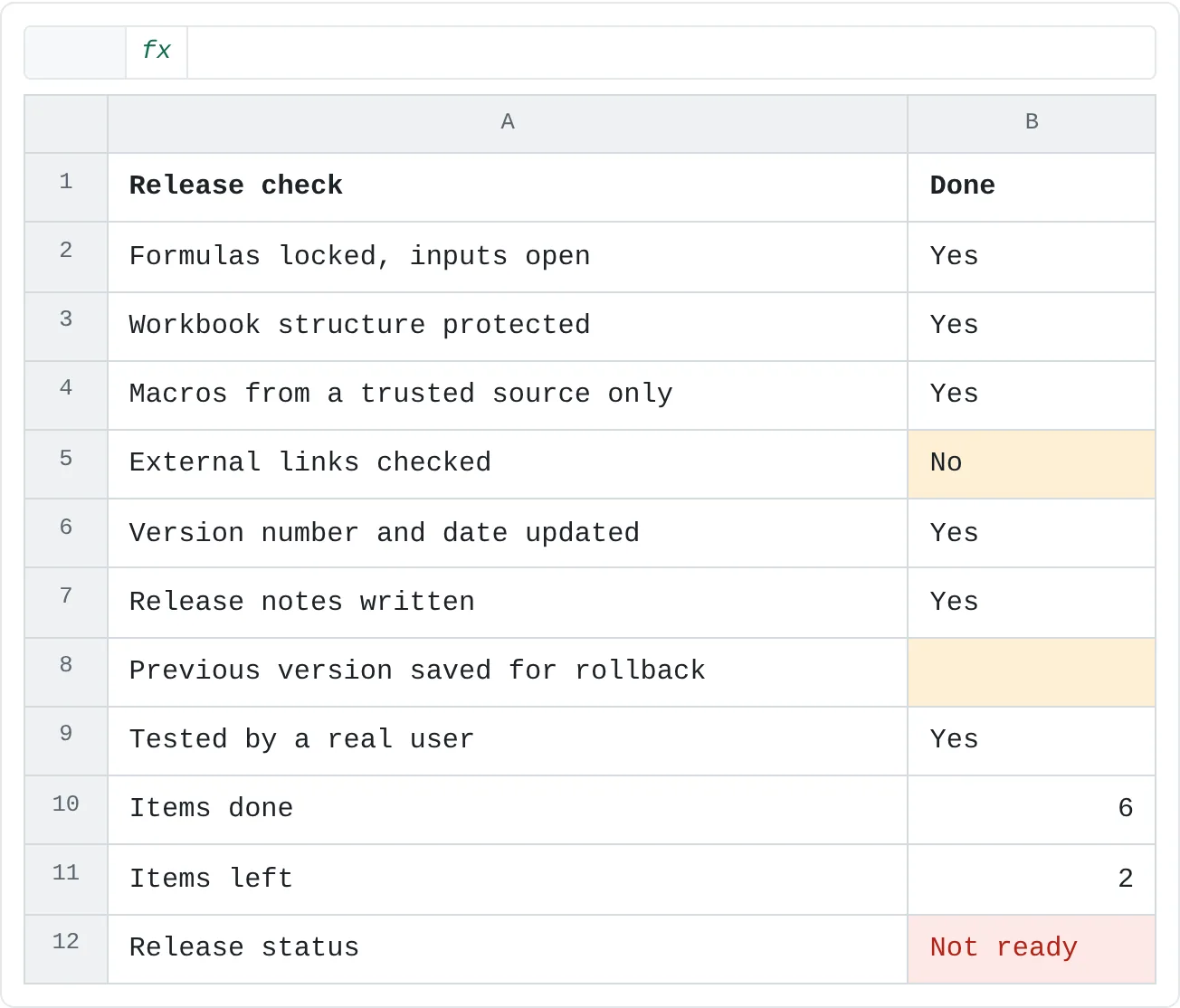
Finally, run the same short checklist before every release, not only when there's time. The practice sheet below turns it into a status you can't argue with: it counts the items done, counts what's left, and only says Ready when nothing is.
| A | B | |
|---|---|---|
| 1 | Release check | Done |
| 2 | Formulas locked, inputs open | Yes |
| 3 | Workbook structure protected | Yes |
| 4 | Macros from a trusted source only | Yes |
| 5 | External links checked | No |
| 6 | Version number and date updated | Yes |
| 7 | Release notes written | Yes |
| 8 | Previous version saved for rollback | |
| 9 | Tested by a real user | Yes |
| 10 | Items done | 6 |
| 11 | Items left | 2 |
| 12 | Release status | Not ready |
Notice that B8 is blank, not No. Counting the No answers would miss it; subtracting the done items from the total number of rows counts a blank as not done, which is what you want.
Common mistakes
- Protecting the sheet before unlocking the inputs. Every cell is then read-only. Unprotect, unlock the inputs, protect again.
- Calling a protection password security. It stops slips, not people. Keep sensitive data out of the file or encrypt the file.
- Trusting a whole drive. A trusted location that anyone can save to lets any file's macros run silently. Trust one controlled folder.
- Shipping with links to your own files. The workbook works for you and fails for everyone else. Check the links list before every release.
- A rollback plan written after something went wrong. Save the previous version and write the plan before you publish.
Practice
Practice
Package a real workbook for release
- Take a workbook you're about to share.
- Unlock the input cells, protect each sheet that holds formulas and protect the workbook structure. Check that the inputs still accept typing and the formulas don't.
- Check for links to other workbooks and remove any you find.
- If it contains macros, note in the Documentation sheet what they do.
- Update the version number and date, and write one paragraph of release notes.
- Save the previous version to an archive folder and write a one-line rollback plan.
- Ask one future user to try a real task in it, and fix what slows them down.
Turn the release checklist into a status. Do the tasks in order: each one uses the one before.
Try it0 of 3 done
- In B10, count how many checks in B2:B9 are marked Yes.
- In B11, work out how many checks are left: the number of rows in B2:B9 minus the items done in B10.
- In B12, show Ready if no checks are left in B11, otherwise Not ready.
Click a dashed cell, type a formula in the bar and press Enter.
| A | B | |
|---|---|---|
| 1 | Release check | Done |
| 2 | Formulas locked, inputs open | Yes |
| 3 | Workbook structure protected | Yes |
| 4 | Macros from a trusted source only | Yes |
| 5 | External links checked | No |
| 6 | Version number and date updated | Yes |
| 7 | Release notes written | Yes |
| 8 | Previous version saved for rollback | |
| 9 | Tested by a real user | Yes |
| 10 | Items done | |
| 11 | Items left | |
| 12 | Release status |
Check your skills
- Can you protect a sheet's formulas while its input cells stay open for typing?
- Can you explain what a sheet-protection password stops and what it doesn't, and what to do instead for sensitive data?
- Can you describe the risk of enabling macros from an untrusted source, and how to set up a trusted location safely?
- Can you find every link to another workbook before a release?
- Can you write a release checklist that includes release notes and a rollback plan?
Related
Was this guide helpful? Spot a mistake? Send feedback · admin@arumsoft.com