Expert Excel · Tutorial 5 of 12
Automating Excel with VBA
Write VBA macros by hand: loop over ranges without Select, handle errors, respond to events, and log every run.
- Level
- Expert
- Time
- 20 min read
- Updated:
- Applies to:
- Excel for Microsoft 365 for Windows, Excel 2021, Excel 2019
What you'll learn
- Structure code as Subs and Functions with declared variables and constants
- Loop over a range with For Each and Do While instead of Select and ActiveCell
- Catch errors with On Error GoTo and report them clearly
- Run code automatically with Workbook_Open and Worksheet_Change
- Log each macro run to a sheet
Before you start
Example file
Automating Excel with VBA.xlsx
Download the workbook used in this tutorial and follow along in Excel.
Excel workbook (.xlsx) · 7 KB
The macro recorder writes VBA for you, one click at a time. Writing it yourself is what turns a recording into something you can maintain: a loop instead of ten repeated lines, a clear message instead of a macro that stops halfway with a cryptic dialog. This guide builds a small, shippable set of macros for an order list and a report.
Set up the workbook and the editor
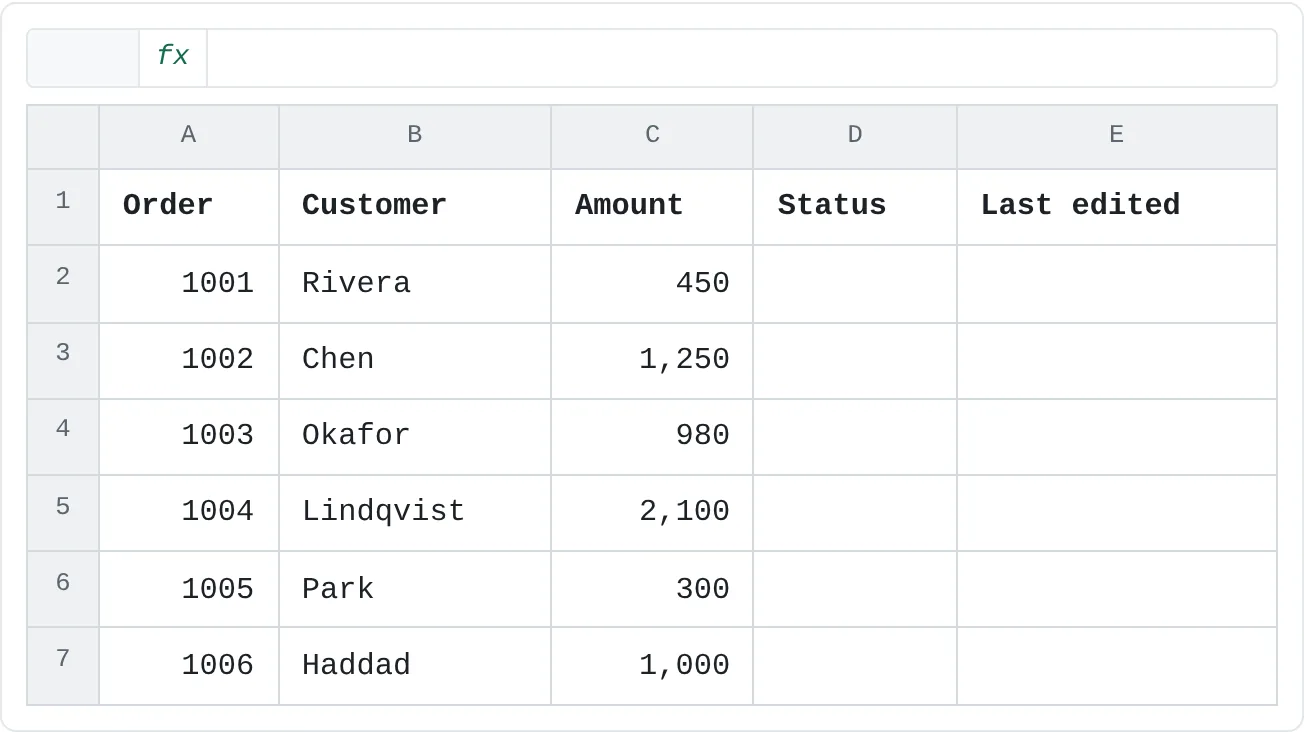
The examples use a workbook with three sheets: Orders (the data below), Report (whatever you want to export as a PDF) and Log (headers Time, Macro, Result and User in A1:D1).
| A | B | C | D | E | |
|---|---|---|---|---|---|
| 1 | Order | Customer | Amount | Status | Last edited |
| 2 | 1001 | Rivera | 450 | ||
| 3 | 1002 | Chen | 1,250 | ||
| 4 | 1003 | Okafor | 980 | ||
| 5 | 1004 | Lindqvist | 2,100 | ||
| 6 | 1005 | Park | 300 | ||
| 7 | 1006 | Haddad | 1,000 |
Save as a macro-enabled workbook
Press F12, choose Excel Macro-Enabled Workbook (*.xlsm) in Save as type and click Save. A regular .xlsx file can't keep VBA code.
Open the Visual Basic Editor
Press Alt+F11. On the left, the Project pane (Project Explorer) lists each open workbook with its sheets and a ThisWorkbook object. If it's hidden, press Ctrl+R.
Insert a module
Select your workbook in the Project pane and choose Insert > Module. General-purpose macros go in modules; event code goes in a sheet's or ThisWorkbook's own code window, as you'll see below.
Require variable declarations
Choose Tools > Options and tick Require Variable Declaration. Every new module then starts with
Option Explicit, and a misspelled variable name becomes a compile error instead of a silent new, empty variable. Add the line by hand to the top of any module that doesn't have it.
Subs, Functions, variables and constants
A Sub does something (formats, copies, exports). A Function returns a value, and a public function in a module can be used in worksheet formulas like a built-in function. Give each procedure one job and a name that says what the job is.
Option Explicit

Public Function TaxAmount(ByVal amount As Double, ByVal rate As Double) As Double
    TaxAmount = amount * rate
End Function
After pasting this into a module, type =TaxAmount(C3,0.1) in a cell on the Orders sheet and Excel returns 125.
Declare every variable with Dim and a type (Long for row numbers and counts, Double for amounts, String for text, Range and Worksheet for objects). Give fixed values a name with Const instead of burying an unexplained 1000 in the middle of a procedure.
Write a macro that loops over a range
This macro asks for a limit, marks every order above it as Review and the rest as OK, then reports how many it flagged. Paste it below TaxAmount in the same module.
Public Sub FlagLargeOrders()
    Const DEFAULT_LIMIT As Double = 1000
    Dim ws As Worksheet
    Dim cell As Range
    Dim lastRow As Long
    Dim flagged As Long
    Dim answer As String
    Dim limit As Double

    answer = InputBox("Flag orders above what amount?", "Flag large orders", CStr(DEFAULT_LIMIT))
    If answer = "" Then Exit Sub
    If Not IsNumeric(answer) Then
        MsgBox "Please enter a number.", vbExclamation, "Flag large orders"
        Exit Sub
    End If
    limit = CDbl(answer)

    Set ws = ThisWorkbook.Worksheets("Orders")
    lastRow = ws.Cells(ws.Rows.Count, "A").End(xlUp).Row
    If lastRow < 2 Then
        MsgBox "There are no orders to check.", vbInformation, "Flag large orders"
        Exit Sub
    End If

    For Each cell In ws.Range("C2:C" & lastRow)
        If cell.Value > limit Then
            cell.Offset(0, 1).Value = "Review"
            flagged = flagged + 1
        Else
            cell.Offset(0, 1).Value = "OK"
        End If
    Next cell

    MsgBox flagged & " order(s) flagged for review.", vbInformation, "Flag large orders"
End Sub
Run it with Alt+F8: select FlagLargeOrders and click Run. Accept the default 1000 and you get "2 order(s) flagged for review": Chen (1,250) and Lindqvist (2,100). Haddad's 1,000 is not above 1,000, so it's OK.
| A | B | C | D | E | |
|---|---|---|---|---|---|
| 1 | Order | Customer | Amount | Status | Last edited |
| 2 | 1001 | Rivera | 450 | OK | |
| 3 | 1002 | Chen | 1,250 | Review | |
| 4 | 1003 | Okafor | 980 | OK | |
| 5 | 1004 | Lindqvist | 2,100 | Review | |
| 6 | 1005 | Park | 300 | OK | |
| 7 | 1006 | Haddad | 1,000 | OK |
What each part does:
InputBoxandMsgBox.InputBoxreturns what the user typed, or an empty string if they click Cancel, which is why the macro exits on"".MsgBoxreports the result so the macro never finishes silently.End(xlUp)finds the last used row in column A the same way Ctrl+Up does from the bottom of the sheet, so the loop covers 6 orders today and 600 next month.For Each cell In …visits every cell in the range.Offset(0, 1)is the cell one column to the right.
Do While repeats until a condition changes. This version finds the first empty row in column A, which is where a new order would go:
Public Sub ShowNextEmptyRow()
    Dim ws As Worksheet
    Dim r As Long

    Set ws = ThisWorkbook.Worksheets("Orders")
    r = 2
    Do While ws.Cells(r, "A").Value <> ""
        r = r + 1
    Loop

    MsgBox "The next order goes in row " & r & ".", vbInformation
End Sub
With the sample data, it reports row 8.
Work with ranges directly, not with Select
The recorder captures what you clicked, so its code is full of Select and ActiveCell. Both of these Subs put "Review" in D3 of the Orders sheet:
Public Sub MarkReviewRecorded()
    Sheets("Orders").Select
    Range("D3").Select
    ActiveCell.Value = "Review"
End Sub

Public Sub MarkReviewDirect()
    ThisWorkbook.Worksheets("Orders").Range("D3").Value = "Review"
End Sub
The direct version is better in every way. It doesn't switch the user's view, it runs faster (selecting is slow in a loop), and it can't hit the wrong cell. In the recorded version, Sheets and Range without a workbook refer to whichever workbook is active, so if another workbook is in front when the macro runs, it edits that one instead. ThisWorkbook always means the workbook that contains the code.
When you clean up a recorded macro, replace each Select + Selection/ActiveCell pair with one line that names the sheet and range.
Handle errors and log every run
Without error handling, a failure stops the macro with a dialog offering End or Debug, and the task is left half done. On Error GoTo sends any error to a label at the end of the procedure, where you can report it properly.
This macro refreshes all data, stamps the time, exports the Report sheet as a PDF next to the workbook, and logs the result either way:
Public Sub RefreshAndExport()
    Dim ws As Worksheet
    Dim pdfPath As String
    Dim msg As String

    On Error GoTo ErrHandler

    If ThisWorkbook.Path = "" Then Err.Raise vbObjectError + 1, , "Save the workbook before exporting."

    Set ws = ThisWorkbook.Worksheets("Report")

    ThisWorkbook.RefreshAll
    ws.Range("B1").Value = Now

    pdfPath = ThisWorkbook.Path & Application.PathSeparator & "Report " & Format(Date, "yyyy-mm-dd") & ".pdf"
    ws.ExportAsFixedFormat Type:=xlTypePDF, Filename:=pdfPath

    WriteLog "RefreshAndExport", "Saved " & pdfPath
    MsgBox "Report saved to " & pdfPath, vbInformation, "Refresh and export"
    Exit Sub

ErrHandler:
    msg = "Error " & Err.Number & ": " & Err.Description
    WriteLog "RefreshAndExport", msg
    MsgBox "The report was not exported." & vbNewLine & msg, vbExclamation, "Refresh and export"
End Sub

Public Sub WriteLog(ByVal macroName As String, ByVal result As String)
    Dim logSheet As Worksheet
    Dim nextRow As Long

    Set logSheet = ThisWorkbook.Worksheets("Log")
    nextRow = logSheet.Cells(logSheet.Rows.Count, "A").End(xlUp).Row + 1

    logSheet.Cells(nextRow, "A").Value = Now
    logSheet.Cells(nextRow, "B").Value = macroName
    logSheet.Cells(nextRow, "C").Value = result
    logSheet.Cells(nextRow, "D").Value = Application.UserName
End Sub
The details that matter:
Exit Subbefore the label. Without it, a successful run would fall through into the error handler.- Copy the error first.
msgcapturesErr.NumberandErr.Descriptionbefore anything else runs, so the message still describes the original failure. Err.Raisecreates your own error with a readable description, so "workbook not saved" goes through the same handler and log as any other failure.WriteLogis a separate, public procedure so every macro (and the event code below) can use it. Because it takes arguments, it doesn't appear in the Macros dialog.
| A | B | C | D | |
|---|---|---|---|---|
| 1 | Time | Macro | Result | User |
| 2 | 2026-10-12 08:02 | RefreshAndExport | Saved C:\Reports\Report 2026-10-12.pdf | Ana |
| 3 | 2026-10-13 08:01 | RefreshAndExport | Error 9: Subscript out of range | Ana |
| 4 | 2026-10-13 08:05 | RefreshAndExport | Saved C:\Reports\Report 2026-10-13.pdf | Ana |
To test the handler, rename the Report sheet and run the macro: it logs "Error 9: Subscript out of range" (VBA's error for a sheet name that doesn't exist) and tells you the report wasn't exported. Rename the sheet back afterwards.
Run code automatically with events
Event procedures run on their own when something happens. They go in the code window of the object that raises the event, and their names must be exactly right.
Workbook_Open runs when the file opens (if macros are enabled). In the Project pane, double-click ThisWorkbook and paste:
Private Sub Workbook_Open()
    WriteLog "Workbook_Open", "Opened"
End Sub
Because it writes to the Log sheet, Excel will ask whether to save changes when you close the file.
Worksheet_Change runs whenever cells on that sheet are edited. Double-click the Orders sheet in the Project pane and paste this. It records the time in column E whenever someone changes an amount in column C:
Private Sub Worksheet_Change(ByVal Target As Range)
    Dim changed As Range
    Dim cell As Range

    Set changed = Intersect(Target, Me.Range("C2:C1000"))
    If changed Is Nothing Then Exit Sub

    On Error GoTo CleanUp
    Application.EnableEvents = False

    For Each cell In changed.Cells
        cell.Offset(0, 2).Value = Now
    Next cell

CleanUp:
    Application.EnableEvents = True
End Sub
Intersect returns Nothing when the edit is outside C2:C1000, so other edits are ignored. Application.EnableEvents = False stops the macro's own writes from triggering the event again, and the CleanUp label makes sure events are switched back on even if something fails. If events are ever left off, no event code in any workbook runs until you restart Excel or set the property back to True.
Common mistakes
- Saving as .xlsx. Excel warns you, and if you continue, the VBA code is removed. Use .xlsm.
- Leaving recorder habits in place.
Select,SelectionandActiveSheetmake a macro depend on what the user clicked last. Name the workbook, sheet and range. - An error handler without
Exit Sub. Every run, successful or not, ends with an error message. On Error Resume Nextat the top of a procedure. It hides every error, so the macro carries on with bad data. Use it only around a single line you expect might fail, and switch back withOn Error GoTo ErrHandlerright after.- Hard-coded paths and magic numbers.
C:\Users\Ana\Desktopbreaks on everyone else's computer. UseThisWorkbook.Pathor a namedConst. If the workbook is stored in OneDrive or SharePoint,ThisWorkbook.Pathcan return a web address, whichExportAsFixedFormatcan't save to; use a local folder for exports. - Macros in a downloaded file don't run. Excel blocks macros in files from the internet. If you trust the file, close it, right-click it in File Explorer, choose Properties, tick Unblock and click OK.
Practice
Practice
Build a macro you could hand to a colleague
- Create the Orders, Report and Log sheets shown above and save the workbook as .xlsm.
- Add
FlagLargeOrders, run it with the default limit and check that only Chen and Lindqvist are flagged. Run it again with 900 and check that Okafor and Haddad join them. - Add
RefreshAndExportandWriteLog. Run it and check that a PDF appears next to the workbook and a row appears on the Log sheet. - Rename the Report sheet, run
RefreshAndExportagain and check that the error is both shown and logged. Rename the sheet back. - Add the
Worksheet_Changecode to the Orders sheet, change an amount and check the time in column E.
Then apply the same pattern to a real workbook: one macro that refreshes, stamps, exports and logs, with an error handler that says exactly what failed.
Check your skills
- Can you write a Sub with a clear name, declared variables and a named constant?
- Can you loop over a range that grows, without
SelectorActiveCell? - Can you add an error handler that reports and logs a failure instead of stopping halfway?
- Can you explain why
SelectandActivateusually mean a macro could be written more safely? - Can you run code automatically when the workbook opens or a cell changes?
Related
Was this guide helpful? Spot a mistake? Send feedback · admin@arumsoft.com