Advanced Excel · Tutorial 9 of 12
Designing an Excel Dashboard
Plan a dashboard around one audience and one decision, pick three to five KPIs, match each chart to its question and remove everything that doesn't help.
- Level
- Advanced
- Time
- 13 min read
- Updated:
- Applies to:
- Excel for Microsoft 365, Excel 2021, Excel 2019
What you'll learn
- Write down the audience and the decision before choosing any chart
- Choose three to five KPIs and calculate them in one place
- Match each chart type to the question it answers
- Apply one consistent number format to tiles, tables and charts
- Show status next to the number it describes and remove decorative clutter
Example file
Designing an Excel Dashboard.xlsx
Download the workbook used in this tutorial and follow along in Excel.
Excel workbook (.xlsx) · 9 KB
A dashboard isn't every chart you could make from the data. It's the few numbers one audience needs to make one decision, laid out so nothing competes for attention. Most of the work happens before you insert a chart: deciding who it's for, which numbers matter and what can be left out. This tutorial walks through those decisions and the Excel settings that make the result look finished.
Start with the audience and the decision
Before you build anything, answer two questions in one sentence each:
- Who will look at it? A sales director, a client, your team, you next quarter.
- What will they decide from it? Where to put extra sales effort, whether to renew a contract, which tasks to drop.
Write the answers at the top of your planning notes, for example: "The sales director checks this at the monthly review to decide which region needs extra support next quarter." Every later choice gets tested against that sentence. A chart of revenue by product color might be interesting, but if it doesn't help pick a region, it doesn't go on this dashboard.
A useful check is the five-second test: someone from the audience glances at the page for five seconds. Could they say whether things are on track? If not, the most important number isn't prominent enough.
Pick three to five KPIs
A KPI (key performance indicator) is a number the audience uses to judge progress. More tiles don't mean more insight; past five, readers stop reading and start scanning. Choose the numbers that change the decision and drop the rest. For the regional sales review, four are enough:
| KPI | Question it answers |
|---|---|
| Total revenue | How much did we sell? |
| % of target | Are we where we planned to be? |
| Margin | Are we selling profitably? |
| Regions on track | How widespread is the problem? |
Calculate every KPI on a calculation sheet, not inside the chart or the tile. The tile only displays a cell, so there's one place to check each number. The example has three regions with revenue, target and margin. The Status column uses =IF(B2>=C2,"On track","Behind"), copied down.
| A | B | C | D | E | F | G | |
|---|---|---|---|---|---|---|---|
| 1 | Region | Revenue | Target | Margin % | Status | KPI | Value |
| 2 | East | 74,200 | 70,000 | 36% | On track | Total revenue | 182,400 |
| 3 | West | 61,800 | 68,000 | 31% | Behind | % of target | 99.7% |
| 4 | Central | 46,400 | 45,000 | 34% | On track | Margin | 33.8% |
| 5 | Regions on track | 2 |
The formulas in column G:
=SUM(B2:B4)=SUM(B2:B4)/SUM(C2:C4)=SUMPRODUCT(B2:B4,D2:D4)/SUM(B2:B4)=COUNTIF(E2:E4,"On track")The margin is weighted by revenue: SUMPRODUCT multiplies each region's revenue by its margin and adds the results, and dividing by total revenue gives the margin on all sales. A plain =AVERAGE(D2:D4) gives 33.7% here, because it treats Central's smaller sales as equal to East's. On a dashboard, small differences like that make two reports disagree.
Match each chart to its question
Choose the chart from the question, not from what looks impressive. Select the data and use Insert then Charts then Recommended Charts if you want Excel's suggestions, then check them against this table:
| The question | Chart | Why |
|---|---|---|
| How did it change over time? | Line (or column for a few periods) | The slope shows the trend at a glance |
| Which category is biggest? | Bar, sorted largest first | Lengths are easy to compare; long labels fit |
| How do actuals compare with targets? | Clustered bar or bar with a target line | Two bars per category, side by side |
| What share of the whole is each part? | Pie, only with two to four slices | Angles are hard to compare beyond a few slices; use a bar otherwise |
| How is one value spread out? | Histogram | Shows where most values fall |
Avoid 3-D charts entirely: the perspective makes nearer bars look bigger than they are. For a small trend next to a KPI, a sparkline fits inside one cell: select the cell, click Insert then Sparklines then Line and choose the data range.
Lay out the page
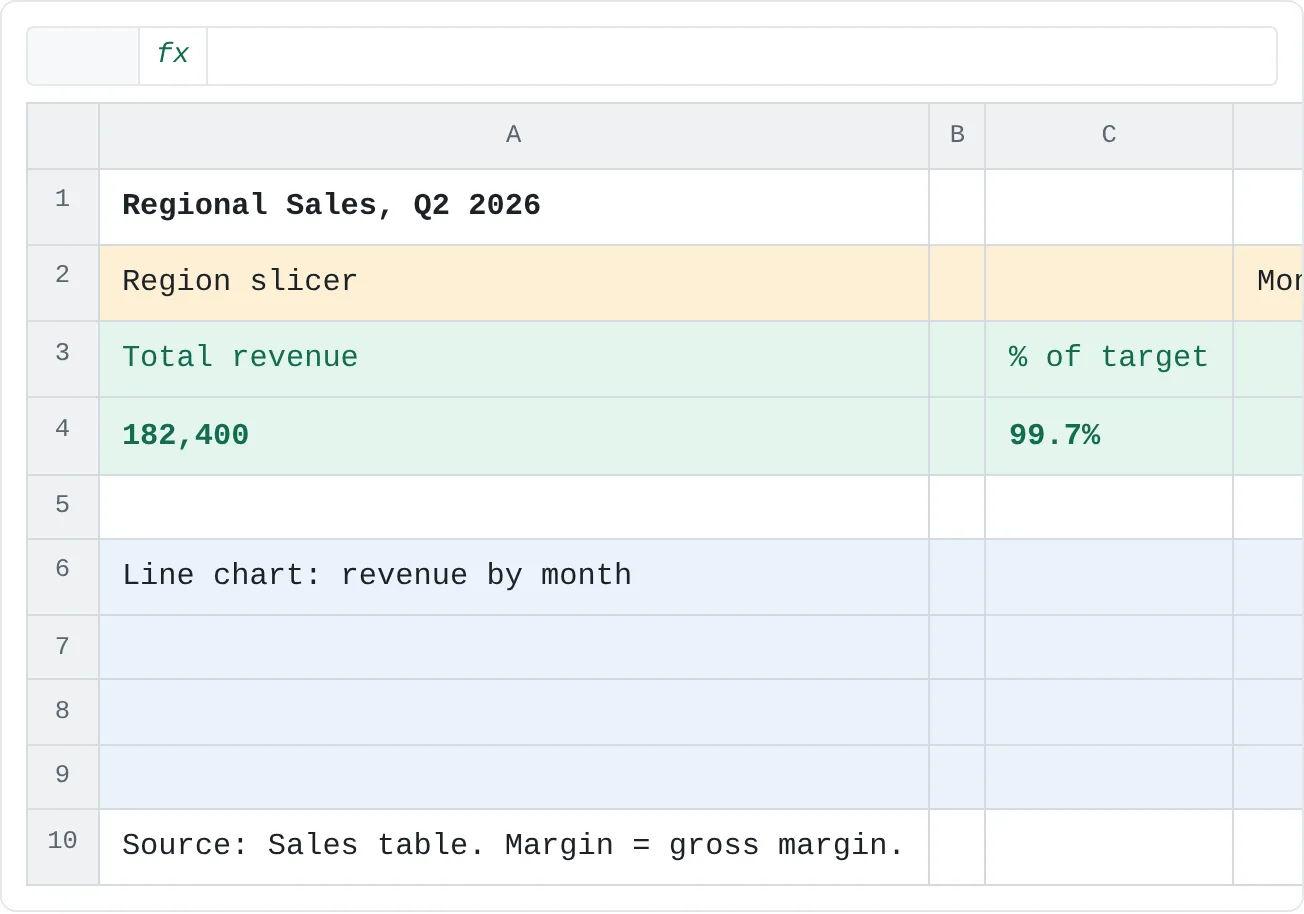
Readers start at the top left and move right and down, so put the most important information there.
| A | B | C | D | E | F | G | H | |
|---|---|---|---|---|---|---|---|---|
| 1 | Regional Sales, Q2 2026 | Updated 2026-07-03 | ||||||
| 2 | Region slicer | Month slicer | ||||||
| 3 | Total revenue | % of target | Margin | On track | ||||
| 4 | 182,400 | 99.7% | 33.8% | 2 of 3 | ||||
| 5 | ||||||||
| 6 | Line chart: revenue by month | Bar chart: revenue vs target | ||||||
| 7 | ||||||||
| 8 | ||||||||
| 9 | ||||||||
| 10 | Source: Sales table. Margin = gross margin. |
- Title with the period and update date. "Regional Sales, Q2 2026" says more than "Dashboard". Show when the data was last refreshed.
- One band for controls. Put every slicer or drop-down in the same row near the top (or one column on the left), and keep them in the same place on every dashboard sheet. A returning reader should never have to hunt for a filter.
- KPI tiles next, then charts. The tiles answer "are we on track?"; the charts below answer "where?" and "since when?".
- A grid. Line up tiles and charts on the same edges and make neighboring charts the same size. Hold Alt while you drag or resize a chart and its edges snap to the cell gridlines.
- Definitions at the bottom. A short note saying where the data comes from and how a KPI is defined ("Margin = gross margin") prevents arguments later.
For a KPI tile, either format a cell that refers to the calculation sheet (for example =Calc!G2 in a large font) or link a text box to it: click Insert then Text then Text Box, draw the box, then, with the box selected, type = in the formula bar, click the KPI cell and press Enter. The box updates with the cell.
When the layout is done, clear View then Show then Gridlines and View then Show then Headings on the dashboard sheet so it reads as a page, not a worksheet.
Use one number format everywhere
Mismatched formats make a dashboard look unfinished even when every number is right: 182400 in one tile, $182,400.00 in a table, 182K on a chart axis. Pick one format per kind of number and apply it everywhere.
Set formats with Ctrl+1 (Format Cells), on the Number tab. For anything the built-in categories don't cover, choose Custom and type a code in Type:
| Code | Value in the cell | Shows as | Use for |
|---|---|---|---|
#,##0 | 182400 | 182,400 | Counts and amounts in tables |
#,##0,"K" | 182400 | 182K | Large amounts on tiles and axes |
0.0% | 0.3379 | 33.8% | Rates and shares |
+0.0%;-0.0%;0.0% | 0.021 and -0.035 | +2.1% and -3.5% | Changes, so the sign is always visible |
Each comma at the end of #,##0, divides the display by 1,000; the value in the cell doesn't change.
Charts use the number format of their source cells as long as Linked to source is ticked. To check, right-click an axis, choose Format Axis and expand Number in the pane. If you give the axis its own format code there, use the same code as the cells. Data labels have the same setting under Format Data Labels.
Put status next to the number
A reader should see whether a number is good or bad without reading a legend three tiles away. Put the status right beside the number, and don't rely on color alone: about one in twelve men has some form of color blindness, and red and green are the classic pair that's hard to tell apart. Combine color with a word or a shape.
An icon set does this inside the cell. To flag the % of target in G3:
Add an icon set
Select G3 and click Home then Styles then Conditional Formatting then Icon Sets, then pick a set with three different shapes, such as 3 Symbols (Circled).
Set your own thresholds
Click Home then Styles then Conditional Formatting then Manage Rules, select the icon set rule and click Edit Rule. For each icon, change Type from Percent to Number and enter the thresholds: the first icon when the value is
>=1, the second when it's>=0.9. Click OK twice.
At 99.7%, G3 gets the middle icon: close, but below target. The status words in column E ("On track", "Behind") do the same job in a table and can be filtered.
Remove what doesn't carry information
Go through the finished page and delete anything that doesn't help the reader decide. The usual suspects, in the order to remove them:
- 3-D effects, shadows and glow. They distort sizes and add nothing.
- Chart gridlines and borders. Light or no gridlines; data labels when exact values matter. Click an element and press Delete.
- Legends on single-series charts. The title already says what the bars are.
- Extra colors. Use one neutral color for normal data and one accent color for the thing you want noticed, such as the region that's behind.
- Decimal places nobody needs. 182K is easier to read than 182,400.00 on a tile.
- Charts that answer someone else's question. If it doesn't serve the audience sentence you wrote at the start, move it to another sheet.
Common mistakes
- Building charts before deciding the audience. You end up with a page of charts that are all accurate and none that answer the question.
- Too many KPIs. Twelve tiles get skimmed; four get read. Cut until each tile would change the decision.
- Averaging percentages. A plain average of regional margins ignores how big each region is. Weight by revenue, as in G4.
- Status that depends only on color. Add a word or a shape so everyone can read it, including in a black-and-white printout.
- Filters in a different place on each sheet. Put every control in the same band.
- Icon set thresholds left at their defaults. They compare cells with each other, not with the target.
Practice
Practice
Design a one-page dashboard
- Choose one real audience (your manager, a client, yourself next quarter) and write the audience-and-decision sentence.
- List every number you could show, then keep three to five KPIs and calculate them on a calculation sheet.
- Sketch the layout on paper: title, a band for filters, KPI tiles, one trend and one comparison or category split.
- Build it: tiles that refer to the KPI cells, a line chart for the trend, a bar chart for the comparison and one slicer or drop-down filter.
- Apply one number format per kind of number and add a status icon or word next to the KPI that matters most, with thresholds set as numbers.
- Turn off gridlines and headings, remove one decorative element from every chart and run the five-second test on someone else.
Warm up on the KPIs from this tutorial. Calculate each one in column G.
Try it0 of 4 done
- In G2, add up the revenue of the three regions.
- In G3, divide total revenue by total target to get the % of target.
- In G4, work out the overall margin: each region's revenue times its margin, added up, divided by total revenue.
- In G5, count how many regions have the status On track.
Click a dashed cell, type a formula in the bar and press Enter.
| A | B | C | D | E | F | G | |
|---|---|---|---|---|---|---|---|
| 1 | Region | Revenue | Target | Margin % | Status | KPI | Value |
| 2 | East | 74,200 | 70,000 | 36% | On track | Total revenue | |
| 3 | West | 61,800 | 68,000 | 31% | Behind | % of target | |
| 4 | Central | 46,400 | 45,000 | 34% | On track | Margin | |
| 5 | Regions on track |
Check your skills
- Can you name the audience and the decision before picking a single chart?
- Can you pick three to five KPIs instead of showing everything available?
- Can you choose between a line, bar and pie chart from the question being asked?
- Can you apply one consistent number format to every tile and chart?
- Can you explain what makes a dashboard feel cluttered, and how to fix it?
Related
Was this guide helpful? Spot a mistake? Send feedback · admin@arumsoft.com