Expert Excel · Tutorial 12 of 12
Excel Capstone Project: Build a Complete Solution
A guided project brief: build a refreshable operations model from five sources, with queries, a star schema, measures, a two-audience dashboard, QA checks, automation and a handoff.
- Level
- Expert
- Time
- 15 min read
- Updated:
- Applies to:
- Excel for Microsoft 365
What you'll learn
- Turn a brief with five data sources into a design, a workbook map and acceptance criteria
- Build refreshable queries that route bad rows to an exceptions list
- Model the data as a star schema with reusable measures and named logic
- Design report pages for two audiences and prove the numbers with QA checks
- Automate one step, then protect, document and hand off the workbook
Example file
Excel Capstone Project - Build a Complete Solution.xlsx
Download the workbook used in this tutorial and follow along in Excel.
Excel workbook (.xlsx) · 7 KB
This project brings the expert tutorials together in one piece of work: a refreshable operations model, built from five sources and delivered as if another team will own it after you. There's no single right answer, so this guide gives you the brief, the milestones in order, what each one must produce and the standard to review the finished workbook against. Plan for several working sessions, not one sitting.
Check you're ready
Each milestone uses skills from an earlier tutorial. If one of these is shaky, go back to it first: the capstone is a checkpoint, not the place to meet a skill for the first time.
| You'll need to | Covered in |
|---|---|
| Turn a vague request into requirements and a workbook map | Planning an Excel Solution |
| Write reusable logic with LET and LAMBDA | Reusable Formulas with LAMBDA and Dynamic Arrays |
| Build queries that refresh from a folder and handle bad rows | Power Query Engineering |
| Design a star schema and explain filter context | Data Modeling and DAX Measures |
| Choose an automation path by its maintenance risk | Automating Excel with VBA; Office Scripts and Power Automate |
| Design a dashboard for two audiences | Building Interactive Dashboards |
| Add tests and a reconciliation | Testing Excel Models and Keeping Audit Trails |
| Protect, version and hand off a workbook | Securing and Deploying Excel Workbooks |
The brief
A sales operations team wants one workbook to replace a pile of weekly spreadsheets. Every Monday, the operations manager needs to know which regions are behind their monthly target and which orders need attention. Once a month, the sales director needs revenue against target by region, and the trend.
Five sources feed the model:
| Source | Key | Adds | Refresh | Control check | Owner |
|---|---|---|---|---|---|
| Sales export | Order ID | Revenue per order | A new file in a folder each week | Row count and revenue total match the export | Sales Ops |
| Product table | Product ID | Category | Monthly | No sale has a missing or unknown Product ID | Product Ops |
| Region table | Region ID | Region name, manager | Quarterly | Every sale maps to a region | Finance |
| Targets file | Region ID + month | Monthly goal | Monthly | Every active region has a target | FP&A |
| Calendar table | Date | Month, quarter, year | Once a year | Dates cover every transaction | You |
If you don't have real exports, make realistic ones: three weekly CSV files of a few hundred rows each, plus the four smaller tables. Plant some problems on purpose: a sale with a blank Product ID, one with a Region ID that isn't in the region table, and a revenue value typed as text. A model is only tested when it meets bad data.
Milestone 1: Write the design brief and workbook map
Before you open Power Query, write the one-page brief: the two decisions (who is behind this week; how each region is doing against target this month), the decision owners, the inputs, the outputs, the refresh cadence (weekly) and at least three acceptance criteria someone else could test.
Then map every layer of the workbook to this project:
| Layer | In this project |
|---|---|
| Source | The Sales folder of weekly CSVs, and the Products, Regions and Targets files |
| Staging | One connection-only query per source, typed and cleaned |
| Model | Data Model with Sales and Targets as fact tables, Products, Regions and Calendar as dimensions, and the measures |
| Report | An Executive page and an Operations page |
| QA | A Checks sheet with an overall status |
| Notes | Owner, refresh steps, assumptions register, change log, version |
Done when the requester has read the brief and agreed it, before you build anything.
Milestone 2: Ingest and validate with Power Query
- Load the weekly files from a folder. Use Data then Get Data then From File then From Folder, then Combine & Transform Data. A new file dropped into the folder is picked up at the next refresh. Keep the Source.Name column the combine step adds, so every row says which file it came from.
- Keep the folder path in a parameter (Manage Parameters in the Power Query Editor), so moving the folder means changing one value, not editing a step.
- Set data types as a step of their own, then deal with what fails. A revenue value typed as text becomes an error when you change the column to a number type.
- Route bad rows, don't delete them. Build an Exceptions query that lists every rejected row with a reason: errors from the type change, blank Product IDs, and sales whose key has no match. A Left Anti merge of Sales with Products returns exactly the sales whose Product ID isn't in the product table. Load Exceptions to a sheet; the operations team will read it.
- Load staging queries as connections only. In the Power Query Editor, click the arrow on Close & Load on the Home tab and choose Close & Load To. Select Only Create Connection and tick Add this data to the Data Model for the tables the model needs.
Done when you can drop a new weekly file into the folder, click Data then Queries & Connections then Refresh All and see its rows in the model with no query edits, and every planted problem appears in Exceptions.
Milestone 3: Model the data and write reusable logic
Build a star schema: Sales in the middle, related to Products, Regions and Calendar. Targets is a second fact table at a different grain (one row per region per month). Store each target against the first day of its month and relate it to Regions on Region ID and to Calendar on Date. Both fact tables are then filtered by the same dimensions, so a PivotTable with Region in Rows can show revenue and target side by side. Report targets by month or above: at day level, each target sits on the 1st.
Write at least three measures, each building on the last:
Total Revenue := SUM(Sales[Revenue])
Total Target := SUM(Targets[Goal])
% of Target := DIVIDE([Total Revenue], [Total Target])
DIVIDE returns a blank instead of an error for a region with no target yet, which your QA checks will catch.
The status rule (On target, Watch or Behind) is used on both report pages, so define it once. Put the Watch level, say 90%, in a named cell called WatchLevel in the assumptions register, then save this LAMBDA in Formulas then Defined Names then Name Manager as TargetStatus:
=LAMBDA(pct, IF(pct>=1,"On target",IF(pct>=WatchLevel,"Watch","Behind")))Next to a % of Target value of 95% in C5, =TargetStatus(C5) returns Watch. When the business changes the Watch level, someone edits one cell and both pages follow.
Done when a PivotTable by Region and Month shows the right revenue, target and % of target, and changing WatchLevel changes the statuses.
Milestone 4: Design the two report pages
Two audiences need two pages built on the same model. Write down the decision each visual supports; if you can't, the visual doesn't belong.
| Visual | Page | Decision it supports |
|---|---|---|
| Revenue against target by region | Executive | Where to move sales support next month |
| Twelve-month revenue trend | Executive | Whether the business is growing |
| Regions at Watch or Behind | Operations | Which managers to call this week |
| Exceptions list | Operations | Which records to fix before the next refresh |
Give each page one Month slicer and one Region slicer, connected to every PivotTable on that page (right-click the slicer and choose Report Connections). Put the refresh date and the overall QA status at the top of both pages, so a reader knows how current and how trustworthy the numbers are.
Done when each audience can find their answer without help, and every visual has its decision written beside it.
Milestone 5: Prove the numbers with QA checks
Add at least three checks to the Checks sheet, including a reconciliation to the source totals: row count against the export, revenue total against the export's control total, no unmapped products, no unmapped regions, a target for every active region, and a calendar that covers the earliest and latest sale.
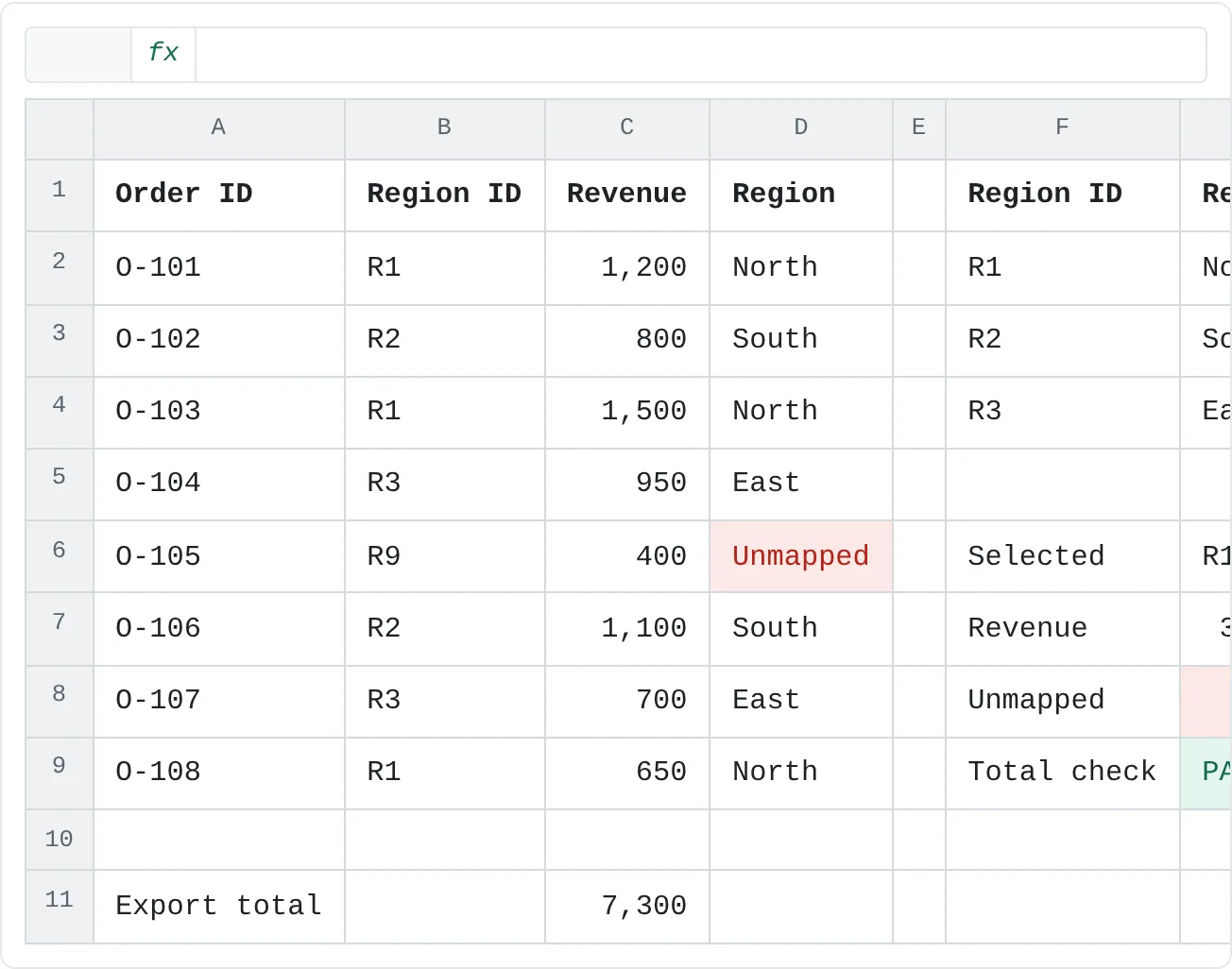
The sample below shows why you need more than one kind of check. Order O-105 has Region ID R9, which isn't in the region table.
| A | B | C | D | E | F | G | H | |
|---|---|---|---|---|---|---|---|---|
| 1 | Order ID | Region ID | Revenue | Region | Region ID | Region | Target | |
| 2 | O-101 | R1 | 1,200 | North | R1 | North | 3,000 | |
| 3 | O-102 | R2 | 800 | South | R2 | South | 2,000 | |
| 4 | O-103 | R1 | 1,500 | North | R3 | East | 2,000 | |
| 5 | O-104 | R3 | 950 | East | ||||
| 6 | O-105 | R9 | 400 | Unmapped | Selected | R1 | ||
| 7 | O-106 | R2 | 1,100 | South | Revenue | 3,350 | ||
| 8 | O-107 | R3 | 700 | East | Unmapped | 1 | ||
| 9 | O-108 | R1 | 650 | North | Total check | PASS | ||
| 10 | ||||||||
| 11 | Export total | 7,300 |
The total check passes: the eight sales add up to 7,300, the same as the export. But North, South and East together show only 6,900, because the 400 from O-105 belongs to no region. A reconciliation alone would have called this report correct.
Done when every check shows PASS on clean data, and each one fails when you break the data on purpose.
Milestone 6: Automate one step
Pick one step people repeat, and choose the simplest tool that does it reliably:
| If the step is | Use |
|---|---|
| A calculation repeated on every row | A formula or a measure |
| Bringing in and cleaning new files | Power Query and Refresh All |
| A routine someone runs in desktop Excel, such as exporting the Operations page to PDF | VBA |
| A job that must run on a schedule with nobody at a computer | An Office Script run by a Power Automate flow, on a file in OneDrive or SharePoint |
Check what the step depends on before you choose. A cloud flow can't refresh a query that reads a folder on your own computer, and a VBA macro won't run for someone who opens the file in Excel for the web. Write down what the automation does, what triggers it, what happens when it fails and who maintains it.
Milestone 7: Protect, document and hand off
- Protect every sheet that holds formulas, leave the assumptions register's input cells unlocked and protect the workbook structure.
- Remove links to other workbooks, and set the version number and date.
- Write the handoff note on the Notes sheet: purpose and decision owners, where the file lives, numbered refresh steps, what to check before sharing, known risks (for example, a renamed column in the export breaks the Sales query; a new region must be added to both Regions and Targets), the maintenance owner and backup, and the rollback plan.
Then run the real test. Give the workbook and a new weekly file to someone who hasn't seen it, and ask them to refresh it, check it and tell you which regions are behind, using only the Notes sheet. Watch without helping. Every place they hesitate goes on your punch list.
Review against the completion standard
| Area | Done when |
|---|---|
| Requirements | The brief names the decisions, their owners and testable acceptance criteria, and the requester agreed it |
| Ingestion | A new weekly file loads with Refresh All and no query edits |
| Bad rows | Every rejected row appears in Exceptions with a reason |
| Model | Revenue, Target and % of Target are measures and give correct totals by region and month |
| Reusable logic | The status rule is defined once, and its threshold lives in the assumptions register |
| Report | Every visual states the decision it supports |
| QA | At least three checks, including a reconciliation, all pass and each fails when broken |
| Automation | One step is automated, with its trigger, failure behavior and owner written down |
| Handoff | Someone else refreshed and checked it from the Notes sheet alone; protection, version and rollback plan are in place |
Common mistakes
- Building before the brief is agreed. The model ends up answering a question nobody asked.
- Deleting bad rows. They vanish from the totals and nobody knows they existed. Route them to Exceptions.
- Ratios worked out row by row. Averaging each row's % of target gives the wrong answer for a region. A measure divides the totals.
- Automating a step that still changes. Automate it once the manual version has run the same way a few times.
- Testing only on your own computer. Paths, add-ins and versions differ. The handoff test exists to find that.
Practice
Practice
Build the complete refreshable model
- Write the brief, the workbook map and three acceptance criteria, and get them agreed.
- Build the folder query, a staging query for each source and an Exceptions query.
- Relate the tables as a star schema and write the three measures and the
TargetStatusfunction. - Build the Executive and Operations pages with their slicers, and write each visual's decision beside it.
- Add at least three QA checks, including a reconciliation, and an overall status.
- Automate one step and document it.
- Protect, version and document the workbook, then hand it to someone else and fix everything they stumble on.
Warm up on the sample: map a sale to its region, total one region, count the unmapped rows and tie the total back to the export.
Try it0 of 4 done
- In D6, look up the region name for the Region ID in B6, and show Unmapped if it isn't in F2:F4.
- In G7, add up the Revenue in C2:C9 for the Region ID selected in G6.
- In G8, count the sales rows in D2:D9 that show Unmapped.
- In G9, show PASS if the total of C2:C9 equals the export total in C11, otherwise FAIL.
Click a dashed cell, type a formula in the bar and press Enter.
| A | B | C | D | E | F | G | H | |
|---|---|---|---|---|---|---|---|---|
| 1 | Order ID | Region ID | Revenue | Region | Region ID | Region | Target | |
| 2 | O-101 | R1 | 1,200 | North | R1 | North | 3,000 | |
| 3 | O-102 | R2 | 800 | South | R2 | South | 2,000 | |
| 4 | O-103 | R1 | 1,500 | North | R3 | East | 2,000 | |
| 5 | O-104 | R3 | 950 | East | ||||
| 6 | O-105 | R9 | 400 | Selected | R1 | |||
| 7 | O-106 | R2 | 1,100 | South | Revenue | |||
| 8 | O-107 | R3 | 700 | East | Unmapped | |||
| 9 | O-108 | R1 | 650 | North | Total check | |||
| 10 | ||||||||
| 11 | Export total | 7,300 |
Check your skills
- Can you turn a vague request into a brief with decisions, owners and testable acceptance criteria?
- Can you build queries that pick up new files and route bad rows to an exceptions list instead of deleting them?
- Can you explain the fact and dimension tables in your model and write measures that give the right answer under any filter?
- Can you choose an automation path and justify it by its maintenance risk?
- Can you hand the workbook to someone who refreshes, checks and, if needed, rolls it back without you?
Related
Was this guide helpful? Spot a mistake? Send feedback · admin@arumsoft.com