Expert Excel · Tutorial 6 of 12
Office Scripts and Power Automate for Excel
Record and write Office Scripts, run them on a schedule with Power Automate, and choose the simplest automation that solves the job.
- Level
- Expert
- Time
- 16 min read
- Updated:
- Applies to:
- Excel for the web and Excel for Microsoft 365 with a work or school account
What you'll learn
- Explain when cloud automation beats a desktop VBA macro
- Record an Office Script and read the code it produces
- Write a script that reads a table, flags rows and returns a result
- Run a script on a schedule from a Power Automate flow and email its result
- Choose the least complex automation path for a given workflow
Before you start
Example file
Office Scripts and Power Automate for Excel.xlsx
Download the workbook used in this tutorial and follow along in Excel.
Excel workbook (.xlsx) · 7 KB
A VBA macro needs desktop Excel, an open workbook and someone to start it. Office Scripts run in Excel for the web and can be started by Power Automate, Microsoft's cloud workflow service, on a schedule or when something happens, with no one at a keyboard. This guide shows you how to record and write a script, run it every Monday from a flow that emails the result, and decide when all of that is worth it.
When cloud automation beats a desktop macro
Reach for Office Scripts and Power Automate when the job has at least one of these needs:
- It must run unattended. "Every morning at 7" or "whenever a new file arrives" can't depend on a person remembering to open Excel.
- People work in the browser. Excel for the web doesn't run VBA, so a macro is useless to a team that never opens the desktop app.
- The work crosses services. A flow can run a script, then email the result, post it in Microsoft Teams or save a copy to SharePoint.
Office Scripts and VBA are different tools, not old and new versions of the same one:
| VBA | Office Scripts | |
|---|---|---|
| Language | Visual Basic for Applications | TypeScript (JavaScript with types) |
| Where the code lives | Inside the .xlsm workbook | In a separate script file in your OneDrive, which you can share with a workbook |
| Runs with no one signed in | No | Yes, from a Power Automate flow |
| Can reach | Other workbooks, local folders, printers, other Office apps | Mainly the workbook it runs in; other files and services go through Power Automate |
| User interface | UserForms, message boxes, sheet events such as Worksheet_Change | None of these; Power Automate supplies the triggers |
| Who can use it | Anyone with desktop Excel | Microsoft 365 work or school accounts, if the admin hasn't turned it off |
Record your first script
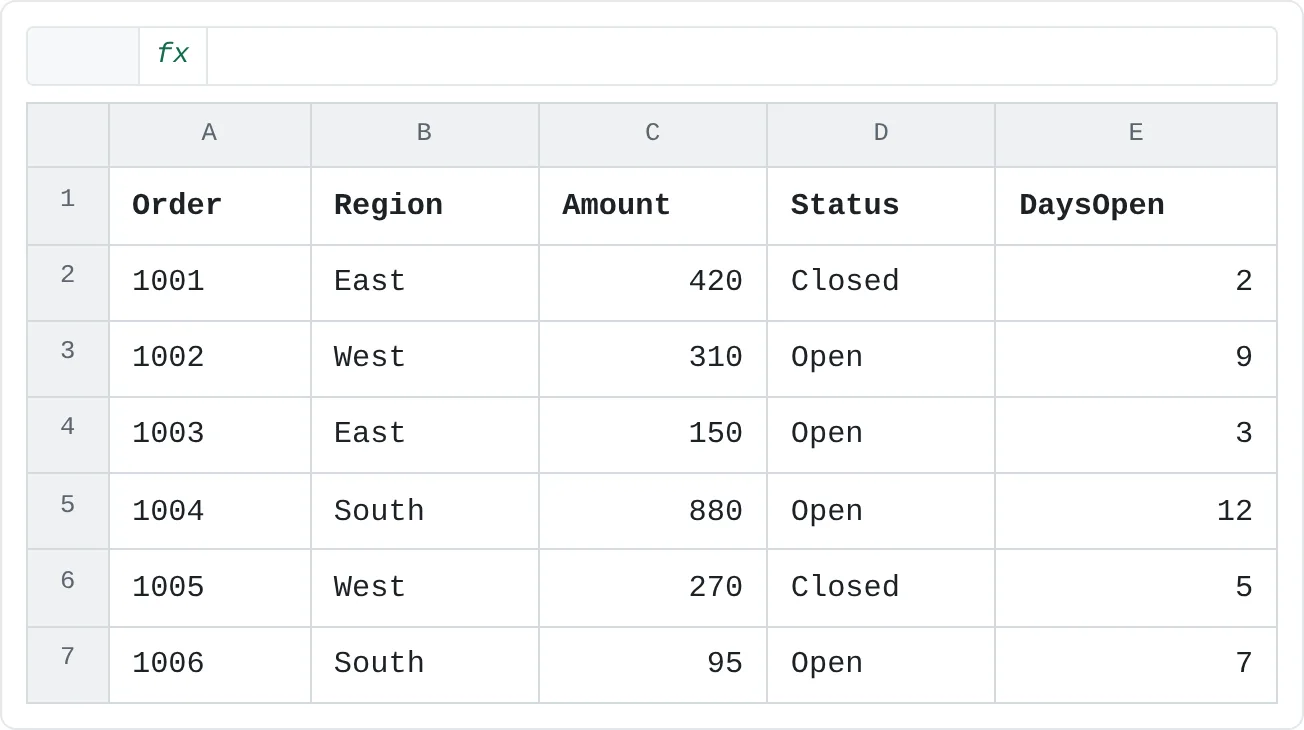
The examples use an order list formatted as a table named tblOrders, in a workbook saved to OneDrive for work or school. Power Automate can only reach files stored in OneDrive or SharePoint.
| A | B | C | D | E | |
|---|---|---|---|---|---|
| 1 | Order | Region | Amount | Status | DaysOpen |
| 2 | 1001 | East | 420 | Closed | 2 |
| 3 | 1002 | West | 310 | Open | 9 |
| 4 | 1003 | East | 150 | Open | 3 |
| 5 | 1004 | South | 880 | Open | 12 |
| 6 | 1005 | West | 270 | Closed | 5 |
| 7 | 1006 | South | 95 | Open | 7 |
Start the recorder
Open the workbook in Excel for the web. On the Automate tab, click Record Actions. The Record Actions pane opens and lists each action as you perform it.
Do the task once
Select A1:E1, click Bold on the Home tab and choose a yellow Fill Color. Each action appears in the pane.
Stop and look at the code
Click Stop in the pane. Excel saves the recording as a script in your OneDrive. Open the script for editing to see its code in the Code Editor. It looks something like this:
function main(workbook: ExcelScript.Workbook) {
  let selectedSheet = workbook.getActiveWorksheet();
  // Set font bold to true for range A1:E1 on selectedSheet
  selectedSheet.getRange("A1:E1").getFormat().getFont().setBold(true);
  // Set fill color to #FFFF00 for range A1:E1 on selectedSheet
  selectedSheet.getRange("A1:E1").getFormat().getFill().setColor("#FFFF00");
}
Every script has the same shape: a function named main that receives the workbook as workbook: ExcelScript.Workbook. From there you walk down the object model: workbook, worksheet, range, format, font. Each get… call returns the next object and each set… call changes something.
Like a recorded VBA macro, the recording is fixed to what you clicked: A1:E1 on whichever sheet happens to be active. Recording is the fastest way to learn which method does what; for anything you'll reuse, edit the code so it finds its data by name.
Write a script that reads a table and returns a result
This script highlights every order that is still open after a given number of days, then returns how many it found. Click New Script on the Automate tab, replace the starter code with the code below, rename the script Flag late orders and save it.
function main(workbook: ExcelScript.Workbook, threshold: number = 7): number {
  const table = workbook.getTable("tblOrders");
  if (!table) {
    throw new Error("Table tblOrders not found.");
  }

  const body = table.getRangeBetweenHeaderAndTotal();
  const headers = table.getHeaderRowRange().getValues()[0];
  const values = body.getValues();
  const statusCol = headers.indexOf("Status");
  const daysCol = headers.indexOf("DaysOpen");

  body.getFormat().getFill().clear();
  let late = 0;
  for (let i = 0; i < values.length; i++) {
    const isOpen = values[i][statusCol] === "Open";
    const days = values[i][daysCol] as number;
    if (isOpen && days >= threshold) {
      body.getRow(i).getFormat().getFill().setColor("#FCE4D6");
      late++;
    }
  }

  console.log(`${late} late orders`);
  return late;
}
What each part does:
workbook.getTable("tblOrders")finds the table by name, wherever it is in the workbook. The script keeps working when rows are added or the table moves. If the table is missing,throwstops the script with a clear message instead of a confusing error further down.headers.indexOf("Status")looks up the column position by its header, so inserting a column doesn't break the script.getValues()reads the whole table body into memory in one call, as rows of values. Reading once and looping over the copy is much faster than asking Excel for one cell at a time.threshold: number = 7is a parameter. A Power Automate flow can pass in a different value; the default keeps the script usable when you run it by hand.return latesends the count back to whatever ran the script. In a flow, it becomes a value the next step can use.
Click Run. Orders 1002, 1004 and 1006 are open for 7 or more days, so those rows turn orange and the Output pane shows 3 late orders.
| A | B | C | D | E | |
|---|---|---|---|---|---|
| 1 | Order | Region | Amount | Status | DaysOpen |
| 2 | 1001 | East | 420 | Closed | 2 |
| 3 | 1002 | West | 310 | Open | 9 |
| 4 | 1003 | East | 150 | Open | 3 |
| 5 | 1004 | South | 880 | Open | 12 |
| 6 | 1005 | West | 270 | Closed | 5 |
| 7 | 1006 | South | 95 | Open | 7 |
Run the script on a schedule with Power Automate
Now let a flow run the script every Monday morning and email the count to the team lead.
Create a scheduled cloud flow
Go to make.powerautomate.com and sign in with the same work or school account. Choose Create, then Scheduled cloud flow. Give the flow a name, set Repeat every to 1 Week, pick Monday under On these days and click Create.
Add the Run script action
Below the Recurrence trigger, add an action and search for Run script. Choose the one from the Excel Online (Business) connector. Fill in Location (OneDrive for Business or a SharePoint site), Document Library, File (your orders workbook) and Script (
Flag late orders). A threshold box appears because the script has that parameter; enter7.Email the result
Add another action: Send an email (V2) from the Office 365 Outlook connector. Fill in To and Subject. In Body, type
Orders open 7 days or more:and insert result from the Run script step's dynamic content. That's the number the script returned.Save and test
Click Save, then Test and choose to trigger the flow manually. The run history shows each step with a green check or the error that stopped it. Open the workbook to confirm the rows were highlighted, and check the inbox for the email.
The same pattern covers most cloud automation: a trigger (a schedule, a file created or modified in a OneDrive or SharePoint folder, a button), then actions in order. For example, a flow could post the count in a Teams channel instead of sending an email, or run the script only when the workbook changes.
Connectors, permissions and file location
A flow that works on the day you build it can still fail three months later. Check these before you rely on one:
- Each connector signs in as someone. Excel, Outlook and Teams each use a connection, and the flow acts with that account's permissions. If it's your personal account and you change teams or leave, the flow stops. For a business process, add a co-owner and use an account your organization keeps, such as a shared service account, if your IT policy allows it.
- The file must be where the cloud can reach it. A workbook on your laptop's drive isn't available at 7 a.m. on Monday if the laptop is asleep. Keep it in OneDrive or a SharePoint library, and don't rename or move it without updating the flow.
- The script file matters too. Run script looks for scripts in the flow owner's OneDrive. For a team process, store the script in a SharePoint library and use the Run script from SharePoint library action, so it doesn't depend on one person's OneDrive.
- Licensing and limits. Some connectors are premium and need a paid Power Automate license, and Office Scripts have limits on how long a script can run and how many times a flow can call one each day. Check your plan's limits before designing a high-volume process around a script.
- Someone must watch for failures. By default, failure notifications go to the flow owner. Make sure that's a person who will act on them.
Choose the least complex path
Cloud automation is the most capable option on this list, and the hardest to maintain. Work through the options in roughly this order of complexity and stop at the first one that solves the problem:
- Formula (including LET and LAMBDA): calculations that update by themselves when inputs change.
- Power Query: importing and cleaning data the same way every time, refreshed with one click.
- VBA: desktop tasks that need the file system, other workbooks or a custom form.
- Office Scripts and Power Automate: tasks that run in the browser, on a schedule or event, or across services.
| Workflow | Simplest path that works |
|---|---|
| The same calculation repeated across thousands of rows in a live sheet | Formula |
| A monthly file import that needs the same cleaning steps and a refresh | Power Query |
| A formatting routine you run on your own desktop, saving files to local folders | VBA |
| A report that must be prepared in the browser every morning with no desktop Excel open | Office Scripts, run by Power Automate |
| Notify a Teams channel when a shared file changes, with no one opening Excel | Power Automate (no script needed) |
The last row is a useful reminder: if a flow can do the job with its own actions, it doesn't need a script at all.
Common mistakes
- Building on a local file. Power Automate can't reach a workbook saved only on your computer. Save it to OneDrive or SharePoint first.
- Shipping a recording as-is. Recorded scripts hard-code addresses such as A1:E1 and depend on the active sheet. Rewrite them to use table and sheet names before a flow runs them.
- Reading or writing one cell at a time in a loop. Each call to the workbook takes time. Read a range once with
getValues(), work on the copy, and write back in as few calls as possible. - A flow tied to one person. If the only owner leaves, the connections break. Add co-owners and document who maintains the flow.
- Automating too early. If a formula or a Power Query refresh solves the problem, a script and a flow only add pieces that can break.
Practice
Practice
Schedule a late-orders check
- In Excel for the web, create a workbook in OneDrive with the order data above and format it as a table named
tblOrders. - Record a script that bolds and fills the header row, then read the code it produced.
- Create the
Flag late ordersscript, run it and confirm that it highlights three rows and logs3 late orders. - Change the threshold default to
10and run it again. Only order 1004 should be highlighted. - Build a scheduled cloud flow that runs the script every Monday and emails the result. Test it manually.
- Outline one real automation: pick a weekly report you save and send by hand, and write down the trigger, the steps, the connectors and permissions it needs, where the file must live, and whether a simpler path (formula, Power Query) would do.
Check your skills
- Can you explain when browser-based automation beats a desktop macro?
- Can you describe what an Office Script can and can't do compared with VBA?
- Can you name a connector or permission issue to settle before you schedule a flow?
- Can you pick the least complex automation path that actually solves a given workflow?
Related
Was this guide helpful? Spot a mistake? Send feedback · admin@arumsoft.com