Expert Excel · Tutorial 7 of 12
Solver, Forecasting and Statistics Tools in Excel
Find the best product mix with Solver, test how sensitive it is, project a time series with Forecast Sheet and handle outliers in a trend honestly.
- Level
- Expert
- Time
- 18 min read
- Updated:
- Applies to:
- Excel for Microsoft 365 for Windows, Excel 2021, Excel 2019
What you'll learn
- Set up decision variables, constraints and an objective for Solver
- Test how the optimal answer changes when a constraint loosens
- Create a Forecast Sheet and read its confidence interval
- Fit a linear trend with FORECAST.LINEAR, SLOPE and RSQ, and know its limits
- Decide how to treat an outlier and say so in the model
Before you start
Example file
Solver, Forecasting and Statistics Tools in Excel.xlsx
Download the workbook used in this tutorial and follow along in Excel.
Excel workbook (.xlsx) · 7 KB
Most spreadsheets answer "what happened?" Some questions are different: "what's the best choice we have?" and "what's likely to happen next?" Solver searches for the best combination of inputs under limits you set, and Forecast Sheet projects a time series forward. Both are only as trustworthy as the limits and assumptions you state, so this guide covers testing and explaining the answers as well as getting them.
Set up a model Solver can work with
A small workshop makes two products. Product A earns a margin of 12 per unit and takes 2 labor hours; Product B earns 20 per unit and takes 3 hours. There are 60 labor hours available, and customers will buy at most 15 units of B. How many of each should the workshop make?
Every Solver model has three parts, and each needs a cell:
- Decision variables: the cells Solver may change. Here, the units of A and B in B2:C2.
- Objective: one formula cell to maximize, minimize or hit a target. Here, total profit in D6.
- Constraints: limits the answer must respect. Here, labor used (D5) can't exceed 60 (E5), and B's units can't exceed its demand limit (C7).
| A | B | C | D | E | |
|---|---|---|---|---|---|
| 1 | Item | Product A | Product B | Total | Limit |
| 2 | Units | 10 | 10 | ||
| 3 | Margin per unit | 12 | 20 | ||
| 4 | Hours per unit | 2 | 3 | ||
| 5 | Labor hours | 60 | |||
| 6 | Profit | ||||
| 7 | Demand limit | 15 |
The objective and the constraints must be formulas that depend on the variable cells. Labor used and profit are both "units times a rate, added up," which is what SUMPRODUCT does:
=SUMPRODUCT(B2:C2,B4:C4)=SUMPRODUCT(B2:C2,B3:C3)Keep the rates and limits in their own labeled cells, never typed inside the formulas. Solver, a reviewer and next year's you all need to see them.
Run Solver
Turn on the Solver add-in
Solver comes with Excel but is off by default. Go to File > Options > Add-ins, choose Excel Add-ins in the Manage box and click Go. Tick Solver Add-in and click OK. Solver now appears at Data then Analyze then Solver.
Set the objective
Click Data then Analyze then Solver. In the Solver Parameters dialog, set Set Objective to
$D$6and choose Max.Choose the variable cells
In By Changing Variable Cells, select
$B$2:$C$2.Add the constraints
Click Add. In the Add Constraint dialog, enter
$D$5, choose<=and enter$E$5, then click Add for the next one. Enter$C$2<=$C$7and click Add. Finally, enter$B$2:$C$2, choose int (integer) from the list and click OK. You can't make half a unit.Pick the solving method and solve
Make sure Make Unconstrained Variables Non-Negative is ticked, so Solver can't suggest making -5 units. Under Select a Solving Method, choose Simplex LP: it's the right method when every formula is a sum of variables times fixed rates, as here. Click Solve.
Keep the solution
In the Solver Results dialog, choose Keep Solver Solution. You can also select the Answer report, which adds a sheet listing the original and final values and the status of each constraint. Click OK.
Solver sets B2 to 9 and C2 to 14. Labor used is exactly 60 and profit is 388.
| A | B | C | D | E | |
|---|---|---|---|---|---|
| 1 | Item | Product A | Product B | Total | Limit |
| 2 | Units | 9 | 14 | ||
| 3 | Margin per unit | 12 | 20 | ||
| 4 | Hours per unit | 2 | 3 | ||
| 5 | Labor hours | 60 | 60 | ||
| 6 | Profit | 388 | |||
| 7 | Demand limit | 15 |
Why not 15 of B, since B earns more per hour (20 / 3 = 6.67, against 12 / 2 = 6 for A)? Fifteen B would use 45 hours and leave 15, enough for only 7 whole units of A, with an hour unused: 384 profit. Giving up one B frees 3 hours, enough for 2 more A, and lands on exactly 60 hours and 388. If you remove the integer constraint, Solver returns 7.5 of A and 15 of B for 390, which can't be built.
Test how sensitive the answer is
An optimal answer is only useful if you know what moves it. The question to ask is: which limit, if loosened, is worth the most? Change one input at a time, run Solver again and record the result in a small table:
| Case | Labor limit | B demand limit | A | B | Profit |
|---|---|---|---|---|---|
| Base | 60 | 15 | 9 | 14 | 388 |
| Labor +10% | 66 | 15 | 12 | 14 | 424 |
| Demand +10% | 60 | 16.5 | 6 | 16 | 392 |
Ten percent more labor is worth 36 more profit; ten percent more demand for B is worth only 4. If the workshop can buy overtime or find more customers, the table says overtime first.
A data table can't do this for you, because a data table recalculates formulas but never reruns Solver. Two shortcuts help:
- In the Solver Results dialog, Save Scenario stores the current variable values in Scenario Manager (Data then Forecast then What-If Analysis then Scenario Manager), so you can switch between the base and the alternatives later.
- For a model without integer constraints, the Sensitivity report lists a Shadow Price for each constraint: how much the objective improves per unit the limit loosens. Excel doesn't offer this report when the model has integer constraints, so tick Ignore Integer Constraints in Options first. For this model it shows a shadow price of 6 for the labor constraint: each extra hour adds 6 profit, the margin of half a unit of A. That value describes the fractional answer, so treat it as a guide and confirm with a rerun, as in the table above.
Project a time series with Forecast Sheet
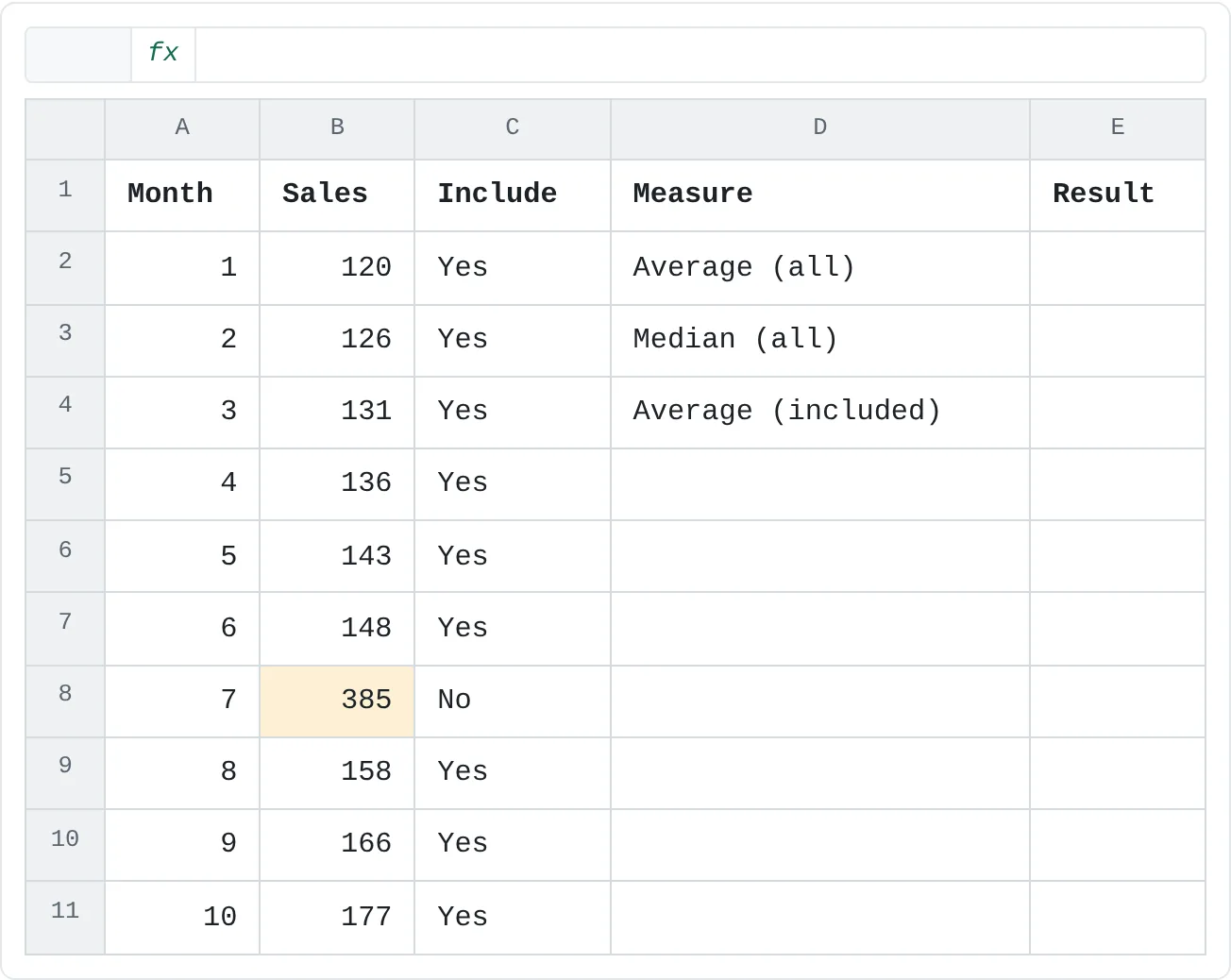
The second tool looks forward instead. The sheet below holds ten months of sales. Month 7 includes a one-off bulk order.
| A | B | C | D | E | |
|---|---|---|---|---|---|
| 1 | Month | Sales | Include | Measure | Result |
| 2 | 1 | 120 | Yes | Average (all) | |
| 3 | 2 | 126 | Yes | Median (all) | |
| 4 | 3 | 131 | Yes | Average (included) | |
| 5 | 4 | 136 | Yes | ||
| 6 | 5 | 143 | Yes | ||
| 7 | 6 | 148 | Yes | ||
| 8 | 7 | 385 | No | ||
| 9 | 8 | 158 | Yes | ||
| 10 | 9 | 166 | Yes | ||
| 11 | 10 | 177 | Yes |
Select the timeline and the values
Select A1:B11. The timeline (column A) must be dates or numbers with the same step between them: daily, monthly, or 1, 2, 3 as here.
Open Forecast Sheet
Go to Data then Forecast then Forecast Sheet. The Create Forecast Worksheet dialog shows a preview chart.
Set the end and the options
Set Forecast End to 13 to project three months ahead. Click Options to see the rest: Confidence Interval (95% by default), Seasonality (detected automatically unless you set it), and how to fill missing points and aggregate duplicates.
Create the forecast
Click Create. Excel adds a new worksheet with a table and a chart. The table holds your data plus columns for the forecast and its lower and upper confidence bounds, all calculated with
FORECAST.ETSandFORECAST.ETS.CONFINTformulas you can inspect.
Read the band, not only the line. A 95% interval means that if the past pattern holds, the actual value should land between the bounds about 95 times in 100. A wide band says the history is noisy and the single forecast number deserves little weight. An outlier like month 7 inflates the measured noise, so expect a wider band than the other months alone would give.
Forecast Sheet uses exponential smoothing, which can follow seasonal patterns. It assumes the future will behave like the past. It knows nothing about a price change, a new competitor or a lost customer.
Fit a linear trend and read it carefully
For a straight-line trend, use the regression functions directly. Each takes the values (known y's) first and the timeline (known x's) second:
=FORECAST.LINEAR(11,B2:B11,A2:A11)=SLOPE(B2:B11,A2:A11) returns about 10.18 (growth per month), =INTERCEPT(B2:B11,A2:A11) returns 113, and =RSQ(B2:B11,A2:A11) returns about 0.16. R-squared runs from 0 to 1 and says how much of the variation the line explains. At 0.16, the line explains very little. The month 7 spike is pulling it upward.
The same line is available on a chart. Select A1:B11 and insert a scatter chart from Insert then Charts. Click the chart, click the Chart Elements button (+), point to Trendline and choose More Options. In the Format Trendline pane, choose Linear and tick Display Equation on chart and Display R-squared value on chart. The numbers match SLOPE, INTERCEPT and RSQ.
Two limits apply to every trend:
- Don't extrapolate far. A line fitted to months 1 to 10 says something about month 11, much less about month 24. Nothing in the data shows that growth continues.
- A relationship isn't a reason. A trend shows that sales rose over time, not why.
Decide what to do with an outlier
One unusual value can drag an average or a trend a long way. Compare the summary statistics:
| Measure | All ten months | Without month 7 |
|---|---|---|
| Average | 169 | 145 |
| Median | 145.5 | 143 |
| Slope per month | 10.18 | 6 |
| R-squared | 0.16 | 0.99 |
| Month 11 projection | 225 | 179 |
The median barely moves, because it ignores how far the extreme value is from the rest. The average and the trend move a lot. Excluding month 7 isn't automatically right, though: if bulk orders happen every year, they're part of the business, and dropping them hides real revenue.
Make the choice visible instead of deleting the row. Add an Include column (C) and point the formulas at it:
=AVERAGEIFS(B2:B11,C2:C11,"Yes")=FORECAST.LINEAR(11,FILTER(B2:B11,C2:C11="Yes"),FILTER(A2:A11,C2:C11="Yes"))Anyone reading the model sees which month was left out, can switch it back to Yes and watch every result update. Write the reason in a note next to the table.
For a quick statistical profile, the Analysis ToolPak add-in (turn it on the same way as Solver) adds Data then Analyze then Data Analysis. Its Descriptive Statistics tool, run on B1:B11 with Labels in first row and Summary statistics ticked, lists the mean (169), median (145.5), standard deviation (about 78.0), minimum, maximum and more. Its Regression tool gives a full regression table. The ToolPak writes plain values, not formulas, so run it again when the data changes.
Say what the model can't do
Before you share a Solver answer or a forecast, write down its limits in plain words, next to the result:
- What it assumes. The mix assumes fixed margins and hours per unit; the forecast assumes next month resembles the last ten.
- What would break it. A price change, a machine breakdown, a new contract, or another bulk order.
- How sure it is. Quote the confidence band or the sensitivity table, not only the single best number.
Saying this yourself costs a sentence. Having someone else discover it after a decision costs much more.
Common mistakes
- Typing numbers into the objective formula. If D6 were
=12*B2+20*C2, Solver still works, but nobody can see or change the margins. Keep rates in cells. - Forgetting non-negativity or integer constraints. Without them, Solver can return negative or fractional quantities that make no sense in the real world.
- Choosing GRG Nonlinear or Evolutionary for a linear model. Simplex LP is faster and finds the true best answer when the model is linear. Use GRG Nonlinear for smooth nonlinear models, such as one that multiplies two variable cells together, and Evolutionary when formulas such as
IForVLOOKUPmake the result jump. - Trusting one forecast number. The line on a Forecast Sheet is the middle of a range. Report the bounds too.
- Silently deleting outliers. Flag them in a column, explain the choice and keep the original data.
Practice
Practice
Optimize, stress-test and forecast
- Build the workshop model above in a new workbook, with formulas in D5 and D6.
- Run Solver to maximize profit with the three constraints. Confirm 9 of A, 14 of B and 388 profit.
- Change the labor limit to 66, solve again and record the result. Then reset it to 60, change the B demand limit to 16.5 and solve. Which limit is worth loosening?
- Enter the ten months of sales, create a Forecast Sheet through month 13 and note the width of the confidence band.
- Add the Include column and compare
FORECAST.LINEARfor month 11 with and without month 7. - Then set up a Solver problem from your own work, with at least two decision variables and two real constraints, and add a one-row check of what happens when one constraint loosens by 10%.
Try the formulas here. First the model's labor and profit cells:
Try it0 of 2 done
- In D5, calculate the labor hours used: each product's units times its hours per unit, added together.
- In D6, calculate the total profit: units times margin per unit, for both products. This is the cell Solver will maximize.
Click a dashed cell, type a formula in the bar and press Enter.
| A | B | C | D | E | |
|---|---|---|---|---|---|
| 1 | Item | Product A | Product B | Total | Limit |
| 2 | Units | 10 | 10 | ||
| 3 | Margin per unit | 12 | 20 | ||
| 4 | Hours per unit | 2 | 3 | ||
| 5 | Labor hours | 60 | |||
| 6 | Profit | ||||
| 7 | Demand limit | 15 |
Then the outlier comparison:
Try it0 of 3 done
- In E2, calculate the average monthly sales for all ten months.
- In E3, find the median of the same ten months. Compare it with the average.
- In E4, average only the months marked Yes in column C, leaving out the one-off order in month 7.
Click a dashed cell, type a formula in the bar and press Enter.
| A | B | C | D | E | |
|---|---|---|---|---|---|
| 1 | Month | Sales | Include | Measure | Result |
| 2 | 1 | 120 | Yes | Average (all) | |
| 3 | 2 | 126 | Yes | Median (all) | |
| 4 | 3 | 131 | Yes | Average (included) | |
| 5 | 4 | 136 | Yes | ||
| 6 | 5 | 143 | Yes | ||
| 7 | 6 | 148 | Yes | ||
| 8 | 7 | 385 | No | ||
| 9 | 8 | 158 | Yes | ||
| 10 | 9 | 166 | Yes | ||
| 11 | 10 | 177 | Yes |
Check your skills
- Can you set up decision variables, constraints and an objective for Solver?
- Can you build a small sensitivity table showing how the answer changes when one limit loosens?
- Can you create a Forecast Sheet and explain what its confidence band means?
- Can you show how an outlier changes an average and a trend, and record your choice in the model?
- Can you state one limitation of your model before someone else finds it?
Related
Was this guide helpful? Spot a mistake? Send feedback · admin@arumsoft.com