Expert Excel · Tutorial 1 of 12
Planning an Excel Solution: Requirements and Design
Turn a vague request into a design brief: the decision, the refresh cadence, a workbook map, an assumptions register, an owner and testable acceptance criteria.
- Level
- Expert
- Time
- 13 min read
- Updated:
- Applies to:
- Excel for Microsoft 365, Excel 2021, Excel 2019, Excel for the web
What you'll learn
- Identify the decision a workbook supports and the person who makes it
- Define inputs, outputs and a refresh cadence before building
- Sketch a workbook map from source data to report, QA and notes
- Keep an assumptions register and name a maintenance owner
- Write acceptance criteria that can be tested, and turn them into QA checks
Example file
Planning an Excel Solution - Requirements and Design.xlsx
Download the workbook used in this tutorial and follow along in Excel.
Excel workbook (.xlsx) · 7 KB
"Can you make me a monthly sales dashboard?" sounds like a request, but it isn't a specification. It doesn't say who will use the workbook, what they'll decide with it, how current it must be or how anyone will know it's right. Expert builders settle those questions before writing a formula, because they decide the structure of everything that follows. This tutorial walks through turning that one sentence into a design brief you can build from and test against.
Start with the decision, not the dashboard
Every useful workbook answers one question for one named person. Before opening Excel, ask the requester:
- Who will use it? A person or a role, not "the team".
- What will they decide with it? If nothing changes based on the numbers, it's a data dump, not a solution.
- When do they decide? Weekly meeting, month-end review, board pack.
- What would they do if a number looked wrong? The answer tells you which numbers need the most checking.
For the sales request, the conversation might end with: The regional VP decides each month whether a region is on pace to hit its monthly target, and moves support to regions that are behind. That one sentence rules a lot out. It doesn't need product-level detail, real-time data or a color scheme debate. It does need targets, a clear definition of "on pace" and region totals that match the books.
| Vague request | Decision it supports |
|---|---|
| "A dashboard of sales" | Is each region on pace for its monthly target? |
| "Clean up this tracker" | Which open tickets will miss their deadline this week? |
| "Can we track overtime?" | Which teams need extra staff next quarter? |
Pin down inputs, outputs and refresh cadence
Next, write down what goes in, what comes out and how often it has to be current.
- Inputs: every source, who provides it and in what form. "Monthly sales export from the ERP as CSV, from Finance" and "regional targets, typed by Sales ops once a year".
- Outputs: what the reader actually sees. "One page: each region's sales to date, target, percent of pace and an on-pace flag, plus a trend chart."
- Refresh cadence: how often the numbers must be updated, and what triggers it.
The cadence shapes the build more than the data does. The same sales data needs a very different workbook depending on how often it refreshes:
| Cadence | What it implies |
|---|---|
| Monthly, once the books close | A manual refresh is fine. A short checklist on the Notes sheet, run by one person, after the close. |
| Daily | Every manual step will eventually be skipped. Pull the data with Power Query from a fixed folder or source and refresh with Data then Queries & Connections then Refresh All. |
| Real time | Not a job for a workbook someone opens. Point the requester to a reporting tool connected directly to the source system. |
For the regional VP, monthly, once the books close is right: the sales numbers aren't final before then, so a daily refresh would show figures that later change.
Draw a workbook map
A workbook map is the list of layers the data passes through, in order, with what each one holds. Sketch it on paper before you build:
| Layer | What it holds | Typical Excel tools |
|---|---|---|
| Source | Raw data exactly as received, never edited by hand | Files in a folder, or a Data sheet nobody types on |
| Staging | Cleaned and typed data, not yet combined with business logic | Power Query queries loaded as connection only |
| Model | Relationships and calculations | Data Model relationships and measures, or a Calculation sheet |
| Report | What the reader sees | Summary sheet, PivotTables, charts |
| QA | Proof that the report is right | Check cells that compare report totals with source totals |
| Notes | How to run and maintain it | Owner, refresh steps, assumptions register, change log |
Data flows in one direction, from Source to Report, and QA reads from both ends. A small workbook can combine layers, such as Staging and Model in one Power Query step list, but the order never changes. When a number on the Report is wrong, the map tells you where to look next.
Make every number traceable
The map is also what gives you lineage: the ability to point at any number on the Report and trace it back to the source rows behind it. Without lineage, you can only hope a number is right. With it, you can defend it. A few habits make lineage possible:
- Keep an identifier on every row (order number, invoice ID) all the way through, so a total can be broken back down into rows.
- When you combine files, keep the file name as a column, so every row says which export it came from.
- Use Formulas then Formula Auditing then Trace Precedents to follow a worksheet formula back to its inputs, and the Query Dependencies view in the Power Query Editor (View then Dependencies then Query Dependencies) to see which queries feed which.
Keep an assumptions register
Every rate, cutoff or judgment call the model depends on gets an entry in the assumptions register: one visible cell, a name, a one-line reason and an owner. Nothing gets typed into a formula where the next person to edit it won't find it.
| A | B | C | D | E | |
|---|---|---|---|---|---|
| 1 | Assumption | Value | Name | Reason | Owner |
| 2 | On-pace threshold | 95% | PaceThreshold | 95% of the pro-rated target counts as on pace | Sales ops |
| 3 | Close day | 5 | CloseDay | Books close on the 5th working day | Finance |
| 4 | Tie-out tolerance | 1 | TieTolerance | Rounding can move a total by up to 1 | Report owner |
Name each value cell (click it, type the name in the Name Box and press Enter) and use the name in formulas. With a region's sales to date in C2 and its pro-rated target in D2, the on-pace flag reads:
=IF(C2/D2>=PaceThreshold,"On pace","Behind")Sales of 47,500 against a pro-rated target of 50,000 is exactly 95%, so the result is On pace. If Sales ops later decides 90% is enough, they change one cell and every flag updates. The Owner column says who is allowed to make that call.
Name a maintenance owner
A workbook with no owner is one nobody trusts six months later. The maintenance owner is a named person who:
- runs the refresh on the agreed cadence and checks the QA sheet before sharing,
- fixes the workbook when a source changes shape,
- keeps the assumptions register and change log current,
- knows who takes over when they're away, and hands over properly when they leave.
Write the owner and a backup at the top of the Notes sheet. If nobody is willing to own it, treat that as a sign the workbook shouldn't be built in this form.
Write acceptance criteria you can test
Acceptance criteria say what "done" means. Write them before you build, agree them with the requester and test the finished workbook against them. Each criterion should be a statement someone else could check and answer yes or no:
| Testable | Not testable |
|---|---|
| Total revenue on the Report matches the source export within 1 | The dashboard looks professional |
| Every region in the source appears on the Report | It's easy to use |
| The owner can explain each refresh step before running it | It has all the important data |
| Someone other than the builder can refresh it from the Notes sheet alone | It uses a dark theme |
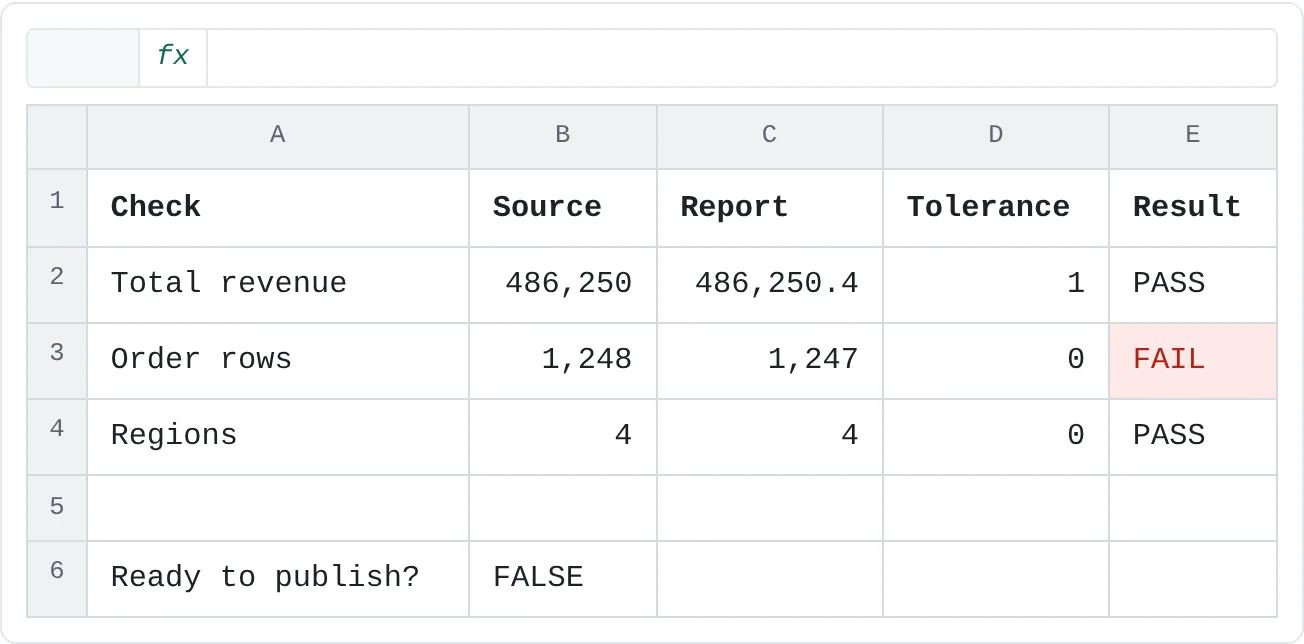
The left-hand criteria translate directly into QA checks. A QA sheet compares a figure from the source with the same figure on the report, allows a stated tolerance and returns a pass or fail:
| A | B | C | D | E | |
|---|---|---|---|---|---|
| 1 | Check | Source | Report | Tolerance | Result |
| 2 | Total revenue | 486,250 | 486,250.4 | 1 | PASS |
| 3 | Order rows | 1,248 | 1,247 | 0 | FAIL |
| 4 | Regions | 4 | 4 | 0 | PASS |
| 5 | |||||
| 6 | Ready to publish? | FALSE |
Each result uses ABS so it doesn't matter which side is larger:
=IF(ABS(B2-C2)<=D2,"PASS","FAIL")The revenue figures differ by 0.4, within the tolerance of 1, so E2 shows PASS. The row counts differ by 1 with a tolerance of 0, so E3 shows FAIL. One summary cell then tells the owner whether the workbook can go out:
=COUNTIF(E2:E4,"FAIL")=0Put it together: a one-page design brief
The design brief collects everything above on one page. For the sales request it might read:
| Item | Answer |
|---|---|
| Decision | Is each region on pace to hit its monthly target? |
| Decision owner | Regional VP |
| Inputs | Monthly ERP sales export (Finance); regional targets (Sales ops) |
| Outputs | One summary page: sales to date, target, percent of pace, on-pace flag by region; trend chart |
| Refresh cadence | Monthly, after the books close on the 5th working day |
| Workbook map | Source › Staging › Model › Report › QA › Notes |
| Key assumptions | On-pace threshold 95%; tie-out tolerance 1 |
| Maintenance owner | Sales ops analyst, with a named backup |
| Acceptance criteria | Revenue ties to the export within 1; every region appears; someone else can refresh it from the Notes sheet |
Show the brief to the requester before you build anything. Disagreements are cheap to fix on one page and expensive to fix in a finished workbook.
Common mistakes
- Building before asking. The first version answers the wrong question, and the rework costs more than the conversation would have.
- No decision owner. A report "for everyone" gets checked by no one.
- Choosing a cadence the data can't support. Daily reporting on numbers that are only final monthly shows figures that later change.
- Assumptions inside formulas.
=IF(C2/D2>=0.95,…)hides a business rule. Put 95% in the register. - Acceptance criteria written after the build. They end up describing what was built instead of what was needed.
- Untestable criteria. "Looks good" can't fail, so it can't pass either.
Practice
Practice
Write a real design brief
- Pick a vague request you've received, such as "can you clean this up" or "can we track this".
- Write the decision it supports and the person who makes that decision.
- List the inputs and outputs and choose a refresh cadence. Note what that cadence implies for the build.
- Sketch the workbook map from Source to Notes.
- Add one assumption to an assumptions register, with a name, reason and owner.
- Name a maintenance owner and a backup.
- Write three acceptance criteria that someone else could test, and turn one of them into a QA check.
- Show the brief to the person who asked before you build.
Try the QA checks below: compare source and report figures against a tolerance, then decide whether the workbook is ready to publish.
Try it0 of 4 done
- In E2, show PASS if Source and Report differ by no more than the tolerance in D2, otherwise FAIL.
- In E3, run the same check on the row counts. One order is missing from the report.
- In E4, check that the report shows the same number of regions as the source.
- In B6, return TRUE only if none of the checks in E2:E4 failed.
Click a dashed cell, type a formula in the bar and press Enter.
| A | B | C | D | E | |
|---|---|---|---|---|---|
| 1 | Check | Source | Report | Tolerance | Result |
| 2 | Total revenue | 486,250 | 486,250.4 | 1 | |
| 3 | Order rows | 1,248 | 1,247 | 0 | |
| 4 | Regions | 4 | 4 | 0 | |
| 5 | |||||
| 6 | Ready to publish? |
Check your skills
- Can you name the decision a workbook supports, and who makes it, before you open Excel?
- Can you sketch a workbook map with Source, Staging, Model, Report, QA and Notes layers?
- Can you write an assumptions register entry with a value, name, reason and owner?
- Can you explain what a maintenance owner is responsible for?
- Can you rewrite "looks professional" as an acceptance criterion someone can test?
Related
Was this guide helpful? Spot a mistake? Send feedback · admin@arumsoft.com