How to Consolidate Data from Several Sheets in Excel
Combine lists from several sheets or workbooks into one summary with the Consolidate command, matching rows by their labels or by position.
- Level
- Intermediate
- Time
- 10 min read
- Updated:
- Applies to:
- Excel for Microsoft 365, Excel 2021, Excel 2019, Excel for Mac
What you'll learn
- Combine two or more lists into one summary with Data › Consolidate
- Match rows and columns by their labels when the lists aren't in the same order
- Choose a summary function other than Sum, such as Average or Count
- Update a consolidation and decide when a PivotTable or Power Query is the better tool
Before you start
Consolidate adds up (or averages, counts…) several lists that share the same kind of data and writes one summary list. It's the quick answer when each store, class or month has its own sheet and you need the totals in one place. Excel can match the rows by their labels, so the lists don't have to be in the same order or even contain the same items.
The examples use two store sheets, East and West. Each lists items with the units sold and the sales amount, but West has its items in a different order and sells one item East doesn't.
| A | B | C | |
|---|---|---|---|
| 1 | Item | Units | Sales |
| 2 | Notebooks | 120 | 360 |
| 3 | Pens | 300 | 450 |
| 4 | Pencils | 250 | 125 |
| 5 | Tape | 80 | 160 |
| A | B | C | |
|---|---|---|---|
| 1 | Item | Units | Sales |
| 2 | Pens | 280 | 420 |
| 3 | Notebooks | 90 | 270 |
| 4 | Tape | 60 | 120 |
| 5 | Pencils | 200 | 100 |
| 6 | Erasers | 75 | 75 |
Where to find it
Consolidate is on the Data tab, in the Data Tools group: Data then Data Tools then Consolidate. There's no keyboard shortcut and no right-click command for it.
Combine two sheets by their labels
The goal is a Summary sheet with one row per item and the total units and sales from both stores.
Click where the summary should start
Go to the Summary sheet and click A1. Excel writes the result down and to the right of this cell, so make sure that area is empty.
Open Consolidate and pick the function
Go to Data then Data Tools then Consolidate. In the Consolidate dialog, leave Function set to Sum.
Add the East range
Click in the Reference box, click the East sheet tab and select A1:C5, including the headings and the item names. The box shows
East!$A$1:$C$5. Click Add, and the range moves to the All references list.Add the West range
Click the West sheet tab, select A1:C6 and click Add again. West has one more row than East, and that's fine: each reference can be a different size.
Tell Excel to use the labels
Under Use labels in, tick Top row and Left column. This is what makes Excel match "Pens" on East with "Pens" on West, wherever they are in each list. Click OK.
Sum the two ranges, and match rows by the item names (Left column) and columns by the headings (Top row). Check the result
Each item appears once, with both stores added together. Notebooks: 120 units on East plus 90 on West is 210, and 360 plus 270 in sales is 630. Erasers appear only on West, so their row shows West's figures, 75 and 75.
A B C 1 Units Sales 2 Notebooks 210 630 3 Pens 580 870 4 Pencils 450 225 5 Tape 140 280 6 Erasers 75 75 The Summary sheet after Consolidate. Every item appears once; Erasers (green) came from West only. A1 is left empty.
Two things to notice. Excel leaves the top-left cell, A1, empty: type Item there yourself. And the results are plain numbers, not formulas, so they won't change when the store sheets change (see "Update a consolidation" below).
Consolidate by position instead
If you don't tick Top row or Left column, Excel consolidates by position: the first cell of every reference is added to the first cell of the others, the second to the second, and so on. Labels in the selected ranges are ignored, so select only the numbers and type the labels in the summary yourself.
This works only when every list has exactly the same layout: same items, same order, same columns. Monthly sheets copied from one template are the typical case. If the order differs even once, by-position consolidation adds the wrong rows together without any warning, which is why labels are the safer choice whenever your lists have them.
The options in the dialog
| Option | What it does |
|---|---|
| Function | How the values are combined: Sum, Count, Average, Max, Min, Product, Count Numbers, and the standard deviation and variance functions. Count counts every non-empty value, like COUNTA; Count Numbers counts only numbers, like COUNT. |
| Reference | The range you're adding. Select it with the mouse, or type it, such as East!$A$1:$C$5. |
| Browse... | Picks a range from a workbook that isn't open. It's usually easier to open the other workbook first and select the range in it. |
| Add / Delete | Adds the current reference to All references, or removes the one you selected in the list. |
| Top row / Left column | Match columns by their headings and rows by their labels. Labels that appear in only some lists still get their own row or column. |
| Create links to source data | Writes formulas that link to the source cells instead of plain numbers. Explained in the next section. |
Update a consolidation
A normal consolidation is a snapshot. When the source sheets change, run it again: select the same top-left cell, open Consolidate, and click OK. Excel remembers the references you added in this workbook, so you don't have to select them again. To add a new store, select its range and click Add before OK.
If you tick Create links to source data, Excel writes formulas instead of numbers. For each item it inserts a hidden detail row per source that links to the source cell, and a total row that adds them up, then groups them in an outline: the + buttons to the left of the rows show where each number came from. The totals now update when a source value changes. Two limits: links work only when the sources are on other sheets or in other workbooks, and an item that's added to a source list later doesn't appear until you consolidate again.
Real-world scenarios
Expenses from three departments
Marketing, Sales and Support each keep a sheet of expenses by category, and not every department has every category. Consolidate with Sum and both label boxes ticked, selecting A1:B4 on each sheet (Category and Amount headings included).
| A | B | |
|---|---|---|
| 1 | Amount | |
| 2 | Travel | 3,800 |
| 3 | Software | 750 |
| 4 | Supplies | 390 |
| 5 | Training | 1,300 |
Travel is 3,800 (1,200 from Marketing and 2,600 from Sales). Supplies, which every department buys, is 180 + 120 + 90 = 390. Each category appears once, however many sheets it was on.
Volunteer hours for the whole year group
Three classes record their volunteer hours on identical sheets: months September to December in A2:A5 and hours in B2:B5. Because the layout is the same, consolidate by position: type the months in the summary, click B2, and add B2:B5 from each class sheet with no label boxes ticked.
| A | B | |
|---|---|---|
| 1 | Month | Hours |
| 2 | Sep | 30 |
| 3 | Oct | 48 |
| 4 | Nov | 46 |
| 5 | Dec | 27 |
October is 18 + 14 + 16 = 48 hours. If one class had sorted its months differently, these totals would be wrong, so check the sheets before you use by-position consolidation.
Your typical electricity bill
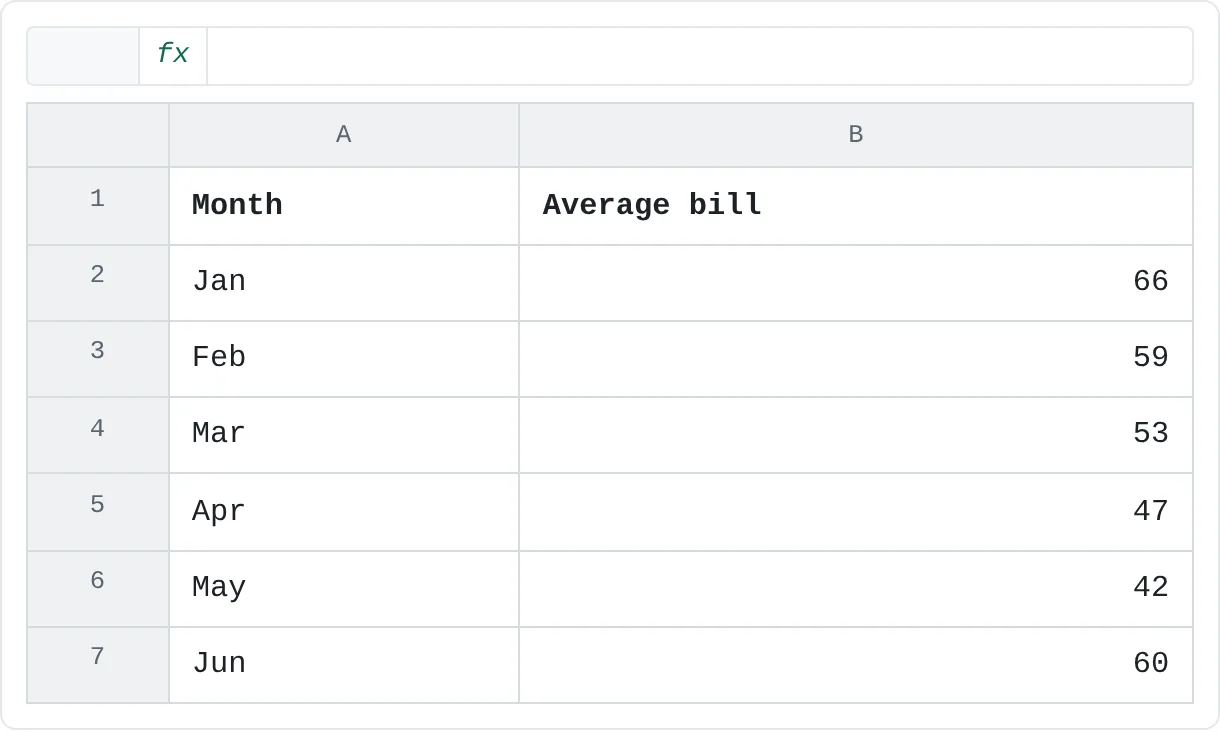
You keep one sheet per year with the bill for each month from January to June in A2:B7. On a summary sheet, type your own headings in row 1 and click A2. Set Function to Average, tick only Left column, and add A2:B7 from each year's sheet.
| A | B | |
|---|---|---|
| 1 | Month | Average bill |
| 2 | Jan | 66 |
| 3 | Feb | 59 |
| 4 | Mar | 53 |
| 5 | Apr | 47 |
| 6 | May | 42 |
| 7 | Jun | 60 |
January averages (62 + 66 + 70) ÷ 3 = 66, and May only 42. Because Left column is ticked, each month is matched by its name, so a year that lists its months in a different order still averages correctly.
Consolidate, PivotTable or Power Query?
| Tool | Best when |
|---|---|
| Consolidate | A one-off summary of a few lists, especially when they're on separate sheets with different items. |
| 3-D formula | Every sheet has exactly the same layout and you want totals that update by themselves. |
| PivotTable | Your data is (or can be) one long list with a column saying where each row came from. |
| Power Query | You repeat the job every week or month: append the lists once, then refresh. |
Common mistakes
- Leaving the label boxes unticked when the lists differ. Excel then adds row 2 to row 2, so West's Pens are added to East's Notebooks. The result looks plausible but is wrong. Tick Top row and Left column, or make every layout identical.
- Labels that are almost the same. "Pens" and "Pen", or "Tape" with a trailing space, become separate rows. Fix the source labels (TRIM helps) and consolidate again.
- Including total rows in the references. If a source sheet has a Total row inside the selected range, it's added in too and the summary double-counts. Select only the item rows and their headings.
- Expecting the summary to update itself. Without Create links to source data, the numbers are values. Run Consolidate again after the sources change.
- Too little room for the result. Excel writes over cells below and to the right of the active cell. Start the summary on an empty sheet or an empty area.
Practice
Practice
Build a summary of two store sheets
- In a new workbook, rename two sheets East and West and type the two lists from the top of this page. Add a third sheet called Summary.
- On Summary, click A1, open Data then Data Tools then Consolidate, and add A1:C5 from East and A1:C6 from West.
- Tick Top row and Left column and click OK. Check that Pens shows 580 units and 870 in sales.
- On West, change the Pens units from 280 to 300. Run Consolidate again from A1 and check that Pens now shows 600.
- Undo, then try the same consolidation with both label boxes unticked. Compare the result with step 3 and work out why it's different.
Related
Was this guide helpful? Spot a mistake? Send feedback · admin@arumsoft.com