Cell Styles and Themes in Excel
Format cells with named cell styles you can change in one place, create your own styles, and switch a workbook's colors and fonts with a theme.
- Level
- Intermediate
- Time
- 10 min read
- Updated:
- Applies to:
- Excel for Microsoft 365, Excel 2021, Excel 2019
What you'll learn
- Apply built-in cell styles such as Input, Calculation, Output, Good and Bad
- Modify a style so every cell that uses it updates at once
- Create a custom cell style and bring styles in from another workbook
- Change a workbook's theme, theme colors and theme fonts
- Predict which formatting changes when the theme changes and which stays
Before you start
A cell style is a named set of formatting (font, fill, borders, number format and more) that you apply with one click. Because the cells remember the style's name, you can change the style once and every cell that uses it changes too. A theme sits one level above: it sets the colors and fonts the whole workbook draws from, so switching themes recolors headings, tables and charts in one go. Together they keep a workbook consistent without formatting cell by cell. Alt+' (Alt and the apostrophe key) opens the Style dialog for the selected cell.
Where to find them
Cell styles are in the Styles group of the Home tab. The gallery is grouped into sections, with commands for your own styles at the bottom.
Themes are on the Page Layout tab, in the Themes group: Themes switches the whole theme, and Colors, Fonts and Effects change one part of it.
Apply a cell style
This small model works out the profit on an event. Some cells are inputs you type, some are calculations. Styles make the difference visible, which is the standard way to mark inputs in a shared model.
Select the input cells
Select B2:B4, hold Ctrl and click B6. These are the numbers someone is allowed to change.
Pick the Input style
Click Home then Styles then Cell Styles. Point at a style to preview it on the sheet, then click Input in the Data and Model section.
Style the results
Select B5 and choose Calculation. Select B7 and choose Output.
A B 1 Item Value 2 Tickets sold 1,200 3 Price 15 4 Discount 10% 5 Revenue 16,200 6 Venue cost 5,000 7 Profit 11,200 Inputs (B2:B4 and B6) in the Input style, the revenue formula in B5 as Calculation and the profit in B7 as Output.
Revenue is 1,200 × 15 less 10%, which is 16,200, and profit is 16,200 − 5,000 = 11,200. The styles didn't change any of that; they only tell a reader which cells to type in.
To remove a style, select the cells and choose Normal, the default style every cell starts with.
| Section | Styles | Good for |
|---|---|---|
| Good, Bad and Neutral | Normal, Bad, Good, Neutral | Status flags such as Done, Late, On hold |
| Data and Model | Calculation, Check Cell, Explanatory Text, Input, Linked Cell, Note, Output, Warning Text | Showing what each cell of a model does |
| Titles and Headings | Heading 1 to Heading 4, Title, Total | Report titles, section headings, total rows |
| Themed Cell Styles | Accent fills in several shades | Colored headers that follow the theme |
| Number Format | Comma, Comma [0], Currency, Currency [0], Percent | Number formats as styles |
Change a style everywhere at once
Say your team prefers inputs in pale yellow. You don't need to find every input cell: change the style.
Open the style for editing
In the Cell Styles gallery, right-click Input and choose Modify. The Style dialog opens.
Change the formatting
Click Format. The familiar Format Cells dialog opens. On the Fill tab, pick a pale yellow and click OK.
Save the change
Click OK in the Style dialog. Every cell with the Input style in this workbook turns pale yellow, on every sheet.
Modifying Normal is how you change the default look of a workbook: change its font, and every cell that hasn't been given another style or font follows.
Create your own style
Built-in styles may not match your house style. Make your own and it appears at the top of the gallery, under Custom.
Format a cell the way you want
Format one cell by hand: say bold, a thick bottom border and a number format with a thousands separator.
Choose New Cell Style
With that cell selected, choose Home then Styles then Cell Styles then New Cell Style. The Style dialog opens with the cell's formatting already filled in.
Name it and choose what it includes
Type a name such as
Key figure. Untick any part you want the style to leave alone. For example, untick Alignment so the style doesn't override each cell's alignment. Click OK.The Style dialog for a new style: its name, and the parts of the formatting it includes.
Styles belong to the workbook they're created in. To copy them into another workbook, open both, go to the workbook that needs them and choose Merge Styles at the bottom of the gallery, then pick the workbook to copy from.
Change the theme
Every workbook starts with the Office theme. In current Microsoft 365, its body font is Aptos Narrow; Excel 2021 and earlier use Calibri.
Open the theme gallery
Click Page Layout then Themes then Themes. Point at a theme to preview it.
Pick a theme
Click one. Fills chosen from the theme colors, theme-based cell styles, tables and charts all change color, and text in the theme fonts changes font.
Adjust one part if needed
Use Colors or Fonts in the same group to swap just the palette or just the fonts. At the bottom of each list, Customize Colors and Customize Fonts let you build your own, for example from your organization's brand colors.
A theme only reaches the formatting that was chosen from it. Whether a color follows the theme depends on where in the palette you picked it:
| Formatting | Changes with the theme? |
|---|---|
| A fill or font color from Theme Colors (the top grid of the color palette) | Yes |
| A color from Standard Colors (the bottom row) or More Colors | No |
| A font marked (Body) or (Headings) in the font list | Yes |
| A font picked by name, such as Arial | No |
| Themed cell styles, Heading and Title styles, table and chart styles | Yes |
To reuse a theme in other workbooks, choose Save Current Theme at the bottom of the Themes gallery. Saved themes appear under Custom in the gallery.
Real-world scenarios
A status column the whole team reads the same way
An event checklist uses Good for Done, Bad for Late and Neutral for On hold. Select each status cell and click the matching style in the Good, Bad and Neutral section.
| A | B | C | |
|---|---|---|---|
| 1 | Task | Owner | Status |
| 2 | Book venue | Ana | Done |
| 3 | Print tickets | Ben | Late |
| 4 | Order food | Chris | On hold |
| 5 | Send invites | Dana | Done |
Everyone who opens the file sees the same three colors with the same meaning. If the team later decides Late should be orange rather than red, modify Bad once instead of recoloring cells.
A grade sheet with a title, headings and a total row
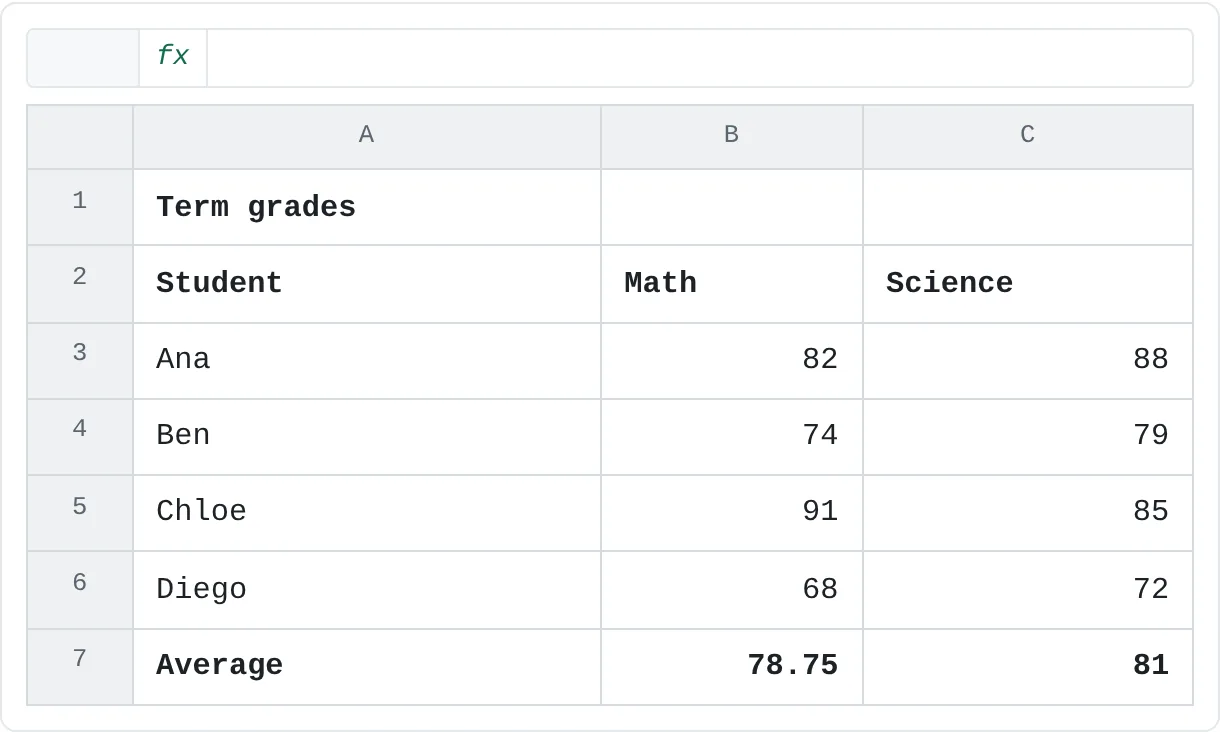
Give A1 the Title style, the column headings in row 2 Heading 3, and the average row Total, which adds a top border and a double bottom border.
| A | B | C | |
|---|---|---|---|
| 1 | Term grades | ||
| 2 | Student | Math | Science |
| 3 | Ana | 82 | 88 |
| 4 | Ben | 74 | 79 |
| 5 | Chloe | 91 | 85 |
| 6 | Diego | 68 | 72 |
| 7 | Average | 78.75 | 81 |
The averages are =AVERAGE(B3:B6) (78.75) and =AVERAGE(C3:C6) (81). The Heading and Title styles take their colors from the theme, so if the school's template uses a different theme, the sheet picks up its colors without any reformatting.
A family budget in your favorite colors
The budget's header row uses a themed cell style (Accent1, say), and the chart next to it uses the default colors. Choose a different theme, or just a different palette from Page Layout then Themes then Colors.
| A | B | C | |
|---|---|---|---|
| 1 | Category | Budget | Spent |
| 2 | Rent | 1,200 | 1,200 |
| 3 | Groceries | 450 | 480 |
| 4 | Transport | 150 | 120 |
| 5 | Fun | 200 | 260 |
The header and the chart change together and stay matched, because both draw from the same theme colors. A cell you'd colored from Standard Colors would keep its color, which is a quick way to spot formatting that doesn't follow the theme.
Common mistakes
- Formatting by hand after applying a style. The cell still carries the style's name, but it no longer looks like the style. Change the style itself, or make a new one, so the formatting stays consistent.
- Picking colors from Standard Colors. They ignore the theme, so a later theme change leaves those cells behind. Use the Theme Colors grid when the color should follow the theme.
- Expecting styles to be in every workbook. Custom styles live in one workbook. Use Merge Styles, or start new workbooks from a template that has them.
- Changing Normal by accident. Modifying Normal restyles every plain cell in the workbook. If the whole sheet suddenly changes font, undo with Ctrl+Z.
Practice
Practice
Style a small model and retheme it
Type the event model from this page into a new workbook, with =B2*B3*(1-B4) in B5 and =B5-B6 in B7. Then:
- Apply Input to B2:B4 and B6, Calculation to B5 and Output to B7.
- Modify the Input style so its fill is a color you like. Check that all four inputs changed.
- Format a cell by hand and save it as a new style called
Key figure. Apply it to another cell. - Give the header row a themed cell style, then try three different themes from Page Layout then Themes then Themes and watch the header change.
- Give one cell a fill from Standard Colors and switch themes again. Which cells kept their color?
Related
Was this guide helpful? Spot a mistake? Send feedback · admin@arumsoft.com