Excel Basics · Tutorial 2 of 12
How to Format Cells in Excel
Make a plain table easy to read with bold headings, fill colors, borders, alignment, wrapped text and the right column widths.
- Level
- Beginner
- Time
- 10 min read
- Updated:
- Applies to:
- Excel for Microsoft 365, Excel 2021, Excel 2019, Excel for the web
What you'll learn
- Make headings stand out with bold text, fonts and fill colors
- Add borders around a table
- Align text, wrap long labels and center a title
- Resize rows and columns, and fix cells that show #####
- Copy formatting with Format Painter and clear it again
Before you start
Example file
How to Format Cells in Excel.xlsx
Download the workbook used in this tutorial and follow along in Excel.
Excel workbook (.xlsx) · 7 KB
Watch the video
Video · 10:47 · The video starts from a plain copy of the sales table. Download it to follow along: Weekly Sales Starter.xlsx
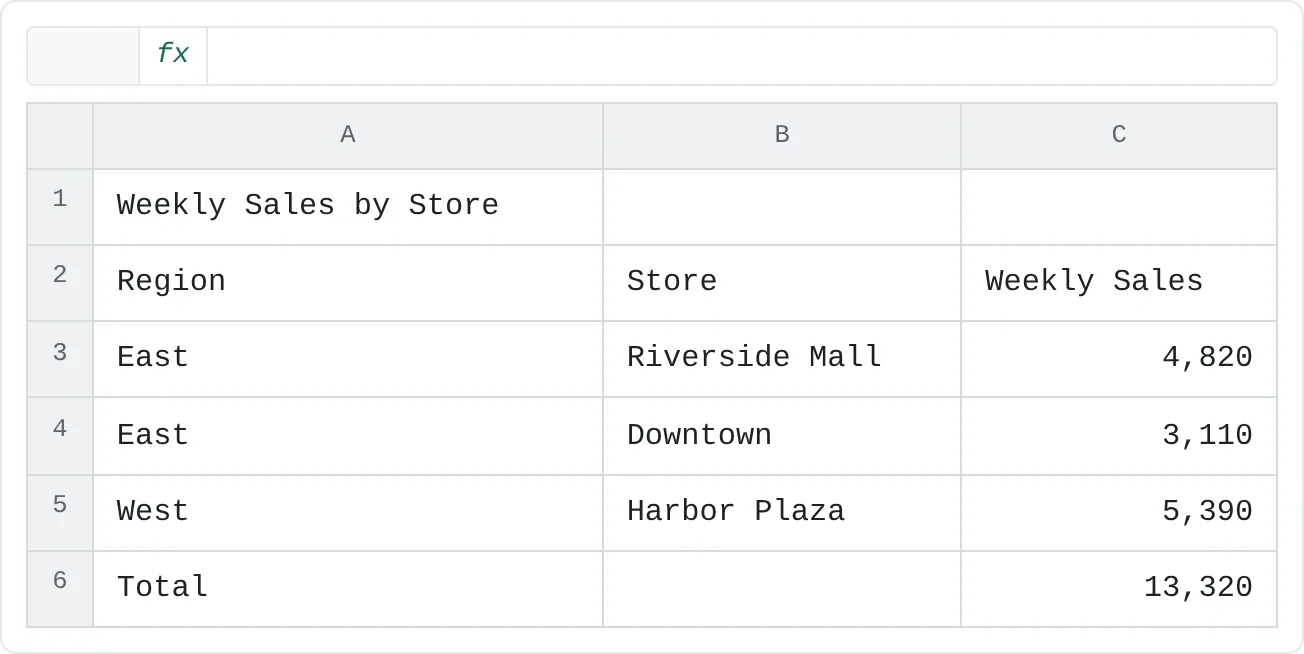
Formatting turns a wall of numbers into a table someone can read at a glance. In this guide you'll take a plain weekly sales table and make it ready to send to a manager: bold headings, a header color, borders, tidy alignment and columns that fit their contents. Formatting never changes the data underneath, only how it looks.
| A | B | C | |
|---|---|---|---|
| 1 | Weekly Sales by Store | ||
| 2 | Region | Store | Weekly Sales |
| 3 | East | Riverside Mall | 4,820 |
| 4 | East | Downtown | 3,110 |
| 5 | West | Harbor Plaza | 5,390 |
| 6 | Total | 13,320 |
Almost every command in this guide is on the Home tab, in the Font and Alignment groups. To format something, select the cells first, then click the command.
Make the headings stand out
Select the header row
Drag across A2:C2, the cells that hold Region, Store and Weekly Sales.
Make it bold
Press Ctrl+B, or click Bold (the B button) in Home then Font. Press Ctrl+B again to turn bold off. Ctrl+I and Ctrl+U work the same way for italic and underline.
Add a fill color
In the Font group, click the small arrow next to Fill Color (the paint bucket) and pick a light color. Clicking the bucket itself applies the color shown on the button. If you choose a dark fill, change the text to white with the Font Color button (the letter A with a colored bar), so the headings stay readable.
Format the title and total
Select A1 and make it bold. You can also make it larger: pick a size from the Font Size box in the same group. Then bold the Total row, A6:C6.
A B C 1 Weekly Sales by Store 2 Region Store Weekly Sales 3 East Riverside Mall 4,820 4 East Downtown 3,110 5 West Harbor Plaza 5,390 6 Total 13,320 Bold title, a colored and bold header row, and a bold total. The data rows stay plain.
Keep one font across the sheet and change only its size and weight. A sheet with five fonts and six colors looks cluttered, not designed.
Add borders
Gridlines on screen don't print by default, and they don't separate a table from the cells around it. Borders do both.
Select the whole table
Select A2:C6, from the header row down to the total.
Choose a border style
In Home then Font, click the arrow next to the Borders button and choose All Borders to draw a line around every cell. For a lighter look, choose Outside Borders or Thick Outside Borders instead, then add a Top Border to the total row.
For more control over line style and color, choose More Borders at the bottom of the same list. It opens the Border tab of the Format Cells dialog.
Align text and wrap long labels
Excel aligns text to the left and numbers to the right by default, which is usually what you want: it keeps the digits of a number column lined up. Change it with the buttons in Home then Alignment:
- Align Left, Center and Align Right set the horizontal position. Center works well for column headings.
- Top Align, Middle Align and Bottom Align set the vertical position, which matters once a row is taller than its text.
- Wrap Text breaks a long label onto several lines inside its own cell, instead of letting it spill into the next cell or get cut off. The row grows taller to fit.
Wrap Text is the fix for a long heading such as "Region Breakdown by Store Location" sitting over a narrow column. Select the cell and click Wrap Text.
Center a title over a table
Merge & Center combines the selected cells into one and centers the content. To center the title over the table, select A1:C1 and click Merge & Center.
Use it sparingly. Merged cells get in the way when you sort, filter, copy or select columns later, and if more than one of the cells holds a value, Excel keeps only the upper-left one. A safer way to get the same look: select A1:C1, press Ctrl+1 to open Format Cells, go to the Alignment tab and set Horizontal to Center Across Selection. The title looks centered, but the cells stay separate.
Resize rows and columns
- Drag the line between two column letters (or row numbers) to make the column wider or the row taller.
- Double-click that line to AutoFit: Excel sizes the column to its widest entry. Select several columns first to AutoFit them all at once.
- For an exact size, use Home then Cells then Format and choose Column Width or Row Height. AutoFit Column Width is in the same menu.
When a column is too narrow for a number or date, Excel shows ##### instead of cutting the value off. It isn't an error: the value is still there. Widen the column and it appears.
| A | B | C | |
|---|---|---|---|
| 1 | Weekly Sales by Store | ||
| 2 | Region | Store | Weekly Sales |
| 3 | East | Riverside Mall | ##### |
| 4 | East | Downtown | ##### |
| 5 | West | Harbor Plaza | ##### |
| 6 | Total | ###### |
Copy formatting with Format Painter
Once one cell looks right, copy its look instead of repeating every step:
- Select the formatted cell, for example the header A2.
- Click Format Painter (the paintbrush) in Home then Clipboard.
- Click or drag over the cells that should look the same.
Format Painter switches off after one use. Double-click it to keep it on for several areas, then press Esc when you're done. To remove all formatting from a selection and start over, use Home then Editing then Clear then Clear Formats.
Common mistakes
- Formatting before selecting. Formatting applies to the selected cells only. If nothing seems to happen, check what's selected.
- Merging cells inside a data table. Merged cells stop you from sorting and filtering cleanly. Keep merging for titles above the data, or use Center Across Selection.
- Mistaking ##### for an error. It only means the column is too narrow. Widen it.
- Coloring everything. If every cell has a color, nothing stands out. Color the header row and maybe the total; leave the data plain.
- Trying to fix a value by formatting it. Bold, color and borders never change a value. If a number is wrong, fix the number.
Practice
Practice
Clean up a table before you send it
Recreate the weekly sales table above in Excel (or use any plain table of your own), then:
- Bold the title and make it a larger font size.
- Bold the header row and give it a light fill color.
- Add All Borders to the table from the header row to the total.
- Center the column headings.
- Type a long label such as Region Breakdown by Store Location in a header cell and turn on Wrap Text.
- AutoFit every column by double-clicking the column borders.
- Use Format Painter to copy the header style to the Total row.
Resist coloring every cell. Restraint is part of the skill.
Check your skills
- Can you make a heading bold and give it a fill color?
- Can you add borders around a small table?
- Can you center text in a cell and turn on Wrap Text for a long label?
- Can you widen a column so a value stops showing as
#####?
Related
Was this guide helpful? Spot a mistake? Send feedback · admin@arumsoft.com