Advanced Excel · Tutorial 6 of 12
Power Query Basics: Combine and Clean Data in Excel
Import a folder of monthly files with Power Query, clean them with applied steps, and refresh the result whenever a new file arrives.
- Level
- Advanced
- Time
- 15 min read
- Updated:
- Applies to:
- Excel for Microsoft 365 for Windows, Excel 2021, Excel 2019
What you'll learn
- Import every file in a folder as one table with Get Data
- Explain what applied steps are and why their order matters
- Set data types and remove rows that turn into errors
- Choose between Append Queries and Merge Queries
- Explain the difference between Close & Load and Refresh
Before you start
Example file
Power Query Basics - Combine and Clean Data in Excel.xlsx
Download the workbook used in this tutorial and follow along in Excel.
Excel workbook (.xlsx) · 8 KB
Formulas clean data one cell at a time, and next month you do it all again. Power Query cleans it once and saves every click as a recipe. When next month's file arrives, you click Refresh and the same steps run on the new data, in the same order, with no retyping.
This tutorial builds that recipe for a common job: two monthly sales exports, a little messy, combined into one clean table that keeps itself up to date.
The data: two monthly exports
Each month, a system exports a CSV file with the same three columns: Date, Region and Revenue. January's file has a broken row, with bad-date instead of a date and N/A instead of an amount.
| A | B | C | D | E | F | G | |
|---|---|---|---|---|---|---|---|
| 1 | Date | Region | Revenue | Date | Region | Revenue | |
| 2 | 2026-01-05 | East | 4200 | 2026-02-03 | East | 3900 | |
| 3 | 2026-01-08 | West | 3100 | 2026-02-14 | Central | 2800 | |
| 4 | bad-date | Central | N/A |
Put both files in one folder that holds nothing else, for example C:\Data\Monthly. Power Query will treat the folder itself as the source, so a file you add later is picked up automatically.
Import a whole folder
Start a folder query
Go to Data then Get & Transform Data then Get Data then From File then From Folder. Browse to the folder and click Open.
Combine the files
A dialog lists every file in the folder, with its name, extension and dates. Click the arrow on Combine and choose Combine & Transform Data.
Confirm the sample file
The Combine Files dialog shows the first file as a sample, with its delimiter and a preview. Check that the columns look right and click OK.
The Power Query Editor opens with one table holding the rows of both files, plus a Source.Name column that shows which file each row came from. In the Queries pane on the left, the main query is named after the folder (here, Monthly). Power Query also creates a group of helper queries, including Transform Sample File: whatever steps you add there run on each file before the files are stacked. For now, leave the helpers alone and work in the main query.
Applied steps: the recipe
On the right of the editor, the Query Settings pane lists Applied Steps. Every action you take adds a named step to the end of the list, and Power Query has already added a few for the combine.
- Click a step to see the data as it was at that point. This is how you find where a problem started.
- Click the X next to a step to delete it, or the gear icon (on steps that have one) to change its settings.
- Right-click a step to rename it, delete it or move it.
Order matters because each step works on the result of the one before. A step that refers to a column fails if an earlier step removed or renamed that column. And as you'll see below, removing errors before the type change that creates them does nothing, because the errors don't exist yet.
Clean the data
Check the headers
The column names should be Date, Region and Revenue. When you combine CSV files, Power Query usually promotes the first row of each file to headers for you. If you see Column1, Column2 instead, with the real names in the first row, click Home then Transform then Use First Row as Headers.
Set the data types
The icon at the left of each column header shows its type: ABC for text, 123 for whole numbers, a calendar for dates. Click the icon on Date and choose Date; click the icon on Revenue and choose Whole Number. If Power Query asks whether to replace the current conversion step or add a new one, choose Replace current.
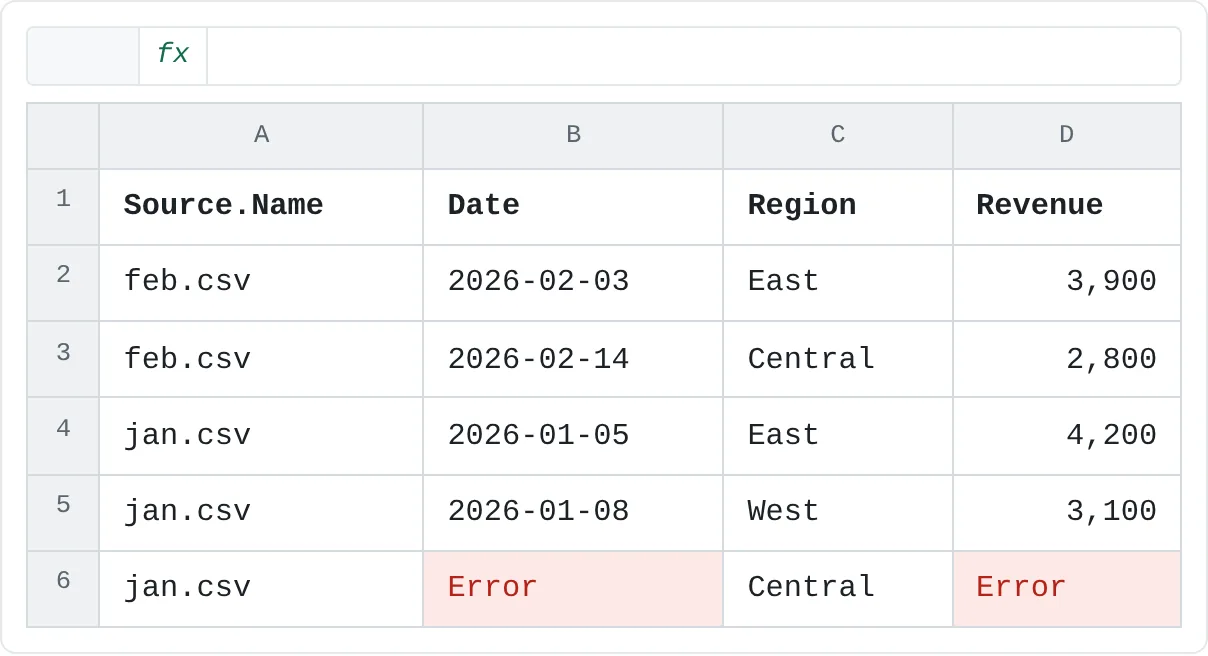
The row from January's broken line now shows Error in both columns:
bad-datecan't become a date andN/Acan't become a number.A B C D 1 Source.Name Date Region Revenue 2 feb.csv 2026-02-03 East 3,900 3 feb.csv 2026-02-14 Central 2,800 4 jan.csv 2026-01-05 East 4,200 5 jan.csv 2026-01-08 West 3,100 6 jan.csv Error Central Error After the type change: Revenue holds real numbers, and the broken row shows Error in Date and Revenue. Remove the rows with errors
Click the Date header, hold Ctrl and click the Revenue header. Then go to Home then Reduce Rows then Remove Rows then Remove Errors. Four clean rows remain.
Removing errors is the right choice here because the broken row has nothing worth keeping. When a row has only one bad value, consider Replace Errors instead (right-click the column header), so the rest of the row survives.
Split, merge and reformat columns
Other common clean-up commands each add one step, just like the ones above:
| Task | Where |
|---|---|
| Split "Kim, Ana" into two columns at the comma | Home tab > Split Column > By Delimiter |
| Join Region and Date into one key column | Select both columns, then Transform tab > Merge Columns |
| Fix case or stray spaces | Transform tab > Format > lowercase, UPPERCASE, Capitalize Each Word or Trim |
On the Add Column tab, Merge Columns and Format do the same work but keep the original columns and add a new one.
Read the recipe as M code
Behind the clicks, Power Query writes a script in its own language, called M. To see it, click Home then Query then Advanced Editor. You don't need to write M to use Power Query, but reading it shows exactly what each step does.
For a query that imports a single file (Get Data > From File > From Text/CSV) and then gets the same clean-up, the script looks like this:
let
    Source = Csv.Document(File.Contents("C:\Data\Monthly\jan.csv"), [Delimiter = ",", Columns = 3, Encoding = 65001, QuoteStyle = QuoteStyle.None]),
    #"Promoted Headers" = Table.PromoteHeaders(Source, [PromoteAllScalars = true]),
    #"Changed Type" = Table.TransformColumnTypes(#"Promoted Headers", {{"Date", type date}, {"Region", type text}, {"Revenue", Int64.Type}}),
    #"Removed Errors" = Table.RemoveRowsWithErrors(#"Changed Type", {"Date", "Revenue"})
in
    #"Removed Errors"
Each line under let is one applied step. The name on the left is the step name you see in the pane, and each step takes the previous step's name as its input. That chain is why order matters. The name after in is the result the query returns.
Append or merge?
Power Query has two ways to combine queries, both under Home > Combine in the editor. They solve different problems.
Append Queries stacks tables with the same columns on top of each other: more rows. Use it when you have separate queries for January and February instead of a folder. Columns are matched by name, so a column that exists in only one table is filled with null in the other table's rows. The M function behind it is Table.Combine:
let
    Source = Table.Combine({Jan, Feb})
in
    Source
Merge Queries joins two tables side by side by a matching column: more columns. It's a lookup for whole tables. Suppose a second query, Managers, lists the manager of each region:
| Region | Manager |
|---|---|
| East | Kim |
| West | Lopez |
| Central | Novak |
Start the merge
With the Monthly query selected, click the arrow on Home then Combine then Merge Queries and choose Merge Queries as New, so the original query stays as it is.
Pick the matching columns
Monthly is already the first table. Choose Managers as the second table, then click the Region header in both previews. Leave Join Kind as Left Outer (all rows from the first table, matching rows from the second) and click OK.
Expand the new column
The new query has a column of nested tables named Managers. Click the expand button (two arrows) in its header, tick only Manager, clear Use original column name as prefix and click OK.
Every sales row now carries its region's manager. The M code behind those three steps is:
let
    Source = Table.NestedJoin(Monthly, {"Region"}, Managers, {"Region"}, "Managers", JoinKind.LeftOuter),
    #"Expanded Managers" = Table.ExpandTableColumn(Source, "Managers", {"Manager"}, {"Manager"})
in
    #"Expanded Managers"
A quick way to remember the difference: append adds rows, merge adds columns.
Close & Load, then Refresh
When the preview looks right, click Home then Close then Close & Load. Excel runs the recipe and writes the result to a new worksheet as an Excel table.
| A | B | C | D | |
|---|---|---|---|---|
| 1 | Source.Name | Date | Region | Revenue |
| 2 | feb.csv | 2026-02-03 | East | 3,900 |
| 3 | feb.csv | 2026-02-14 | Central | 2,800 |
| 4 | jan.csv | 2026-01-05 | East | 4,200 |
| 5 | jan.csv | 2026-01-08 | West | 3,100 |
To choose a different destination, use the arrow on the button and pick Close & Load To. The Import Data dialog lets you load the result as a Table, a PivotTable Report, a PivotChart or Only Create Connection, and tick Add this data to the Data Model. Helper queries are usually created as connections only, so they don't fill your workbook with extra sheets.
Close & Load and Refresh are easy to mix up:
- Close & Load saves the recipe you just edited, closes the editor and loads the result. You use it after changing steps.
- Refresh reruns the saved recipe against the current source files, without opening the editor. You use it whenever the data changes.
To refresh, right-click the loaded table and choose Refresh, or press Ctrl+Alt+F5 (Refresh All on the Data tab) to refresh every query in the workbook. Drop a mar.csv into the folder, refresh, and its rows appear at the bottom of the table, cleaned by the same steps. Data > Queries & Connections opens a pane listing every query; double-click one to edit it again.
Common mistakes
- Typing into the loaded table. Refresh rebuilds the table from the source, so hand edits to loaded cells are overwritten. Fix the data in the source or add a step to the query instead.
- Other files in the folder. A stray notes file or a workbook saved in the same folder gets combined too, usually as errors. Keep the folder for the exports only, or filter the file list on Extension in the query's first steps.
- Renaming a column in the source. Steps refer to columns by name. If the export renames Revenue to Amount, a step that uses Revenue fails with an error saying the column 'Revenue' of the table wasn't found. In a folder query, a renamed column in just one new file can instead come through as empty (
null) values. Keep the source headers stable, or update the steps. - Removing errors too early. Errors appear when a type change fails. Put Remove Errors after the type change that creates them, or it has nothing to remove.
- Moving the folder. The folder path is stored in the query's Source step. If you move or rename the folder, update the path in Data then Get & Transform Data then Get Data then Data Source Settings.
Practice
Practice
Combine your monthly files
- Create a folder such as
C:\Data\Monthly. In Notepad, save the two files below into it asjan.csvandfeb.csv. - In a new workbook, import the folder with Get Data > From File > From Folder and choose Combine & Transform Data.
- Check the headers, set Date to Date and Revenue to Whole Number, and remove the rows with errors from those two columns.
- Click Close & Load. You should get four rows with a total revenue of 14,000.
- Save a third file,
mar.csv, with the rows2026-03-02,West,3600and2026-03-09,East,4100under the same header line. Refresh the table: it should grow to six rows totaling 21,700, with no other changes.
Then try it with your own exports: point a folder query at a set of files that share the same columns, standardize the names and types, and load one clean table.
jan.csv
Date,Region,Revenue
2026-01-05,East,4200
2026-01-08,West,3100
bad-date,Central,N/A

feb.csv
Date,Region,Revenue
2026-02-03,East,3900
2026-02-14,Central,2800
Check your skills
- Can you import every file in a folder as one table with Get Data?
- Can you explain what an applied step is, and why removing errors before changing types does nothing?
- Can you combine two tables with the same columns into one, and say when you'd merge instead?
- Can you explain the difference between Refresh and Close & Load?
Related
Was this guide helpful? Spot a mistake? Send feedback · admin@arumsoft.com