Excel Basics · Tutorial 9 of 12
How to Create a Chart in Excel
Turn a column of numbers into a column, line or pie chart, add a clear title and axis titles, and pick the right chart for your question.
- Level
- Beginner
- Time
- 9 min read
- Updated:
- Applies to:
- Excel for Microsoft 365, Excel 2021, Excel 2019
What you'll learn
- Insert a column chart from a range of data
- Add a chart title, axis titles and data labels
- Switch a chart to a line or pie chart without changing the data
- Choose a chart type that matches the question you're asking
Before you start
Example file
How to Create a Chart in Excel.xlsx
Download the workbook used in this tutorial and follow along in Excel.
Excel workbook (.xlsx) · 9 KB
A chart turns a column of numbers into something you can read in two seconds. Which month sold the most? Are sales going up? Excel can draw the chart for you in a few clicks; your job is to pick the type that answers your question and to label it so anyone can read it.
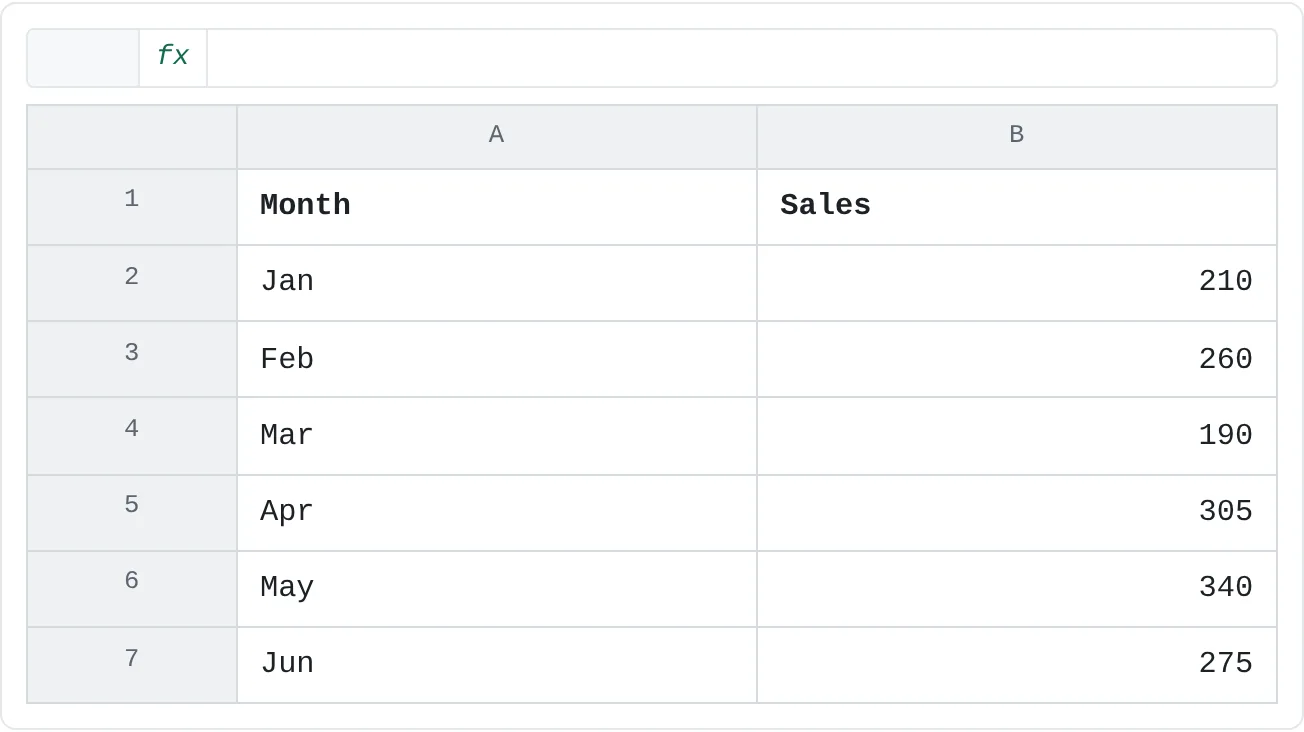
The examples use six months of sales. The months are in column A, the amounts in column B, with headings in row 1.
| A | B | |
|---|---|---|
| 1 | Month | Sales |
| 2 | Jan | 210 |
| 3 | Feb | 260 |
| 4 | Mar | 190 |
| 5 | Apr | 305 |
| 6 | May | 340 |
| 7 | Jun | 275 |
Insert a column chart
Select the data, headings included
Drag from A1 to B7. Include the headings: Excel uses the Sales heading to name the data series, and it becomes the chart title. Don't include a total row, or it will be drawn as one giant extra column.
A B 1 Month Sales 2 Jan 210 3 Feb 260 4 Mar 190 5 Apr 305 6 May 340 7 Jun 275 Select the months and the amounts together, with the headings in row 1. Open Recommended Charts
Go to Insert then Charts then Recommended Charts. The Insert Chart dialog opens with a few suggestions based on your data, and a preview of each.
Pick Clustered Column and click OK
Choose Clustered Column and click OK. The chart appears on the sheet, in front of the cells, with one bar per month.
You can also pick a type directly from the Charts group on the Insert tab, for example Insert Column or Bar Chart > Clustered Column. To skip the dialog entirely, select the data and press Alt+F1: Excel inserts a chart of the default type, which is a clustered column chart unless someone has changed it.
While the chart is selected, two extra tabs appear on the ribbon: Chart Design and Format. Click anywhere outside the chart and they disappear; click the chart again to get them back.
The chart is linked to the cells. Change March's 190 to 290 and the March bar grows straight away.
Move and resize the chart
- Move it: point to the chart's border (or an empty area inside it) until the pointer becomes a four-headed arrow, then drag.
- Resize it: drag one of the round handles on the corners and edges. Hold Shift while you drag a corner to keep the proportions.
- Give it its own sheet: go to Chart Design then Location then Move Chart, choose New sheet and click OK.
Add a title, axis titles and data labels
A chart should make sense without the table next to it. That means a title that says what it shows, and axis titles that say what the numbers are.
Edit the chart title
Because only one column of numbers was selected, Excel has already used its heading, Sales, as the title. Click the title once to select it, click again to place the cursor in the text, and change it to something more useful, such as
Monthly Sales, January–June.Turn on the axis titles
Click the chart, then click the Chart Elements button (the + next to its top-right corner). Tick Axis Titles. Two boxes saying Axis Title appear, one under the months and one beside the numbers.
Type the axis titles
Click the box under the months and type
Month. Click the vertical one and typeSales (units).Add data labels if they help
Tick Data Labels in the same Chart Elements list. Each bar now shows its value, so readers don't have to estimate it from the gridlines.
The same elements are on the ribbon under Chart Design then Chart Layouts then Add Chart Element, which also lets you choose where each one goes, for example Legend > Bottom. With only one series, a legend would say nothing the title doesn't, so Excel usually leaves it off. If one is showing, untick Legend to make more room.
Change the chart type
You don't need to rebuild the chart to see the numbers another way.
Open Change Chart Type
Right-click an empty area of the chart and choose Change Chart Type, or go to Chart Design then Type then Change Chart Type.
Choose Line
On the All Charts tab, click Line, choose the first option (Line) and click OK. Your titles stay in place. The line makes the pattern easier to see: sales dip in March, then climb to a peak in May.
Try Pie
Change the type again and choose Pie. Each month becomes a slice of the 1,580 total. To show percentages, click the Chart Elements button, point to Data Labels, click the arrow beside it and choose More Options. In the Format Data Labels pane, tick Percentage and untick Value. May has the biggest slice at 22% and March the smallest at 12%.
The pie works, but it's hard to read: six slices between 12% and 22% look much the same, and the pie hides the order of the months. For this data, a column or line chart is the better choice.
Which chart answers your question?
| Your question | Chart type | Why |
|---|---|---|
| Which one is biggest? | Column (vertical bars) | Bars side by side are easy to compare by height. |
| Same, but the labels are long | Bar (horizontal bars) | Long names fit on the left instead of being squeezed under the bars. |
| How did it change over time? | Line | The line shows the trend across days, months or years. |
| What share of the whole is each part? | Pie | Only for a few parts (about five at most) that add up to a meaningful whole. |
Common mistakes
- Leaving the total in the selection. A Total row becomes one more bar, many times taller than the others, and squashes the rest. Select only the rows you want to compare.
- Years plotted as numbers. If column A holds years such as 2024 and 2025, Excel may treat them as a second set of numbers and draw them as bars. Go to Chart Design then Data then Select Data, remove the year series under Legend Entries (Series), then click Edit under Horizontal (Category) Axis Labels and select the years.
- A pie with too many slices. Past about five slices, people can't compare them. Use a bar chart instead.
- New rows left out. If you add July in row 8, a chart made from A1:B7 won't show it. Click the chart and drag the colored outline around the data on the sheet to include the new row. If the data is an Excel table, the chart picks up new rows by itself.
- No titles. "Sales" with unlabeled axes leaves readers guessing what period and units they're looking at.
Practice
Practice
Chart your own data
Use the monthly sales above, or six months of your own numbers (expenses, steps walked, hours studied).
- Select the months and amounts, headings included, and insert a Clustered Column chart.
- Give the chart a title that says what and when, and add both axis titles.
- Add data labels. Which month is highest?
- Change the chart to a Line chart. Is there a trend?
- Change it to a Pie chart with percentage labels. Does "share of the whole" make sense for your data, or was the column or line chart the better choice?
Check your skills
- Can you turn a column of numbers into a column chart?
- Can you add a chart title and title both axes?
- Can you switch the same chart to a line or pie chart?
- Can you explain when a pie chart is a poor choice?
Related
Was this guide helpful? Spot a mistake? Send feedback · admin@arumsoft.com