How to Use and Create Excel Templates
Start a workbook from a ready-made Excel template, save your own workbook as an .xltx template, and reuse it every month without overwriting the original.
- Level
- Beginner
- Time
- 9 min read
- Updated:
- Applies to:
- Excel for Microsoft 365, Excel 2021, Excel 2019, Excel for Mac
What you'll learn
- Create a new workbook from one of Excel's templates
- Prepare a workbook so it works well as a template
- Save a workbook as an Excel Template (.xltx)
- Start new workbooks from your own template and edit the template later
Before you start
A template is a workbook you start from instead of a blank one. It already has the headings, formulas, formatting and layout, so you only fill in this month's numbers. Opening a template always gives you a new, unsaved copy, which means the original stays clean no matter how many times you use it. Excel comes with hundreds of templates, and you can turn any workbook of your own into one.
Where to find it
Templates live on the File tab, which opens a full-page view instead of a ribbon group: click File, then New. The page shows Blank workbook, a selection of Microsoft's templates and a search box for more. Ctrl+N skips this page and opens a blank workbook straight away.
Your own templates appear on the same page, on a Personal tab, once you've saved one (see below).
Start a workbook from a template
Open the template gallery
Click File › New.
Find a template
Scroll through the suggestions, or type a word such as
budget,invoiceorcalendarin the search box and press Enter. Searching needs an internet connection, because the templates are downloaded from Microsoft.Preview and create
Click a thumbnail to see a larger preview and a short description, then click Create. A new workbook opens with the template's content.
Save your copy
Fill in your own data, then press Ctrl+S. Because the workbook is new, Excel asks where to save it and what to call it. Save it as a normal workbook (.xlsx).
Microsoft's templates often contain sample data and instructions. Read them, then replace the sample values with yours.
Build your own template
Any workbook you set up once and reuse is a candidate: a monthly budget, a weekly timesheet, an invoice, a grade tracker. Here's a monthly budget with the planned amounts filled in, empty Actual cells for the month's spending (amber), and formulas that work out what's left.
| A | B | C | D | |
|---|---|---|---|---|
| 1 | Category | Budget | Actual | Left |
| 2 | Rent | 900 | 900 | |
| 3 | Groceries | 350 | 350 | |
| 4 | Transport | 120 | 120 | |
| 5 | Fun | 150 | 150 | |
| 6 | Total | 1,520 | 0 | 1,520 |
Before you save it as a template, prepare it:
Remove last month's data
Clear the cells people will fill in, but keep the headings, formulas and formatting. A template with old numbers in it gets copied with those numbers every time.
Unlock the input cells
Select the cells people should type in, here C2:C5. Press Ctrl+1, open the Protection tab, clear Locked and click OK.
Clear Locked for the cells people will type in, so they stay editable after you protect the sheet. Protect the sheet (optional)
Go to Review then Protect then Protect Sheet and click OK. Now the formulas and headings can't be overwritten by accident, but the input cells still accept typing.
Protect Sheet is in the Protect group of the Review tab. It keeps the template's formulas safe. Save as an Excel Template
Press F12 to open the Save As dialog. Type a name such as
Monthly budget, open the Save as type list and choose Excel Template (*.xltx). Excel switches to your Custom Office Templates folder (in Documents). Leave it there and click Save.Choose Excel Template (*.xltx) in Save as type, and keep the folder Excel suggests.
Close the template once it's saved. From now on you don't open the template itself to do your monthly work; you create a copy from it.
Use your template
Click File › New, then the Personal tab, and click Monthly budget. A new workbook named Monthly budget1 opens, with the formulas and protection in place and the Actual cells empty. Fill in the month and save it under its own name, such as Budget May 2026.xlsx.
| A | B | C | D | |
|---|---|---|---|---|
| 1 | Category | Budget | Actual | Left |
| 2 | Rent | 900 | 900 | 0 |
| 3 | Groceries | 350 | 382 | -32 |
| 4 | Transport | 120 | 95 | 25 |
| 5 | Fun | 150 | 170 | -20 |
| 6 | Total | 1,520 | 1,547 | -27 |
Groceries went 32 over and fun 20 over, while transport came in 25 under: in total, 1,547 spent against a budget of 1,520, so D6 shows -27. Next month, create another copy from the template and start fresh.
Change a template later
Double-clicking a template file in File Explorer, or picking it under Personal, always creates a copy. To change the template itself, open it with File › Open: browse to the Custom Office Templates folder, select the .xltx file and click Open. The title bar shows the template's own name. Make your changes and press Ctrl+S to save the template. Workbooks you already made from it don't change.
Template file types
| Type | Extension | Use it for |
|---|---|---|
| Excel Template | .xltx | Most templates: formulas, formatting, validation, charts, protection. |
| Excel Macro-Enabled Template | .xltm | Templates that contain VBA macros. A .xltx file can't keep macros. |
| Excel Workbook | .xlsx | The copies you fill in. Never save your monthly work back over the template. |
Real-world scenarios
Expense claim
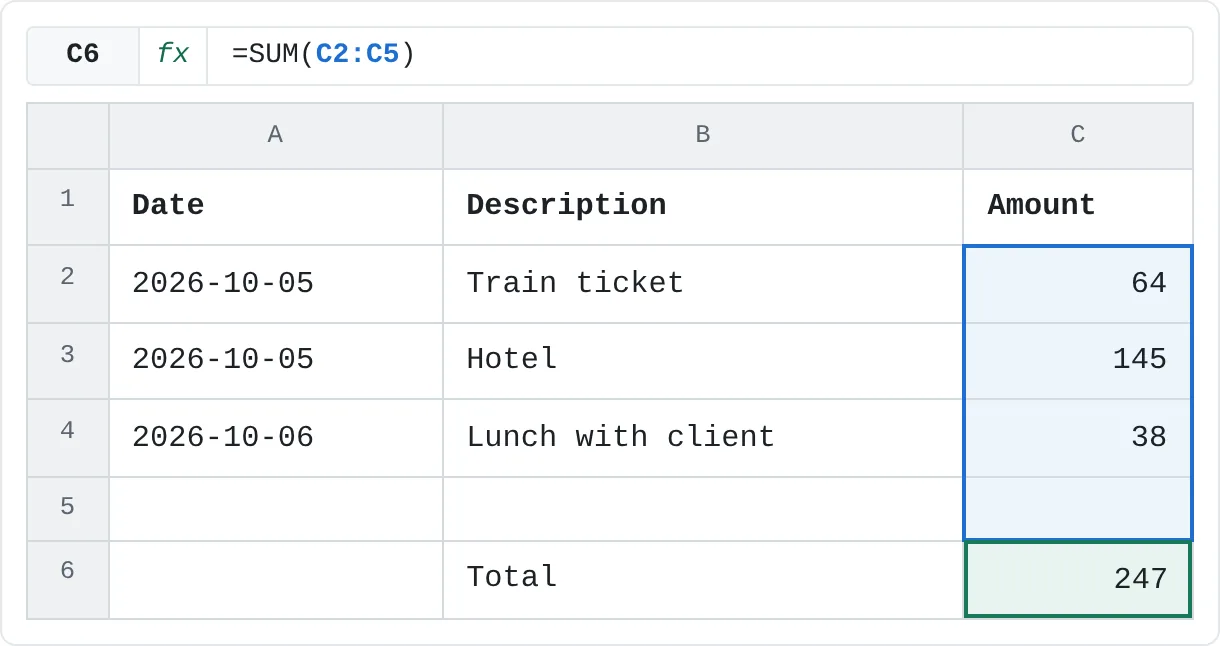
An employee files a claim after every business trip. The template has the headings, a SUM total in C6 and a blank row to spare, so each trip takes a minute to fill in.
| A | B | C | |
|---|---|---|---|
| 1 | Date | Description | Amount |
| 2 | 2026-10-05 | Train ticket | 64 |
| 3 | 2026-10-05 | Hotel | 145 |
| 4 | 2026-10-06 | Lunch with client | 38 |
| 5 | |||
| 6 | Total | 247 |
The total is 247 (64 + 145 + 38). Because the SUM range includes the empty row 5, a fourth item is added to the total automatically.
Grade tracker for every class
A student keeps one tracker per class. The template has Assignment, Score and Out of columns, and a percentage formula in column D formatted as %.
| A | B | C | D | |
|---|---|---|---|---|
| 1 | Assignment | Score | Out of | Percent |
| 2 | Quiz 1 | 18 | 20 | 90% |
| 3 | Essay | 42 | 50 | 84% |
| 4 | Lab report | 27 | 30 | 90% |
| 5 | Quiz 2 | 15 | 20 | 75% |
The essay's 42 out of 50 shows as 84%, Quiz 1 and the lab report as 90%, and Quiz 2 as 75%. With a template, the next class's tracker starts with the same formulas and format, not with a copy of this class's scores.
Splitting the cost of a trip
Friends plan a weekend away twice a year. A trip template lists each cost, how many people share it, and the amount per person.
| A | B | C | D | |
|---|---|---|---|---|
| 1 | Item | Cost | People | Each |
| 2 | Cabin | 480 | 4 | 120 |
| 3 | Fuel | 96 | 4 | 24 |
| 4 | Groceries | 140 | 4 | 35 |
| 5 | Boat hire | 90 | 3 | 30 |
The cabin costs 120 each (480 ÷ 4), and the boat 30 each, because only three people go out on it (90 ÷ 3). Next trip, create a new copy and the costs start empty again.
Common mistakes
- Working in the template itself. If you open the .xltx with File › Open and fill it in, you're changing the template. Use File › New › Personal to get a copy.
- Saving the template as a normal workbook. A budget saved as .xlsx and reused each month eventually gets overwritten with the wrong month. Choose Excel Template (*.xltx) in Save as type.
- Saving it in another folder. The Personal tab only lists templates in your templates folder. Save it there, or set Default personal templates location to the folder you use.
- Leaving sample or old data in. Every copy starts with whatever is in the template. Clear the input cells before you save it.
- Protecting the sheet without unlocking the inputs. Then nobody can type anything. Clear Locked for the input cells first.
Practice
Practice
Make and use a budget template
- Type the budget from this page in a new workbook: Category, Budget, Actual and Left in A1:D1, four categories, and a Total row. In D2 type
=B2-C2and fill it down to D5; in row 6 add SUM formulas. - Leave the Actual cells empty. Unlock them with Ctrl+1 › Protection, then protect the sheet.
- Press F12, choose Excel Template (*.xltx), name it
Monthly budgetand save it in the folder Excel suggests. Close it. - Go to File › New › Personal and create a copy. Fill in this month's spending and save the copy as a normal workbook.
- Create a second copy and check that it starts empty.
Related
Was this guide helpful? Spot a mistake? Send feedback · admin@arumsoft.com