Customize the Ribbon and Quick Access Toolbar in Excel
Put the commands you use most one click away: add them to the Quick Access Toolbar, build your own ribbon tab, show the Developer tab and reset everything.
- Level
- Beginner
- Time
- 8 min read
- Updated:
- Applies to:
- Excel for Microsoft 365, Excel 2021, Excel 2019
What you'll learn
- Show the Quick Access Toolbar and add or remove commands on it
- Run a toolbar command from the keyboard with Alt
- Create a custom ribbon tab with your own group of commands
- Show the Developer tab, collapse the ribbon and reset your changes
Before you start
Excel has hundreds of commands spread over a dozen ribbon tabs, but most people use the same ten again and again. The Quick Access Toolbar is a small strip of buttons that stays visible whichever tab is open, and you choose what goes on it. When you need more than a few extra buttons, you can also add a custom tab to the ribbon. Right-click any command and choose Add to Quick Access Toolbar to start.
Where to find it
Everything starts from a right-click on the ribbon:
- Add one command: right-click it on the ribbon and choose Add to Quick Access Toolbar.
- Show or hide the toolbar: right-click an empty part of the ribbon and choose Show Quick Access Toolbar or Hide Quick Access Toolbar.
- Full control: File then Options then Quick Access Toolbar and File then Options then Customize Ribbon. Right-clicking the ribbon and choosing Customize the Ribbon opens the second page directly.
Add a command to the Quick Access Toolbar
In current versions of Microsoft 365, the toolbar may be hidden until you turn it on. Undo and Redo now live at the left end of the Home tab, so you don't lose them either way.
Show the toolbar
Right-click an empty part of the ribbon and choose Show Quick Access Toolbar. Depending on your version, it appears above or below the ribbon. To move it, click the small arrow at its end (Customize Quick Access Toolbar) and choose Show Above the Ribbon or Show Below the Ribbon.
Right-click the command you want
Go to the Data tab, right-click Filter and choose Add to Quick Access Toolbar. The Filter button now sits on the toolbar and works from every tab.
Add commands from drop-down menus too
Items inside a menu or gallery work the same way. Open Home then Clipboard then Paste, right-click Values and choose Add to Quick Access Toolbar.
Remove a command
Right-click the button on the toolbar and choose Remove from Quick Access Toolbar.
Use it from the keyboard. Press and release Alt. Small numbers appear over the toolbar buttons; press the number on a button to run it. The numbers follow the order of the buttons, so put the ones you use most at the start.
Commands that aren't on the ribbon. Click the arrow at the end of the toolbar and choose More Commands. In Choose commands from, pick Commands Not in the Ribbon (or All Commands), select a command and click Add >>. Use the up and down arrows on the right to change the order, and click OK.
Build your own ribbon tab
You can't add commands to Excel's built-in groups, but you can add your own group to any tab, or create a whole new tab.
Open Customize Ribbon
Right-click the ribbon and choose Customize the Ribbon, or go to File then Options then Customize Ribbon. The left list shows commands; the right list shows the tabs.
Create a tab and a group
Click New Tab. Excel adds New Tab (Custom) with a New Group (Custom) inside it, just below the tab you had selected. Select each one and click Rename to give it a name, such as "Grading" for the tab and "Grades" for the group.
Add commands to the group
With your group selected on the right, pick a command on the left (start with Popular Commands) and click Add >>. Repeat for each command.
File › Options › Customize Ribbon: commands on the left, tabs on the right. Ticking Developer shows the Developer tab. Save the change
Click OK. Your tab appears on the ribbon at the position you chose.
Show the Developer tab
The Developer tab holds the macro and form-control commands, and it's hidden by default. In File then Options then Customize Ribbon, tick Developer in the Main Tabs list on the right and click OK. Untick any tab the same way to hide it. You can hide built-in tabs, but only your own custom tabs can be deleted.
Real-world scenarios
Paste Values in one keystroke
You paste numbers from other reports all day and always want values only, without the source's formulas or formatting.
Add Values to the toolbar and move it to the first position in File then Options then Quick Access Toolbar with the up arrow. From then on, copy, press Alt and the number shown on the Values button, and only the values are pasted.
A Grading tab for report-card week
A teacher uses the same few commands on every class's gradebook: sort, filter and conditional formatting, which live on three different tabs.
In Customize Ribbon, click New Tab, rename the tab "Grading" and its group "Grades", and add Sort, Filter and Conditional Formatting (switch Choose commands from to All Commands if one isn't in Popular Commands). Every gradebook now has the three commands side by side on one tab. To share the setup with a colleague, use Import/Export at the bottom of the page to save it as a file they can import.
More rows on a small laptop
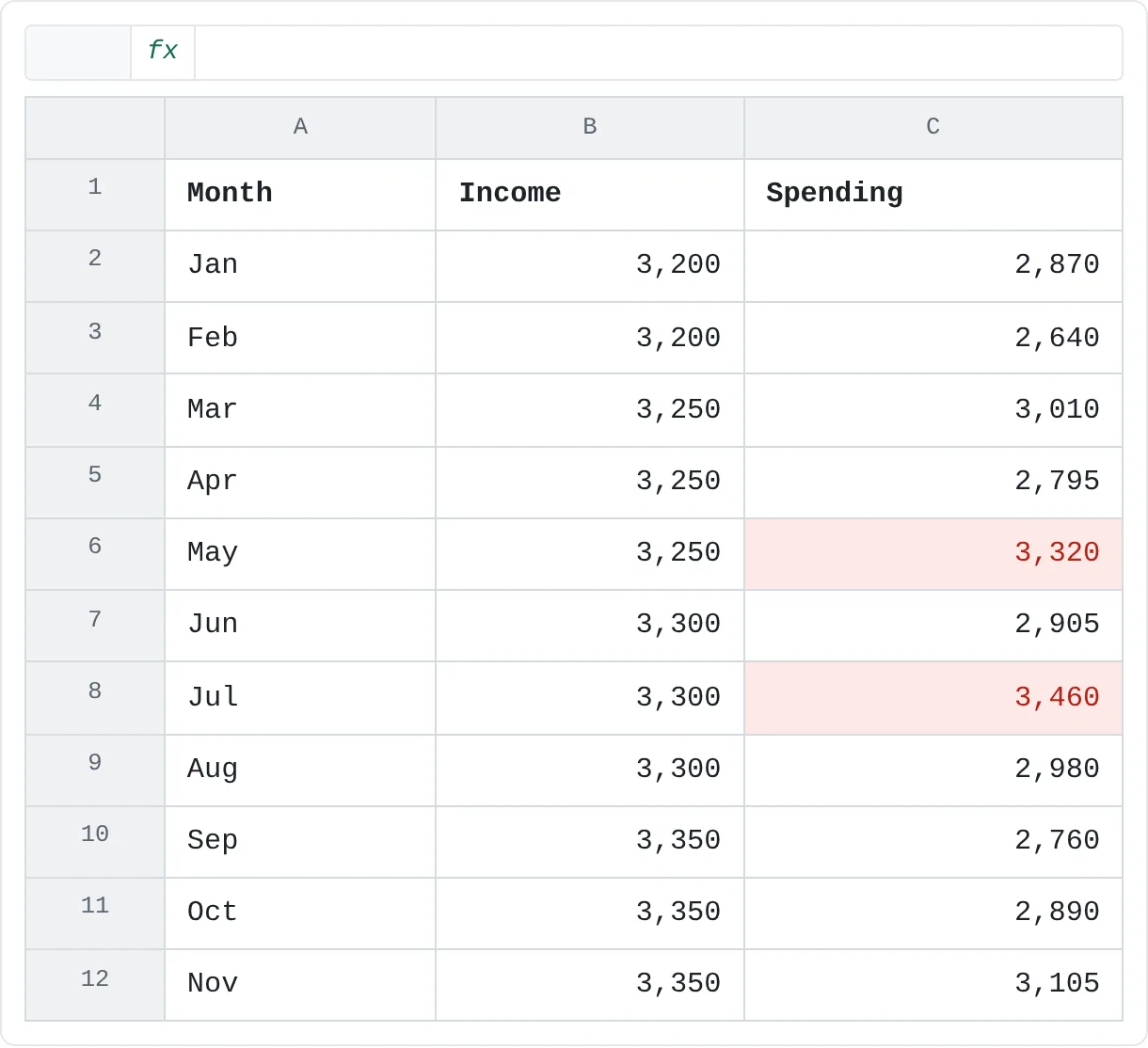
On a small laptop screen, the ribbon takes up a large part of the window and only a few months of your budget fit below it.
| A | B | C | |
|---|---|---|---|
| 1 | Month | Income | Spending |
| 2 | Jan | 3,200 | 2,870 |
| 3 | Feb | 3,200 | 2,640 |
| 4 | Mar | 3,250 | 3,010 |
| 5 | Apr | 3,250 | 2,795 |
| 6 | May | 3,250 | 3,320 |
| 7 | Jun | 3,300 | 2,905 |
| 8 | Jul | 3,300 | 3,460 |
| 9 | Aug | 3,300 | 2,980 |
| 10 | Sep | 3,350 | 2,760 |
| 11 | Oct | 3,350 | 2,890 |
| 12 | Nov | 3,350 | 3,105 |
Press Ctrl+F1 to collapse the ribbon to its tab names; click a tab name when you need a command, and the ribbon opens until you've used it. Press Ctrl+F1 again to pin it back. Commands you put on the Quick Access Toolbar stay visible the whole time.
Undo your changes
- One command: right-click it on the toolbar and choose Remove from Quick Access Toolbar, or select a command in the right-hand list in Options and click Remove.
- One built-in tab: in Customize Ribbon, select the tab, click Reset and choose Reset only selected Ribbon tab.
- Everything: click Reset and choose Reset all customizations. This resets both the ribbon and the Quick Access Toolbar.
Common mistakes
- "Add >>" is greyed out. In Customize Ribbon you can only add commands to a custom group. Select a group with (Custom) after its name, or click New Group first.
- The toolbar seems to have disappeared. It's hidden, not deleted. Right-click the ribbon and choose Show Quick Access Toolbar.
- The ribbon vanished. It's collapsed. Press Ctrl+F1 or double-click any tab name.
- Your setup is missing on another computer. Customizations are saved on the computer where you made them, not in the workbook. Use Import/Export to take them with you.
- Too many buttons. A toolbar with 30 icons is as hard to scan as the ribbon. Keep it to the commands you use every day.
Practice
Practice
Set up Excel for the way you work
- Show the Quick Access Toolbar if it's hidden, and move it to the other side of the ribbon (above or below).
- Add Filter (Data tab) and Values (from the Paste menu) to it. Press Alt and note the numbers they get.
- Copy a cell that holds a formula and paste it with the toolbar's Values button, using only the keyboard.
- Create a custom tab called "My Tools" with a group called "Daily", and add three commands you use often.
- Show the Developer tab, then collapse the ribbon with Ctrl+F1 and bring it back.
- Remove "My Tools" again: select it in Customize Ribbon and click Remove.
Related
Was this guide helpful? Spot a mistake? Send feedback · admin@arumsoft.com