Advanced Excel · Tutorial 5 of 12
Advanced PivotTables in Excel
Group dates into quarters, show values as a percent of the total, add calculated fields, filter to the top N and keep a PivotTable's cache up to date.
- Level
- Advanced
- Time
- 13 min read
- Updated:
- Applies to:
- Excel for Microsoft 365, Excel 2021, Excel 2019
What you'll learn
- Group a date field into quarters or months inside a PivotTable
- Show values as a percent of the grand total or of each column
- Add a calculated field and check it against a formula outside the PivotTable
- Filter a PivotTable to its top N items by value
- Explain the pivot cache and choose when and how to refresh it
Before you start
Example file
Advanced PivotTables in Excel.xlsx
Download the workbook used in this tutorial and follow along in Excel.
Excel workbook (.xlsx) · 7 KB
Building a PivotTable takes a few drags. Making it answer the question someone actually asked takes more control: revenue by quarter instead of by day, each region's share instead of its raw total, a margin that isn't in the source data, only the best three months. This tutorial covers those controls, and explains why a PivotTable sometimes shows old numbers.
The example is 18 sales from January to June 2026, with a date, region, product, revenue and cost for each. It's stored as an Excel Table so new rows are picked up on refresh.
| A | B | C | D | E | |
|---|---|---|---|---|---|
| 1 | Date | Region | Product | Revenue | Cost |
| 2 | 2026-01-08 | East | Core | 4,200 | 2,520 |
| 3 | 2026-01-15 | West | Plus | 3,100 | 1,705 |
| 4 | 2026-01-22 | Central | Elite | 2,600 | 1,170 |
| 5 | 2026-02-08 | East | Plus | 3,900 | 2,145 |
| 6 | 2026-02-15 | West | Core | 2,800 | 1,680 |
| 7 | 2026-02-22 | Central | Core | 3,300 | 1,980 |
To follow along, type the data or use your own, click inside it and choose Insert then Tables then PivotTable, then OK.
Group dates into quarters
A row for every date is too detailed to read. Grouping turns the dates into periods.
Put the date field in Rows
Drag Date into the Rows area. In Microsoft 365, Excel often groups dates into months on its own; otherwise you see one row per date. Either way, you can choose the periods yourself.
Open the Grouping dialog
Right-click any date or month in the PivotTable and choose Group.
Choose Quarters
In the By list, click Quarters to select it and click Months to deselect it (each click toggles an item). Click OK.
A B 1 2 3 Row Labels Sum of Revenue 4 Qtr1 31,800 5 Qtr2 34,800 6 Grand Total 66,600 Revenue grouped by quarter: 31,800 in the first quarter and 34,800 in the second.
Select several periods to get a hierarchy: Years and Quarters together show each year with its quarters inside. If your data covers more than one year, always include Years, or Qtr1 of 2025 and Qtr1 of 2026 are added together. To go back to single dates, right-click a period and choose Ungroup.
If Excel says it cannot group that selection, the date column contains a value that isn't a real date, usually a date stored as text or a blank cell. Fix the source, refresh, and try again.
Show values as a share of the total
"How much did East sell?" and "What share of revenue came from East?" need different numbers. Show Values As changes how a value field is displayed without changing the source data.
Summarize revenue by region
Remove the date field from Rows, along with any Months or Quarters field Excel added when it grouped automatically, and drag Region in. Drag Revenue into Values, then drag Revenue into Values a second time. You now have Sum of Revenue and Sum of Revenue2 side by side.
Show the second column as a percent
Right-click any number in the Sum of Revenue2 column, point to Show Values As and choose % of Grand Total.
Rename the header and sort
Click the Sum of Revenue2 header cell, type
Shareand press Enter. Then right-click a number in the Sum of Revenue column and choose Sort then Sort Largest to Smallest.A B C 1 2 3 Row Labels Sum of Revenue Share 4 East 27,800 41.74% 5 West 21,900 32.88% 6 Central 16,900 25.38% 7 Grand Total 66,600 100.00% Each region's revenue and its share of the 66,600 total. East brings in 41.74%.
Keeping the raw sum next to the percentage lets the reader see both the size and the share. The percentages use two decimal places by default; to change that, right-click the column, choose Value Field Settings and click Number Format.
Shares inside each column
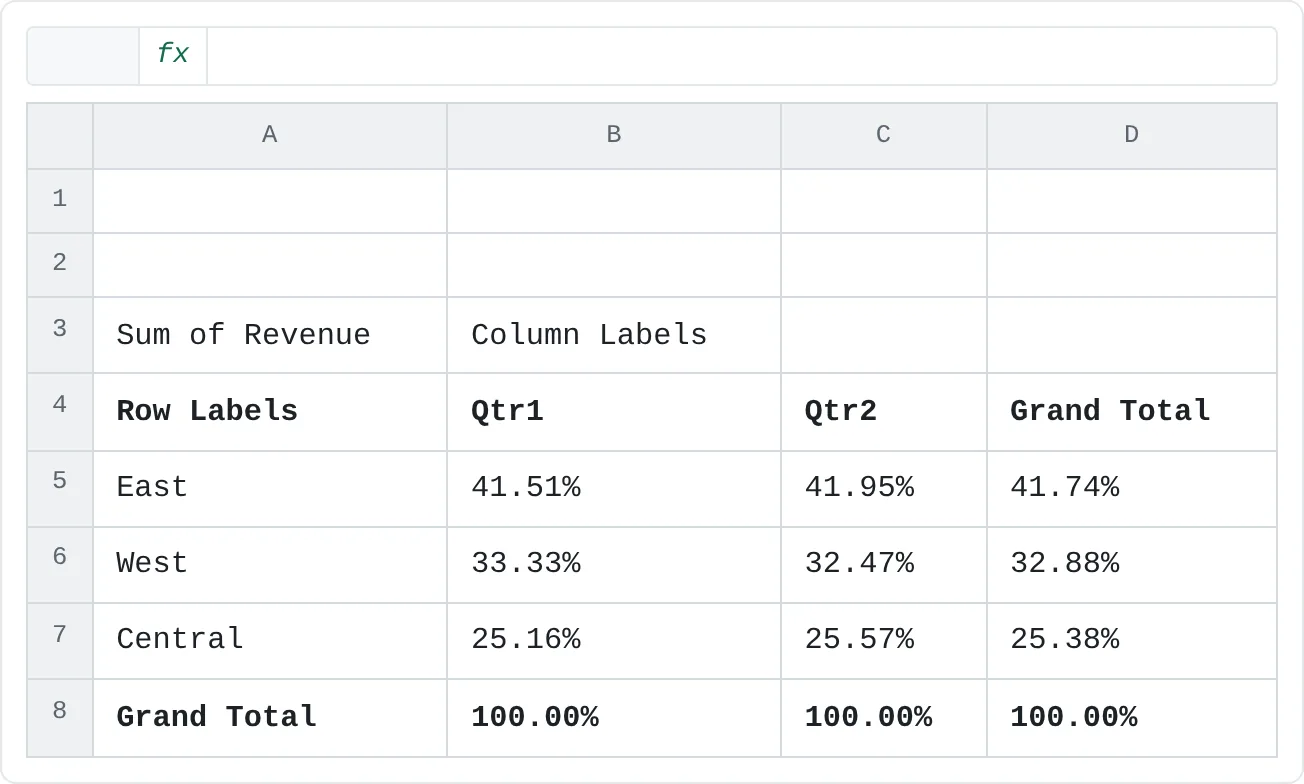
With a second field in Columns, the choice of base matters. Drag Share out of Values, drag Date (still grouped by quarters) into Columns, keep Region in Rows, and set Sum of Revenue to Show Values As then % of Column Total. Each quarter now adds up to 100%, so you can compare a region's share from one quarter to the next:
| A | B | C | D | |
|---|---|---|---|---|
| 1 | ||||
| 2 | ||||
| 3 | Sum of Revenue | Column Labels | ||
| 4 | Row Labels | Qtr1 | Qtr2 | Grand Total |
| 5 | East | 41.51% | 41.95% | 41.74% |
| 6 | West | 33.33% | 32.47% | 32.88% |
| 7 | Central | 25.16% | 25.57% | 25.38% |
| 8 | Grand Total | 100.00% | 100.00% | 100.00% |
The options you'll use most:
| Show Values As | What each cell shows | Typical question |
|---|---|---|
| % of Grand Total | Its share of the overall total | What fraction of all revenue is this? |
| % of Column Total | Its share of its column | What share of Qtr2 did each region have? |
| % of Row Total | Its share of its row | How did East's revenue split between quarters? |
| % Difference From | The change against a base item, such as (previous) | How much did revenue grow from last quarter? |
| Running Total In | A cumulative total along a field | How much have we sold so far this year? |
| Rank Largest to Smallest | 1 for the biggest value, 2 for the next | Where does each region rank? |
The last three ask for a Base field (and sometimes a Base item) when you choose them: the field to compare or accumulate along, such as Date.
Add a calculated field
The source has Revenue and Cost but no margin. A calculated field works it out inside the PivotTable, so you don't need to add a column to the data.
Set up the PivotTable
Start from an empty layout: click PivotTable Analyze then Actions then Clear then Clear All. Then put Product in Rows and Revenue and Cost in Values.
Open Insert Calculated Field
Click inside the PivotTable, then click PivotTable Analyze then Calculations then Fields, Items, & Sets then Calculated Field.
Name the field and write its formula
In Name, type
Margin %. In Formula, delete the0after the equals sign and type the formula below. You can type field names, or double-click them in the Fields list to insert them.=(Revenue-Cost)/RevenueAdd it
Click Add, then OK. Sum of Margin % appears in Values. Open its Value Field Settings, click Number Format and choose Percentage with one decimal place.
A B C D 1 2 3 Row Labels Sum of Revenue Sum of Cost Sum of Margin % 4 Core 21,100 12,660 40% 5 Elite 20,000 9,000 55% 6 Plus 25,500 14,025 45% 7 Grand Total 66,600 35,685 46.4% Margin % for each product, worked out from the Revenue and Cost sums. Elite earns 55%, and the overall margin is 46.4%.
Look at the Grand Total: 46.4%, not 46.7%, the average of the three product margins. A calculated field always works on the sums of its fields for each row of the PivotTable, here (66,600 − 35,685) / 66,600. That's what you want for a ratio, because large products count for more.
The same rule makes some calculated fields wrong. If the source has Price and Units, a field =Price*Units multiplies the sum of the prices by the sum of the units for each row, which isn't revenue. Calculate row-by-row amounts like that in a column of the source data instead.
Check it against a formula
Before you trust a new calculated field, check one number outside the PivotTable. With the data in A1:E19, this gives Elite's margin:
=(SUMIFS(D2:D19,C2:C19,"Elite")-SUMIFS(E2:E19,C2:C19,"Elite"))/SUMIFS(D2:D19,C2:C19,"Elite")The result is 0.55: (20,000 − 9,000) / 20,000, or 55%, the same as the PivotTable.
Filter to the top N
A Top 10 filter keeps only the items with the biggest (or smallest) values. Despite its name, you choose the number.
Show revenue by month
Click Clear All again, put Date in Rows and Revenue in Values. If the dates aren't shown as months, right-click one, choose Group and select only Months.
Open Value Filters
Click the arrow next to Row Labels and choose Value Filters then Top 10.
Set the filter
In the dialog, keep Top, change 10 to
3, keep Items and make sure the last box says Sum of Revenue. Click OK.Sort the result
The filter doesn't sort. Right-click a number and choose Sort then Sort Largest to Smallest so the best month is first.
A B 1 2 3 Row Labels Sum of Revenue 4 May 12,100 5 Mar 11,900 6 Apr 11,400 7 Grand Total 35,400 The three best months by revenue. The Grand Total, 35,400, now covers only these three months.
Notice the Grand Total: 35,400, not 66,600. A filtered PivotTable totals only the items it shows. If the reader needs the full total too, put it in a separate cell or a second PivotTable. Instead of Items, the dialog also offers Percent (the items that make up the top N% of the total) and Sum (the items that together reach a value).
To remove the filter, click the arrow next to Row Labels and choose Clear Filter From, followed by the field name.
Why a PivotTable shows old numbers
A PivotTable doesn't read the source cells directly. When you create it, Excel copies the data into a pivot cache, a snapshot stored in the workbook, and the PivotTable is built from that. That's why it's fast, and also why editing the source changes nothing until you refresh.
- Refresh one PivotTable: right-click it and choose Refresh, or click PivotTable Analyze then Data then Refresh.
- Refresh everything: press Ctrl+Alt+F5 (Refresh All). This also refreshes Power Query queries and other connections.
- Refresh when the file opens: right-click the PivotTable, choose PivotTable Options, open the Data tab and tick Refresh data when opening the file.
PivotTables created from the same Table share one cache, so refreshing one refreshes the others built on it. Rows added inside the Table are included at the next refresh. If the source is a plain range, rows typed below it are left out until you extend it with PivotTable Analyze then Data then Change Data Source, which is a good reason to use a Table.
Common mistakes
- Reading a PivotTable that wasn't refreshed. It still shows the old snapshot. Refresh All before you read, copy or send numbers.
- Treating a filtered Grand Total as the whole. After a Top N filter, the total covers only the visible items.
- Multiplying in a calculated field.
=Price*Unitsmultiplies sums, not rows. Put row-level calculations in the source data. - Grouping months without years. Months from different years are added together. Select Years as well.
- A formula that won't copy down. When you click a PivotTable cell while typing a formula, Excel writes a
GETPIVOTDATAformula, which keeps pointing at the same item when you copy it. Type the cell address instead, or turn the feature off with the arrow next to Options on the PivotTable Analyze tab and Generate GetPivotData.
Practice
Practice
Summarize your own data
- Take a list of sales, expenses or activity with a date column and at least one amount, and turn it into a Table with Ctrl+T.
- Build a PivotTable and group the dates by quarters, or by years and months if the data covers more than one year.
- Add the amount to Values twice and show the second copy as % of Grand Total. Rename its header.
- Add a Top 10 value filter that keeps only the top 3 items of another field, such as customers or products, and sort them.
- Add a calculated field, such as a margin or a rate, and check one of its values with a
SUMIFSformula outside the PivotTable. - Change one amount in the source, note that the PivotTable doesn't change, then refresh it.
Check your skills
- Can you group a date field into quarters inside a PivotTable?
- Can you change Sum of Revenue to show as a percent of the grand total?
- Can you filter a PivotTable down to its top 3 rows by value?
- Can you explain why a calculated field's total is a ratio of sums, not an average?
- Can you explain why a PivotTable's numbers don't change until you refresh it?
Related
Was this guide helpful? Spot a mistake? Send feedback · admin@arumsoft.com