Advanced Excel · Tutorial 7 of 12
Excel Data Model and Power Pivot Basics
Relate a sales table to a product table in the Data Model, build one PivotTable from both, and write your first DAX measures.
- Level
- Advanced
- Time
- 14 min read
- Updated:
- Applies to:
- Excel for Microsoft 365 for Windows, Excel 2021, Excel 2019
What you'll learn
- Tell a fact table apart from a lookup table
- Relate two tables in the Data Model by a shared ID column
- Build one PivotTable that uses fields from both tables
- Explain the difference between a calculated column and a measure
- Write simple DAX measures with SUM and DIVIDE
Before you start
Example file
Excel Data Model and Power Pivot Basics.xlsx
Download the workbook used in this tutorial and follow along in Excel.
Excel workbook (.xlsx) · 7 KB
A single flat sheet makes you repeat the product name and category on every sales row, and then keep all those copies in sync. The Data Model takes a different approach: you keep several small, clean tables and tell Excel how they connect. One PivotTable can then pull a category from one table and revenue from another, with no VLOOKUP or XLOOKUP stitching them together first.
Fact tables and lookup tables
Most business data splits naturally into two kinds of table:
- A fact table records events: one row per sale, order or payment. It grows every day and holds the numbers you add up (units, revenue, cost).
- A lookup table (also called a dimension table) describes things: one row per product, customer or region. It changes rarely and holds the labels you group by (name, category).
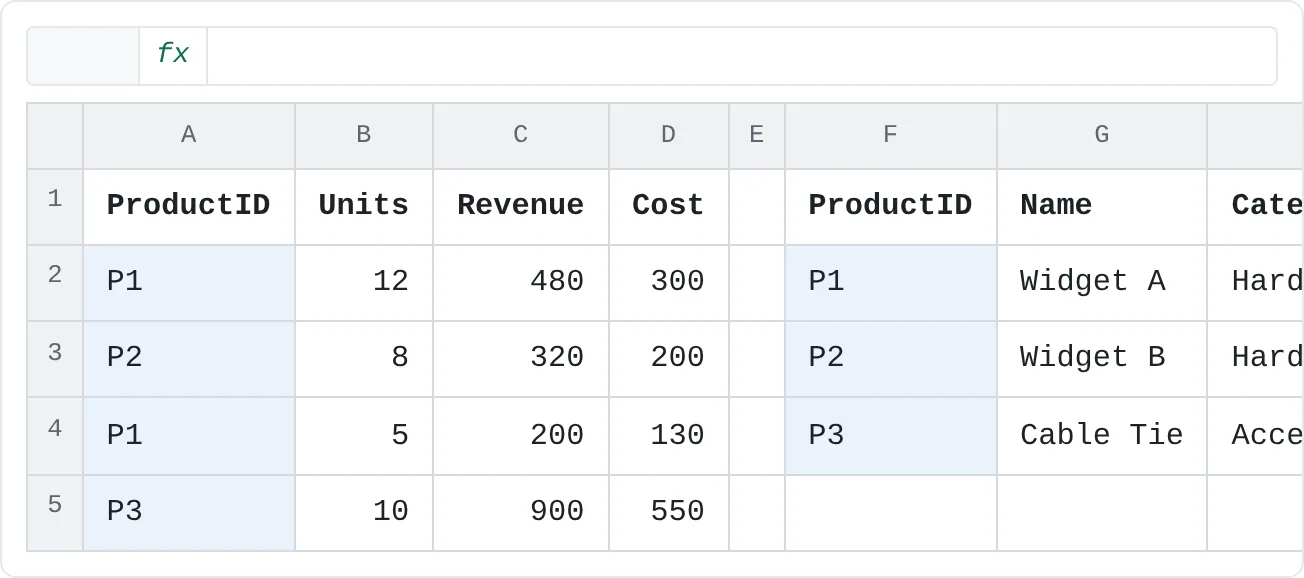
The two are linked by a key, a column they share. Here, every sale has a ProductID, and the Products table has exactly one row for each ProductID.
| A | B | C | D | E | F | G | H | |
|---|---|---|---|---|---|---|---|---|
| 1 | ProductID | Units | Revenue | Cost | ProductID | Name | Category | |
| 2 | P1 | 12 | 480 | 300 | P1 | Widget A | Hardware | |
| 3 | P2 | 8 | 320 | 200 | P2 | Widget B | Hardware | |
| 4 | P1 | 5 | 200 | 130 | P3 | Cable Tie | Accessories | |
| 5 | P3 | 10 | 900 | 550 |
Compare that with a flat sheet, where each sale repeats the product details:
| ProductID | Name | Category | Units | Revenue | Cost |
|---|---|---|---|---|---|
| P1 | Widget A | Hardware | 12 | 480 | 300 |
| P2 | Widget B | Hardware | 8 | 320 | 200 |
| P1 | Widget A | Hardware | 5 | 200 | 130 |
| P3 | Cable Tie | Accessories | 10 | 900 | 550 |
With four rows it looks harmless. With 40,000 rows, renaming a category means changing thousands of cells, and one typo creates a category of its own. In the split layout you change it once, in Products.
This is a one-to-many relationship: one product appears on many sales rows, but each sales row points to exactly one product. The "one" side (Products) must have unique keys; the "many" side (Sales) can repeat them.
Turn each range into a named table
The Data Model works with Excel tables, so start there.
Format the sales data as a table
Click any cell in the sales data and press Ctrl+T. Check that My table has headers is ticked and click OK.
Give the table a clear name
On the Table Design tab, in the Properties group, replace the default name (Table1) in Table Name with
Salesand press Enter.Repeat for the lookup table
Do the same for the product list and name it
Products. Names matter: they appear in the PivotTable field list and in every DAX formula you write, asSales[Revenue]orProducts[Category].
Relate the two tables
Open the Relationships dialog
Go to Data then Data Tools then Relationships. The Manage Relationships dialog opens. It's empty because nothing is related yet. (The button is unavailable until the workbook contains at least two tables.)
Create the relationship
Click New. In the Create Relationship dialog, choose:
- Table: Sales, Column (Foreign): ProductID — the "many" side.
- Related Table: Products, Related Column (Primary): ProductID — the "one" side, with unique values.
Click OK, then Close.
Creating the relationship also adds both tables to the Data Model. Nothing changes on the worksheet itself: the relationship lives inside the workbook's model, not in the cells.
Build a PivotTable from both tables
Insert a Data Model PivotTable
On the Insert tab, click the arrow on the PivotTable button and choose From Data Model. Pick New Worksheet and click OK.
In older versions, clicking PivotTable opens the Create PivotTable dialog instead; choose Use this workbook's Data Model there.
Find both tables in the field list
The PivotTable Fields pane lists each table in the model by name. If you see only one, click the All tab at the top of the pane.
Drag fields from both tables
Expand Products and drag Category to Rows. Expand Sales and drag Revenue to Values. The PivotTable shows Accessories 900, Hardware 1,000 and a Grand Total of 1,900.
The Category labels come from Products and the numbers come from Sales. The relationship carries each sale's ProductID across to Products to find its category, so no lookup formula is needed.
Measures vs. calculated columns
When you dragged Revenue to Values, Excel created an automatic sum called Sum of Revenue. For anything more than a plain sum, you write your own calculations in DAX (Data Analysis Expressions), the formula language of the Data Model. DAX calculations come in two kinds:
| Calculated column | Measure | |
|---|---|---|
| What it is | A new column in a table, one value per row | A single formula evaluated on demand |
| When it's calculated | Once, when the data refreshes, then stored | Each time a PivotTable cell needs it |
| Example | =Sales[Revenue]-Sales[Cost] (margin per sale) | =SUM(Sales[Revenue]) |
| Use it for | Values you want to filter or group by | Totals, ratios and other results you report |
The key idea is context. A measure has one formula, but each PivotTable cell evaluates it for the rows that cell represents. In the Hardware row, SUM(Sales[Revenue]) adds only the Hardware sales (480 + 320 + 200 = 1,000); in the Grand Total it adds all four.
That's why ratios belong in measures. Suppose you added a calculated column with each sale's margin percentage: 37.5%, 37.5%, 35% and 38.9%. A PivotTable would add those up to a meaningless 148.9%, and even averaging them gives 37.2%. The true margin is total margin divided by total revenue, 720 / 1,900 = 37.9%, and only a measure calculates it that way at every level.
Write your first DAX measures
Measures are created from the Power Pivot tab. If you don't see it, go to File > Options > Add-ins, choose COM Add-ins in the Manage box, click Go, tick Microsoft Power Pivot for Excel and click OK. To open the Power Pivot window itself, click Power Pivot then Data Model then Manage.
Open the Measure dialog
Go to Power Pivot then Calculations then Measures then New Measure. You can also right-click the Sales table name in the PivotTable Fields pane and choose Add Measure.
Name the measure and write its formula
Set Table name to Sales and Measure name to
Total Revenue. In Formula, after the equals sign, type:=SUM(Sales[Revenue])Click Check formula to make sure there are no errors, choose a number format under the formatting options, and click OK.
Add a gross margin measure
Create a second measure named
Gross Margin:=SUM(Sales[Revenue]) - SUM(Sales[Cost])Add a margin percentage with DIVIDE
Create a third measure named
Margin %that refers to the first two by name, in square brackets. Give it a percentage format.=DIVIDE([Gross Margin], [Total Revenue])DIVIDEworks like the/operator, but returns a blank instead of an error when the denominator is zero, so empty categories don't fill the report with errors.Use the measures in the PivotTable
New measures appear in the field list under the Sales table, marked with an fx icon. Remove Sum of Revenue from Values and drag in Total Revenue, Gross Margin and Margin %.
A B C D 1 Row Labels Total Revenue Gross Margin Margin % 2 Accessories 900 350 38.9% 3 Hardware 1,000 370 37% 4 Grand Total 1,900 720 37.9% Three measures by category. Each cell runs the same formula for different rows: Hardware's margin is 370 / 1,000 = 37%; the Grand Total is 720 / 1,900 = 37.9%.
In the Power Pivot window you'll often see measures written as Total Revenue := SUM(Sales[Revenue]). That's the same measure: the name, then :=, then the formula. You can type them that way in the calculation area below a table in the window's Data View.
To filter a measure, wrap it in CALCULATE. This measure returns Hardware revenue (1,000) wherever you put it, because the filter overrides the Category in the PivotTable row:
=CALCULATE([Total Revenue], Products[Category] = "Hardware")
Common mistakes
- Using fields from tables that aren't related. The PivotTable repeats the same total in every row (1,900 next to each category), and the field list shows a message that relationships between tables may be needed. Create the relationship, then refresh.
- Duplicate keys in the lookup table. If P1 appears twice in Products, Excel can't create a one-to-many relationship. Remove the duplicates (Data then Data Tools then Remove Duplicates) so each key appears once.
- Keys that don't quite match.
P1andP1(with a trailing space), or 101 stored as a number in one table and as text in the other, don't match. Sales rows whose key isn't found are grouped under (blank) in the PivotTable. Clean the key column in both tables. - Ratios in calculated columns. As shown above, percentages added up in a PivotTable give nonsense. Calculate ratios with a measure such as
DIVIDE([Gross Margin], [Total Revenue]). - Naming a measure the same as a column. A measure called
Revenueclashes with theRevenuecolumn. Use a distinct name such asTotal Revenue.
Practice
Practice
Relate sales to products
- Type the Sales data (ProductID, Units, Revenue, Cost) and the Products data (ProductID, Name, Category) from the sheet below into a new workbook.
- Format each range as a table and name them
SalesandProducts. - Relate Sales[ProductID] to Products[ProductID] with Data > Relationships.
- Insert a PivotTable from the Data Model with Category in Rows.
- Create the measures
Total Revenue,Gross MarginandMargin %and add them to Values. Check that you get Hardware 1,000 / 370 / 37% and Accessories 900 / 350 / 38.9%. - Swap Category for Name in Rows. Widget A should show 680 revenue and 250 margin, because its two sales are combined.
Then try it with your own data: split a flat sheet you use into a fact table and one or two lookup tables, and build a PivotTable that draws on all of them.
| A | B | C | D | E | F | G | H | |
|---|---|---|---|---|---|---|---|---|
| 1 | ProductID | Units | Revenue | Cost | ProductID | Name | Category | |
| 2 | P1 | 12 | 480 | 300 | P1 | Widget A | Hardware | |
| 3 | P2 | 8 | 320 | 200 | P2 | Widget B | Hardware | |
| 4 | P1 | 5 | 200 | 130 | P3 | Cable Tie | Accessories | |
| 5 | P3 | 10 | 900 | 550 |
Check your skills
- Can you tell which of your tables is the fact table and which is the lookup table?
- Can you relate two tables by a shared ID column instead of writing a lookup formula?
- Can you explain why a margin percentage belongs in a measure and not in a calculated column?
- Can you write a measure with
SUMand another withDIVIDEthat refers to it?
Related
Was this guide helpful? Spot a mistake? Send feedback · admin@arumsoft.com