Advanced Excel · Tutorial 11 of 12
Making Excel Workbooks Faster and Easier to Maintain
Find what makes a workbook slow, replace volatile functions and oversized ranges, use manual calculation safely and leave notes so the next person can maintain it.
- Level
- Advanced
- Time
- 13 min read
- Updated:
- Applies to:
- Excel for Microsoft 365, Excel 2021, Excel 2019
What you'll learn
- Diagnose whether a workbook is slow to calculate, to open or to refresh
- Replace volatile functions such as TODAY, OFFSET and INDIRECT where they cost time
- Explain when whole-column references are expensive and use Tables or bounded ranges instead
- Switch between automatic and manual calculation without leaving stale numbers
- Keep a workbook maintainable with helper columns, LET and documentation
Example file
Making Excel Workbooks Faster and Easier to Maintain.xlsx
Download the workbook used in this tutorial and follow along in Excel.
Excel workbook (.xlsx) · 7 KB
A workbook that pauses after every keystroke usually has a handful of causes you can find and fix: a function that recalculates all the time, ranges far bigger than the data, formatting on a million empty rows. Finding them is a diagnostic skill, not a reason to buy a faster computer. This tutorial shows what to look for, what to replace it with, and how to leave the workbook in a state the next person can maintain.
Find out what's slow first
"Slow" means different things, and each has different causes:
| Symptom | Usual causes |
|---|---|
| A pause after every edit | Volatile functions, large formulas over whole columns, long chains of lookups |
| Slow to open or save, large file | Formatting or data far beyond the real data, several copies of the same data, PivotTables storing their own data |
| Slow Refresh All | Power Query steps that re-read large files, many separate queries and PivotTables |
Two quick checks before you change anything:
- Watch the status bar. While Excel recalculates, the status bar shows Calculating with a percentage. If it appears after every edit, the problem is calculation.
- Press Ctrl+End. Excel jumps to the last cell it considers used. If your data ends at row 500 but Ctrl+End lands on row 60,000, the sheet carries formatting or stray content far below the data.
Before you optimize, save a copy (F12) and write down a few key outputs, such as the grand total and one KPI. After each change, check that they haven't moved. A faster workbook that gives a different answer isn't an improvement.
Replace volatile functions
Most formulas recalculate only when a cell they depend on changes. Volatile functions recalculate every time Excel recalculates anything, and so does every formula that depends on them. The common ones are TODAY, NOW, RAND, RANDBETWEEN, OFFSET and INDIRECT. One TODAY() is harmless; 20,000 rows of =TODAY()-B2 feeding lookups and totals means all of that work runs again whenever you type anywhere.
| Volatile pattern | Replace with |
|---|---|
=TODAY()-B2 in every row | A typed report date in one input cell, entered with Ctrl+;: =$G$2-B2 |
=SUM(OFFSET(B1,1,0,COUNTA(B:B)-1,1)) for a growing list | An Excel Table: =SUM(Sales[Amount]). Or the non-volatile INDEX: =SUM(B2:INDEX(B:B,COUNTA(B:B))) |
=SUM(INDIRECT("'"&A1&"'!B2:B100")) to pick a sheet by name | One Table with a Month (or Region) column, summarized with SUMIFS |
RAND or RANDBETWEEN for sample data | Generate the numbers once, then paste them as values |
INDIRECT has a second problem: the reference is text, so renaming a sheet or inserting a row doesn't update it, and Trace Precedents can't follow it. Replacing it makes the workbook faster and easier to audit.
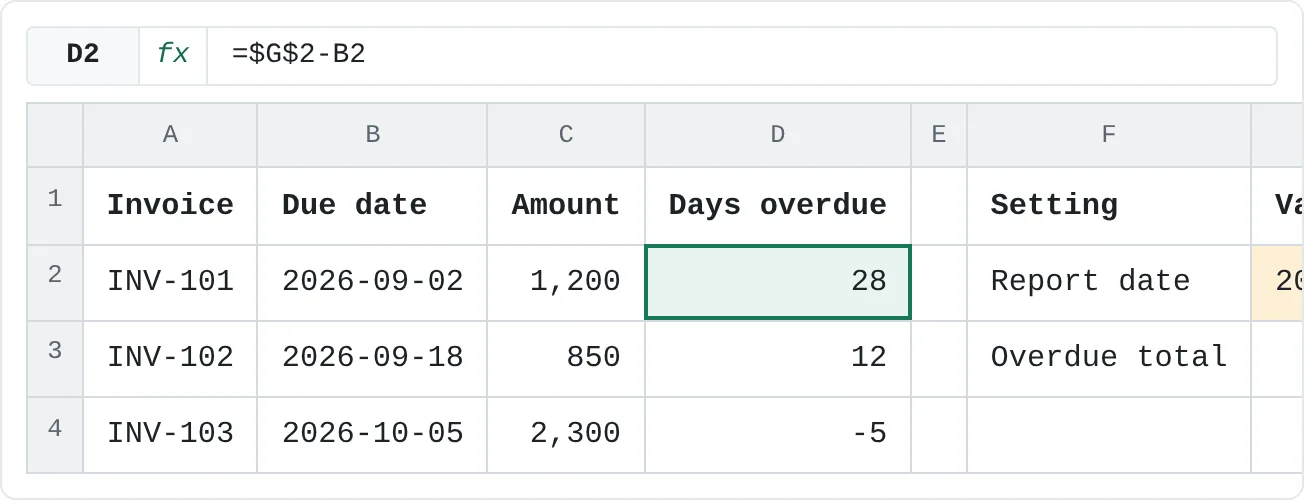
A typed report date has a bonus: the report says "as of 30 September" and keeps saying it, even when someone opens it in November. The example below calculates days overdue from a report date in G2:
| A | B | C | D | E | F | G | |
|---|---|---|---|---|---|---|---|
| 1 | Invoice | Due date | Amount | Days overdue | Setting | Value | |
| 2 | INV-101 | 2026-09-02 | 1,200 | 28 | Report date | 2026-09-30 | |
| 3 | INV-102 | 2026-09-18 | 850 | 12 | Overdue total | 2,050 | |
| 4 | INV-103 | 2026-10-05 | 2,300 | -5 |
Keep ranges to the data
Excel has 1,048,576 rows. Whether a whole-column reference such as A:A costs anything depends on the function:
- Usually cheap:
SUM,COUNTIFS,SUMIFSand similar functions look only at the part of the column that's in use, so=SUM(A:A)is fine. - Expensive:
SUMPRODUCT, array formulas and formulas that compare whole columns calculate every cell in the range, used or not.=SUMPRODUCT(--(A:A="East"))makes over a million comparisons to count a few hundred rows.=COUNTIFS(A:A,"East")gives the same answer for a fraction of the work.
The safe habit is the same either way: point formulas at an Excel Table (Sales[Region]) or a bounded range (A2:A500). A Table reference grows when rows are added, so you get the convenience of a whole column without the cost or the risk of including a stray value in row 40,000.
Calculate less often while you edit
When a large model takes seconds to recalculate, editing it is painful: every typed value starts a recalculation. Switch to manual calculation while you work.
Switch to Manual
Click Formulas then Calculation then Calculation Options then Manual. Excel stops recalculating after each edit, and the status bar shows Calculate when results are out of date.
Recalculate when you need to
Press F9 to calculate all open workbooks, or Shift+F9 for the active sheet only. Ctrl+Alt+F9 forces a full recalculation of every formula, which is useful when you suspect results are stale.
Switch back before you share
Set Formulas then Calculation then Calculation Options then Automatic again when you're done.
If the slow part is a What-If data table, Automatic Except for Data Tables in the same menu keeps everything else automatic.
Trim formatting and the used range
Formatting costs memory and file size, and conditional formatting rules are re-evaluated again and again as you work, so rules that cover far more cells than the data add up.
- Check your conditional formatting rules. Open Home then Styles then Conditional Formatting then Manage Rules and set Show formatting rules for to This Worksheet. Look at Applies to: rules on whole columns, or dozens of copies of the same rule created by copying and pasting, are common. Delete the duplicates and set Applies to to the data range.
- Delete what's below the data. If Ctrl+End lands far below your data, click the row number of the first empty row, press Ctrl+Shift+Down to select down to the last row, right-click and choose Delete. Do the same for columns to the right, then save. Ctrl+End now goes to the real last cell.
- Format the data, not the sheet. Apply fills, borders and number formats to the Table or range, not to entire columns "just in case". An Excel Table extends its formatting to new rows by itself.
PivotTables and Power Query
Refresh time and file size often come from how data is loaded, not from formulas.
- One source, one cache. PivotTables built from the same Table share one pivot cache. PivotTables built from separate copies of the data each keep their own, which multiplies file size and refresh work. Build every PivotTable from the same Table.
- Decide whether to store the cache. In PivotTable Options, on the Data tab, clearing Save source data with file makes the file smaller. The trade-off: after reopening, the PivotTable must be refreshed before you can change it.
- Cut early in Power Query. Remove unneeded columns and filter rows in the first steps of a query, so later steps work on less data.
- Don't load staging queries. A query that only feeds other queries doesn't need to be a sheet. In the Power Query Editor, choose Home then Close & Load then Close & Load To and select Only Create Connection.
- Skip what rarely changes. For a lookup list that changes once a year, open Data then Queries & Connections then Queries & Connections, right-click the query, choose Properties and clear Refresh this connection on Refresh All. Refresh it by hand when it changes.
Make it easy to maintain
A fast workbook that nobody dares to touch won't stay fast. These habits keep it fixable:
- Helper columns over giant formulas. Three columns with one step each are easier to check than one formula that nests eight functions, and often faster, because each step is calculated once instead of being repeated inside a long formula.
LETfor repeated parts. When the same calculation appears twice in one formula, name it withLET. Excel calculates aLETname once, and the formula becomes readable.- One formula per column. Every row of a calculated column should hold the same formula. Exceptions typed into the middle are invisible and break when the data is refreshed.
- Write down the odd choices. If a slow function stays for a reason ("INDIRECT kept because the sheet names come from the import"), say so on the Documentation sheet. Undocumented cleverness is what nobody dares to change, whether it should be changed or not.
- Log what you changed. After an optimization pass, add a line to the version notes: what you replaced, and that the key outputs still match.
Common mistakes
- Optimizing without a baseline. Without the totals you noted beforehand, you can't prove nothing changed.
- Leaving a file in Manual calculation. The next person sees old results and doesn't know it. Switch back to Automatic before saving.
TODAY()in every row. One input cell does the job and makes the report reproducible.- Whole columns inside
SUMPRODUCTor array formulas. Use a Table or a bounded range. - Conditional formatting rules multiplied by copy and paste. Check Manage Rules for the whole sheet now and then.
- Copying the data for each PivotTable. Build them all from one Table.
Practice
Practice
Speed up a real workbook
- Open your slowest workbook and save a copy. Note three outputs, such as a grand total, a KPI and a row count.
- Use the status bar and Ctrl+End to decide whether the problem is calculation, file size or refresh.
- List every volatile function, whole-column reference inside
SUMPRODUCTor an array formula, and oversized formatted range you can find. - Fix three of them using the replacements in this tutorial. Switch to Manual calculation while you work if editing is still sluggish, and back to Automatic when you finish.
- Check that the three outputs are unchanged, then write what you changed and why on the Documentation sheet.
Try the volatile-free version of an aging report. The report date in G2 is typed, so nothing recalculates until someone changes it.
Try it0 of 4 done
- In D2, subtract the due date in B2 from the report date in G2. Lock G2 so the formula can be copied down.
- In D3, do the same for INV-102.
- In D4, do the same for INV-103. It isn't due yet, so the result is negative.
- In G3, total the amounts in C2:C4 whose days overdue in D2:D4 are greater than 0.
Click a dashed cell, type a formula in the bar and press Enter.
| A | B | C | D | E | F | G | |
|---|---|---|---|---|---|---|---|
| 1 | Invoice | Due date | Amount | Days overdue | Setting | Value | |
| 2 | INV-101 | 2026-09-02 | 1,200 | Report date | 2026-09-30 | ||
| 3 | INV-102 | 2026-09-18 | 850 | Overdue total | |||
| 4 | INV-103 | 2026-10-05 | 2,300 |
Check your skills
- Can you name a volatile function and explain why it slows a workbook down?
- Can you say when a whole-column reference is cheap and when it's expensive?
- Can you explain the difference between Automatic and Manual calculation, and the risk of leaving a file in Manual?
- Can you replace an
OFFSETrange with a Table orINDEX? - Can you list two habits that keep a workbook fast and maintainable as it grows?
Related
Was this guide helpful? Spot a mistake? Send feedback · admin@arumsoft.com