Advanced Excel · Tutorial 12 of 12
How to Record a Macro in Excel
Record a repeated formatting job as a macro, read the VBA Excel writes, choose relative or absolute references and save and open macro files safely.
- Level
- Advanced
- Time
- 13 min read
- Updated:
- Applies to:
- Excel for Microsoft 365 for Windows, Excel 2024, Excel 2021, Excel 2019
What you'll learn
- Decide whether a repeated task is worth turning into a macro
- Record, stop and run a macro
- Read the VBA code the recorder generates
- Choose between absolute and relative references when recording
- Save a macro-enabled workbook and open macro files safely
Example file
How to Record a Macro in Excel.xlsx
Download the workbook used in this tutorial and follow along in Excel.
Excel workbook (.xlsx) · 7 KB
A macro is a recording of what you do in Excel that you can replay with one shortcut. You don't need to know any programming to make one: Excel watches your clicks and keystrokes and writes the VBA code for you. The useful skills are knowing when a task deserves a macro, reading what the recorder wrote and saving and opening macro files without putting your computer at risk.
When is a macro worth recording?
A macro pays off when all of these are true:
- You repeat the task often, every day or every week, not once.
- It takes many clicks, so doing it by hand is slow and easy to get slightly wrong.
- The data has the same shape every time: the same columns in the same order, starting in the same place.
- Nothing better already exists for the job.
That last point matters. Many repeated jobs have a better tool than a macro:
| Repeated job | Better tool | Why |
|---|---|---|
| A calculation copied down every new row | A formula in an Excel table | Tables extend formulas to new rows by themselves |
| Cleaning the same export every month | Power Query | Refreshable, keeps a step list, needs no macro file |
| Highlighting values over a limit | Conditional formatting | Updates as the values change |
| Applying the same layout to a report | A macro | No built-in feature replays a sequence of formatting steps |
A good first macro is a formatting routine you apply to every new export: bold the header row, fill it with color, set number formats, adjust column widths.
Get ready to record
You can record from two places. View › Macros is always there: click the arrow under Macros to find Record Macro, Use Relative References and View Macros. The Developer tab has the same commands plus the VBA editor and macro security settings, but it's hidden by default. To show it:
Open the ribbon options
Click File then Options then Customize Ribbon.
Turn on the Developer tab
In the list on the right, under Main Tabs, tick Developer and click OK. The Developer tab now appears on the ribbon.
Before you press Record, run through the task once by hand and write the steps down. The recorder captures everything, including the wrong cell you clicked and the step you undid, so a rehearsed recording gives cleaner, more reliable code.
Record your first macro
The example is a sales export whose header row comes out plain every time. The macro will make it bold and fill it yellow.
| A | B | C | |
|---|---|---|---|
| 1 | Rep | Region | Sales |
| 2 | Ari | East | 18,400 |
| 3 | Bea | West | 21,750 |
| 4 | Cal | North | 16,900 |
Start the recorder
Click any cell, then click View then Macros then Record Macro (or Developer then Code then Record Macro). The Record Macro dialog opens.
Name the macro and give it a shortcut
Fill in the dialog:
- Macro name:
FormatHeader. Names start with a letter and can't contain spaces. - Shortcut key: click the box and press Shift+H. The shortcut becomes Ctrl+Shift+H. A lowercase letter alone would take over Excel's own Ctrl shortcut for that letter, such as Ctrl+C, while this workbook is open, so add Shift.
- Store macro in: This Workbook.
- Description: one line saying what it does, such as "Bold the header row and fill it yellow."
Click OK. Recording starts immediately.
- Macro name:
Do the task once
Select A1:C1. Press Ctrl+B. Then click the arrow next to Fill Color in Home then Font and choose Yellow under Standard Colors.
Stop recording
Click View then Macros then Stop Recording, or the small square Stop Recording button at the left end of the status bar. Forgetting this step keeps the recorder running and adds everything you do next to the macro.
Test it
To see the macro work, remove the formatting first: select A1:C1 and click Home then Editing then Clear then Clear Formats. Then press Alt+F8, choose FormatHeader and click Run, or press Ctrl+Shift+H.
A B C 1 Rep Region Sales 2 Ari East 18,400 3 Bea West 21,750 4 Cal North 16,900 After running FormatHeader, the header row is bold and filled.
Read the code the recorder wrote
Press Alt+F11 to open the Visual Basic Editor (or choose the macro in the Alt+F8 dialog and click Edit). In the Project pane, open Modules under your workbook and double-click Module1. The code looks similar to this:
Sub FormatHeader()
'
' FormatHeader Macro
' Bold the header row and fill it yellow.
'
' Keyboard Shortcut: Ctrl+Shift+H
'
    Range("A1:C1").Select
    Selection.Font.Bold = True
    With Selection.Interior
        .Pattern = xlSolid
        .PatternColorIndex = xlAutomatic
        .Color = 65535
        .TintAndShade = 0
        .PatternTintAndShade = 0
    End With
End Sub
You don't need to write VBA to read it. Each part matches something you did, in order:
| Line | What it means |
|---|---|
Sub FormatHeader() … End Sub | The start and end of the macro. The name is the one you typed. |
Lines starting with ' | Comments. VBA ignores them; the recorder copies your description and shortcut here. |
Range("A1:C1").Select | You selected A1:C1. |
Selection.Font.Bold = True | You pressed Ctrl+B on the selection. |
With Selection.Interior … End With | You set the fill. .Color = 65535 is yellow; the other lines are defaults the recorder always writes. |
Reading the code tells you exactly what the macro will touch. Here, Range("A1:C1") means it always formats A1:C1, no matter which cell you're in when you run it. That's the difference the next section is about.
Absolute or relative references?
By default the recorder uses absolute references: it writes down the exact cells you selected, and the macro acts on those cells every time. That's right when the data always starts in the same place, like the export above.
Sometimes you want the macro to act wherever you are instead. Suppose a sheet holds several blocks of data, each with its own header row. You want to click the first cell of any header and have the macro format that row.
For that, record with relative references:
Select the starting cell before you record
Click A1. With relative references, everything is recorded as a move away from the active cell, so the starting position matters.
Turn on Use Relative References
Click View then Macros then Use Relative References (or Developer then Code then Use Relative References). The command stays highlighted while it's on.
Record as before
Start recording with the name
FormatHeaderHere, drag from A1 to C1, press Ctrl+B, apply the fill and stop recording.
The selection line now reads:
ActiveCell.Range("A1:C1").Select
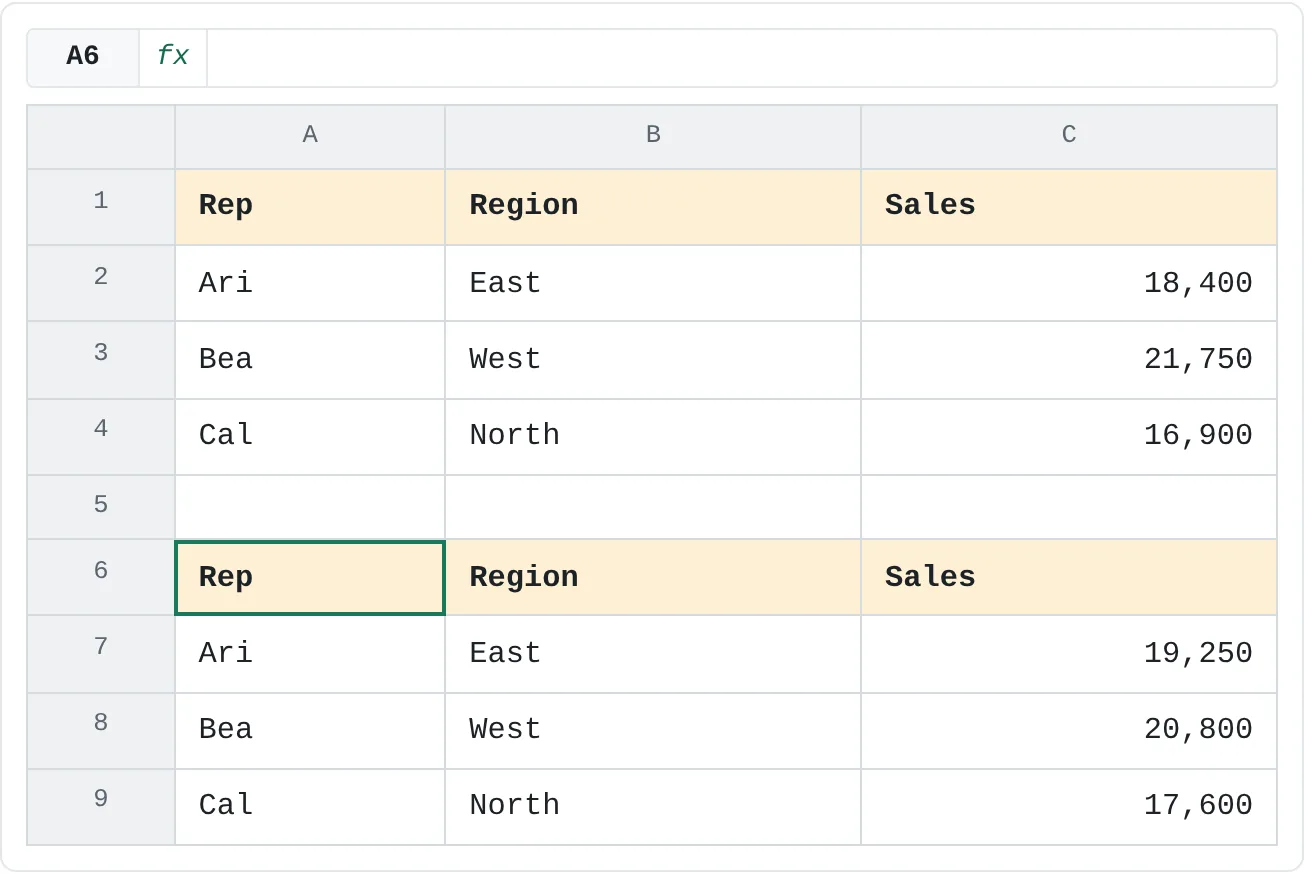
ActiveCell.Range("A1:C1") doesn't mean cells A1:C1 of the sheet. It means "a range one row high and three columns wide, starting at the active cell". The A1 here stands for the active cell itself. Click A6 and run the macro, and it formats A6:C6:
| A | B | C | |
|---|---|---|---|
| 1 | Rep | Region | Sales |
| 2 | Ari | East | 18,400 |
| 3 | Bea | West | 21,750 |
| 4 | Cal | North | 16,900 |
| 5 | |||
| 6 | Rep | Region | Sales |
| 7 | Ari | East | 19,250 |
| 8 | Bea | West | 20,800 |
| 9 | Cal | North | 17,600 |
Use Relative References stays on until you click it again, even for your next recording. Check its state each time you start the recorder.
Save a macro-enabled workbook
A regular .xlsx workbook can't hold macros. Press F12, and in Save as type choose Excel Macro-Enabled Workbook (*.xlsm). The Excel Binary Workbook format (.xlsb) keeps macros too.
If you save a workbook with macros as .xlsx, Excel warns that the VB project can't be saved in a macro-free workbook. Click No and choose the .xlsm type. Clicking Yes saves the file without its macros, and the code is gone once you close it.
Want a macro in every workbook, not just this one? In the Record Macro dialog, set Store macro in to Personal Macro Workbook. Excel keeps it in a hidden file, PERSONAL.XLSB, that opens whenever Excel starts. When you close Excel after recording, it asks whether to save changes to the Personal Macro Workbook: click Save.
Open macro files safely
A macro can do anything VBA can do: delete files, change other workbooks, send data elsewhere. That's why Excel doesn't run macros in a file until you allow it.
- A file you made or that came from inside your organization opens with a yellow Security Warning bar saying macros have been disabled. Click Enable Content only if you trust the file and its sender.
- A file downloaded from the internet or saved from an email attachment opens with a red Security Risk bar: Microsoft has blocked the macros. There's no button to enable them. If you're sure the file is safe, close it, right-click it in File Explorer, choose Properties, tick Unblock on the General tab and click OK.
- Your organization's settings may differ. Macro settings live in File then Options then Trust Center then Trust Center Settings then Macro Settings. Leave them at the default unless your IT team tells you otherwise; a folder you use often for your own macro files can be added under Trusted Locations in the same window.
Common mistakes
- Recording without a rehearsal. Stray clicks, scrolling and undone steps all end up in the code. Practice first, then record.
- Forgetting to stop recording. Everything you do afterwards becomes part of the macro.
- A fixed range on data that grows.
Range("A1:C1")won't cover a fourth column. Use Ctrl+Shift+Arrow keys while recording, or put the data in an Excel table. - Leaving relative references on (or off) by accident. Check the button before each recording, and read the selection lines afterwards:
Range("…")is absolute,ActiveCell…is relative. - Saving as .xlsx. The macros are removed. Use
.xlsm. - Expecting decisions or loops. The recorder only replays fixed steps. It can't check a value, repeat until the last row or ask a question. That takes editing the VBA yourself.
Practice
Practice
Record a header-formatting macro
- Type the sales export shown above into a new workbook: a header row in A1:C1 and three rows of data.
- Record a macro called
FormatHeaderthat bolds A1:C1 and fills it yellow. Give it the shortcut Ctrl+Shift+H. - Clear the formatting and run the macro with the shortcut to check it.
- Open the VBA editor and find the line that selects the header and the line that sets the color.
- Copy the three data rows to A6:C9 with their own header in A6:C6. Record
FormatHeaderHerewith relative references, click A6 and run it. - Save the workbook as
.xlsm, close it, reopen it and run both macros again.
Practice
Capstone: an advanced workbook another person can refresh
If you've worked through the other advanced tutorials, bring them together in one workbook built from a small sales dataset (date, region, product, revenue, cost):
- Turn the data into an Excel table and add calculated columns for gross margin and margin percent.
- Make a sorted list of unique regions with a dynamic array formula.
- Build a PivotTable of revenue and gross margin by month and region, with a slicer and a PivotChart for the main trend.
- Add an assumptions area and use it in at least one formula.
- Add a check that compares total revenue in the source with total revenue in the PivotTable.
- Write the refresh steps on a Notes sheet. Optionally, load the data through Power Query so a refresh brings in new rows.
Check your skills
- Can you decide whether a repeated task should be a macro, a formula, conditional formatting or a Power Query step?
- Can you record a formatting macro, stop it and run it with a shortcut?
- Can you open the VBA editor and say which line of a recorded macro matches each click?
- Can you explain why
Range("A1:C1")andActiveCell.Range("A1:C1")act on different cells? - Can you name the file format a workbook with macros needs, and what to do when a downloaded file's macros are blocked?
Related
Was this guide helpful? Spot a mistake? Send feedback · admin@arumsoft.com