Advanced Excel · Tutorial 8 of 12
What-If Analysis in Excel: Goal Seek, Scenarios and Data Tables
Work backward from a target with Goal Seek, save best and worst cases with Scenario Manager, and compare many inputs at once with data tables.
- Level
- Advanced
- Time
- 15 min read
- Updated:
- Applies to:
- Excel for Microsoft 365, Excel 2021, Excel 2019, Excel for Mac
What you'll learn
- Find the input a formula needs to hit a target with Goal Seek
- Build one-variable and two-variable data tables
- Save and compare named cases with Scenario Manager
- Explain what Solver adds beyond Goal Seek
- Lay out a sensitivity table that shows which input matters most
Example file
What-If Analysis in Excel - Goal Seek, Scenarios and Data Tables.xlsx
Download the workbook used in this tutorial and follow along in Excel.
Excel workbook (.xlsx) · 7 KB
Most models get used backward. You know the profit you need, and the question is what price gets you there. Or you know the inputs are uncertain, and the question is how much the result moves when they do. Instead of retyping numbers until something looks right, Excel's what-if tools answer these questions directly: Goal Seek works back from a target, data tables show many inputs at once, and Scenario Manager stores whole sets of inputs you can switch between.
The model
Every tool below works on the same small profit model. The inputs are in B2:B4, and B5 calculates profit:
=(B2-B4)*B3| A | B | C | D | E | |
|---|---|---|---|---|---|
| 1 | Input | Value | Price | Profit | |
| 2 | Price | 40 | 30 | ||
| 3 | Volume | 500 | 35 | ||
| 4 | Unit cost | 25 | 40 | ||
| 5 | Profit | 7,500 | 45 |
What-if tools need this structure: inputs as typed numbers in their own cells, and a result that is a formula depending on them. If the price were typed into the profit formula itself, no tool could change it.
Work backward with Goal Seek
You need a profit of 10,000 at the current volume and cost. What price does that take?
Open Goal Seek
Go to Data then Forecast then What-If Analysis then Goal Seek.
Fill in the three boxes
- Set cell:
B5, the formula whose result you want to control. - To value:
10000, the target. Type a number here, not a cell reference. - By changing cell:
B2, the price. This must be a typed value, not a formula.
Click OK.
- Set cell:
Keep or discard the answer
The Goal Seek Status dialog reports that it found a solution, and the sheet already shows it: B2 is now 45 and B5 is 10,000. Click OK to keep the new price, or Cancel to put the old one back.
You can check the answer by algebra: each unit has to earn 10,000 / 500 = 20 of profit, and 20 + 25 cost = 45. Goal Seek gets there by trying values and narrowing in, so for more complicated formulas the result can be a close approximation, such as 44.99998, rather than a round number.
Goal Seek changes exactly one input to hit exactly one target. For "how much would volume need to be?" run it again with B3 as the changing cell (the answer is 666.67 units).
Compare many inputs with a data table
Goal Seek gives one answer. A data table shows the result for a whole list of inputs at once, and it stays live: change the unit cost and the whole table updates.
One variable: profit at five prices
List the inputs to try
Type the prices 30, 35, 40, 45 and 50 in D3:D7.
Point to the result
In E2, one row above the first price and one column to the right, type a formula that refers to the result:
=B5Create the table
Select D2:E7, the inputs plus the formula row. Go to Data then Forecast then What-If Analysis then Data Table. Leave Row input cell empty, set Column input cell to
B2and click OK.
Excel puts each price from column D into B2 in turn, recalculates the model, and writes the profit next to it. B2 itself doesn't change.
| A | B | C | D | E | |
|---|---|---|---|---|---|
| 1 | Input | Value | Price | Profit | |
| 2 | Price | 40 | 7,500 | ||
| 3 | Volume | 500 | 30 | 2,500 | |
| 4 | Unit cost | 25 | 35 | 5,000 | |
| 5 | Profit | 7,500 | 40 | 7,500 | |
| 6 | 45 | 10,000 | |||
| 7 | 50 | 12,500 |
Use Column input cell when your inputs run down a column, and Row input cell when they run across a row.
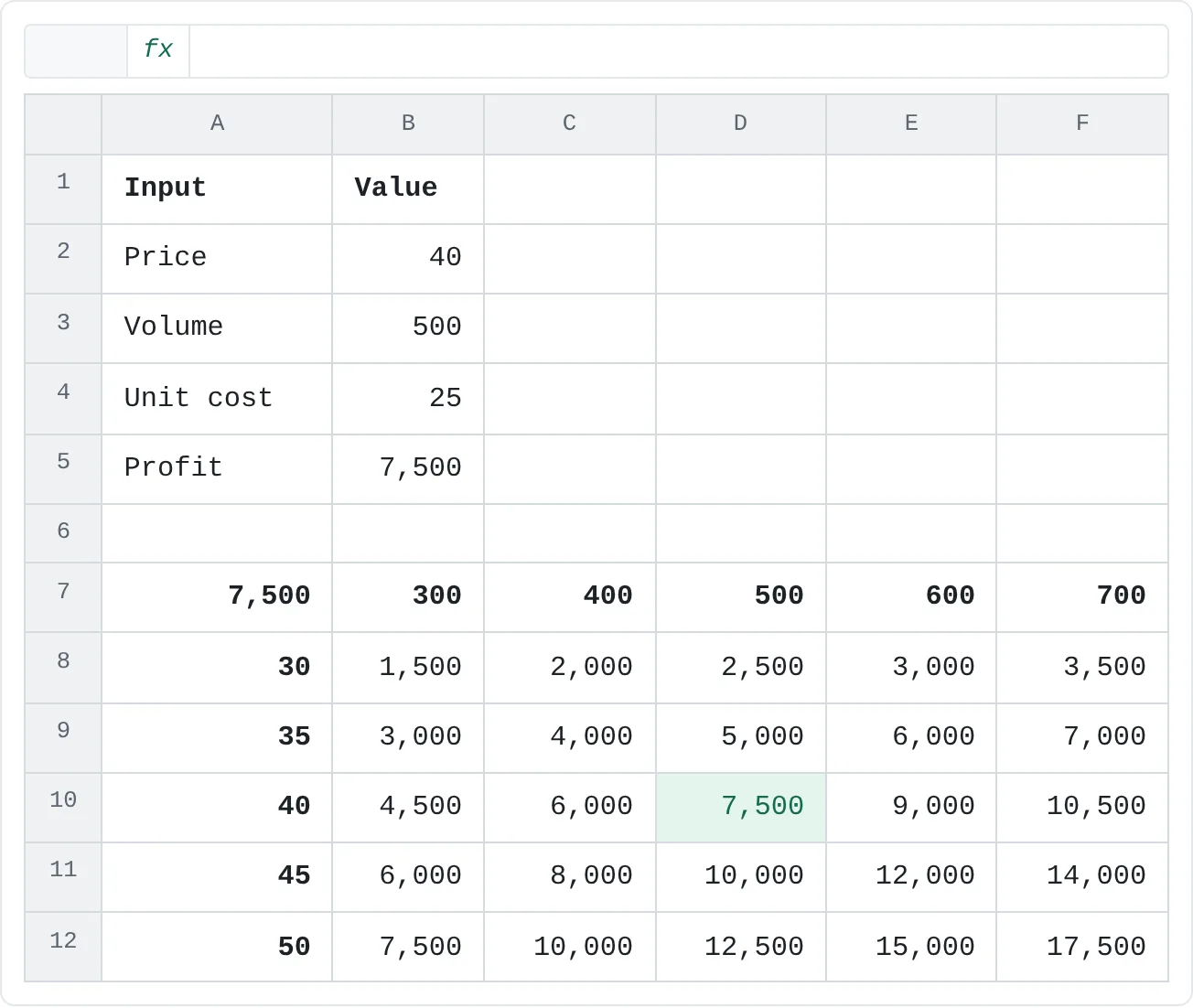
Two variables: price and volume together
A two-variable table puts one input down the side, another across the top, and the formula in the corner where they meet.
Lay out the grid
In A7, type
=B5. Type the volumes 300 to 700 across B7:F7 and the prices 30 to 50 down A8:A12.Create the table
Select A7:F12 and open Data Table again. Set Row input cell to
B3(volume, across the top) and Column input cell toB2(price, down the side). Click OK.
| A | B | C | D | E | F | |
|---|---|---|---|---|---|---|
| 1 | Input | Value | ||||
| 2 | Price | 40 | ||||
| 3 | Volume | 500 | ||||
| 4 | Unit cost | 25 | ||||
| 5 | Profit | 7,500 | ||||
| 6 | ||||||
| 7 | 7,500 | 300 | 400 | 500 | 600 | 700 |
| 8 | 30 | 1,500 | 2,000 | 2,500 | 3,000 | 3,500 |
| 9 | 35 | 3,000 | 4,000 | 5,000 | 6,000 | 7,000 |
| 10 | 40 | 4,500 | 6,000 | 7,500 | 9,000 | 10,500 |
| 11 | 45 | 6,000 | 8,000 | 10,000 | 12,000 | 14,000 |
| 12 | 50 | 7,500 | 10,000 | 12,500 | 15,000 | 17,500 |
The grid shows the shape of the answer, not one point. For example, you could reach the 10,000 target by charging 45 at 500 units, or 50 at 400 units.
Save cases with Scenario Manager
A scenario is a named set of input values. Instead of retyping three inputs to see the worst case, you switch the whole model with one click.
| Scenario | Price | Volume | Unit cost | Profit |
|---|---|---|---|---|
| Base Case | 40 | 500 | 25 | 7,500 |
| Best Case | 45 | 650 | 22 | 14,950 |
| Worst Case | 35 | 350 | 28 | 2,450 |
Open Scenario Manager
Go to Data then Forecast then What-If Analysis then Scenario Manager and click Add.
Save the current inputs first
Name the scenario
Base Case, set Changing cells toB2:B4and click OK. In the Scenario Values dialog, keep the current values (40, 500, 25) and click OK. Saving the base case first matters: showing another scenario overwrites the input cells.Add the other cases
Click Add again for
Best CaseandWorst Case, typing their values from the table above.Show a scenario
Select a scenario in the list and click Show. The inputs change and B5 recalculates: 14,950 for Best Case, 2,450 for Worst Case.
Compare them side by side
Click Summary, choose Scenario summary, set Result cells to
B5and click OK. Excel adds a Scenario Summary sheet with every scenario's inputs and profit in one table.
When you need Solver
Goal Seek changes one input to hit one target. Solver changes several inputs at once, keeps them within limits you set, and finds the maximum, the minimum or a specific value. It answers "what's the best combination?" rather than "what single number?"
For example: maximize profit (B5) by changing price and volume (B2:B3), with price no higher than 45 and volume no higher than 600. In this model the best answer is the corner where both limits are reached, 45 and 600, for a profit of 12,000. In real models with many inputs and limits, Solver finds answers you can't see by eye.
Solver is a free add-in that comes with Excel. To turn it on, go to File > Options > Add-ins, choose Excel Add-ins in the Manage box, click Go, tick Solver Add-in and click OK. It then appears at Data then Analyze then Solver. The Solver tutorial later in this course covers it step by step.
Show which input matters most
Data tables and scenarios show results. A sensitivity layout answers a sharper question: which input moves the result the most? Change each input by the same percentage, one at a time, and compare the swing:
| Input | 10% lower | Base | 10% higher | Swing |
|---|---|---|---|---|
| Price (36 / 44) | 5,500 | 7,500 | 9,500 | 4,000 |
| Unit cost (22.50 / 27.50) | 8,750 | 7,500 | 6,250 | 2,500 |
| Volume (450 / 550) | 6,750 | 7,500 | 8,250 | 1,500 |
Sort the rows by swing, largest first. The top row is the input worth double-checking before anyone relies on the model; here, a 10% error in price matters more than twice as much as a 10% error in volume. Charted as horizontal bars, this layout is the familiar "tornado" chart.
Common mistakes
- Typing a cell reference in To value. Goal Seek's To value box accepts only a number. If your target lives in a cell, type its value.
- A changing cell that holds a formula. Goal Seek, data tables and scenarios change typed inputs. Point them at the cell that holds the number, not at a formula that calculates it.
- Forgetting to save the base case. Showing a scenario replaces the input values. Without a Base Case scenario, the original numbers are gone and you have to retype them.
- Swapping the row and column input cells. If a data table's results look wrong, check that the values across the top go with Row input cell and the values down the side go with Column input cell.
- Input cells on another sheet. A data table's input cells must be on the same sheet as the table. Keep a small copy of the inputs next to the table, or put the table on the inputs sheet.
Practice
Practice
Model a pricing decision
Use the sheet below to check the numbers behind the tools. B7 is the price Goal Seek would find for the target in B6, and column E is a hand-built version of a one-variable data table. Then try the real tools in Excel:
- Recreate the model in A1:B5 with the profit formula in B5.
- Use Goal Seek to find the price for a profit of 10,000 (45), then the volume for a profit of 10,000 at a price of 40 (666.67).
- Build a two-variable data table of profit by price (30–50) and volume (300–700).
- Save Base Case, Best Case and Worst Case scenarios and create a scenario summary.
Then build a three-input model for a decision of your own, and lay out a data table for the two inputs you're least sure about.
Try it0 of 4 done
- In B5, calculate the profit: price minus unit cost, times volume.
- In B7, work out the price that reaches the target profit in B6, the answer Goal Seek would find.
- In E2, calculate the profit at the price in D2. Lock the unit cost and volume with $ so the formula can be copied down.
- In E6, calculate the profit at the price in D6 with the same formula.
Click a dashed cell, type a formula in the bar and press Enter.
| A | B | C | D | E | |
|---|---|---|---|---|---|
| 1 | Input | Value | Price | Profit | |
| 2 | Price | 40 | 30 | ||
| 3 | Volume | 500 | 35 | ||
| 4 | Unit cost | 25 | 40 | ||
| 5 | Profit | 45 | |||
| 6 | Target profit | 10,000 | 50 | ||
| 7 | Price needed |
Check your skills
- Can you use Goal Seek to find the input a formula needs to hit a target?
- Can you build a one-variable data table that shows profit at five different prices?
- Can you set up Best, Base and Worst Case scenarios and compare them in a summary?
- Can you explain what Solver can do that Goal Seek can't?
Related
Was this guide helpful? Spot a mistake? Send feedback · admin@arumsoft.com