How to Teach Word and Give Document Feedback That Improves Writing
Diagnose what a learner really needs, demonstrate one skill at a time, comment specifically on structure and formatting, and coach revisions without rewriting their work.
- Level
- Expert
- Time
- 14 min read
- Updated:
- Applies to:
- Word for Microsoft 365, Word 2024, Word 2021, Word for the web
What you'll learn
- Diagnose what a learner needs by watching them work and asking what they are trying to make
- Teach one skill at a time with I do, we do, you do
- Use Show/Hide ¶, Reveal Formatting and the Navigation Pane as diagnostic tools
- Write specific comments in a useful order: structure, then formatting, then wording, with a fix and a tutorial link
- Coach revisions without taking over the keyboard, and run a short, accessible workshop for the club
Example file
Expert Word - Coaching Practice.docx
Download the practice document used in this tutorial and follow along in Word.
Word document (.docx) · 37 KB
As the Tutoring Club grows, new coordinators write their first welcome packets, schedules and sign-up sheets. Many of them learned Word by trial and error. Their documents look fine on their own screen and fall apart the moment someone else edits them. You know how to fix those files in five minutes. The harder and more useful job is helping the coordinator fix them, and learn why.
In this tutorial you will coach Mina, a new library-site coordinator, through her welcome packet. You will diagnose what she needs, demonstrate one skill, leave comments that teach, and coach her revision without rewriting it. Then you'll turn what you learned into a one-hour workshop for the whole club.
Diagnose what the learner needs
Don't start with the document. Start with the person. Ask one question first: What are you trying to make, and who is it for? A packet for families on phones needs different skills from a schedule that will be printed and pinned to a wall.
Then watch them work for five minutes without helping. Ask them to make one small change, such as adding a new section or a new step. How they do it tells you more than the finished file does. Write down what you see, not what you would do.
| What you see | What it usually means | Start with |
|---|---|---|
| Presses Space many times to line things up | Doesn't know tabs or tables yet | Word Basics Tutorial 4 (tabs) or a table |
| Presses Enter twice between paragraphs | Doesn't know paragraph spacing | Word Basics Tutorial 3 |
| Makes headings bold and big by hand | Doesn't know styles | Intermediate Tutorial 1 |
Types 1. and 2. by hand | Doesn't trust or know automatic lists | Word Basics Tutorial 4 |
| Copies last year's file and edits over it | Ready for templates | Intermediate Tutorial 7 |
| Uses styles, but the 20-page report is hard to manage | Ready for long-document tools | Advanced Tutorial 1 |
Use the site's levels as a skill ladder. Most learners have gaps from one level and strengths from another. Pick the lowest rung that is causing real trouble in this document and start there. Teaching styles to someone who still spaces things out with the space bar is building the roof before the walls.
Demonstrate one skill at a time
A learner can take in one new skill per sitting and remember it. Three skills in ten minutes feels productive to you and is gone by tomorrow for them. Pick the one that fixes the most in their own document.
| Step | Who has the mouse | What it sounds like |
|---|---|---|
| I do | You, slowly, on a copy or a sample | "Watch where I click. I put the cursor in the title, then Home, Styles, Heading 1. See it appear in the Navigation Pane?" |
| We do | The learner, with you talking them through | "Now you do the next heading. Where do you think it lives? Yes, same place." |
| You do | The learner, alone, on their own document | "Do the rest of the headings. I'll get a coffee and look when you're done." |
Say the path out loud every time, in the same order as the ribbon: tab, group, button. Also say the shortcut once: or press Ctrl+Alt+1. People who learn the path can find the command again; people who only watched you click can't.
End each skill by asking the learner to explain it back: When would you use this? If they can say it in their own words, it stuck. If not, do one more we do round.
Use Word's diagnostic tools
Three tools show what is really going on under a document. Teach the learner to use them too, so they can diagnose their next file without you.
| Tool | How to open it | What it reveals |
|---|---|---|
| Show/Hide ¶ | Home | Every space (·), tab (→), paragraph mark (¶), manual page break and section break |
| Reveal Formatting | Shift+F1 | Font, paragraph and section settings of the selected text. Tick Distinguish style source to see what comes from the style and what was added by hand |
| Navigation Pane | View | Which headings Word recognizes. An empty pane on a document full of "headings" means they are fake |
| Styles pane and Style Inspector | Alt+Ctrl+Shift+S, then the Style Inspector button | The style each paragraph uses and the direct formatting on top of it |
Turn diagnosis into a question for the learner: open the Navigation Pane together and ask, Why do you think your headings aren't listed here? The discovery sticks far better than being told.
Give specific feedback with comments
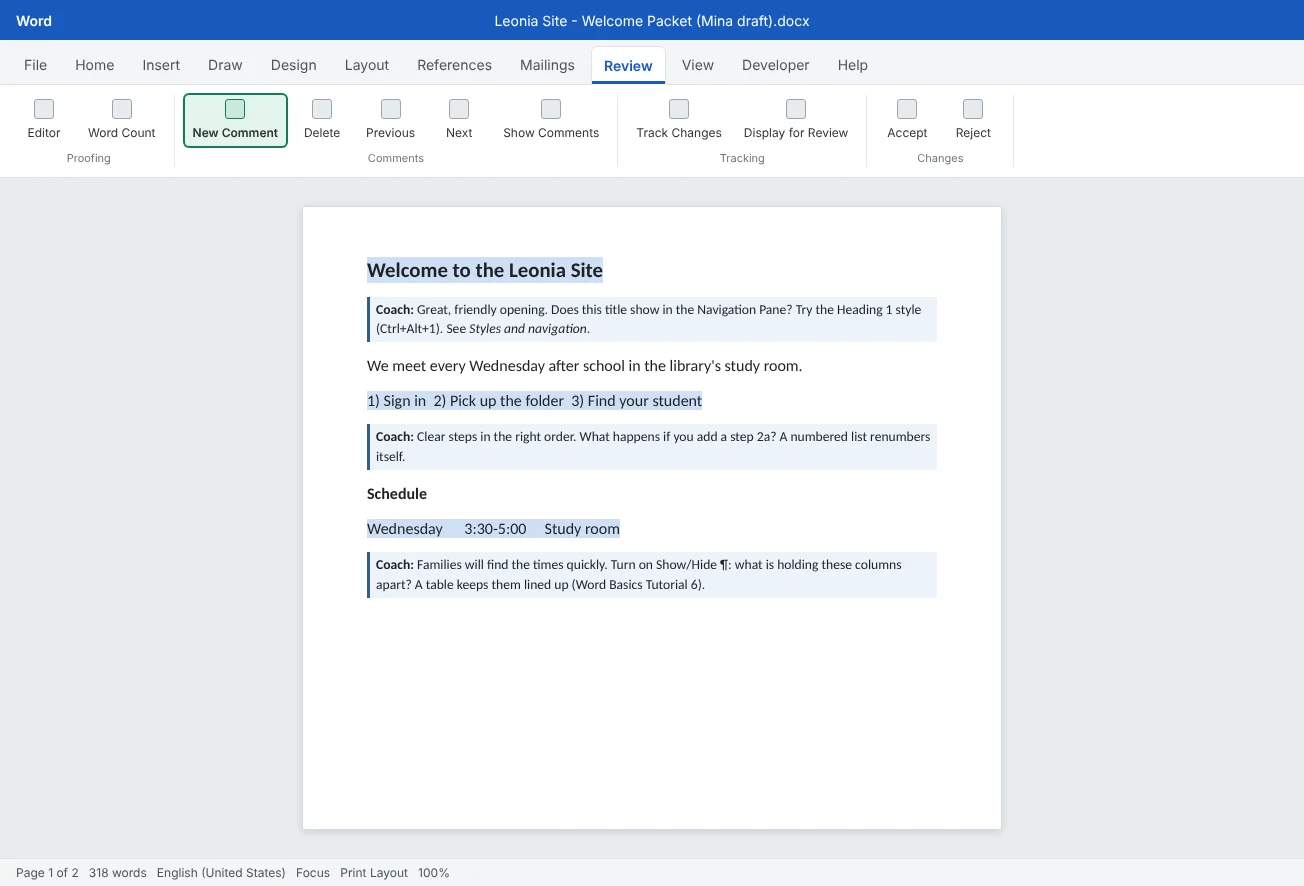
Feedback in a Word file lives in comments: select the text and press Ctrl+Alt+M or click Review
Comment in this order: structure, then formatting, then wording. Structure first, because fixing headings and order may delete paragraphs whose wording you would otherwise have polished for nothing. Wording last, and only the parts that would confuse a reader.
Shape each important comment as praise, question, suggestion: name something that works, ask a question that points at the problem, then suggest one fix with the exact path or a link to the tutorial. Keep comments short. Five specific comments teach more than twenty small ones.
Use a short rubric so feedback is fair and the same across coaches. Share it with the learner before the review, so they know what you will look at.
| Area | Beginning | Developing | Strong |
|---|---|---|---|
| Structure | No headings, or fake ones; order is unclear | Real headings, but levels skip or mix | Heading levels match the outline; Navigation Pane reads like a table of contents |
| Formatting | Many fonts and sizes set by hand | Mostly styles, some direct formatting | Styles only; changes in one place update the whole document |
| Alignment and lists | Spaces and typed numbers | Some tabs or lists, some spaces | Tabs, tables and automatic lists throughout |
| Spacing and pages | Empty paragraphs and Enter for new pages | Some paragraph spacing | Space Before/After and page breaks (Ctrl+Enter); no empty paragraphs |
| Accessibility | Not checked | Checked; a few issues left | Accessibility Checker clean; alt text and header rows in place |
| Wording | Hard to follow for the reader | Clear but long | Short, plain and written for this reader |
Coach revisions without taking over
The fastest way to fix a document is to grab the mouse. It is also the fastest way to make sure the learner can't do it next time. Keep your hands off the keyboard, even when it hurts.
| Instead of | Try |
|---|---|
| "Here, let me do it." | "Where would you look for that? Try the Home tab first." |
| "No, not there." | "Close. That's the Font group. What else is in Paragraph?" |
| Fixing every heading yourself | Fix one together, then let them do the rest while you watch |
| Rewriting their paragraph | "Who reads this? What's the one thing they need from it?" Let them rewrite |
| Twenty comments at once | The three most important, with a note: "After these, we'll look at wording." |
Plan two rounds. In round 1, the learner fixes structure and formatting from your comments, replies to each one and resolves it. In round 2, you check the result with the same rubric, praise what improved, and comment on wording if it's still needed. Seeing the rubric move from Beginning to Developing is motivating.
Common learner misconceptions
Most problems in beginners' documents come from a few reasonable beliefs that worked on a typewriter or in a text message. Name the belief, ask a question that tests it, then show the Word way.
| Misconception | How you spot it | The question to ask | The fix to teach |
|---|---|---|---|
| "Spaces line things up." | Rows of dots with ¶ on; columns wobble | "What happens if you change the font size?" | A tab stop or a table (Word Basics Tutorial 4) |
| "Enter makes space." | Empty ¶ between paragraphs | "What happens to the gap when this paragraph moves to the top of a page?" | Spacing Before/After (Word Basics Tutorial 3) |
| "I'll number it myself." | Typed 1), 2); no list indent | "What if you add a step between 1 and 2?" | Home |
| "Big and bold is a heading." | Navigation Pane is empty; Reveal Formatting shows Normal + Bold | "How would a screen reader know this is a heading?" | Heading styles (Intermediate Tutorial 1) |
| "Enter until the next page." | A stack of empty ¶ before a title | "What happens to page 2 if you add a line on page 1?" | Page break Ctrl+Enter or Page break before |
| "Copy last year's and type over." | Old dates and names hidden in headers or footers | "Where else could last year's information still be?" | A template (Intermediate Tutorial 7) |
Tell the learner these habits are common and sensible. They aren't careless; they learned a different tool. Hearing that makes a habit far less painful to give up.
Teach accessibly and run a short workshop
Your teaching should be as accessible as the documents you ask for. Small habits make a big difference, especially on a video call:
- Zoom in when you share your screen. Set Word's zoom to 150% or more, or use Windows Magnifier (Win++), so people on phones and small laptops can read the ribbon.
- Say every shortcut and path out loud. Home, Paragraph, Show/Hide, or Control Shift 8. Learners who can't see your pointer, or who use a screen reader, can follow the words.
- Describe where, not only what. Top right, next to Share is better than this button here.
- Slow down after a click. Pause two seconds so people can catch up, and ask someone to tell you what they see.
- Show the keyboard route. Press Alt to show the ribbon KeyTips. Some learners prefer keys to a mouse.
- Share the materials first. Send the practice file and the agenda as accessible documents before the session.
Once you have coached a few people one to one, run a short workshop for the club so every coordinator gets the same basics. Keep it to one skill area and one hour:
| Time | Activity | Notes |
|---|---|---|
| 0:00 | Welcome and goal: "Make documents others can edit" | Ask everyone to open the practice file |
| 0:05 | I do: Show/Hide ¶ and the Navigation Pane on a messy sample | Say each path and shortcut aloud |
| 0:15 | We do: fix the sample together: headings, list, table | One step at a time; volunteers call out where to click |
| 0:30 | You do: each person fixes their own document | Coaches walk around, hands off keyboards, comment with the rubric |
| 0:50 | Share one before and after; questions | Praise specific changes |
| 0:55 | Exit ticket: one thing to change in your next document | Collect answers to plan the next workshop |
After the workshop, send a short follow-up with the rubric and links to the tutorials you used. That way coordinators can review on their own, and the next coach can run the same workshop from your notes. You'll package all of this, together with the template kit and the publishing rules from Tutorial 7, in the Expert Capstone (Tutorial 9 of this level).
Common mistakes
| Mistake | What happens | Fix |
|---|---|---|
| Fixing the document for the learner | It looks better today, and the learner makes the same file next week | Hands off the keyboard: point, ask, and let them click |
| Teaching three skills at once | Nothing sticks | One skill per sitting, with I do, we do, you do |
| Commenting on wording first | Polished sentences get deleted when the structure changes | Structure, then formatting, then wording |
| Vague comments like "fix formatting" | The learner doesn't know what to change or why | Praise, question, suggestion, with one exact fix and a tutorial link |
| Too many comments | The learner feels overwhelmed and gives up | Pick the three to five that matter most; plan a second round |
| Editing silently | Changes can't be reviewed and trust is lost | Use comments, or Track Changes if you must edit |
| Clicking fast on a shared screen | People can't see or follow | Zoom in, say paths and shortcuts aloud, and pause after each click |
Practice
Practice
Coach a learner's welcome packet
Guided practice
Download the example file above. Page 1 is Mina's first draft of the library site welcome packet, with typical problems. Page 2 is a feedback template for the coach. Work with a partner if you can: one plays Mina, the other coaches. If you are alone, do the coaching steps and then the revision yourself, on a copy.
- Ask: write one sentence for what Mina is trying to make and who reads it. Use it to decide what matters most.
- Diagnose: turn on Home
then Paragraph then Show/Hide ¶, open the Navigation Pane (Ctrl+F) and press Shift+F1 on the title. List every problem you find and which misconception it comes from. - Choose one skill: pick the one skill that would fix the most. Write your I do, we do, you do plan in three lines.
- Rubric: fill in the rubric on page 2 for Mina's draft: Beginning, Developing or Strong for each area.
- Comment: add four comments with Ctrl+Alt+M: structure first, then formatting, then one on wording. Use praise, question, suggestion, and include a path or tutorial link in each.
- Coach the revision: have your partner fix the problems from your comments while you only talk. Count how many times you wanted to grab the mouse.
- Round 2: score the revised draft with the same rubric and write one sentence of specific praise for what improved.
Independent challenge: Plan the club workshop
Turn your coaching into a 30-minute workshop for three new coordinators. Write the agenda as a table with times, the one skill you will teach, the sample file you will use and your exit-ticket question. Add two accessibility habits you'll use while sharing your screen.
Reflect: what did you want to fix yourself while coaching, and what question could you ask instead next time?
Check your understanding0 of 4 correct
Pick an answer to see whether it's right and why.
You start coaching a new coordinator. What should you do first?
Diagnosis comes first. Their goal and the way they actually work show you which skill will help most.
In which order should your comments address a learner's document?
Fixing structure can remove or move whole paragraphs. Formatting comes next, and wording last, so no effort is wasted.
The Navigation Pane is empty although the document has many bold, large titles. What does this tell you?
The Navigation Pane lists paragraphs with heading styles. Bold, large Normal text doesn't appear, which is a quick way to spot fake headings.
Which comment follows praise, question, suggestion?
It names what works, asks a question that points at the problem, and suggests one exact fix the learner can make.
You're ready to move on when
Tick each one off as you go. Your ticks are saved in this browser only.
Related
- How to Use Track Changes, Comments, and Compare in Word
- How to Use Styles and the Navigation Pane in Word
- How to Use Bullets, Numbered Lists, and Tabs in Word
- How to Format Text and Paragraphs in Word: Fonts, Spacing, and Alignment
- How to Publish Word Documents as Tagged PDF, Web Pages and Print-Ready Files
Sources and further reading
Was this guide helpful? Spot a mistake? Send feedback · admin@arumsoft.com