How to Set Accessibility, Protection, and Governance Standards for Word Documents
Build accessibility into templates, set rules for metadata, document protection and sensitivity labels, and run a repeatable review that catches what the checker misses.
- Level
- Expert
- Time
- 14 min read
- Updated:
- Applies to:
- Word for Microsoft 365, Word 2024, Word 2021, Word for the web
What you'll learn
- Build accessibility into a template: heading styles, a header-row table, language, a title property and contrast-safe theme colors
- Write an alt-text standard with good and bad examples that every volunteer can follow
- Draft a one-page document governance policy covering naming, storage, retention, sharing, personal data and versions
- Control metadata and personal information, and pick the right protection level for each document
- Run a repeatable manual review that catches what the Accessibility Checker misses
Before you start
Example file
Expert Word - Accessibility and Governance.docx
Download the practice document used in this tutorial and follow along in Word.
Word document (.docx) · 38 KB
With three sites and a team of coordinators, the Tutoring Club no longer has one person who checks every document. If accessibility and privacy depend on someone remembering to fix things at the end, they will be missed. The answer is to put the right choices into the template kit from Tutorial 1 of this level, and to write down a few short rules everyone follows.
In this tutorial you will make the template accessible by default, write an alt-text standard, draft a one-page governance policy, decide how documents are labeled and protected, and set up a manual review that covers the gaps in Word's checker. You fixed single documents in Intermediate Tutorial 8; now you set the standard for the whole team.
Build accessibility into the template
Every accessibility fix you make in a finished document is a fix someone forgot to make in the template. Open the kit's .dotx file itself (right-click it and choose Open, not double-click, which starts a new document) and set these once:
| Setting | Where in Word | Why it matters |
|---|---|---|
| Heading styles | Modify Heading 1 to 3 in Home | Screen readers, the Navigation pane, the TOC and tagged PDFs all look for the built-in heading styles |
| Table with a header row | Set a table style with Table Design | The header row setting belongs to each table, not to the style, so people need a table that already has it |
| Language | Modify the Normal style: Format | Every style based on Normal inherits it, so proofing and screen reader pronunciation are right from the start |
| Title property | File | PDF readers and screen readers can show the title instead of a file name; a placeholder reminds people to fill it in |
| Theme colors | Design | If the theme only contains colors that pass contrast on white, people can't pick an unreadable one |
Checking contrast. The common target, from the Web Content Accessibility Guidelines (WCAG), is a contrast ratio of at least 4.5 to 1 for body text and 3 to 1 for large text (about 18 pt, or 14 pt bold). Word doesn't show the ratio, so use any free contrast checker with the color codes from Customize Colors. Dark blue on white passes comfortably; light gray, yellow and pale green on white usually fail. Keep the Text/Background - Dark 1 color black or very dark gray.
Write an alt-text standard
Telling volunteers to "add alt text" produces alt text like image1.png or photo. A standard gives them a rule and examples to copy. Keep it to half a page and add it to the kit's one-page guide.
- Say what it shows and why it is there, usually in one or two sentences.
- Don't start with "Picture of" or "Image of". The screen reader already says it is a picture.
- For charts, give the message and the key numbers, and put the full data in a table or in the text nearby.
- Don't name students or other minors in alt text, captions or file names.
- Mark purely decorative pictures as decorative, so screen readers skip them.
- Check any alt text Word generates. Read it and rewrite it; it often describes the wrong thing.
| Picture | Bad alt text | Good alt text |
|---|---|---|
| Photo of a tutoring session | IMG_2041.jpg | A volunteer and a student work through a fractions worksheet at a library table. |
| Bar chart of attendance | Chart | Attendance rose at both sites from fall to spring: Fort Lee from 42 to 58 students, Englewood from 25 to 39. |
| Club logo on the title page | Logo image picture | Tutoring Club logo |
| Screenshot in the volunteer manual | Screenshot | The sign-in form with the Site box set to Englewood and the Save button highlighted. |
| Leaf border at the top of a flyer | Green leaves | Mark as decorative |
| Group photo at the spring event | Mia, Jun and Carlos (grade 5) with their tutors | Students and tutors hold up their certificates at the spring celebration. |
Add the alt text with Picture Format
Draft a short governance policy
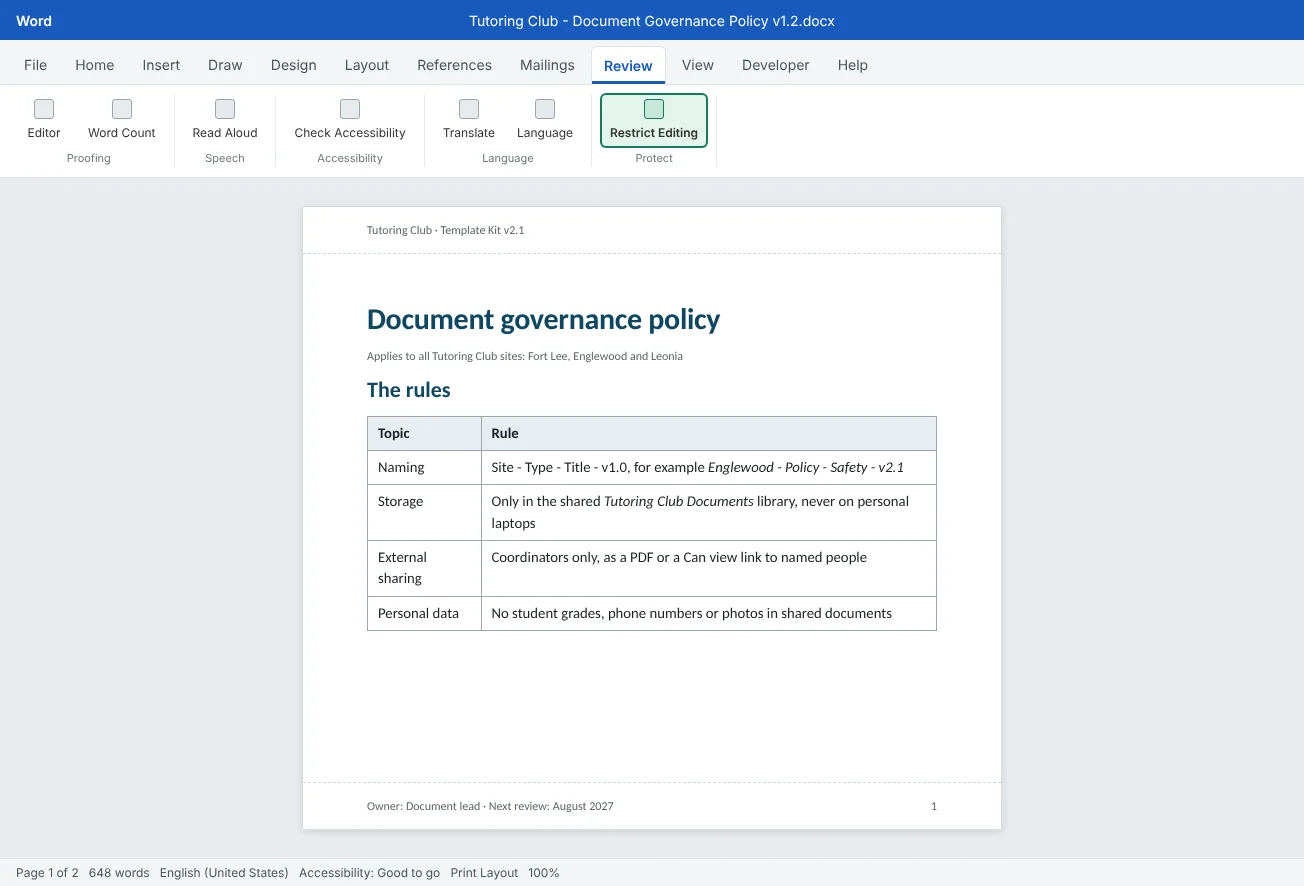
Governance means agreed rules for how documents are created, stored, shared and deleted. For a small club, one page is enough. A longer policy won't be read, and a rule nobody reads protects nobody. Cover these six topics:
| Topic | Example rule for the Tutoring Club | Why |
|---|---|---|
| Naming | Site - Type - Title - v1.0, such as Fort Lee - Manual - Volunteer Manual - v2.1. No final or new in names | Anyone can find the right file and tell versions apart (see Tutorial 3 of this level) |
| Storage | Working files live only in the shared Tutoring Club Documents library on SharePoint or a shared OneDrive folder. No copies on personal laptops or USB drives | One place to search, one place to control access, and version history for every file |
| Retention | Each document type has a keep-for period, agreed with the community center, and an owner who deletes or archives on schedule | Keeping personal data longer than needed is a risk, not a safety net |
| External sharing | Only coordinators share outside the club, as a PDF or a Can view link to specific people, after the Document Inspector has run | Volunteers can't accidentally send a working file with comments and phone numbers |
| Personal data | Collect only what you need. Student grades, phone numbers and photos stay in the protected roster file, never in handouts or reports | The fewer files that hold personal data, the fewer can leak |
| Versioning | Major versions (v2.0) after approval, minor versions (v2.1) for small fixes. Each approved document has a revision history table; drafts carry a DRAFT watermark | Readers know whether they are holding the approved version |
- Fits on one page
- Has an owner and a review date
Control metadata and personal information
Metadata is information about the document that is stored inside the file: its title, tags, authors, company and more. It travels with every copy you send, and search tools use it to find files.
- Title and Tags. Go to File
then Info and fill in Title and Tags under Properties on the right. Agree a short tag list in the policy, such as policy, manual, fort-lee, englewood. - Author. Under Related People, Word fills in the Author from the user name in File
then Options then General or from the account you are signed in with. A template made on someone's home computer can carry their name into every document made from it. Right-click the name to remove it, and add a role such as Tutoring Club instead. - Everything else. Click Show All Properties at the bottom of the list, or Properties
then Advanced Properties at the top, to see fields such as Subject, Company and Comments.
Before any file leaves the club, run File
After you remove personal information with the Inspector, Word usually turns on Remove personal information from file properties on save for that file, so names are not added back the next time someone saves it. In many versions you can see this check box in File
Choose the right protection level
Word has several kinds of "protection", and they protect against very different things. Most only prevent accidents. Write in the policy which level each kind of document needs.
| Level and where | What it really does | Use it for |
|---|---|---|
| Mark as Final File | Shows a banner and turns off typing. Anyone can click Edit Anyway | A polite signal on an approved version. Never on its own |
| Always Open Read-Only File | Asks readers to open it read-only; they can choose to edit | Reference documents people open often |
| Restrict Editing Review | Allows only certain edits (tracked changes, comments, form filling or none) and can limit formatting to chosen styles. The password stops casual edits; it doesn't hide the content | Templates and forms, so people fill in fields without breaking the layout |
| Encrypt with Password File | Nobody can open the file without the password | The volunteer roster or anything with personal data that must travel as a file |
| Sensitivity label Usually Home | Applies a label set by your IT admins, which can add headers, watermarks or encryption and limit who can open the file | Following the community center's own rules, if it has them |
Sensitivity labels are part of Microsoft 365 for organizations, and only your administrators can create them. If your organization uses them, you'll see a Sensitivity button on the Home tab (and in some versions next to the file name), with label names your organization chose. Don't invent labels in the policy; copy the names you actually see. If you don't see the button, your organization doesn't use labels for you, and the other levels in the table are what you have.
Run a manual review the checker can't
The Accessibility Checker finds missing alt text and missing header rows. It can't judge whether the alt text is useful, whether the headings make sense, or whether a reader can follow the order. A short manual review, the same every time, covers that gap. Add it to the review stage of your workflow from Tutorial 3 of this level.
| Check | How to do it in Word | What you are looking for |
|---|---|---|
| Reading order of floating objects | Open Home | Text boxes and pictures not set to In Line with Text can be read in a surprising place. Make them inline where you can, or anchor them next to the text they belong to |
| Meaningful link text | Press Ctrl+F and search for click here, here, link and www | Every link says where it goes on its own |
| Heading levels | Open the Navigation pane or View | No skipped levels, no empty headings, no body text styled as a heading |
| Color-only meaning | Read the page as if it were printed in black and white, or turn on a grayscale color filter in Windows settings | Words such as Required or Canceled wherever color carries meaning |
| Table complexity | Click in the first cell and press Tab through the table | The order makes sense; no merged or split cells, nested tables or tables used only for layout |
| Listen to it | Review | Anything that sounds wrong: odd order, missing words, mispronounced passages in another language |
- Same checks every time
- Records what was fixed
Common mistakes
| Mistake | What happens | Fix |
|---|---|---|
| Fixing accessibility only in finished documents | The same problems come back in every new document | Fix the template: heading styles, a header-row Quick Table, language, title and theme colors |
| Telling people to "add alt text" with no examples | Alt text like photo or a file name | Publish a short alt-text standard with good and bad examples |
| Writing a ten-page governance policy | Nobody reads it, so nobody follows it | One page, six topics, an owner and a review date |
| Leaving the template author's name in the properties | A personal name appears in every document made from it | Check File |
| Treating Mark as Final or Restrict Editing as security | Anyone can still edit, and the content can still be read | Use Encrypt with Password or your organization's sensitivity label for confidential files |
| Inventing sensitivity label names in the policy | People look for labels that don't exist | Copy the label names exactly as they appear in Home |
| Trusting a clean Accessibility Checker result | Bad alt text, odd reading order and color-only meaning slip through | Run the manual review and keep a short record |
Practice
Practice
Make the policy template accessible and write the club's governance policy
Guided practice
Download the example file above. Page 1 is a draft template for site safety policies with planted problems: a fake heading, a skipped heading level, a table with no header row, light gray text, color used as the only signal, a "click here" link, a phone number, an internal note and a vague title property. Page 2 is a blank governance policy outline for you to fill in.
- Audit: run Review
then Accessibility then Check Accessibility and write down what it reports. Then do the six manual checks from the last section and list every problem the checker missed. - Headings: make the page title Heading 1, give the policy sections Heading 2 in order, and confirm the outline in the Navigation pane.
- Table: give the responsibilities table a header row with Layout
then Data then Repeat Header Rows, then save it as a Quick Table named Club table with header. - Language and colors: set the Normal style's language with Format
then Language, make the gray text Automatic, and replace "items in red" with the word Required: before each required item. - Links and personal data: rewrite the "click here" sentence with descriptive link text, and replace the personal phone number with the front desk number.
- Metadata: in File
then Info, set the Title to Site safety policy (template), add the tags policy; template, and delete the internal note from the text. - Governance policy: fill in the outline on page 2 for your own club or team, one or two sentences per rule. Keep it to one page and add an owner and a review date.
- Protect and inspect: save a copy, run the Document Inspector on it, then turn on Restrict Editing with Limit formatting to a selection of styles. Try to apply direct formatting and see what Word allows.
Independent challenge: Test your standard on someone else
Give your alt-text standard and three pictures to another volunteer, and ask them to write alt text using only the standard. Compare their alt text with yours. Wherever you disagree, the standard is unclear: add a rule or an example, and try again with a different person.
Reflect: which rule in your governance policy will be hardest for volunteers to follow, and what could you put in the template kit to make it automatic?
Check your understanding0 of 4 correct
Pick an answer to see whether it's right and why.
Your template uses a table style with header row formatting, but the checker still reports tables without header information. Why?
A style only changes how the first row looks. Marking it as a header is a per-table setting, which is why a ready-made Quick Table with the setting on helps.
Which protection stops someone without the password from opening the file at all?
Only encryption, or a sensitivity label that applies encryption, keeps out people without access. The others prevent accidental edits.
Which alt text best follows the club's standard for an attendance chart?
Good alt text gives the message and key numbers of a chart, not its appearance or file name.
The Accessibility Checker shows no issues. Which problem could still be in the document?
The checker can't tell that color is the only signal. That is one of the checks in the manual review.
You're ready to move on when
Tick each one off as you go. Your ticks are saved in this browser only.
Related
Sources and further reading
Was this guide helpful? Spot a mistake? Send feedback · admin@arumsoft.com