Intermediate Word · Tutorial 6 of 9
How to Use Track Changes, Comments, and Compare in Word
Suggest edits with Track Changes, reply to and resolve comments, accept or reject changes cleanly, and compare two versions of a document.
- Level
- Intermediate
- Time
- 15 min read
- Updated:
- Applies to:
- Word for Microsoft 365, Word 2024, Word 2021, Word for the web
What you'll learn
- Turn Track Changes on and off, check it is on, and lock it so reviewers can't switch it off
- Choose the right markup view and use the Reviewing Pane to see every change
- Add, reply to, resolve and delete comments, and @mention people in shared files
- Accept or reject changes one at a time, by reviewer, or all at once
- Compare two versions of a file and make sure no changes or comments are left before you send it
Example file
Intermediate Word - Track Changes.docx
Download the practice document used in this tutorial and follow along in Word.
Word document (.docx) · 38 KB
A 12-page handbook is never written by one person. The coordinator drafts a chapter, a volunteer fixes the schedule, a parent suggests clearer wording. If everyone edits the same file directly, nobody can see what changed. If everyone sends back a different copy, someone has to merge them by hand.
Track Changes and comments solve this. Every edit is recorded with the name of the person who made it, and the owner of the document decides what stays. In this tutorial you will run a review round on the handbook's Session rules chapter, settle every change and comment, compare it with the original, and send out a clean final version.
Turn on Track Changes
Click Review
- Check it on the status bar. Right-click the status bar and tick Track Changes. The status bar then says Track Changes: On or Off, and you can click it to switch. This saves a lot of "I thought it was on" moments.
- Check your name. Each change is labeled with the user name from File
then Options then General. If changes appear under a strange name, fix it there. When you are signed in to Microsoft 365, Word uses your account name unless you tick Always use these values regardless of sign in to Office. - For Everyone or Just Mine. In some Microsoft 365 versions, the arrow under Track Changes offers For Everyone and Just Mine. For Everyone records every person's edits; Just Mine records only yours, which can help in a shared file where others edit freely. If you don't see these choices, your version tracks everyone, which is the classic behavior.
Lock Tracking. When you send a file out for review, you can stop reviewers from switching tracking off. Choose Lock Tracking from the arrow under Track Changes and type a password if you want one. Treat the password as a reminder for honest reviewers, not as security: anyone with the password can unlock it. For stricter control, Review
Choose what you see while reviewing
The tracked changes are always in the file. What changes is only how much of them Word shows you. Pick a view from the Display for Review box in Review
| View | What you see | Use it to |
|---|---|---|
| Simple Markup | The text as it would be with every change accepted, a red line in the margin beside changed lines, and comment icons | Read the new version while knowing where edits are. Click a red line to switch to All Markup |
| All Markup | Every insertion underlined and every deletion crossed out in a color per reviewer, with comments beside the text | Review changes one by one |
| No Markup | The text as if every change were accepted, with no marks at all | Preview the result. The changes are still in the file |
| Original | The text as it was before any tracked change | Check what the author first wrote |
Show Markup (in the same group) filters what is marked: tick or untick Comments, Insertions and Deletions and Formatting, or use Specific People to see only one reviewer's edits. Under Balloons you choose whether deletions and formatting appear in balloons in the right margin or inline in the text. Inline is easier to read on a small screen.
Reviewing Pane. Review
Add, answer and resolve comments
Use a comment when you want to ask or suggest something without changing the text yourself. Select the words the comment is about, then click Review
Microsoft 365 uses modern comments, which work as conversations:
- Reply in the box under a comment instead of starting a new one, so the whole discussion stays in one thread.
- @mention someone by typing
@and their name. In a file saved to OneDrive or SharePoint, especially with a work or school account, that person gets an email with a link to the comment. - Edit or delete your own comment from its More thread actions (...) menu.
- Show Comments in the Comments group switches between comments beside their text and a list of all comments in a pane.
| Action | What happens | When to use it |
|---|---|---|
| Resolve (... > Resolve thread) | The thread is grayed out and collapsed, but kept. It can be reopened | The question is answered and you want a record of the decision while the review is still going |
| Delete (Review | The comment or thread is removed from the file | The comment is finished and the file is going to people who shouldn't see the discussion |
| Delete All Comments in Document | Every comment is removed at once | The very last step before you send the final version |
Accept or reject changes
When the edits come back, go through them in order. Click at the start of the document and use the buttons in Review
| Choice | What it does |
|---|---|
| Next / Previous | Jumps to the next or previous change or comment, without deciding anything |
| Accept (top half of the button) | Accepts the selected change and moves to the next one. The quickest way through a review |
| Accept This Change | Accepts it and stays where you are |
| Accept All Changes Shown | Accepts only what is currently shown. Combine it with Show Markup |
| Accept All Changes | Accepts every tracked change in the document |
| Accept All Changes and Stop Tracking | Accepts everything and turns Track Changes off in one step |
| Reject and its menu | The same choices, but the change is undone: inserted text disappears, deleted text comes back |
You can also right-click a change and choose Accept or Reject. Selecting a whole paragraph and clicking Accept accepts every change inside it.
Compare and combine versions
Sometimes a reviewer edits a copy without Track Changes, and sends it back with no marks at all. You don't have to read both versions side by side. Word can find the differences for you.
- Go to Review
then Compare then Compare and choose Compare (two versions of a document). - Under Original document, pick the version you sent. Under Revised document, pick the one that came back.
- Next to Label changes with, type the reviewer's name, so the differences show under their name.
- Click OK. Word opens a new document that shows every difference as tracked changes, often with the original and revised files in small panes beside it.
- Review the result with Accept and Reject as usual, then save it under a new name.
Click More in the Compare dialog to choose what is compared, such as formatting, comments or case changes, and where the result goes. Neither of the two files is changed by the comparison.
Combine (Review
Final check before you send
The most common Track Changes mistake is sending a file that still contains changes or comments. Switching to No Markup only hides them. Anyone who opens the file can switch back to All Markup and read every deleted sentence and every comment.
- Switch to All Markup and open the Reviewing Pane. Make sure the pane shows no revisions.
- Accept or reject anything left, or use Review
then Changes then Accept then Accept All Changes and Stop Tracking if you have already reviewed everything. - Delete the comments with Review
then Comments then Delete then Delete All Comments in Document. - Run File
then Info then Check for Issues then Inspect Document. The Document Inspector reports any comments and revisions it still finds, plus other hidden information such as document properties. - Save the final version under a new name, and export a PDF if readers don't need to edit it.
Word can also remind you. In File
Common mistakes
| Mistake | What happens | Fix |
|---|---|---|
| Editing for an hour before noticing Track Changes was off | Nobody can see what you changed | Show Track Changes on the status bar, and use Compare with the original to recover the differences |
| Sending a file in No Markup view | Readers can switch back and see every change and comment | Accept or reject everything and check the Reviewing Pane count is 0 |
| Resolving comments instead of deleting them | The discussion goes out with the final version | Delete all comments as the last step before sending |
| Clicking Accept All Changes without reading | Mistakes and unwanted edits become part of the text | Step through with Next first, reject what you disagree with, then accept the rest |
| Starting a new comment instead of replying | One discussion is split across several notes | Use the Reply box so the thread stays together |
| Changes show under a wrong or generic name | You can't tell reviewers apart | Set the user name in File |
| Not keeping the version you sent | You can't compare it with the copy that came back | Save a Copy with a dated name before sending |
Practice
Practice
Run a review round on the Session rules chapter
Guided practice
Download the example file above. It is a draft of the handbook's Session rules chapter with a few problems in it. Work with a partner if you can: one of you is the editor, the other is the author. On your own, play both roles by changing your user name between rounds.
- Keep the original: use File
then Save As (or Save a Copy if the file is on OneDrive) to save Session rules - original. Word switches to that copy, so close it, reopen the downloaded file and do the rest of the steps there. - Name and status bar: check your name in File
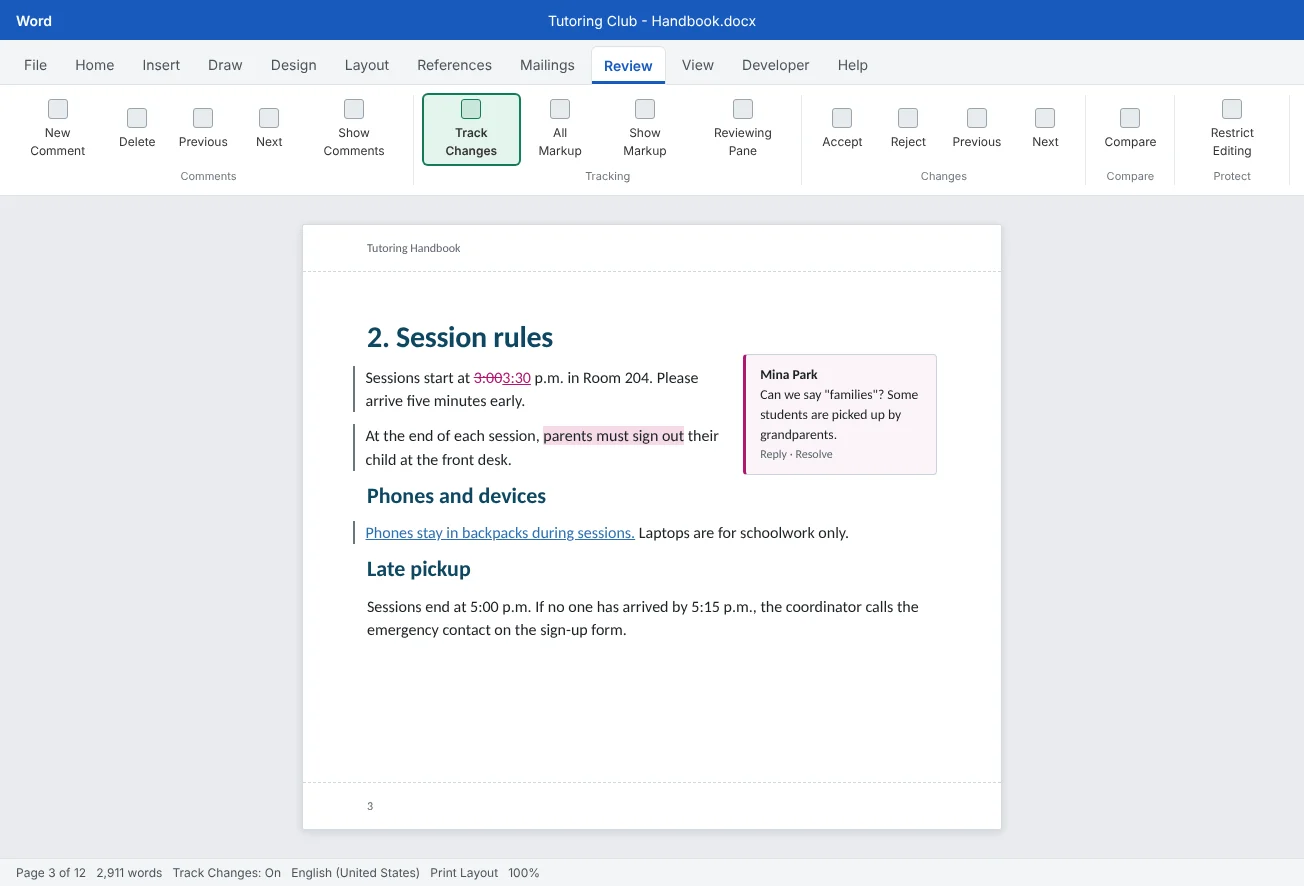
then Options then General (working alone, use Editor and tick Always use these values). Right-click the status bar and turn on the Track Changes indicator. - Edit with tracking: press Ctrl+Shift+E, then change 3:00 to 3:30, fix the spelling of attendence, delete the repeated sentence about name tags, make the heading Late pickup bold, and add the rule Phones stay in backpacks during sessions.
- Comment: select parents must sign out, press Ctrl+Alt+M and write: Can we say "families"? Some students are picked up by grandparents. Post it.
- Views: switch between Simple Markup, All Markup, No Markup and Original. Open the Reviewing Pane and note how many revisions it lists.
- Swap roles: the author (or you, renamed Author) replies to the comment, changes parents must sign out to families sign out with tracking still on, then steps through with Next: accept every change except the bold heading, which you reject. Resolve the comment.
- Compare: run Review
then Compare then Compare with Session rules - originalas the original and your reviewed file as the revised document. Check that the result shows the changes you accepted. - Final check: back in your reviewed file, make sure the Reviewing Pane shows no revisions, delete all comments, turn Track Changes off, run Inspect Document, and save as
Session rules - final.
Independent challenge: Two reviewers, one document
Save two copies of Session rules - final. In the first, as Reviewer A, track two changes to the During the session section. In the second, as Reviewer B, track two different changes to the Snacks section and add one comment. Use Review
Reflect: who reviews your documents before they go out, and what will you check every time before you press Send?
Check your understanding0 of 4 correct
Pick an answer to see whether it's right and why.
You switch to No Markup and the chapter looks perfect. Is it ready to send?
Display views only change what you see. Accept or reject every change, delete comments and check the Reviewing Pane before sending.
Two reviewers each sent back their own tracked copy of the same chapter. What brings their changes into one document?
Combine merges the tracked changes from two copies into one document, with each change labeled with its author.
What is the difference between resolving and deleting a comment?
A resolved thread stays in the file and can be reopened. Only deleting removes it, which matters before you share the final version.
You want to accept every change from one reviewer but still review the others. What do you do?
Accept All Changes Shown only accepts what is visible, so filtering to one reviewer first limits it to their changes.
You're ready to move on when
Tick each one off as you go. Your ticks are saved in this browser only.
Related
Sources and further reading
Was this guide helpful? Spot a mistake? Send feedback · admin@arumsoft.com